All the magic of AutocadQRCoder comes from the basic use of QRCoder library to create AutoCAD entities (block or hatch) featuring QR Codes.
Clone or fork this repository or download the assemblies.
In an AutoCAD plugin project, reference the AutocadQRCoder.dll in the folder corresponding to the targeted AutoCAD version (Release\net48 for AutoCAD up to 2024 or Release\net8.0-windows for AutoCAD 2025 and later).
The caller is responsible to add the newly created hatch and solid entities to a database or dispose them.
Example with default settings:
var coder = new BlockQRCoder("The text which should be encoded.");
var solid = coder.GetBackgroundSolid();
var hatch = coder.GetHatch();The block definition (BlockTableRecord) is added to the block table of the supplied database. It contains a background Solid and a Hatch representing the QRCode and, optionally, a constant attribute definition with the encoded text.
Example of a block named "QRCode_test" with a dark red hatch and a constant attribute:
var coder = new BlockQRCoder("The text which should be encoded.")
{
    ForegroundColor = Autodesk.AutoCAD.Colors.Color.FromRgb(100, 3, 3)
};
ObjectId btrId = coder.CreateBlock(db, "QRCode_test", true);
The parameters of the BlockQRCoder constructor are the same as the QRCoder.QRCodeGenerator.CreateQRCode. You can find more informations about these parameters in the QRCoder wiki.
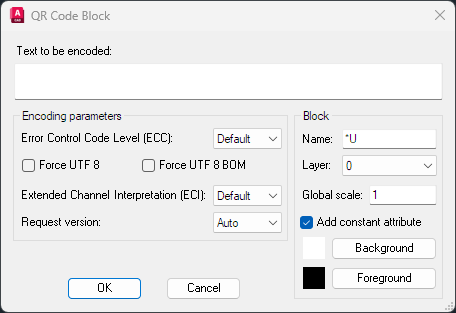
An example of AutoCAD command to insert a QR Code block. A dialog box allows to set encoding parameters and block properties.