| title | ComfyUI Native HiDream-E1, E1.1 Workflow Example |
|---|---|
| sidebarTitle | HiDream-e1 |
| description | This guide will help you understand and complete the ComfyUI native HiDream-I1 text-to-image workflow example |
import UpdateReminder from '/snippets/tutorials/update-reminder.mdx'
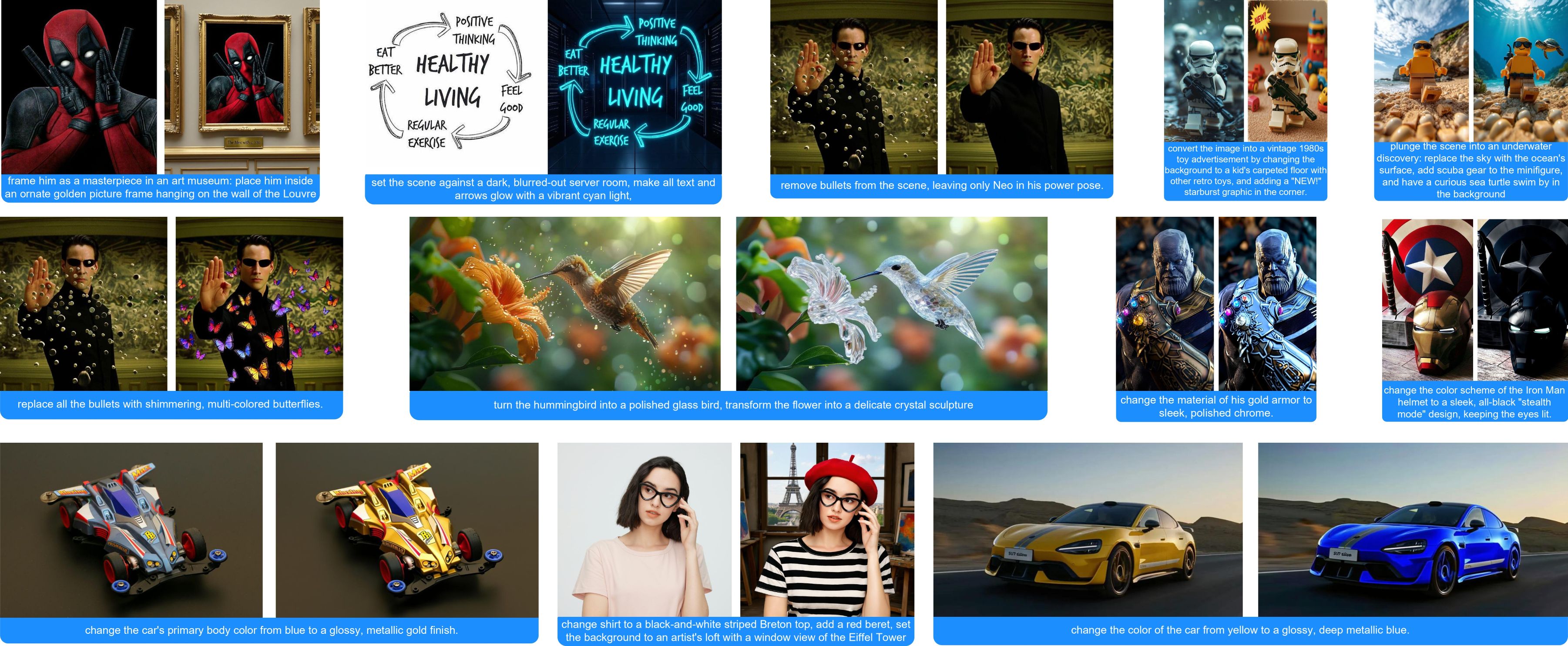
HiDream-E1 is an interactive image editing large model officially open-sourced by HiDream-ai, built based on HiDream-I1.
It allows you to edit images using natural language. The model is released under the MIT License, supporting use in personal projects, scientific research, and commercial applications. In combination with the previously released hidream-i1, it enables creative capabilities from image generation to editing.
| Name | Update Date | Inference Steps | Resolution | HuggingFace Repository |
|---|---|---|---|---|
| HiDream-E1-Full | 2025-4-28 | 28 | 768x768 | 🤗 HiDream-E1-Full |
| HiDream-E1.1 | 2025-7-16 | 28 | Dynamic (1 Megapixel) | 🤗 HiDream-E1.1 |
All the models involved in this guide can be found here. Except for the Diffusion model, E1 and E1.1 use the same models. The corresponding workflow files also include the relevant model information. You can choose to manually download and save the models, or follow the workflow prompts to download them after loading the workflow. It is recommended to use E1.1.
This model requires a large amount of VRAM to run. Please refer to the relevant sections for specific VRAM requirements.
Diffusion Model
You do not need to download both models. Since E1.1 is an iterative version based on E1, our tests show that its quality and performance are significantly improved compared to E1.
Text Encoder:
- clip_l_hidream.safetensors 236.12MB
- clip_g_hidream.safetensors 1.29GB
- t5xxl_fp8_e4m3fn_scaled.safetensors 4.8GB
- llama_3.1_8b_instruct_fp8_scaled.safetensors 8.46GB
VAE
- ae.safetensors 319.77MB
This is the VAE model for Flux. If you have used the Flux workflow before, you may have already downloaded this file.
Model Save Location
📂 ComfyUI/
├── 📂 models/
│   ├── 📂 text_encoders/
│   │   ├─── clip_l_hidream.safetensors
│   │   ├─── clip_g_hidream.safetensors
│   │   ├─── t5xxl_fp8_e4m3fn_scaled.safetensors
│   │   └─── llama_3.1_8b_instruct_fp8_scaled.safetensors
│   └── 📂 vae/
│   │   └── ae.safetensors
│   └── 📂 diffusion_models/
│       ├── hidream_e1_1_bf16.safetensors
│       └── hidream_e1_full_bf16.safetensors
E1.1 is an updated version released on July 16, 2025. This version supports dynamic 1-megapixel resolution, and the workflow uses the Scale Image to Total Pixels node to dynamically adjust the input image to 1 million pixels.
- 4090D 24GB (VRAM usage 98%)
- Full version: Out of memory
- FP8_e4m3fn_fast (VRAM 98%) First generation: 120s, second generation: 91s
Download the image below and drag it into ComfyUI with the corresponding workflow and models loaded:

Download the image below as input:


Follow these steps to run the workflow:
- Make sure the
Load Diffusion Modelnode loads thehidream_e1_1_bf16.safetensorsmodel. - Make sure the four corresponding text encoders in
QuadrupleCLIPLoaderare loaded correctly:- clip_l_hidream.safetensors
- clip_g_hidream.safetensors
- t5xxl_fp8_e4m3fn_scaled.safetensors
- llama_3.1_8b_instruct_fp8_scaled.safetensors
- Make sure the
Load VAEnode uses theae.safetensorsfile. - In the
Load Imagenode, load the provided input or your desired image. - In the
Empty Text Encoder(Positive)node, enter the modifications you want to make to the image. - In the
Empty Text Encoder(Negative)node, enter the content you do not want to appear in the image. - Click the
Runbutton, or use the shortcutCtrl(cmd) + Enterto execute image generation.
- Since HiDream E1.1 supports dynamic input with a total of 1 million pixels, the workflow uses
Scale Image to Total Pixelsto process and convert all input images, which may cause the aspect ratio to differ from the original input image. - When using the fp16 version of the model, in actual tests, the full version ran out of memory on both A100 40GB and 4090D 24GB, so the workflow is set by default to use
fp8_e4m3fn_fastfor inference.
<a className="prose" target='_blank' href="https://cloud.comfy.org/?template=hidream_e1_full&utm_source=docs" style={{ display: 'inline-block', backgroundColor: '#28a745', color: '#ffffff', padding: '10px 20px', borderRadius: '8px', borderColor: "transparent", textDecoration: 'none', fontWeight: 'bold'}}> <p className="prose" style={{ margin: 0, fontSize: "0.8rem" }}>Try on Comfy Cloud
E1 is a model released on April 28, 2025. This model only supports 768*768 resolution.
For reference, this workflow takes about 500s for the first run and 370s for the second run with 28 sampling steps on Google Colab L4 with 22.5GB VRAM.Please download the image below and drag it into ComfyUI. The workflow already contains model download information, and after loading, it will prompt you to download the corresponding models.

Download this image below as input:


Follow these steps to complete the workflow:
- Make sure the
Load Diffusion Modelnode has loaded thehidream_e1_full_bf16.safetensorsmodel - Ensure that the four corresponding text encoders are correctly loaded in the
QuadrupleCLIPLoader- clip_l_hidream.safetensors
- clip_g_hidream.safetensors
- t5xxl_fp8_e4m3fn_scaled.safetensors
- llama_3.1_8b_instruct_fp8_scaled.safetensors
- Make sure the
Load VAEnode is using theae.safetensorsfile - Load the input image we downloaded earlier in the
Load Imagenode - (Important) Enter the prompt for how you want to modify the image in the
Empty Text Encoder(Positive)node - Click the
Runbutton, or use the shortcutCtrl(cmd) + Enterto generate the image
- You may need to modify the prompt multiple times or generate multiple times to get better results
- This model has difficulty maintaining consistency when changing image styles, so try to make your prompts as complete as possible
- As the model supports a resolution of 768*768, in actual testing with other dimensions, the image performance is poor or even significantly different at other dimensions