-
Notifications
You must be signed in to change notification settings - Fork 3
General usage
We will here use KSHELL. Note that this directory should be at a separate location from where you installed KSHELL. For example, create a directory in your home and enter the newly created directory:
cd ~/
mkdir -p kshell_results/ne20
cd kshell_results/ne20
I use the name ne20 and not 20ne because some applications, like Python, do not support variable, function, etc. naming with numbers at the start, and I'm trying to be consise and consequent. Note that you now have an install directory: ~/kshell and a result directory: ~/kshell_results in your home. Be sure that you understand the difference between these two directories. The former is the location of the actual KSHELL program files, and the latter is the location where you wish to place the results from your KSHELL calculations. Don't mix these up. You wouldn't place your Word documents inside the installation folder of Microsoft Office, would you? Now, inside the results directory for ~/kshell_results/ne20, initialise the KSHELL setup process by running the command:
python ~/kshell/bin/kshell_ui.pyThis will start the preparations for your MPI (Message Parsing Interface) or not. MPI is used for parallelization over multiple nodes (computers) and is mainly applicable for running KSHELL on supercomputers. Parallelization over several cores per node is administered by OpenMP and is active even though you do not choose MPI here. For a regular PC, choose n:
MPI parallel? Y/N/preset, n nodes (default: N, TAB to complete) : n
You are now asked to choose the interaction you wish to use. SD model space. Take a look at this figure and see if you agree (note the different notation conventions, nlj and (n+1)lj (N = 2n + l)). We choose usda.snt for this example since it is an interaction with a SD major shells as model space.
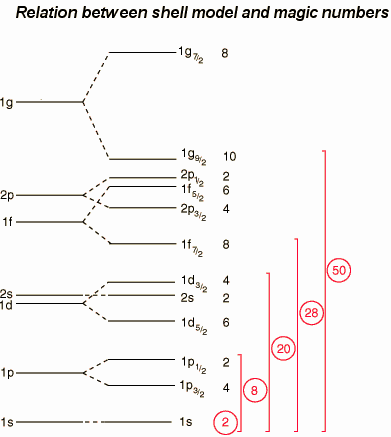
model space and interaction file name (.snt)
(e.g. w or w.snt,  TAB to complete) : usda.snt
Now we specify the nuclide. Here you may enter either the number of valence protons and neutrons or the isotope abbreviation (20ne or ne20, upper or lower case does not matter). 2, 2 or ne20:
number of valence protons and neutrons
(ex.  2, 3 <CR> or 9Be <CR>)    <CR> to quit : ne20
We are now prompted for the name of the executable shell script. Press the enter key for the default name:
name for script file (default: Ne20_usda ):
Choose which angular momentum levels you want to calculate and how many. The default value is to calculate the 10 lowest lying levels. There is a section in this wiki on how to choose specific angular momenta and parities. For this example we choose the default value (just press enter):
J, parity, number of lowest levels
(ex. 10          for 10 +parity, 10 -parity levels w/o J-proj. (default)
    -5           for lowest five -parity levels,
    0+3, 2+1     for lowest three 0+ levels and one 2+ levels,
    1.5-1, 3.5+3 for lowest one 3/2- levels and three 7/2+ levels
    range        for a range of levels) :
We are now asked for truncation information. The model space is small and the number of nucleos is low, so we dont need to truncate this system. The default is no truncation. USD model space only allows positive parity levels, so we are only asked for truncation of the positive parity levels. There is another section in this wiki about truncation. Choose the default value of no truncation:
truncation for "+" parity state in  Ne20_usda_p.ptn
truncation scheme ?
    0 : No truncation (default)
    1 : particle-hole truncation for orbit(s)
    2 : hw truncation
    3 : Both (1) and (2)
At this point we are asked whether we want to edit any other parameters, like the proton and neutron effective charges, the gyroscopic spin factor and the number of Lanczos iterations. Change these to your needs (tab complete is supported). In this demo, we'll leave them to the default values:
Modify parameters?
Example: maxiter = 300 for parameter change or <CR> for no more modification.
Available paramters are:
['max_lanc_vec', 'maxiter', 'n_restart_vec', 'hw_type', 'mode_lv_hdd', 'n_block', 'eff_charge', 'gl', 'gs', 'beta_cm', 'fn_int', 'is_obtd', 'is_ry_sum', 'is_calc_tbme', 'sq', 'quench', 'is_tbtd']


--- set parameters ---
beta_cm = 0.0
eff_charge = 1.5, 0.5,
gl = 1.0, 0.0,
gs = 5.585, -3.826,
hw_type = 2
max_lanc_vec = 200
maxiter = 300
mode_lv_hdd = 0
n_block = 0
n_restart_vec = 10

:
The transition probabilities are calculated by default, but they can be omitted. For this example we want to calculate the transition probabilities, so please select y:
compute transition probabilities (E2/M1/E1) for
    Ne20_usda ? Y/N (default: Y) : y
Now you may repeat the process and add parameters for another nuclide if you want to calculate Gamow-Teller transitions between the nuclides. Press enter to skip this step. For the last step you are asked if you want to split the commands into separate shell scripts. This is handy for running very large calculations on supercomputers, but not for running smaller calculations on single PCs. Note that splitting the shell scrips when choosing more than one nuclide gives undefined behavior and has not been tested. We'll choose n in this demo since the calculation is small:
Split shell files? y/n (default: n): n
Setup complete. Exiting...
At this point the preparations before running the actual calculations are complete. Your data directory ~/kshell_results/ne20 should now contain these files:
Ne20_usda.sh
Ne20_usda_p.ptn
collect_logs.py
count_dim.py
kshell.exe
save_input_ui.txt
transit.exe
usda.snt
There is a section in this wiki about file descriptions. Run your KSHELL calculation by:
./Ne20_usda.shIf the program runs successfully, you will see:
start running log_Ne20_usda_m0p.txt ...
start running log_Ne20_usda_tr_m0p_m0p.txt ...
Finish computing Ne20_usda.
Congrats! You have just performed your first KSHELL calculation! To use these results, please se the How to use the output from KSHELL section in the wiki.