- Explanation of version control
- Setting up git
- Creating a repository
- Tracking changes
- Creating branches
- Cloning repositories
- References
- Further reading
- Understand the benefits of an automated version control system.
- Understand the basics of how automated version control systems work.
Version control systems are tools that keep track of changes to documents. There are many benefits to using version control systems, including:
- Having a complete change history for all files.
- Collaborating effectively through branching and merging.
- Relating changes to project management goals.
Version control systems are most commonly used for code, but are useful for many other tasks such as writing papers, proposals, and presentations.
- Configure
gitthe first time it is used on a computer. - Understand the meaning of the
--globalconfiguration flag.
In this section, we will configure some Git settings.
-
Open terminal (macOS) or Git Bash (windows).
-
Set your name:
git config --global user.name "Your name" -
Set your email (see note below for instructions to keep your email private):
git config --global user.email "Your email" -
Set your preferred line endings:
git config --global core.autocrlf input(macOS)git config --global core.autocrlf true(windows) -
Set your preferred text editor (See git-scm Appendix C for options):
NOTE: The line below needs to be adjusted for your particular text editor using the options in the link provided above. For example, the command for setting Visual Studio Code as your preferred text editor is
git config --global core.editor "code --wait".git config --global core.editor "editor name" -
Set a default branch name:
git config --global init.defaultBranch main -
Check your settings:
git config --listgit config user.name
NOTE: If you wish to use a private email with GitHub, then you can use the format
git config --global user.email username@users.noreply.github.com, whereusernameis replaced by your GitHub username.
Many other settings are configurable in Git.
You can also get help using git config --help.
- Create a local Git repository.
- Describe the purpose of the
.gitdirectory.
In this section, we will create a repository.
-
Create a directory in the
Desktopfolder:cd ~/Desktop mkdir learn-git cd learn-git -
Tell Git to make
learn-gita repository:git init -
View the new
.githidden directory created by Git:ls -a -
Check the status of the Git repository:
git status
- Complete the modify-add-commit cycle.
- Understand how to write descriptive commit messages.
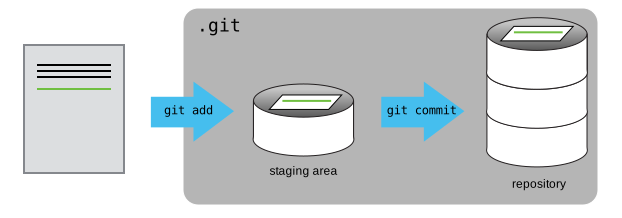
-
Check that you are in the current directory:
pwd -
Create a new file:
touch git-notes.txtNote: The touch command relies on a UNIX-style environment (e.g., macOS, Linux, Git for Windows). Otherwise, create the file using your text editor.
-
Add notes to the new files:
echo "Git is a version control system" > git-notes.txt -
In the terminal, check that
git-notes.txtcontains some content:cat git-notes.txt -
Check the status of the project:
git status -
Tell Git to track the file using
git add:git add git-notes.txt -
Check the status of the project:
git status -
Commit the changes to the git repository:
git commit -m "Start notes on Git" -
Check the status of the project:
git status -
Review the changes using
git log:git log
Note: Chris Beam's blog includes a great guide on how to write useful commit messages.
- Create a new file
more-notes.txt, add text to the file, and commit it to your repository. - Edit both
git-notes.txtand the new file, stage the changes, and commit them to your repository using a single commit.
- Understand the basics of branching in Git.
- Create a branch and check it out.
- Return to the main branch after committing changes to the new branch.
Branching provides a way to develop independent from the main development line.
-
Use the
git branchto create a new branch:git branch test-branch -
Use
git branchto view the branches in the repository:git branch -
Switch to your new branch:
git switch test-branch -
Follow the lessons from tracking changes to commit a new file
test-branch.txt. -
Switch the main branch and note what happens to the file:
git switch main -
Merge your changes into the main branch using
git merge:git merge test-branch
The git clone command is used to create a copy of a specific repository or branch.
Here we will clone the repository for the MATLAB portion of this workshop:
-
Navigate to the folder that you want to repository to be located inside:
cd ~/Desktop mkdir workshops cd workshops -
Clone the remote remote repository for this workshop:
git clone https://github.com/GenericMappingTools/2021-eswn-pygmt-workshop
- This tutorial was adapted from Software Carpentry's Version Control with Git, which is licensed under the Creative Commons Attribution 4.0 license.
- The original adaptation was for the 2021 ESVI REU Program Workshop and licensed under the Creative Commons Attribution 4.0 license.
- Pro Git book.
- Atlassian Git tutorials.