The lean.nvim Manual
lean.nvim's goal is to provide a full-featured experience using Lean and to enable combining this experience with the wider ecosystem of Neovim plugins.
Many of us already use Neovim across other programming languages, and hope to carry over what we are familiar with when using Lean.
Inspired somewhat by the VSCode Manual, this page documents how to use lean.nvim.
In doing so it is somewhat prescriptive in how you use the plugin; if you are an experienced Neovim user with strong personal preferences, you certainly can ignore sections below, but if you aren't, you might find what's here useful regardless of whether it is Lean-specific or not.
Please feel free to send feedback or additional questions if there's something you had hoped would be answered here, or to simply edit the page!
Neovim is available for every major operating system, and lean.nvim requires version 0.12 or later.
You should install it via your package manager, unless it provides only an out of date version.
If that is the case, you can find binaries provided on the Neovim releases page which should work for you.
See also Neovim's own short installation documentation.
On macOS, Homebrew is a reliable choice; once it is installed, run brew install neovim in a terminal.
lean.nvim does not currently assist in installing Lean itself.
You should proceed with installing Lean's version manager elan or proceed with installation via the community-built installation script for your operating system.
If you are using Neovim 0.12 or later, you can use the builtin plugin manager vim.pack and install and configure lean.nvim by putting
vim.pack.add({ "https://github.com/Julian/lean.nvim" })

require("lean").setup({ mappings = true })
somewhere in your Neovim lua configuration. The meaning of mappings = true is documented in the Key mappings section below. This is enough to get a fully functional lean.nvim (but you will probably enjoy it more if you also have some LSP key bindings).
If you are using an older version of Neovim, or prefer not to use vim.pack, there are a number of plugin managers for Neovim whose purpose is to make it easier to install third party plugins for the editor.
Every few years someone invents a new one, and many people move over to it.
Subjectively, most users still use some plugin manager, with the most popular currently seemingly being lazy.nvim.
Other examples are pckr.nvim or vim-plug.
In general, lean.nvim should work with any of the above, as after all any plugin manager ultimately works by modifying the runtimepath within Neovim in essentially similar ways.
If you have no preference, lazy.nvim is well designed, fast, reasonably simple to configure, well documented and has a responsive maintainer.
It's what I (@Julian) currently use.
Separate from a plugin manager is a distribution of Neovim, which will typically package up some opinionated way of laying out configuration along with tweaks to the editor defaults and most often a recommended set of third party plugins.
Here, there are two philosophies. Using a distribution (of neovim or any piece of complex software) is attractive to those getting started because they get you up and running quickly, because they generally save upfront time in figuring out the basics of a configuration layout, and because they often come with lots of additional functionality which you would anyways be looking for.
The disadvantage is that distributions often contain lots of things you won't use, and worse, make debugging much harder as they change default behavior in a way that often leads to "how do I make Neovim stop doing XYZ" when in fact Neovim does not do XYZ by default in the first place.
If you want opinionated advice, I (@Julian) would recommend you perhaps copy the layout of a distribution, but not actually install any additional plugins until/unless you find one which solves a real problem -- in other words, install plugins one at a time as you find them, not in bulk.
All the above being said LazyVim (not to be confused with the package manager it uses, lazy.nvim) and kickstart.nvim both seem like good options for new users, and from what I (@Julian) have seen do not ship with lots of cruft. So use them if they suit you.
Neovim will set endofline by default, ensuring that files always end with a line terminator.
You generally shouldn't modify this setting, particularly if you are contributing to Mathlib, which ensures that VSCode has the behavior Neovim has by default in this manner.
It can be hard to see the contents of floating windows (such as those shown when hitting K to hover over something) without window borders.
You can set the winborder option globally to add them:
vim.o.winborder = 'rounded'By default, Neovim only updates diagnostics once you leave insert mode. Since Lean's elaboration runs as you type, you will likely want them updated continuously:
vim.diagnostic.config{ update_in_insert = true }See :h vim.diagnostic.config for the full list of options.
If you've set mappings = true in your configuration (or have called lean.use_suggested_mappings() explicitly), a number of keys will be mapped either within Lean source files or within Infoview windows.
Each mapping's RHS is a <Plug> name, so any of them can be rebound to a different key.
For example, to bind an additional key for toggling the infoview, add this to after/ftplugin/lean.lua (or after/ftplugin/leaninfo.lua for infoview mappings):
vim.keymap.set('n', '<leader>li', '<Plug>(LeanInfoviewToggle)', { buffer = true })To replace a default key entirely, also delete the original using vim.keymap.del:
vim.keymap.del('n', '<LocalLeader>i', { buffer = true })
vim.keymap.set('n', '<leader>li', '<Plug>(LeanInfoviewToggle)', { buffer = true })
Tip
<Plug> is a Neovim convention for named, remappable plugin actions. See :help <Plug> for more.
The key binding <LocalLeader> below refers to a configurable prefix key within Neovim.
You can check what this key is set to within Neovim by running the command :echo maplocalleader.
An error like E121: Undefined variable: maplocalleader indicates that it may not be set to any key.
This can be configured by putting a line at the top of your ~/.config/nvim/init.lua of the form vim.g.maplocalleader = ' ' (in this example, mapping <LocalLeader> to hitting the space key twice).
| Key |
<Plug> name |
Function |
|---|---|---|
<LocalLeader>i |
<Plug>(LeanInfoviewToggle) |
toggle the infoview open or closed |
<LocalLeader>p |
<Plug>(LeanInfoviewPinTogglePause) |
pause the current infoview |
<LocalLeader>r |
<Plug>(LeanRestartFile) |
restart the Lean server for the current file |
<LocalLeader>s |
<Plug>(LeanInfoviewAcceptSuggestion) |
accept the first infoview "Try this" suggestion |
<LocalLeader>v |
<Plug>(LeanInfoviewViewOptions) |
interactively configure infoview view options |
<LocalLeader>x |
<Plug>(LeanInfoviewAddPin) |
place an infoview pin |
<LocalLeader>c |
<Plug>(LeanInfoviewClearPins) |
clear all current infoview pins |
<LocalLeader>dx |
<Plug>(LeanInfoviewSetDiffPin) |
place an infoview diff pin |
<LocalLeader>dc |
<Plug>(LeanInfoviewClearDiffPin) |
clear current infoview diff pin |
<LocalLeader>dd |
<Plug>(LeanInfoviewToggleAutoDiffPin) |
toggle auto diff pin mode |
<LocalLeader>dt |
<Plug>(LeanInfoviewToggleNoClearAutoDiffPin) |
toggle auto diff pin mode without clearing diff pin |
<LocalLeader>w |
<Plug>(LeanInfoviewEnableWidgets) |
enable infoview widgets |
<LocalLeader>W |
<Plug>(LeanInfoviewDisableWidgets) |
disable infoview widgets |
<LocalLeader><Tab> |
<Plug>(LeanGotoInfoview) |
jump into the infoview window associated with the current lean file |
<LocalLeader>\\ |
<Plug>(LeanAbbreviationsReverseLookup) |
show what abbreviation produces the symbol under the cursor |
Tip
See :help <LocalLeader> if you haven't previously interacted with the local leader key.
Some nvim users remap this key to make it easier to reach, so you may want to consider what key that means for your own keyboard layout.
My (Julian's) <Leader> is set to <Space>, and my <LocalLeader> to <Space><Space>, which may be a good choice for you if you have no other preference.
Tip
If you are also looking for a way to restart the Lean server entirely (rather than just refresh the current file), the current Neovim way to do so is to run vim.lsp.enable('leanls', false) followed by vim.lsp.enable('leanls'), which stops the LSP client and then restarts it respectively.
You may wish to bind one of these to a key if you find yourself doing it often; these operations work for any language server and any language, not just Lean.
| Key |
<Plug> name |
Function |
|---|---|---|
<CR> |
<Plug>(LeanInfoviewClick) |
click a widget or interactive area of the infoview |
K |
<Plug>(LeanInfoviewClick) |
same as <CR>
|
<LeftMouse> |
<Plug>(LeanInfoviewMouseClick) |
same as <CR> for the element under the mouse |
gK |
<Plug>(LeanInfoviewSelect) |
"select" a widget or interactive area |
<C-LeftMouse> |
<Plug>(LeanInfoviewMouseSelect) |
same as gK for the element under the mouse |
<Tab> |
<Plug>(LeanInfoviewEnterTooltip) |
jump into a tooltip (from a widget click) |
<S-Tab> |
<Plug>(LeanInfoviewParentTooltip) |
jump out of a tooltip and back to its parent |
<Esc> |
<Plug>(LeanInfoviewClearAll) |
clear all open tooltips |
J |
<Plug>(LeanInfoviewEnterTooltip) |
jump into a tooltip (from a widget click) |
C |
<Plug>(LeanInfoviewClearAll) |
clear all open tooltips |
gd |
<Plug>(LeanInfoviewGoToDef) |
go-to-definition of what is under the cursor |
gD |
<Plug>(LeanInfoviewGoToDecl) |
go-to-declaration of what is under the cursor |
gy |
<Plug>(LeanInfoviewGoToType) |
go-to-type of what is under the cursor |
<LocalLeader>g |
<Plug>(LeanInfoviewGoToGoal) |
jump to the first (or current) goal |
]g / [g
|
<Plug>(LeanInfoviewNextGoal) / Prev
|
next / previous goal |
]h / [h
|
<Plug>(LeanInfoviewNextHypothesis) / Prev
|
next / previous hypothesis |
<LocalLeader>S |
<Plug>(LeanInfoviewGoToSuggestion) |
jump to the first "Try this" suggestion |
<LocalLeader>s |
<Plug>(LeanInfoviewAcceptSuggestion) |
accept the first "Try this" suggestion |
]s / [s
|
<Plug>(LeanInfoviewNextSuggestion) / Prev
|
next / previous "Try this" suggestion |
]l / [l
|
<Plug>(LeanInfoviewNextLink) / Prev
|
next / previous interactive link |
]t / [t
|
<Plug>(LeanInfoviewNextTraceDiagnostic) / Prev
|
next / previous trace diagnostic |
<LocalLeader>/ |
<Plug>(LeanInfoviewTraceSearch) |
search through trace messages in the diagnostic under the cursor |
<LocalLeader>v |
<Plug>(LeanInfoviewViewOptions) |
interactively configure infoview view options |
<LocalLeader><Tab> |
<Plug>(LeanInfoviewGotoLastWindow) |
jump to the lean file associated with the current infoview window |
<LocalLeader>\\ |
<Plug>(LeanAbbreviationsReverseLookup) |
show what abbreviation produces the symbol under the cursor |
lean.nvim provides the following user commands, available in any Lean buffer:
| Command | Function |
|---|---|
:LeanGotoInfoview |
Jump to the current infoview |
:LeanInfoviewToggle |
Toggle showing the infoview |
:LeanInfoviewViewOptions |
Interactively select infoview view options |
:LeanInfoviewPinTogglePause |
Toggle pausing infoview pin updates |
:LeanInfoviewAddPin |
Add an infoview pin at the current cursor position |
:LeanInfoviewClearPins |
Clear all infoview pins |
:LeanInfoviewSetDiffPin |
Set an infoview diff pin |
:LeanInfoviewClearDiffPin |
Clear the infoview diff pin |
:LeanInfoviewToggleAutoDiffPin |
Toggle "auto-diff" mode (automatically updating the diff pin), clearing any existing diff pin |
:LeanInfoviewToggleNoClearAutoDiffPin |
Toggle "auto-diff" mode without clearing an existing diff pin |
:LeanInfoviewEnableWidgets |
Enable infoview widgets |
:LeanInfoviewDisableWidgets |
Disable infoview widgets |
:LeanInfoviewAcceptSuggestion |
Accept the first "Try this" suggestion from the infoview |
| Command | Function |
|---|---|
:LeanGoal |
Show the goal at the current cursor position in a preview popup |
:LeanTermGoal |
Show term-mode type information at the cursor in a preview popup |
:LeanLineDiagnostics |
Show diagnostics for the current line in a preview popup |
| Command | Function |
|---|---|
:LeanRestartFile |
Restart the Lean server for the current file |
:LeanRefreshFileDependencies |
Refresh file dependencies (equivalent to :LeanRestartFile) |
| Command | Function |
|---|---|
:LeanAbbreviationsReverseLookup |
Show what abbreviation produces the unicode character under the cursor |
:LeanSorryFill |
Fill sorry placeholders |
  ---@module 'lean'
  ---@type lean.Config
  require('lean').setup {
    -- Enable suggested mappings?
    --
    -- false by default, true to enable
    mappings = false,

    -- Enable the Lean language server(s)?
    --
    -- false to disable, otherwise should be a table of options to pass to `leanls`
    --
    -- See :help vim.lsp.Config for details.
    lsp = {
      -- lean.nvim replaces some default LSP handlers with enhanced versions.
      -- These can be individually disabled if they interfere with other plugins.
      enhanced_handlers = {
        -- Replace the default hover with an interactive popup where
        -- subexpressions are clickable (press K or <CR> to see a type,
        -- gd to jump to a definition, etc.)
        hover = true,

        -- Replace the default diagnostics handler with one which filters
        -- silent diagnostics and renders multi-line diagnostic signs.
        diagnostics = true,
      },

      init_options = {
        -- See Lean.Lsp.InitializationOptions for details and further options.

        -- Time (in milliseconds) which must pass since latest edit until elaboration begins.
        -- Lower values may make editing feel faster at the cost of higher CPU usage.
        -- Note that lean.nvim changes the Lean default for this value!
        editDelay = 10,

        -- Whether to signal that widgets are supported.
        hasWidgets = true,
      }
    },

    ft = {
      -- A list of patterns which will be used to protect any matching
      -- Lean file paths from being accidentally modified (by marking the
      -- buffer as `nomodifiable`).
      nomodifiable = {
          -- by default, this list includes the Lean standard libraries,
          -- as well as files within dependency directories (e.g. `_target`)
          -- Set this to an empty table to disable.
      }
    },

    -- Abbreviation support
    abbreviations = {
      -- Enable expanding of unicode abbreviations?
      enable = true,
      -- additional abbreviations:
      extra = {
        -- Add a \wknight abbreviation to insert ♘
        --
        -- Note that the backslash is implied, and that you of
        -- course may also use a snippet engine directly to do
        -- this if so desired.
        wknight = '♘',
      },
      -- Change if you don't like the backslash
      -- (comma is a popular choice on French keyboards)
      leader = '\\',
    },

    -- Terminal graphics configuration.
    -- When enabled, lean.nvim renders rich content like images and SVGs
    -- via the Kitty graphics protocol in terminals that support it.
    graphics = {
      enabled = true,
    },

    -- Infoview support
    infoview = {
      -- Automatically open an infoview on entering a Lean buffer?
      -- Should be a function that will be called anytime a new Lean file
      -- is opened. Return true to open an infoview, otherwise false.
      -- Setting this to `true` is the same as `function() return true end`,
      -- i.e. autoopen for any Lean file, or setting it to `false` is the
      -- same as `function() return false end`, i.e. never autoopen.
      autoopen = true,

      -- Set the initial size (in columns/lines) of the infoview's window.
      -- Windows open horizontally or vertically based on available space.
      -- Values less than 1 are treated as a percentage of the current
      -- buffer's max columns or lines.
      width = 1/3,
      height = 1/3,

      -- Set the infoviews' orientation to be dynamic based on screen layout
      -- or fixed to a vertical or horizontal orientation
      -- auto | vertical | horizontal
      orientation = "auto",

      -- Put the infoview on the top or bottom when horizontal?
      -- top | bottom
      horizontal_position = "bottom",

      -- Always open the infoview window in a separate tabpage.
      -- Might be useful if you are using a screen reader and don't want too
      -- many dynamic updates in the terminal at the same time.
      -- Note that `height` and `width` will be ignored in this case.
      separate_tab = false,

      -- Show indicators for pin locations when entering an infoview window?
      -- always | never | auto (= only when there are multiple pins)
      indicators = "auto",
    },

    -- Imports-out-of-date
    on_imports_out_of_date = function(bufnr)
      -- A callback which will be called in the event that a file's imports
      -- have changed and the file must be rebuilt.
      --
      -- See https://github.com/leanprover/vscode-lean4/blob/master/vscode-lean4/manual/manual.md#file-restarting
      -- or the lean.nvim manual for further details.
      --
      -- The default will prompt you to confirm you wish to restart the file,
      -- but you can replace this implementation to customize how to handle
      -- imports being out of date by being either more or less aggressive with
      -- automatic restarting by explicitly calling `lean.lsp.restart_file(bufnr)`.
    end,

    -- Progress bar support
    progress_bars = {
      -- Enable the progress bars?
      -- By default, this is `true` if satellite.nvim is not installed, otherwise
      -- it is turned off, as when satellite.nvim is present this information would
      -- be duplicated.
      enable = true,  -- see above for default
      -- What character should be used for the bars?
      character = '│',
      -- Use a different priority for the signs
      priority = 10,
    },

    -- Customize the goal markers in the sign column and virtual text
    -- Can be set to an empty string to disable.
    goal_markers = {
      unsolved = ' ⚒ ',    -- shown inline in incomplete proofs
      accomplished = '🎉', -- shown in the sign column for completed proofs
    },

    -- Diagnostic signs in the sign column.
    -- When enabled, multi-line diagnostics show guide characters marking
    -- their full range. Disable to restore vim.diagnostic's default signs.
    signs = {
      enabled = true,
    },

    -- Redirect Lean's stderr messages somewhere (to a buffer by default)
    stderr = {
      enable = true,
      -- height of the window
      height = 5,
      -- a callback which will be called with (multi-line) stderr output
      -- e.g., use:
      --   on_lines = function(lines) vim.notify(lines) end
      -- if you want to redirect stderr to `vim.notify`.
      -- The default implementation will redirect to a dedicated stderr
      -- window.
      on_lines = nil,
    },

    -- Debugging and introspection for lean.nvim internals
    debug = {
      -- A logging handler called with (log_level, data) for internal log messages
      log = function() end,
      -- Keep a ring buffer of this many RPC request records per session,
      -- queryable via require('lean.rpc').sessions() and .history(uri).
      -- 0 to disable.
      rpc_history = 0,
    },
}A fuzzy finder is arguably completely indispensable for modern editing with Neovim.
It allows you to type subsections of "thing"s and "act" on the result.
Most simply, the "things" are often paths, and "acting" is "jumping to the file" -- so one can type something as short as alrinba<enter> and immediately jump to Mathlib/Algebra/Ring/Basic.lean.
Telescope is one popular fuzzy finder for Neovim, and lean.nvim has some integration with it (described below).
You can use Telescope's live grep scoped to your Lean project's search paths (including dependencies) via lean.current_search_paths().
See here for an example configuration, and below for a demo:

If telescope.nvim is installed you can run :Telescope loogle
to use https://loogle.lean-lang.org from within your editor:

 Pressing enter will insert the name of the theorem or definition you are hovering on at the current
position of your cursor.
Pressing enter will insert the name of the theorem or definition you are hovering on at the current
position of your cursor.
The infoview is the main interactive component of Lean. It displays information about any current proof state, and can render additional interactive elements which Lean calls "widgets".
lean.nvim's infoview is a rich Neovim buffer -- it contains interactive elements beyond what is typical in a file.
It also automatically updates as you move through a Lean file.
If you haven't configured lean.nvim to do otherwise, whenever you enter a Lean file, an infoview will automatically be opened.
If you wish to close it, you can call require('lean.infoview').close() or require('lean.infoview').toggle() (the latter of course can also be used to reopen it).
When mappings are enabled, toggling the infoview is bound to <LocalLeader>i.
There are a number of settings you can configure to slightly tweak what you see in lean.nvim's infoview.
These view options can be interactively tweaked by calling require('lean.infoview').select_view_options() which will open a floating window inside the infoview window.
When mappings are enabled, you can also use <LocalLeader>v to bring this window up from within any Lean window.
With the view options window open, use the <Tab> key to toggle any of the options from selected to unselected or vice versa.
Press <Enter> to confirm your selections and the infoview will update, or <Esc> will cancel your selection and leave the options as they were.
You can also use the K key on top of any option to get more information about what it configures.
Lean v4.19.0 introduces a way of showing goal markers -- little indications of where either an unsolved goal is left over, or alternatively where a proof is successful and all goals have been accomplished.
For example, in the screenshot below you'll notice little ⚒ icons on two lines in the first proof where we haven't finished and you'll notice 🎉 in the sidebar for the two proofs at the bottom where we're done:

If these characters don't look good with your font, you can customize the characters used via two entries in the goal_markers table.
An empty string disables the marker.
For example (assuming you're using lazy.nvim):
{
  'Julian/lean.nvim',
  opts = {
    goal_markers = { unsolved = '', accomplished = '✓' },
  },
}
will disable unsolved goals markers and use check marks to mark goals accomplished locations in the sign column.
When Lean marks a goal or hypothesis as inserted or removed, the goal prefix (⊢) or hypothesis name is highlighted to indicate the change.
Inserted goals and hypotheses use the DiffAdd highlight group, and removed ones use DiffDelete.
See the highlight groups table for the full list of diff-related groups.
lean.nvim can render images and SVGs directly in your terminal.
<img> tags with data URIs display inline as raster graphics, and SVG elements are rasterized via resvg — all using the Kitty graphics protocol.
This works in Kitty, WezTerm, Ghostty, and other terminals that support the protocol.
Images scroll and clip correctly within the infoview window, and are cached to avoid redundant decoding or rasterization on re-render.
SVG support requires installing resvg (brew install resvg or cargo install resvg).
Raster images work without any extra dependencies.
To disable terminal graphics entirely, set graphics = { enabled = false } in your lean.setup call.
The infoview tracks the cursor position by default, but you can also place pins to keep a snapshot of the proof state at a specific location.
Use <LocalLeader>x to place a pin and <LocalLeader>c to clear all pins.
Each pin gets its own split window, making it easy to compare proof states side by side.
The infoview window's background changes to signal when attention is needed — for example, when the LSP has stopped or when the infoview is paused. The highlight groups used for these states are customizable.
You can jump into the current infoview using the require('lean.infoview').go_to() function should you wish to navigate around it, copy things out of it, etc.
When mappings are enabled, this function is also bound to <LocalLeader><Tab> in normal mode from any Lean file.
You can use the infoview.reposition function to move an infoview window to where it "belongs".
If you do so in an autocmd, specifically on VimResized events, you can move the infoview whenever the screen resizes:
vim.api.nvim_create_autocmd('VimResized', { callback = require('lean.infoview').reposition })If you want to save your Neovim session to disk to recover upon re-opening, you need to be careful to avoid saving the infoview windows/buffers as part of that session data, as these are handled by the plugin, and doing so will result in extraneous windows being opened when you load the session.
The builtin :mksession command with its 'sessionoptions' unfortunately doesn't seem to provide the ability to filter out such buffers/windows. For that reason, you may want to make use of a plugin like resession.nvim, and configure it like so:
local resession = require('resession')
resession.setup({
  buf_filter = function(bufnr)
    -- filter out infoview buffers that start with "lean:"
    -- (if you have an existing filter condition then "and" this onto that)
    return not vim.startswith(vim.api.nvim_buf_get_name(bufnr), "lean:")
  end,
  autosave = {
    enabled = true,
    interval = 60,
    notify = false,
  },
})

vim.keymap.set('n', '<leader>sss', resession.save)
vim.keymap.set('n', '<leader>ssl', resession.load)
vim.keymap.set('n', '<leader>ssd', resession.delete)lean.nvim shows progress information in the sign column (in highly technical terms, "orange bars") while Lean is processing your file.
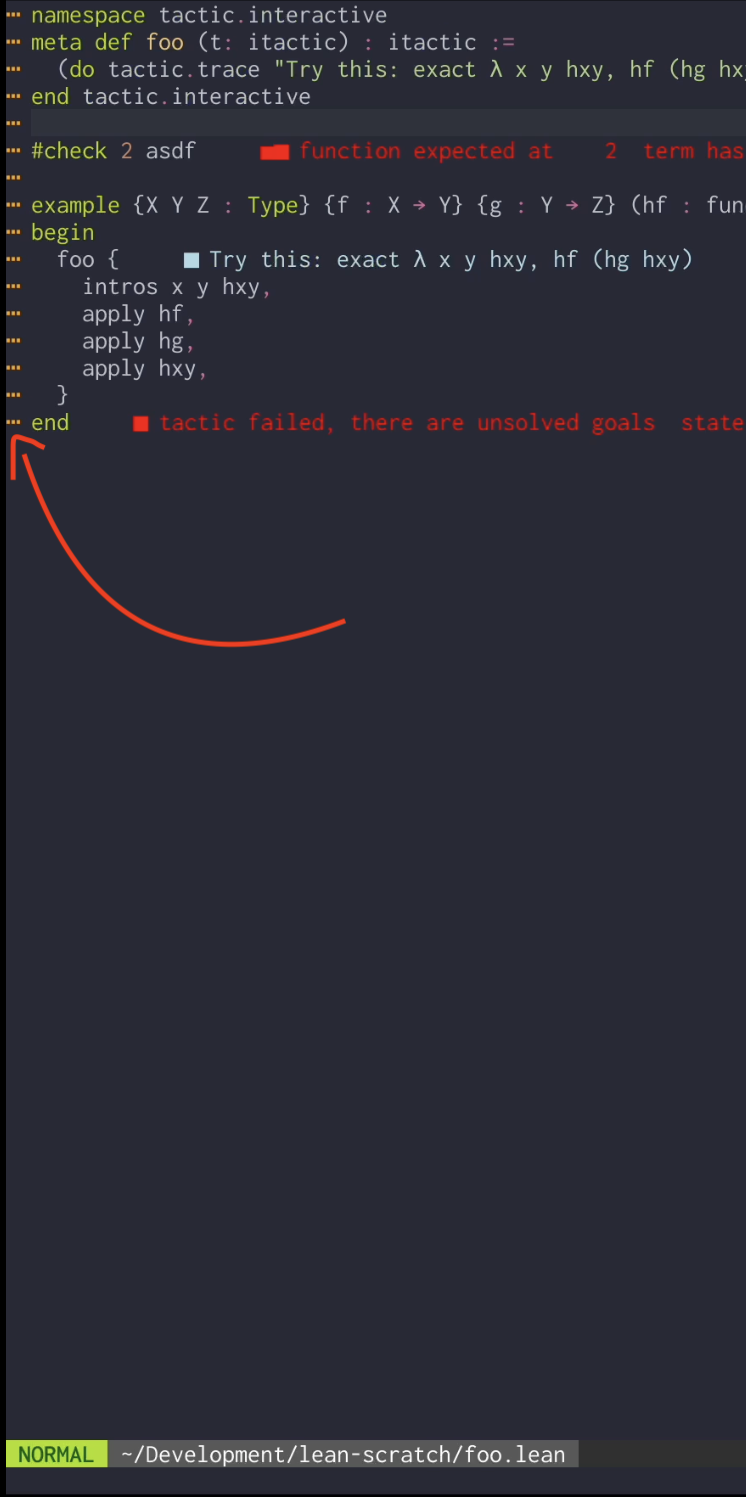
By default, Neovim will automatically show and hide the sign column, which can cause your file contents to shift horizontally. If you prefer that the sign column be shown always, even when no orange bars are shown indicating progress, the vim option to do so is:
vim.o.signcolumn = "yes"which you can put in your configuration. See :h signcolumn for further details.
lean.nvim configures three filetypes:
-
leanfor Lean source code files -
leaninfofor Lean infoviews -
leanstderrfor windows opened to show error messages emitted on standard error by the Lean language server (this is much less common to interact with than the first two)
For any Neovim filetype, including the above, you can customize the behavior of buffers with the given filetype by adding your customizations to an ftplugin file.
For example, if you want to enable spell checking in Lean buffers, you might add the line vim.wo.spell = true to a file you can create at ~/.config/nvim/after/ftplugin/lean.lua, which will run any time a buffer of type lean is opened.
You will often want to move forward (or back) to the nearest error or warning in your files.
Neovim maps ]d and [d to jump to the next and previous diagnostic respectively.
See :h vim.diagnostic.jump() for further details.
If you want a slightly cleverer improvement, you can find an example of how to combine jumping to the next diagnostic with opening a float only if the virtual text doesn't already show you the full error here.
When a diagnostic spans multiple lines, the sign column shows guide characters marking the full range of the diagnostic rather than just its first line. This makes it easier to see exactly which code a diagnostic covers, especially for errors in multi-line definitions or tactic blocks.
diagnostics.mp4
This is enabled by default via lsp.enhanced_handlers.diagnostics.
If it interferes with another plugin's diagnostic sign handling, it can be disabled by setting lsp = { enhanced_handlers = { diagnostics = false } } in your lean.setup call, which restores vim.diagnostic's default sign behavior.
When jumping back and forth to view definitions of Lean declarations (via gd or whichever key you have bound to go-to-definition) you should be aware of a few built-in features:
- Hit
<C-w>]to open definitions in a split instead of in the current buffer (see:h CTRL-W_]for further details) - You also may be interested in a plugin which opens them in floating windows, such as rmagatti/goto-preview, or to do so inline in your own configuration. See here for an example.
The jumplist is also very much your friend!
Neovim keeps a record each time you "jump" the cursor, and going to a definition is a jump.
What this means in practice is that after you hit gd, you can use <C-o> to jump back to where you were previously!
Pressing K in a Lean buffer opens an interactive hover popup where subexpressions are clickable — the same TUI system the infoview uses.
Click on a type to see its own type, press gd to jump to its definition, and so on.
The popup shows the full expression signature, the type rendered interactively, documentation, and import info.
When the RPC session is unavailable it falls back to the standard vim.lsp.buf.hover().
hover.mp4
This can be disabled via lsp = { enhanced_handlers = { hover = false } } if it interferes with another plugin.
Lean will often send back code actions, which are small activatable editing operations that can be triggered to insert or change some text in your Lean file[^1].
Examples of tactics which often suggest code action are the ? family of tactics, (simp?, exact?, rw?, etc.) which suggest a replacement for themselves (and the code action will perform the replacement):
Screen.Recording.2024-07-21.at.17.16.24.mov
This functionality isn't specific to Lean as a language, it works across any language server which sends code actions, so lean.nvim does not specifically interact or modify any functionality on your behalf here.
The relevant Neovim function is called vim.lsp.buf.code_action.
So, how do you use them? Neovim v0.11+ maps gra to vim.lsp.buf.code_action by default.
If you dislike the default mapping, you can create your own mapping which simply calls this function.
Mine (@Julian)'s for instance is bound to <leader>a in normal mode and <C-a> in insert mode.
You might also be interested in using the actions-preview.nvim plugin which can show a preview of what the code action will change before you have necessarily decided on one.
Furthermore, in VSCode these show up as visually indicated yellow lightbulbs. If you are a fan of these indicators you can mirror the VSCode functionality with nvim-lightbulb.
There are multiple bits of functionality working together to provide syntax highlighting of a Lean file (or generally often in any language).
Some functionality is provided by the Lean language server, and therefore is not specific to Neovim and should match the experience in VSCode (or other environments).
Some on the other hand is unique to lean.nvim.
In particular:
-
Lean's language server has support for sending semantic tokens, which indicate specific and reliable information about what kind of Lean syntax is at various positions on the document. In Neovim the client side of this picture is
vim.lsp.semantic_tokens. This syntax highlighting can take a moment to "show up", as when you open a file, a request is made to the Lean process running, and highlighting only appears when a response is received.You can tweak similar settings in Neovim if you do not find that variables, particularly
autoImplicitones, are well differentiated from "real" terms.You can use
:Inspectto see all highlight groups active under your cursor, including any semantic tokens the Lean server has sent.You should also look at your own chosen Neovim theme to decide which highlight groups, if any, are ones you want to link highlights to -- in other words, if your theme has a
Variablehighlight group, you may want to link@lsp.type.variableto this group, making them the same color.You likely will not need to map all of the LSP highlight groups, as Neovim maps many LSP groups to things your theme will likely color correctly by default, but it will depend on the theme. See
:h lsp-semantic-highlightfor a list of available groups, and the default mapping to other highlight groups.To parallel what's in the Lean documentation, putting the below in a file such as
~/.config/nvim/after/syntax/lean.luawill map Lean variables to theIdentifierhighlight group (which should make them a different color than other terms):vim.api.nvim_set_hl(0, '@lsp.type.variable', { link = 'Identifier' })
Feel free to add additional such links if you notice other mis-highlighted syntax using your own theme.
-
lean.nvimdefines "classic" vim syntax highlighting in syntax files. This syntax highlighting serves a few purposes: it kicks in immediately even before semantic token highlighting is available, and it occasionally "enriches" Lean semantic token highlighting in cases where the token information is less rich than one might want to differentiate different syntax. -
The Lean LSP supports document highlighting of references and of other bits of Lean syntax, discussed below.
-
Experimental tree-sitter support for Lean was once attempted in tree-sitter-lean, which provides yet another layer of syntax highlighting, but which for now has paused development, though it may be revisited at some point. The advantage of tree-sitter support is as a competitor for the aforementioned classic vim syntax -- of which it is both richer (supporting general grammars rather than vim's traditional regular expressions-based syntax files), easier to maintain and more general (being usable outside of Neovim).
Besides "static" syntax highlighting, Lean supports highlighting certain parts of a .lean file via document highlighting.
For example, in this example code:
example : Nat := Id.run do
  let _ ← Id.run do return 1
  return 2
when the cursor is over the return on the second line, Lean will clarify that this return is from the immediately preceding do on the same line, whereas the return on the third line will highlight the surrounding do on line 1.
In Neovim, this functionality is handled by vim.lsp.buf.document_highlight, which Neovim (nor lean.nvim) does not invoke automatically.
Instead, you may invoke it either via a keybinding, or by setting up an autocommand as suggested in the linked help documentation.
Specifically, adding the lines beginning below with if client.supports_method to your LspAttach handler will tell Neovim to show these document highlights on CursorHold, i.e. after a number of seconds with the cursor not moving:
vim.api.nvim_create_autocmd("LspAttach", {
  callback = function(args)
    local client = vim.lsp.get_client_by_id(args.data.client_id)

  -- rest of your attach handler

  if client.supports_method('textDocument/documentHighlight') then
    vim.api.nvim_create_autocmd('CursorHold', {
      callback = vim.lsp.buf.document_highlight,
      buffer = args.buf,
      desc = 'Show document highlight on cursor hold.',
    })
    vim.api.nvim_create_autocmd('CursorMoved', {
      callback = vim.lsp.buf.clear_references,
      buffer = args.buf,
      desc = 'Clear highlights when the cursor moves.',
    })
  end
})
If you're adventurous and heavily rely on these highlights you could also attempt to perform them on CursorMove rather than CursorHold, though this will increase the amount of chatter between Neovim and the Lean server.
Alternatively, the 'updatetime' Neovim option controls how quickly Neovim fires the CursorHold event (and therefore how long before your autocommand would fire), but note that this setting is global and therefore will affect any CursorHold autocommands defined.
The below configuration for nvim-lint:
local lint = require('lint')

lint.linters.mathlib4 = {
  name = 'mathlib',
  cmd = 'scripts/lint-style.py',
  stdin = false,
  stream = 'stdout',
  ignore_exitcode = true,
  parser = require('lint.parser').from_pattern(
    '::(%l+) file=([^:]+),line=(%d+),code=ERR_(%w+)::[^ ]+ ERR_%w+: (.+)',
    { 'severity', 'file', 'lnum', 'code', 'message' }
  ),
}

lint.linters_by_ft = {
  lean = { 'mathlib4' },
}
should work for showing mathlib style lint errors inline:

Yes, your mouse works in the infoview, on the off chance you want to use one in Neovim.
Left-click fires <Plug>(LeanInfoviewMouseClick) (the same thing <CR> does).
Ctrl-click fires <Plug>(LeanInfoviewMouseSelect) (the same thing gK does — what's conventionally called "shift+click" elsewhere).
Why ctrl-click rather than shift+click? Most terminals (notably Kitty) reserve shift+click for native text selection regardless of whether the running application has requested mouse reporting, so binding it doesn't fire reliably. If your terminal does forward shift+click, you can rebind it:
vim.api.nvim_create_autocmd('FileType', {
  pattern = 'leaninfo',
  callback = function(args)
    vim.keymap.set('n', '<S-LeftMouse>', '<Plug>(LeanInfoviewMouseSelect)', { buffer = args.buf, remap = true })
  end,
})lean.nvim defines the following highlight groups, all of which can be overridden in your colorscheme or configuration.
Each is defined with default = true, so any user-defined highlight takes precedence.
| Highlight Group | Default Link | Description |
|---|---|---|
leanInfoGoals |
Title |
Goal header (e.g. "1 goal") |
leanInfoMultipleGoals |
DiagnosticHint |
Goal header when there are multiple goals |
leanInfoGoalCase |
Statement |
Case name in a goal |
leanInfoGoalPrefix |
Operator |
Goal prefix (⊢) |
leanInfoHypName |
Type |
Hypothesis name |
leanInfoInaccessibleHypName |
Comment |
Inaccessible hypothesis name |
leanInfoExpectedType |
Special |
Expected type header |
leanInfoComment |
Comment |
Comments in the infoview |
leanInfoSelected |
reverse + bold | Selected/clicked element |
leanInfoHighlighted |
Search |
Highlighted element (e.g. trace search matches) |
These groups are applied to the infoview window's background (via winhighlight) to indicate its state.
| Highlight Group | Default Link | Description |
|---|---|---|
leanInfoNCWarn |
Folded |
Base warning state |
leanInfoNCError |
NormalFloat |
Base error state |
leanInfoPaused |
leanInfoNCWarn |
Infoview is paused |
leanInfoImportsOutOfDate |
leanInfoNCWarn |
File imports are out of date |
leanInfoLSPDead |
leanInfoNCError |
LSP client has stopped |
| Highlight Group | Default Link | Description |
|---|---|---|
leanInfoHypNameInserted |
DiffAdd |
Inserted hypothesis |
leanInfoHypNameRemoved |
DiffDelete |
Removed hypothesis |
leanInfoGoalInserted |
DiffAdd |
Inserted goal |
leanInfoGoalRemoved |
DiffDelete |
Removed goal |
leanInfoDiffwasChanged |
DiffText |
Subexpression that was changed |
leanInfoDiffwillChange |
DiffDelete |
Subexpression that will change |
leanInfoDiffwasInserted |
DiffAdd |
Subexpression that was inserted |
leanInfoDiffwillInsert |
DiffAdd |
Subexpression that will be inserted |
leanInfoDiffwasDeleted |
DiffDelete |
Subexpression that was deleted |
leanInfoDiffwillDelete |
DiffDelete |
Subexpression that will be deleted |
| Highlight Group | Default Link | Description |
|---|---|---|
widgetSuggestion |
Title |
"Try this" suggestion text |
widgetSuggestionSubgoals |
Statement |
"Remaining subgoals" text |
widgetChangedText |
Visual |
Changed text in a widget |
widgetLink |
Tag |
Clickable link |
widgetKbd |
String |
Keyboard shortcut hint |
widgetSelect |
Special |
Select element |
widgetElementHighlight |
DiffChange |
Highlighted widget element |
| Highlight Group | Default Link | Description |
|---|---|---|
leanProgressBar |
orange foreground | File processing progress bar |
leanUnsolvedGoals |
DiagnosticInfo |
Unsolved goal marker |
leanGoalsAccomplishedSign |
DiagnosticInfo |
Goals accomplished sign |
leanAbbreviationMark |
underline, gray | Abbreviation expansion underline |
While an unanswerable personal question in general, we certainly hope the answer is yes!
It's used by quite a few users, including members of the Lean FRO, so whilst it's certainly different from the experience using VSCode, it certainly is highly capable as a day-to-day tool for writing Lean.
Do note that lean.nvim assumes you're generally familiar with Neovim functionality outside of use with Lean, so there might be a steeper learning curve if that isn't the case.