add the current user to the dialout group. This will allow us to use the USB directly
sudo usermod -a -G dialout $USERWe also add ourselves to the group temporarily so we don't have to log in to the system again. If we do not, it will be necessary to restart for the changes to take effect.
newgrp dialoutif you are usign ubuntu 22 and the esp32cam motherboard based on "ID 1a86:7523 QinHeng Electronics CH340 serial converter" you won't be able to use the device. This happens because of conflict between product IDs (a Braille screen reader and my CH340 based chip). Here is the solution :
Edit /usr/lib/udev/rules.d/85-brltty.rules; Search for this line and comment it out:
ENV{PRODUCT}=="1a86/7523/*", ENV{BRLTTY_BRAILLE_DRIVER}="bm", GOTO="brltty_usb_run"then reboot.
clone the repository
git clone --branch dev-esp32 --depth=1 --shallow-submodules --recurse-submodules https://github.com/nodemcu/nodemcu-firmware.git firmwareESP32 Once cloned enter the downloaded file with:
cd firmwareESP32then download the sdkmanager file to be able to compile the firmware:
wget -c https://cutt.ly/QwjY9Sdt --output-document sdkconfig --show-progressgit pull./install.shmake menuconfig make -j4 Installation of ESPTool
sudo apt install esptoolPut the ESP32 in programming mode by holding the IO0 button and pressing the RST button at the same time.
from the 'build' folder run:
esptool --chip esp32 --port /dev/ttyUSB0 --baud 921600 --before default_reset --after hard_reset write_flash -z --flash_mode dio --flash_freq 80m --flash_size detect 0x1000 bootloader/bootloader.bin 0x10000 NodeMCU.bin 0x8000 partitions.binor
make flashTo load the scripts we have 2 options:
- ZeroBrane
- VSCodium... remember to install sumneko's Lua package, then using the open addon manager install esp32 definitions.
clone the repository:
git clone https://github.com/4refr0nt/ESPlorer.gitafter cloning it:
cd ESPlorer
./mvnw clean package
to execute ESPlorer:
java -jar target/ESPlorer.jarinstallation:
sudo pip install nodemcu-uploaderonce installed, we can upload files using:
nodemcu-uploader upload init.luato see the different commands that can be used:
nodemcu-uploader -hinstallation:
wget https://download.zerobrane.com/ZeroBraneStudioEduPack-1.90-linux.shAfter downloading, we give it execution permission with:
chmod +x ZeroBraneStudioEduPack-1.90-linux.shafter giving it permissions, run the installer:
./ZeroBraneStudioEduPack-1.90-linux.sh- Pad incubadora
- Sensor information BME280
- Documentation nodemcu
- Repository with modules Lua
- Sensor information DHT22
- Git Tutorials
- Files and photos
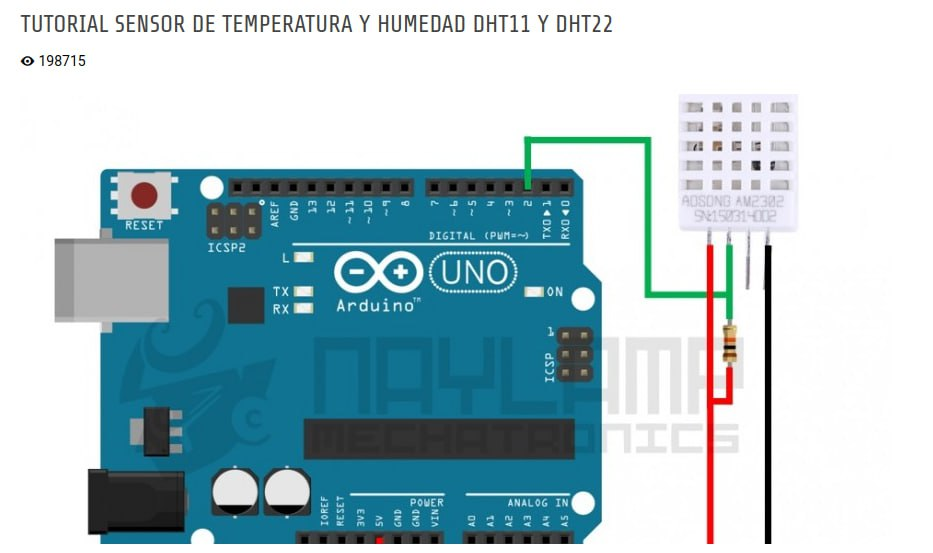
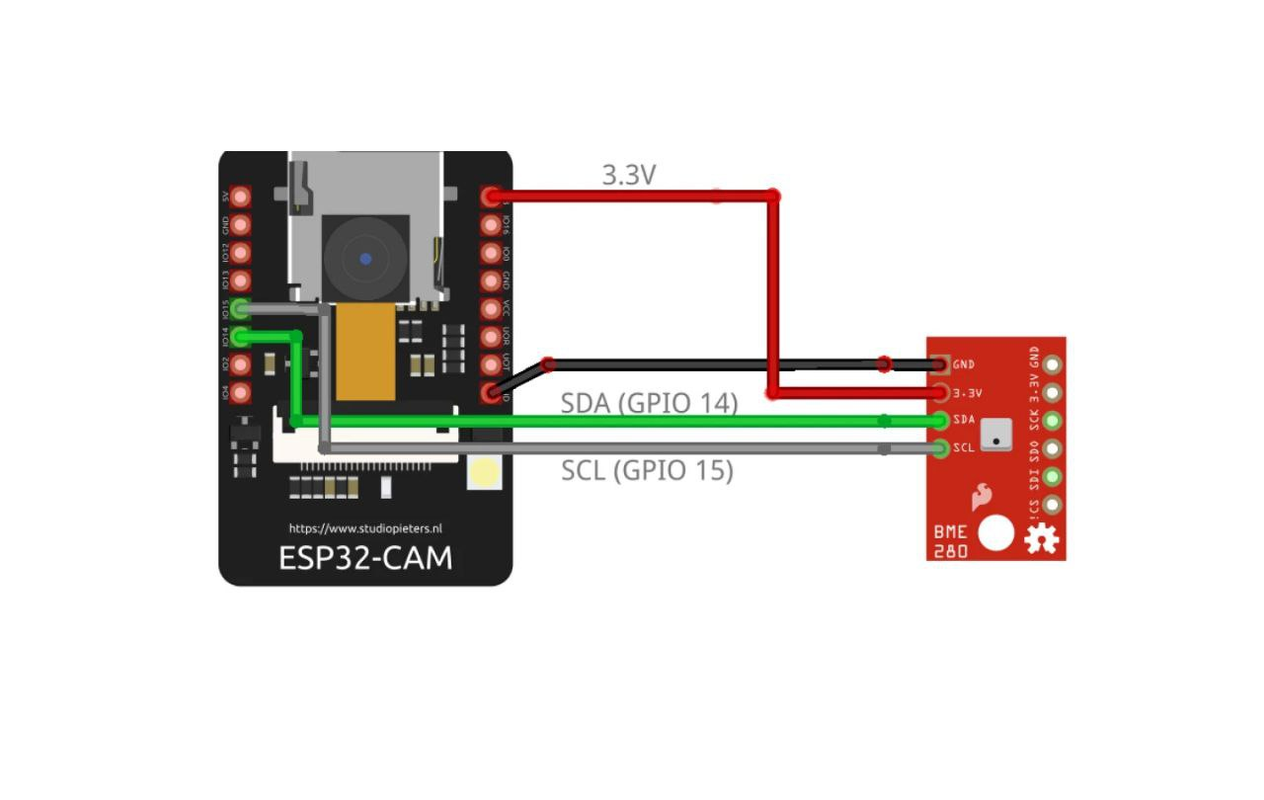
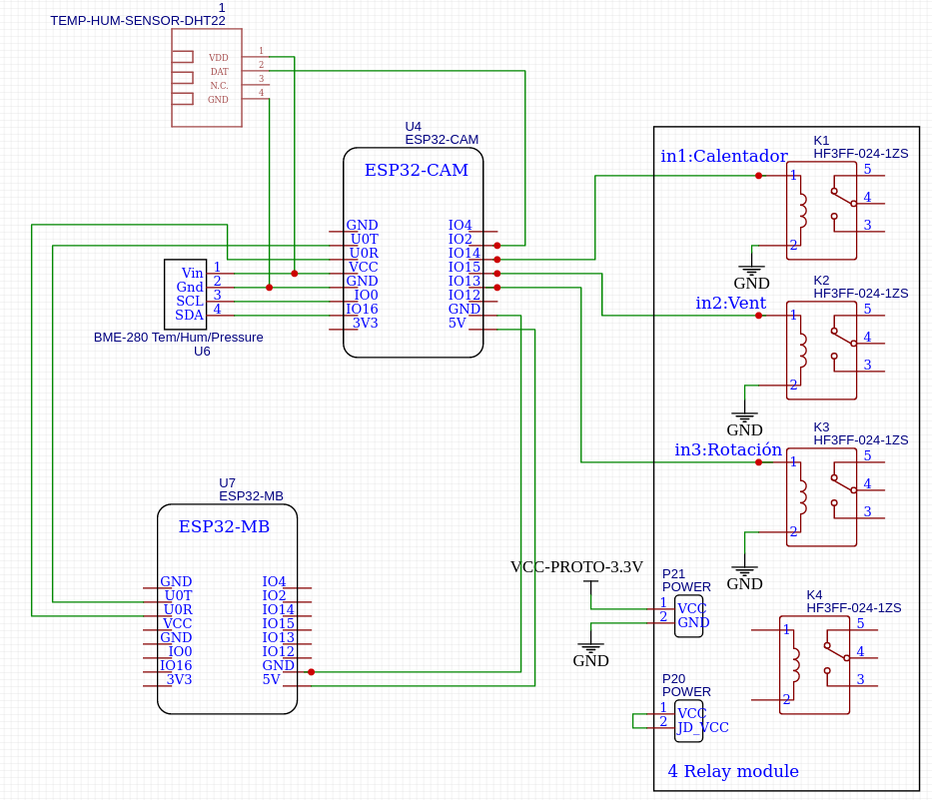
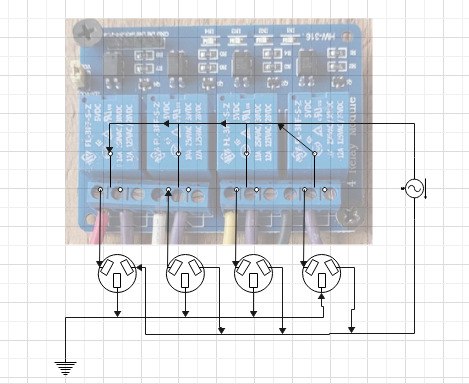

- bmw280.lua located in the libs folder
- credentials.lua located in the libs folder (in lines 5 and 6 you have to write your SSID and password)
- wifiinit.lua located in the app folder
- SendToGrafana.lua located in the app folder