1. Summary
If I open files on local disks other than the local disk of the project’s folder, SublimeLinter with the plugin SublimeLinter-cspell returns the message cspell: No match for line. Example:
SublimeLinter: #1 linter.py:1291 cspell: No match for line: '/D:/SashaDebugging/Kira CSpell folder with spaces/Kira file with spaces.js:1:4 - Unknown word (Kira)'
2. Steps to reproduce
-
Launch Sublime Text 4 on Windows in the Safe Mode.
-
Install Package Control.
-
Ctrl+Shift+P → Package Control: Upgrade/Overwrite All Packages.
Otherwise, I get the error Package Control: The dependency 'typing_extensions' is not available when I install SublimeLinter through Package Control.
-
Install SublimeLinter and SublimeLinter-cspell using Package Control.
-
Ctrl+Shift+P → SublimeLinter: Reload SublimeLinter and its Plugins.
Otherwise, SublimeLinter plugins don’t work, and I get the message SublimeLinter upgrade in progress. Aborting lint. in the status bar.
-
Ctrl+Shift+P → Preferences: SublimeLinter Settings → replace the content of the user settings file on the right side with this content:
-
Create the folder C:\KiraExampleFolder. Ctrl+Shift+P → Project: Add Folder → C:\KiraExampleFolder.
Or add to the project any other folder on the local disk, different from the local disk of the file opened in the next step.
-
Create the file D:\SashaDebugging\Kira CSpell folder with spaces\Kira file with spaces.js with the content:
You can create any other file in the folder on the local disk, different from the local disk of the folder of the project.
-
Select File in the Sublime menu → Open file → open the file D:\SashaDebugging\Kira CSpell folder with spaces\Kira file with spaces.js.
-
Install AutomaticPackageReloader using Package Control. Ctrl+Shift+P → Automatic Package Reloader → add the text SublimeLinter-cspell in the opened input field with the label Package: → Enter.
Otherwise, SublimeLinter-cspell doesn’t lint files. I get this output in the Sublime Text console:
SublimeLinter: backend.py:75          Delay linting 'Kira file with spaces.js' for 0.0s
SublimeLinter: backend.py:75          Delay linting 'Kira file with spaces.js' for 0.0s
SublimeLinter: backend.py:99          No installed linter matches the view.
SublimeLinter: backend.py:99          No installed linter matches the view.
NOTE: SublimeLinter duplicates messages in the debug mode.
-
When the file D:\SashaDebugging\Kira CSpell folder with spaces\Kira file with spaces.js is opened in the current view, open the Sublime Text console. I get this output:
SublimeLinter: #1 linter.py:1238      cspell: output:
	/D:/SashaDebugging/Kira CSpell folder with spaces/Kira file with spaces.js:1:4 - Unknown word (Kira)
	/D:/SashaDebugging/Kira CSpell folder with spaces/Kira file with spaces.js:1:9 - Unknown word (Godess) fix: (Goddess)
SublimeLinter: #1 linter.py:1238      cspell: output:
	/D:/SashaDebugging/Kira CSpell folder with spaces/Kira file with spaces.js:1:4 - Unknown word (Kira)
	/D:/SashaDebugging/Kira CSpell folder with spaces/Kira file with spaces.js:1:9 - Unknown word (Godess) fix: (Goddess)
SublimeLinter: #1 linter.py:1291      cspell: No match for line: '/D:/SashaDebugging/Kira CSpell folder with spaces/Kira file with spaces.js:1:4 - Unknown word (Kira)'
SublimeLinter: #1 linter.py:1291      cspell: No match for line: '/D:/SashaDebugging/Kira CSpell folder with spaces/Kira file with spaces.js:1:4 - Unknown word (Kira)'
SublimeLinter: #1 linter.py:1291      cspell: No match for line: '/D:/SashaDebugging/Kira CSpell folder with spaces/Kira file with spaces.js:1:9 - Unknown word (Godess) fix: (Goddess)'
SublimeLinter: #1 linter.py:1291      cspell: No match for line: '/D:/SashaDebugging/Kira CSpell folder with spaces/Kira file with spaces.js:1:9 - Unknown word (Godess) fix: (Goddess)'
SublimeLinter: backend.py:460         Linting 'Kira file with spaces.js' with cspell took 1.12s
SublimeLinter: backend.py:460         Linting 'Kira file with spaces.js' with cspell took 1.12s
3. Fixing the problem
3.1. Steps to reproduce
After all steps in the previous section, install PackageResourceViewer using Package Control → Ctrl+Shift+P → PackageResourceViewer: Extract Package → SublimeLinter-cspell → Start Extraction → Ctrl+Shift+P → PackageResourceViewer: Open Resource → SublimeLinter-cspell → linter.py → replace the content of the opened file linter.py with this code:
from SublimeLinter.lint import NodeLinter


class CSpell(NodeLinter):
	cmd = 'cspell stdin://${file} ${args} --no-progress --no-summary'
	defaults = {'selector': ''}
	regex = r'^(?P<filepath>.*?):(?P<line>\d+):(?P<col>\d+) - (?P<message>.*)$'
After these changes, SublimeLinter-cspell should highlight errors for files on any local disks:
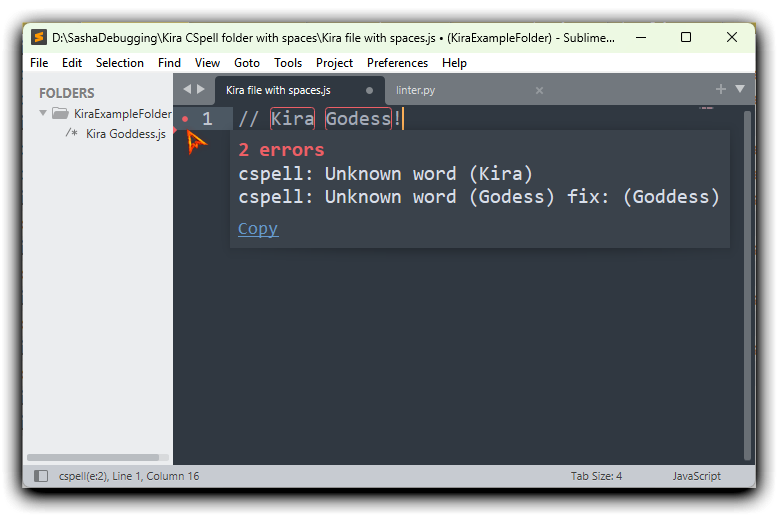
3.2. Changes
- I simplified the regular expression for paths so that it correctly matches filenames on other local disks.
- I removed the value
source of the selector key. CSpell isn’t a spellchecker solely for code and should lint files with any syntax including Plain Text.
- I added the setting
${args} in the value of the cmd attribute to allow users to add other command-line arguments to the CSpell command.
- I removed extra code. I used paths with spaces in my example, and it looks like the issue streetsidesoftware/cspell#7517 mentioned in the commit a73e64e is resolved.
4. Similar problems when I use other plugins
Not solely SublimeLinter-cspell doesn’t show errors and warnings when I open files on other local disks. I get the similar problems when I use other SublimeLinter plugins. Possibly, I will create other issues after resolving the problem in SublimeLinter-cspell.
5. Environment
- Windows 11, Version 25H2 (OS Build 26200.7171)
- Sublime Text 4, Build 4200 (Stable Channel)
- SublimeLinter 4.82.2
- CSpell 9.4.0
- SublimeLinter-cspell 1.1.1
Thanks.
1. Summary
If I open files on local disks other than the local disk of the project’s folder, SublimeLinter with the plugin SublimeLinter-cspell returns the message
cspell: No match for line. Example:SublimeLinter: #1 linter.py:1291 cspell: No match for line: '/D:/SashaDebugging/Kira CSpell folder with spaces/Kira file with spaces.js:1:4 - Unknown word (Kira)'2. Steps to reproduce
Launch Sublime Text 4 on Windows in the Safe Mode.
Install Package Control.
Ctrl+Shift+P →
Package Control: Upgrade/Overwrite All Packages.Otherwise, I get the error
Package Control: The dependency 'typing_extensions' is not availablewhen I install SublimeLinter through Package Control.Install SublimeLinter and SublimeLinter-cspell using Package Control.
Ctrl+Shift+P →
SublimeLinter: Reload SublimeLinter and its Plugins.Otherwise, SublimeLinter plugins don’t work, and I get the message
SublimeLinter upgrade in progress. Aborting lint.in the status bar.Ctrl+Shift+P →
Preferences: SublimeLinter Settings→ replace the content of the user settings file on the right side with this content:{ "debug": true }Create the folder
C:\KiraExampleFolder. Ctrl+Shift+P →Project: Add Folder→C:\KiraExampleFolder.Or add to the project any other folder on the local disk, different from the local disk of the file opened in the next step.
Create the file
D:\SashaDebugging\Kira CSpell folder with spaces\Kira file with spaces.jswith the content:// Kira Godess!You can create any other file in the folder on the local disk, different from the local disk of the folder of the project.
Select
Filein the Sublime menu →Open file→ open the fileD:\SashaDebugging\Kira CSpell folder with spaces\Kira file with spaces.js.Install AutomaticPackageReloader using Package Control. Ctrl+Shift+P →
Automatic Package Reloader→ add the textSublimeLinter-cspellin the opened input field with the labelPackage:→ Enter.Otherwise, SublimeLinter-cspell doesn’t lint files. I get this output in the Sublime Text console:
NOTE: SublimeLinter duplicates messages in the debug mode.
When the file
D:\SashaDebugging\Kira CSpell folder with spaces\Kira file with spaces.jsis opened in the current view, open the Sublime Text console. I get this output:3. Fixing the problem
3.1. Steps to reproduce
After all steps in the previous section, install PackageResourceViewer using Package Control → Ctrl+Shift+P →
PackageResourceViewer: Extract Package→SublimeLinter-cspell→Start Extraction→ Ctrl+Shift+P →PackageResourceViewer: Open Resource→SublimeLinter-cspell→linter.py→ replace the content of the opened filelinter.pywith this code:After these changes, SublimeLinter-cspell should highlight errors for files on any local disks:
3.2. Changes
sourceof theselectorkey. CSpell isn’t a spellchecker solely for code and should lint files with any syntax includingPlain Text.${args}in the value of thecmdattribute to allow users to add other command-line arguments to the CSpell command.4. Similar problems when I use other plugins
Not solely SublimeLinter-cspell doesn’t show errors and warnings when I open files on other local disks. I get the similar problems when I use other SublimeLinter plugins. Possibly, I will create other issues after resolving the problem in SublimeLinter-cspell.
5. Environment
Thanks.