PWA Walkthrough
The TankSync PWA at tanksync.smartghar.org is the cloud-side companion to the hub's local web UI. Lives at one URL, works on any browser, installs as a phone app if you want, and is reachable from anywhere your phone has internet — no port forwarding, no VPN.
Auth: account-based. One account can own multiple hubs and is shareable with family. Theme: auto (follows time-of-day light/dark), can be overridden.
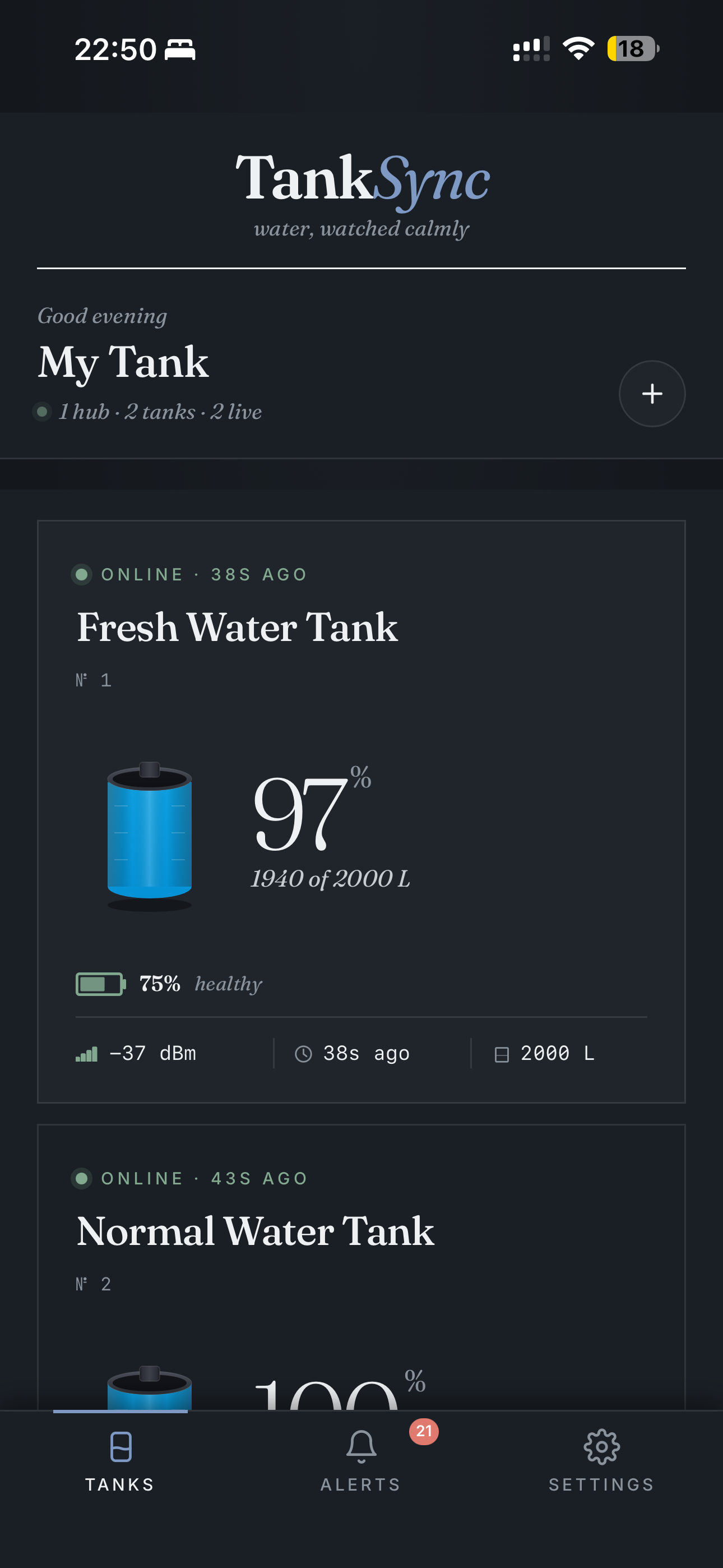
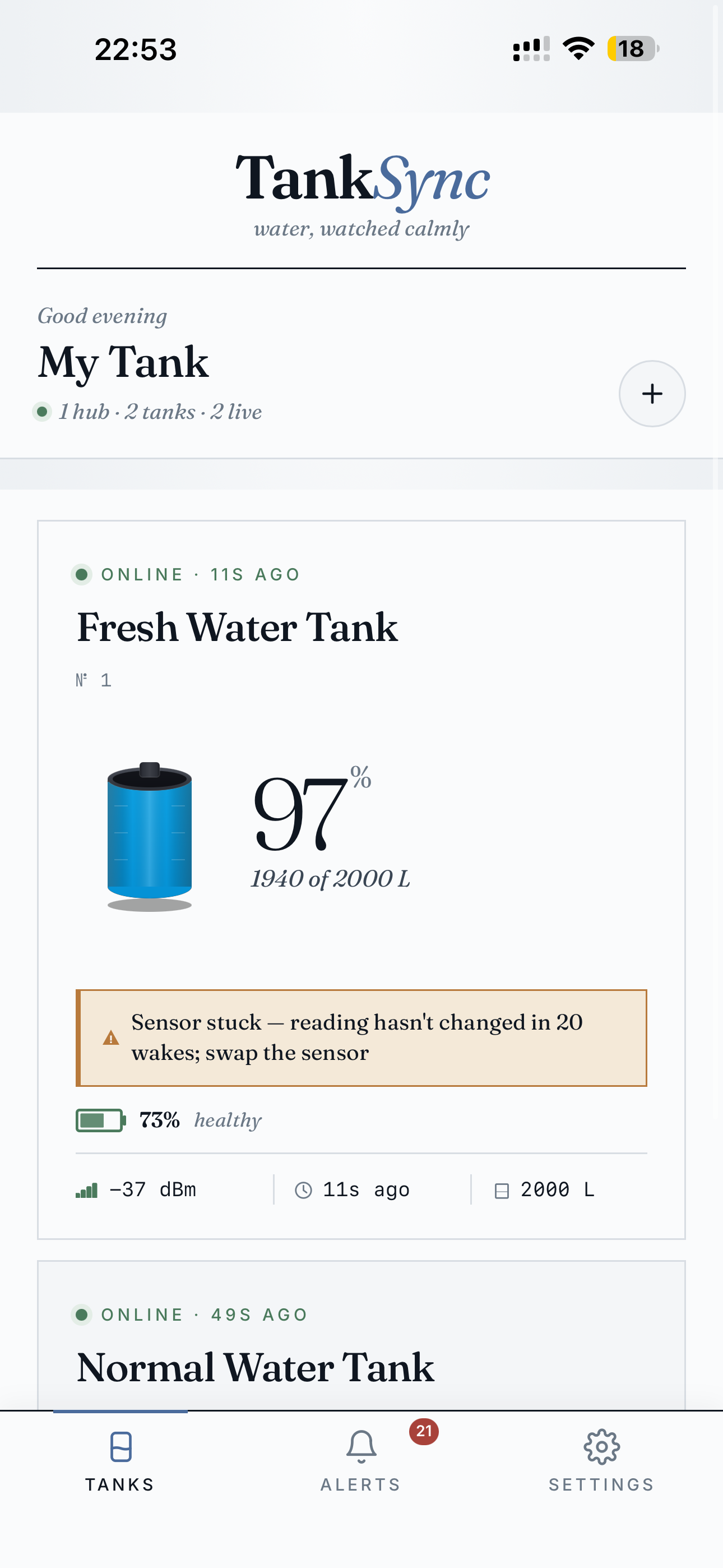
After sign-in you land on Tanks. Every paired tank from every hub on your account shows up as a card with the current level, capacity, signal, last-seen, and battery health.
Dark theme (default at night):
Light theme (default during the day):
When a tank reports a sensor problem (firmware flags variance-based "sensor stuck" detection), a warning chip appears on the card directly:
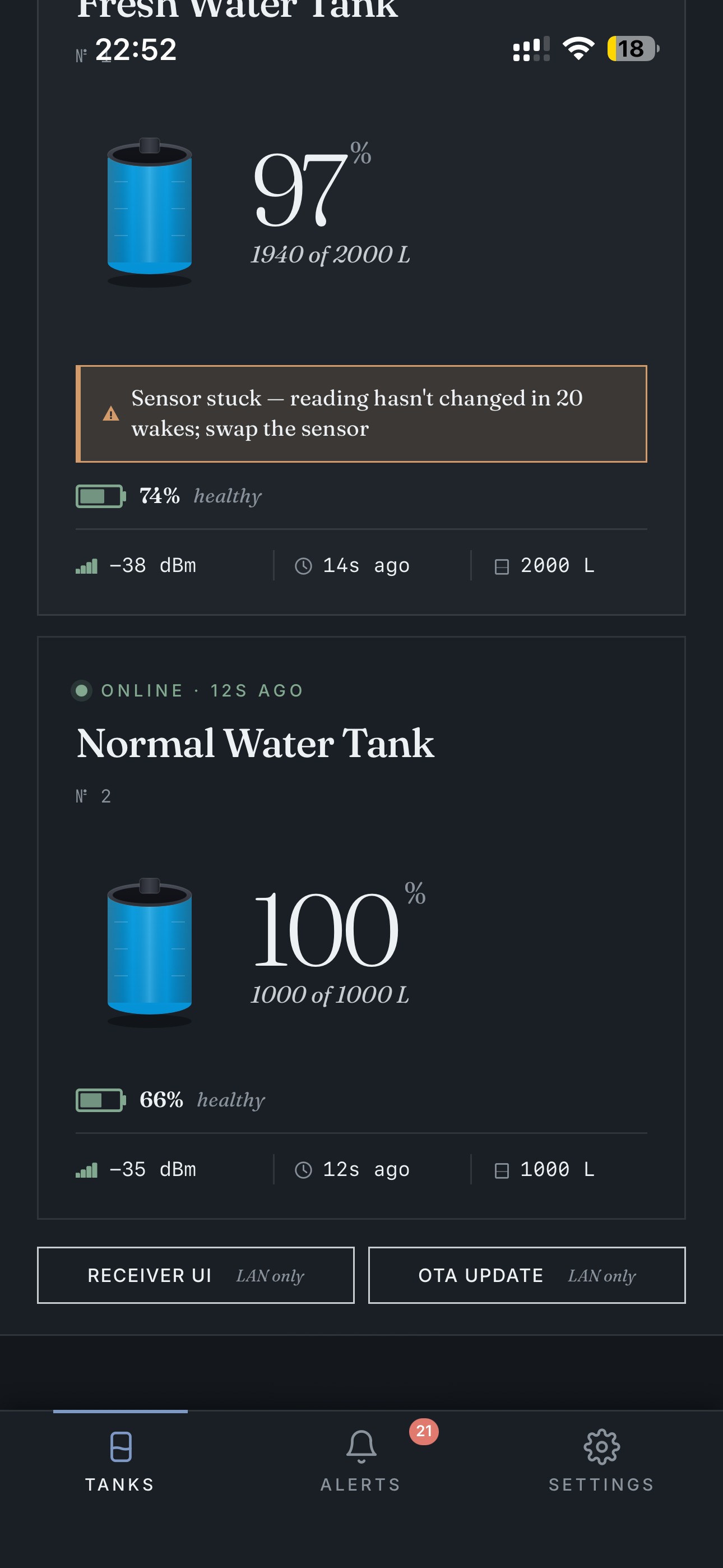
You don't have to dig into settings to see something's wrong — it bubbles to the home screen.
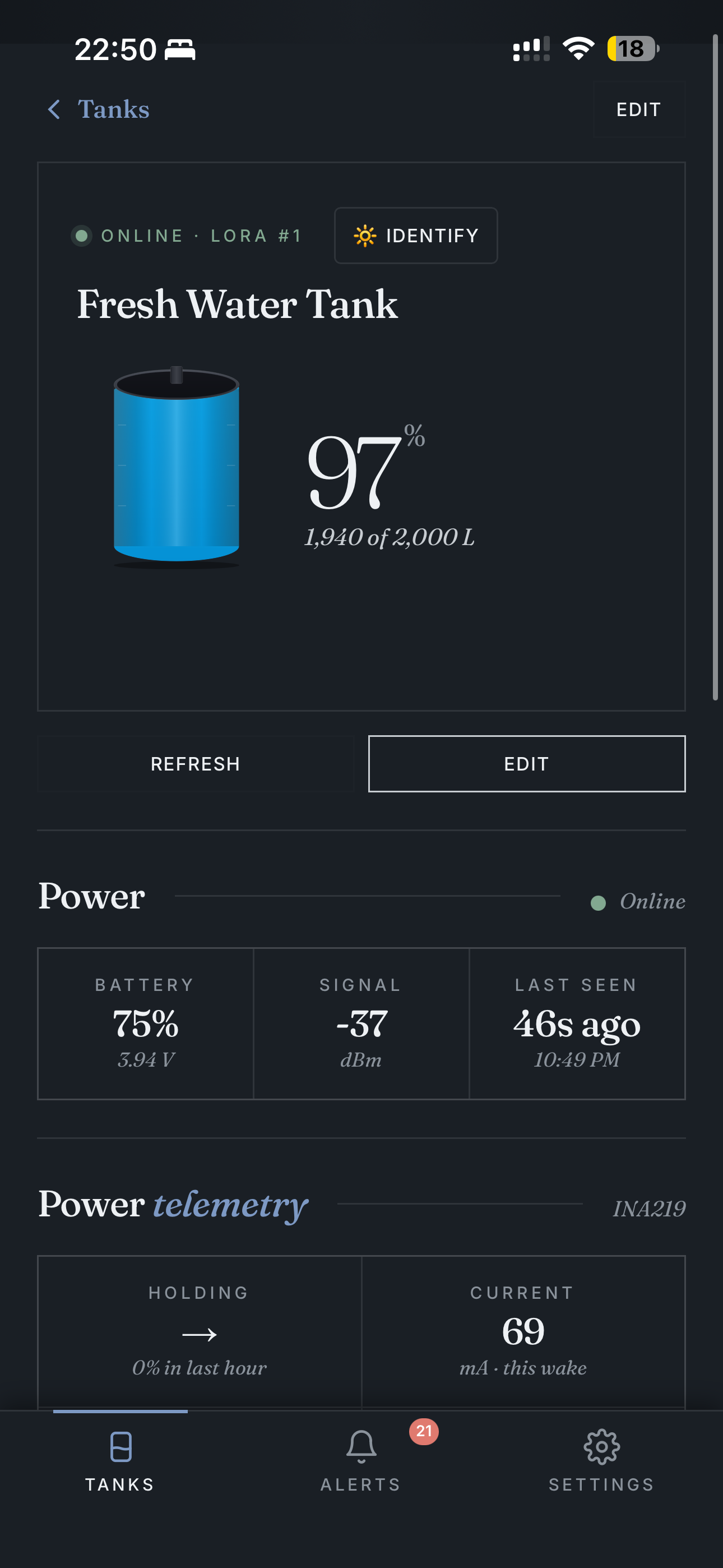
Tap a card to open its detail page. Big level number, refresh + edit buttons, and a power telemetry section showing the INA219 readings:
Scroll down for History (toggleable between Water and Battery) over 1H / 6H / 24H / 7D / 30D / 90D / 1Y windows, and read-only Settings that mirror the hub's calibration values:
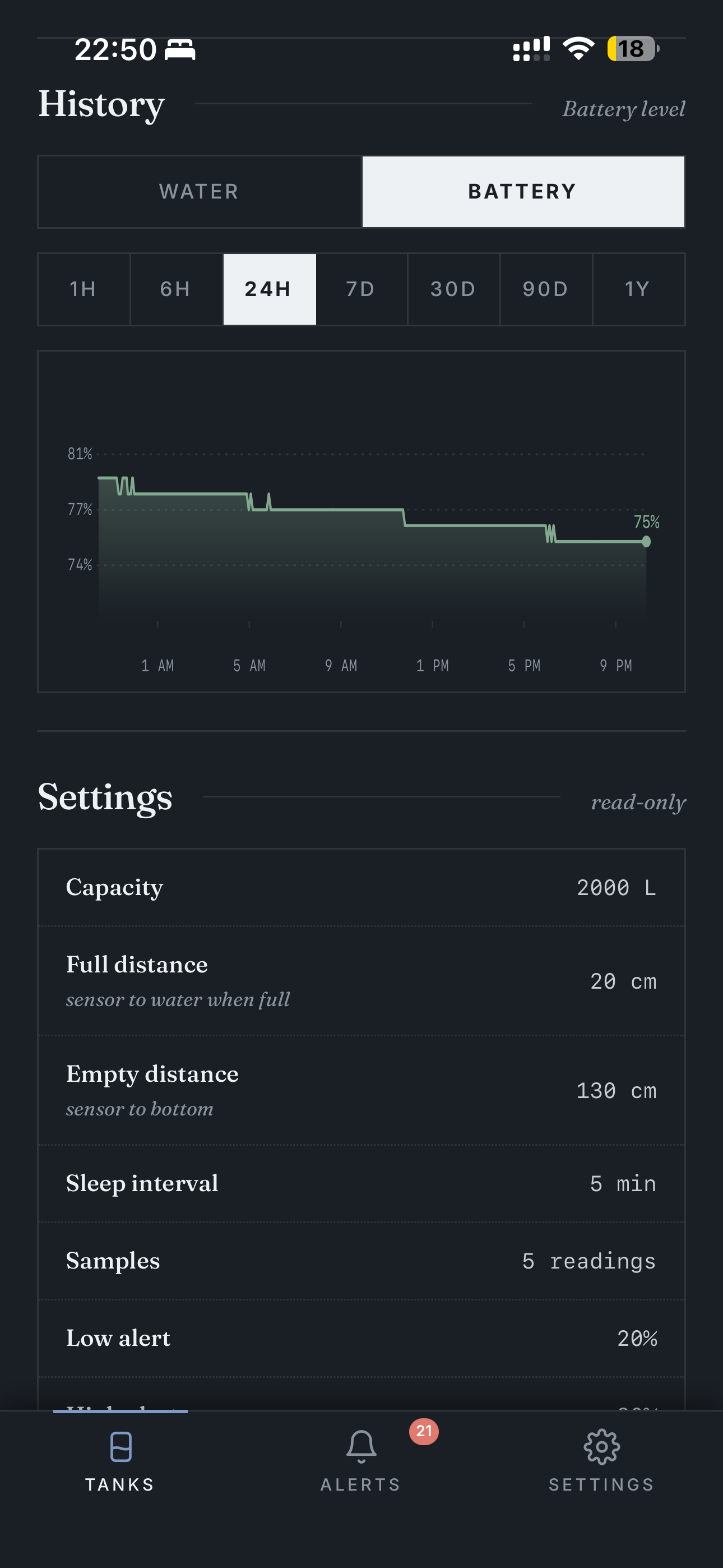
History data is retained for 90 days on the free tier, 1 year on Pro.
Bottom-nav middle button. Lists every alert in reverse-chronological order, filterable by category (All / Water / Battery / Device).
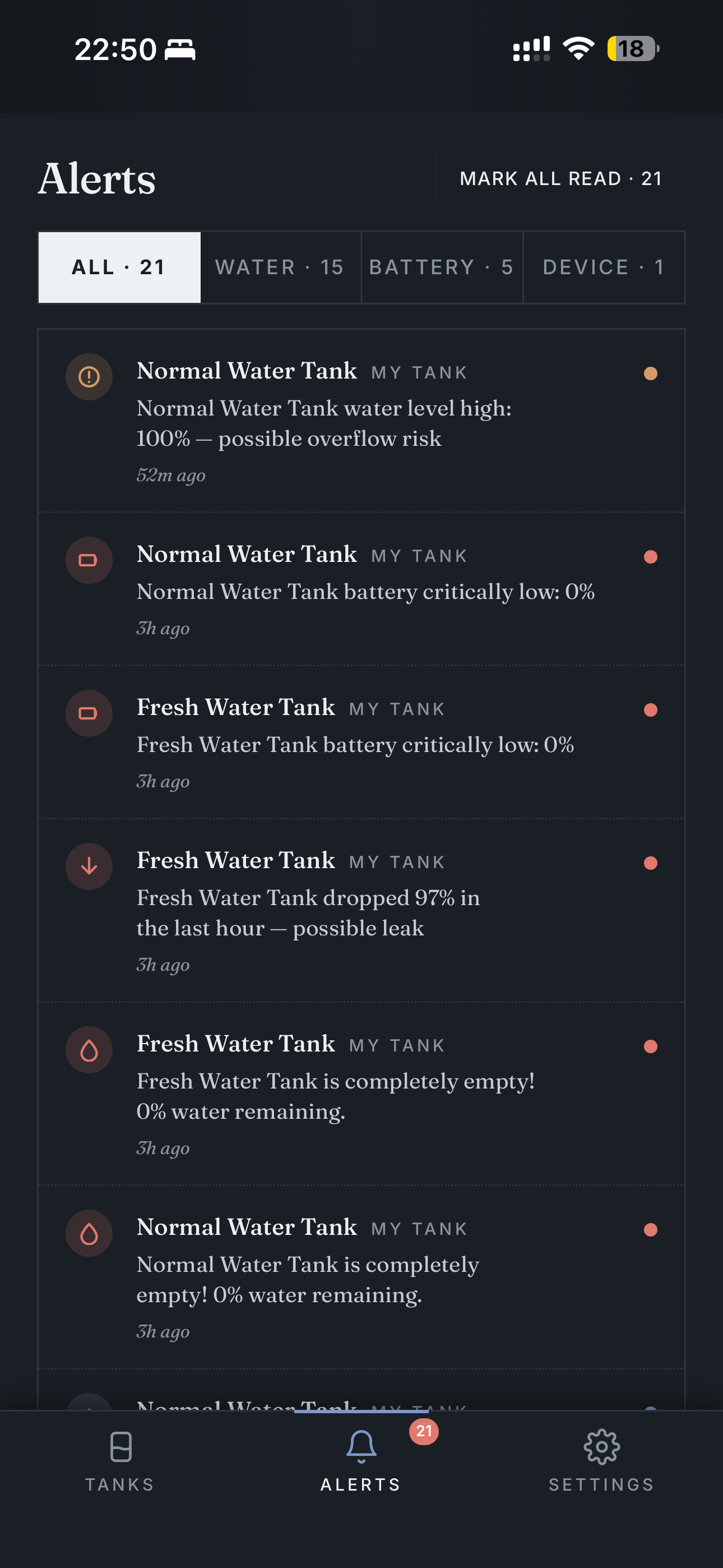
Light theme version:
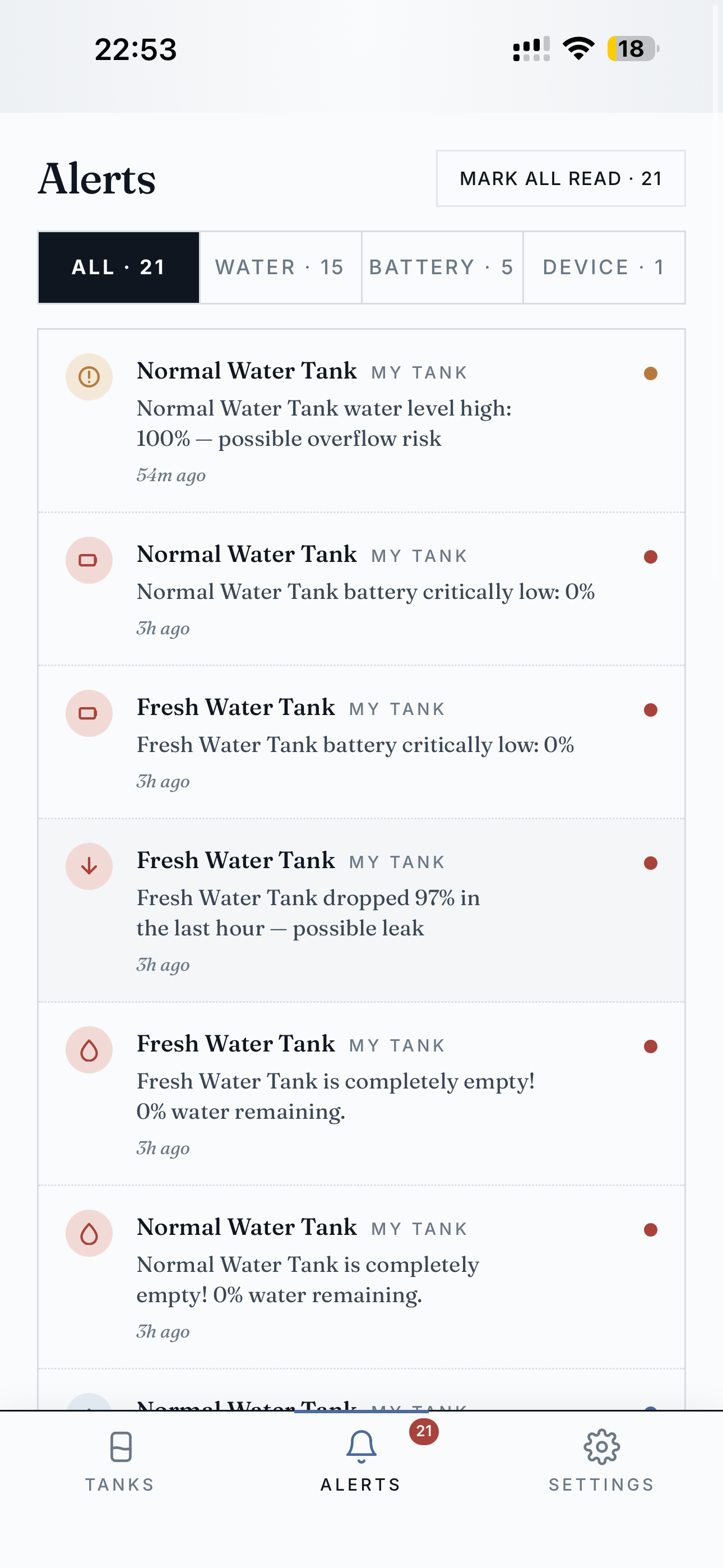
Mark all read clears the badge on the bottom-nav icon. Individual taps mark single alerts. Alerts include: overflow risk, critically low battery, large drop (possible leak), tank completely empty, sensor errors.
Bottom-nav settings icon. Top section is your profile and current plan:
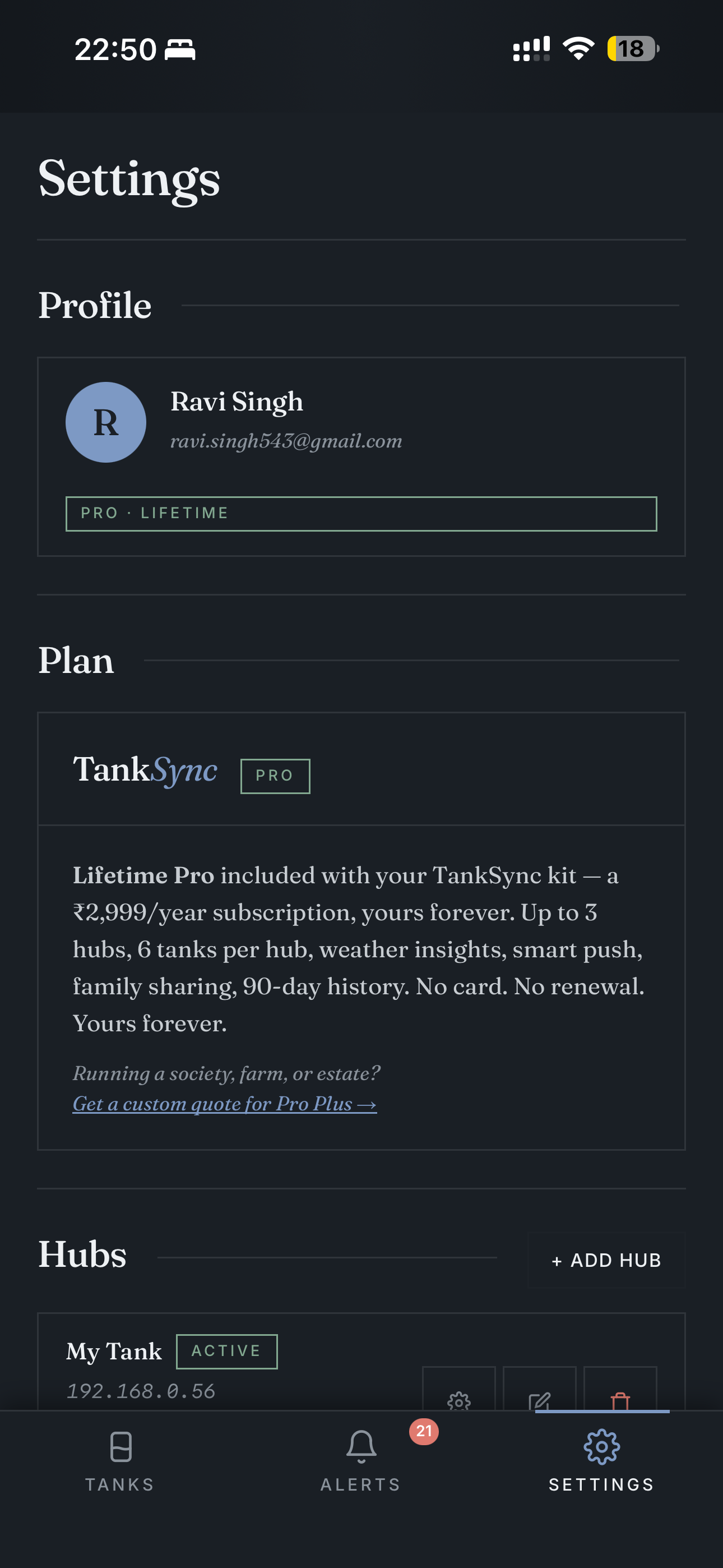
Lifetime Pro is bundled with TankSync kits purchased from SmartGhar. Independent builds use the free tier (still covers 3 hubs / 6 tanks).
Hub list with add/edit/delete buttons, plus the LED strip config and buzzer alerts:
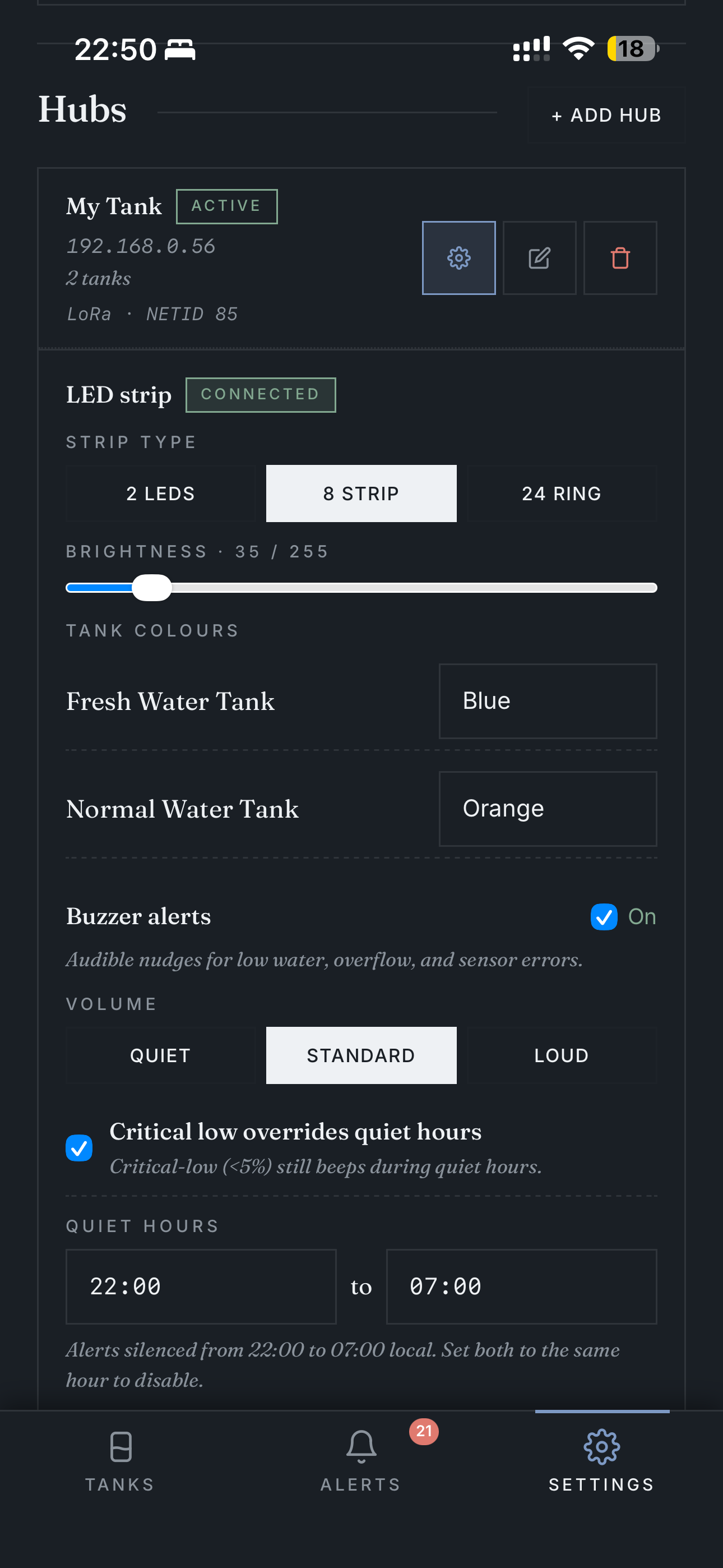
The buzzer controls mirror the hub's local web UI (master enable, volume profile, quiet hours, per-alert toggles). Changes pushed via MQTT to the hub immediately.
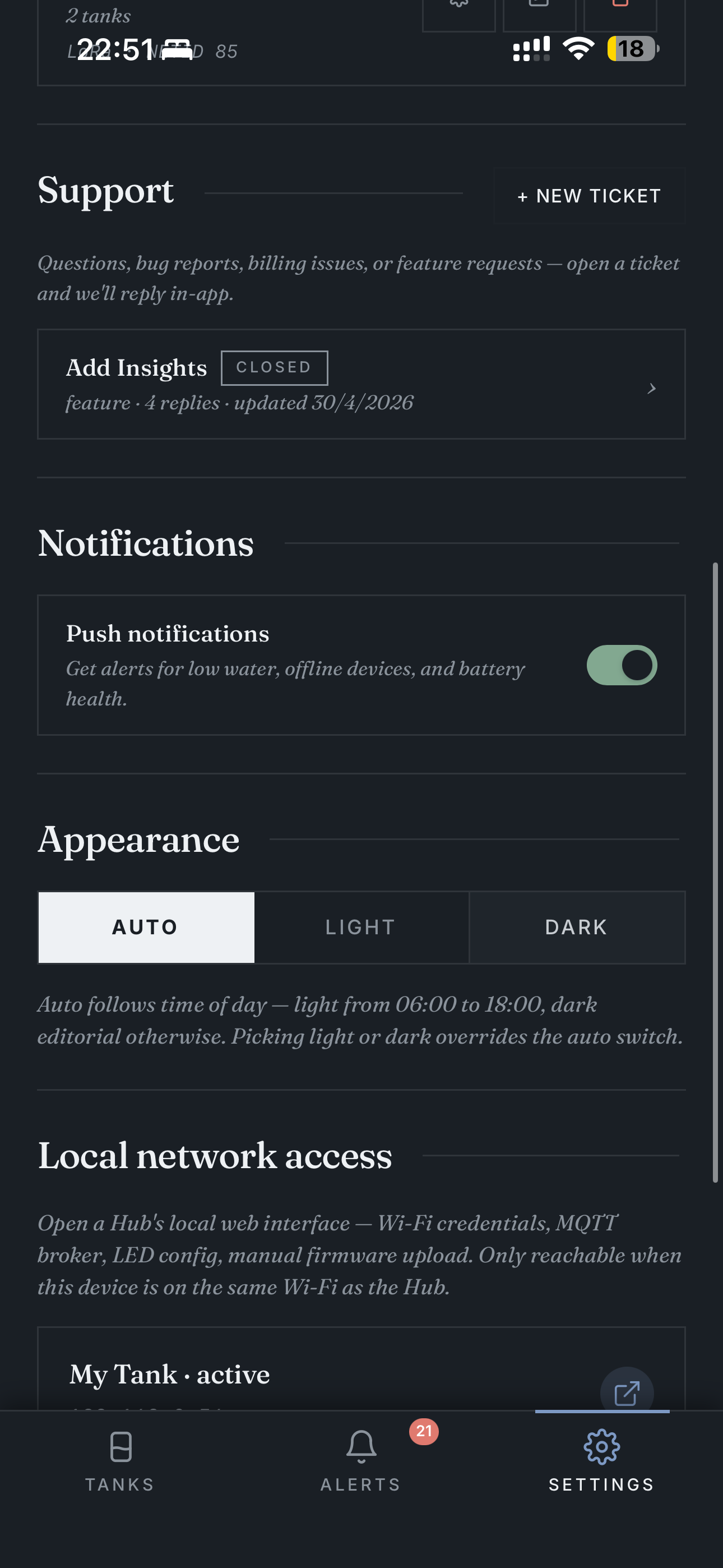
- Support — open in-app tickets. Existing tickets visible with reply count.
- Notifications — global push toggle (per-alert granularity is in the buzzer section).
- Appearance — Auto / Light / Dark theme override.
- Local network access — direct link to the hub's local web UI (only works when you're on the same Wi-Fi as the hub).
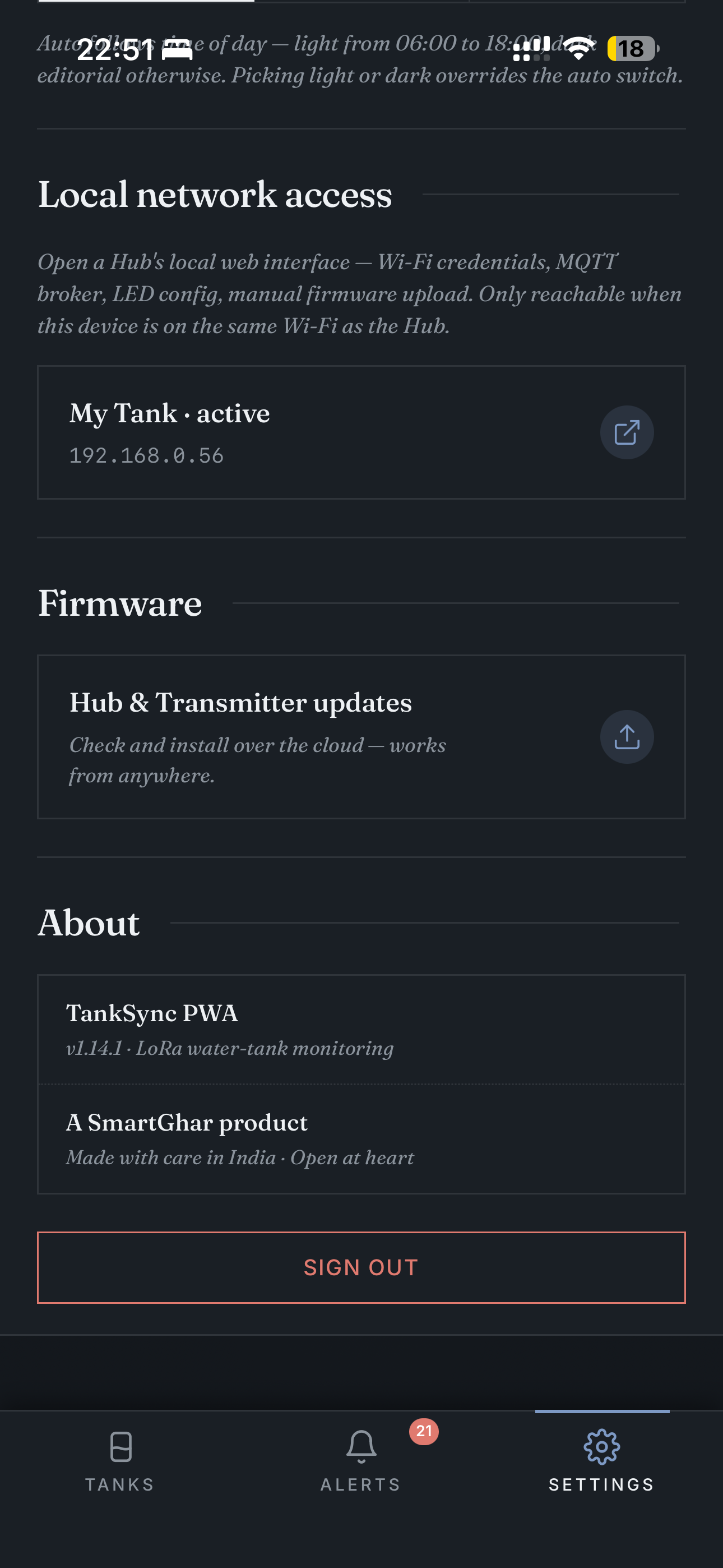
Scrolling further:
Same section in light theme:
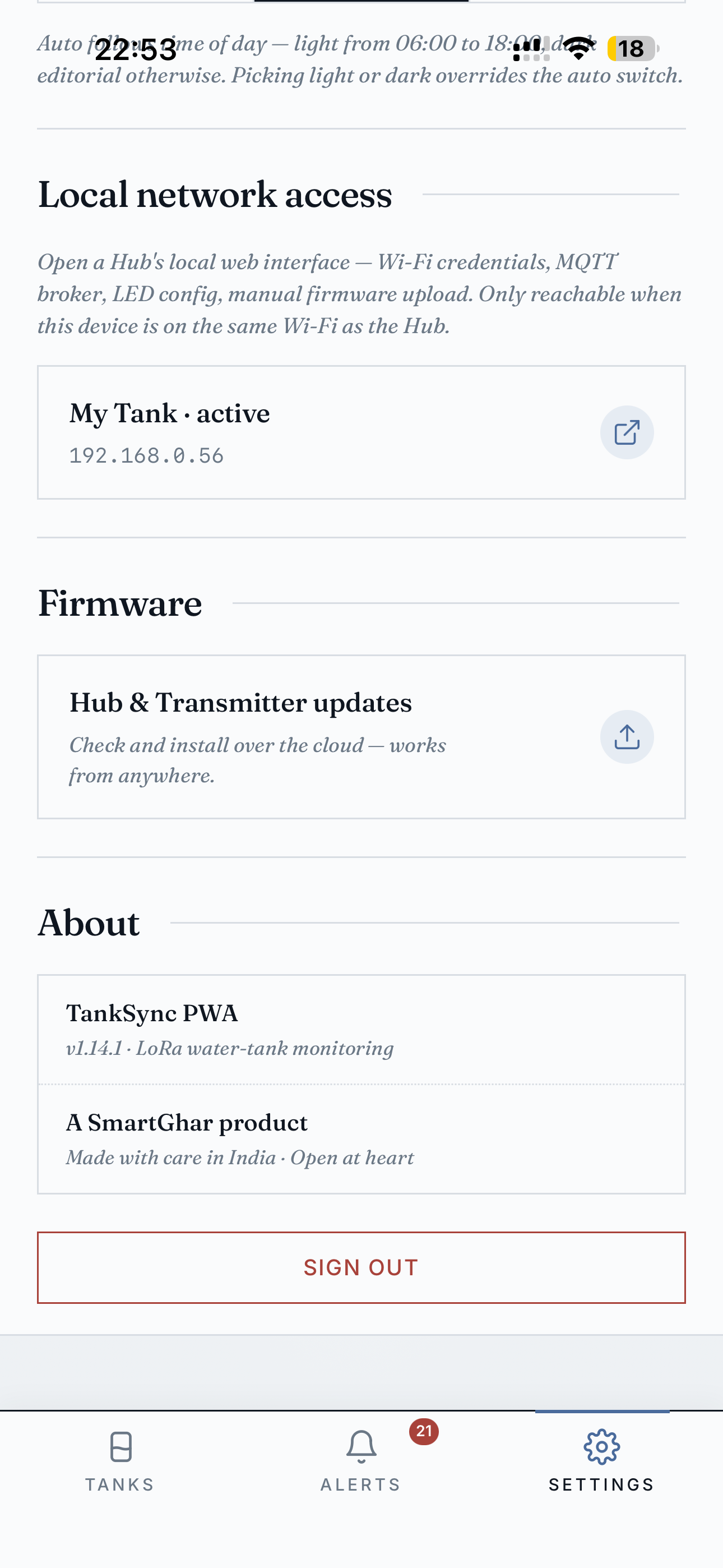
- Local network access — opens the hub's web UI in a new tab if you're on the same Wi-Fi.
- Hub & Transmitter updates — cloud-mediated OTA — works from anywhere, no LAN required.
- About — PWA version string, "A SmartGhar product · Made with care in India".
Tap Hub & Transmitter updates in Settings to open the update page. Hub status at the top, paired transmitters listed below with per-device update buttons:
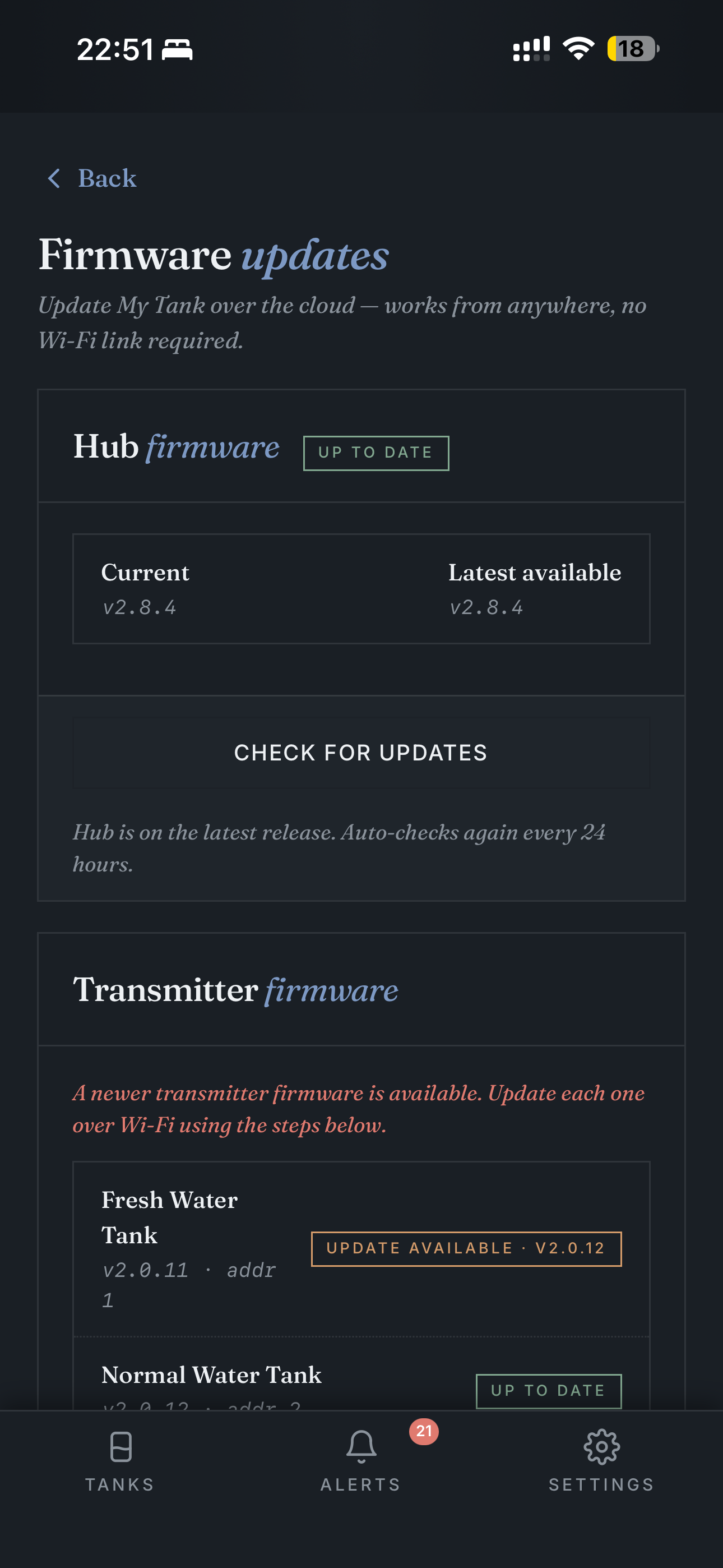
If a transmitter has an update available, an UPDATE AVAILABLE · vX.Y.Z button appears. Tapping it triggers the over-Wi-Fi OTA flow (hub orchestrates; TX wakes up and pulls the new binary).
Scrolling shows the How to update a transmitter (Wi-Fi) expander + LAN-only fallbacks for manual .bin upload:
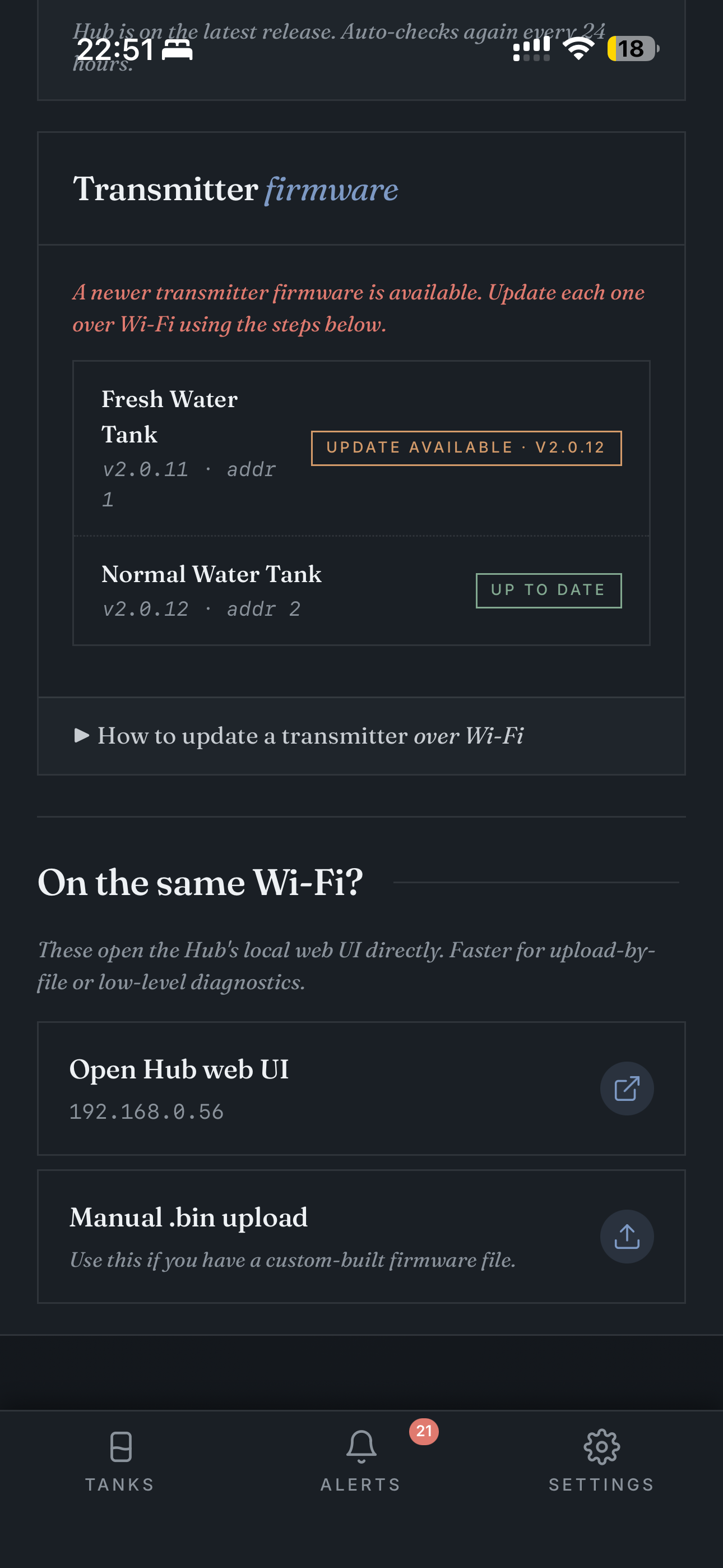
The manual .bin upload route is for custom builds — most users never use it.
iOS Safari: tap Share → "Add to Home Screen". Done.
Android Chrome: visit the page → menu → "Install app". Done.
Once installed, TankSync looks and feels like a native app — same icon on your home screen, no browser chrome, push notifications work natively. No App Store, no review delay.
- No Wi-Fi credential changes — chicken-and-egg. If the hub is on the wrong Wi-Fi, the PWA can't reach it. Use the hub's setup-mode AP for that.
- No LoRa frequency / hub address changes — same. Local web UI only.
- No factory reset — local web UI + physical button only. Avoids "I clicked the wrong thing on my phone and now my hub is gone."
For everything else, the PWA is parity with the local web UI plus history + sharing on top.