Compatible Devices

PlayStation 3 Eyes (aka PSEyes) are the most common and recommended cameras to use with PSMoveServiceEx. Since they work natively with PSMoveServiceEx, most automation tools such as automatic exposure or automatic color detection will work just fine. They also allow higher framerates compared to generic webcams (see below) which can reduce the tracking latency greatly. But because of their very high bandwidth requirements, most people run into issues using more than 2 cameras with high framerates.
If you have a low-end computer with limited USB ports or controllers, you might want to switch to generic webcams. However, if you got multiple USB controllers in a more mid-range or high-end gaming computer, this is the best option.
ℹ️ For more information about USB bandwidth and USB controllers, check out USB requirements.
ℹ️ Additional Device Information
- Resolution:
640x480@75Hzor320x240@187Hz - FOV:
56°(Red Dot) /75°(Blue Dot). - USB-Type:
USB 2.0(should always be connected to USB 3.0 5-Gbit when using multiple PSEyes)
🟢 Pros
- Build-in four-capsule microphone array for
stereo 48Hz audio. - Sells for very cheap (~5$) on ebay.
- Exposure and gain settings are always available.
- Reaches very high framerates.
- Adjustable FOV.
- Precomputed lens distortion since all PSEye cameras are built the same.
🔴 Cons
- Very high USB bandwidth requirements. USB 3.0 5-Gbit and higher is required to run multiple cameras.
- Hard to get because of obsolete and old hardware.
- No DirectShow by default and requires special drivers (Windows).
- Degraded stream quality due to Bayer filter.

Generic webcams will also work with PSMoveServiceEx, however, PSMoveServiceEx - Virtual Device Manager is required for webcams to work. Since every webcam is built differently some additional steps are needed - such as camera lens distortion calibration - to improve tracking quality.
ℹ️ For more information about USB bandwidth and USB controllers, check out USB requirements.
⚠️ This device is not natively supported by PSMoveServiceEx. PSMoveServiceEx - Virtual Device Manager is required to use this device.
ℹ️ Additional Device Information
- Resolution:
1920x1080@30Hzor640x480@30Hz(usual standard) - FOV: Usually high FOV
- USB-Type:
USB 2.0(should always be connected to USB 3.0 5-Gbit when using multiple Webcams)
🟢 Pros
- Available everywhere.
- High-quality webcams for cheap.
- Wide range of resolution, hertz, and FOV.
- Standardized API using DirectShow.
- Very low USB bandwidth requirements due to MJPG compression.
🔴 Cons
- Some cameras have exposure and gain settings unavailable.
- Most cameras are limited to 30Hz.
- Most cameras have automatic adjustments that can not be turned off which makes color tracking near impossible.
- Requires additional lens distortion calibration because the camera lens differs from camera to camera.
- High latency.
- Hue, saturation, and value sensitivity might differ from camera to camera.

The PlayStation 4 Stereo Camera will also work with PSMoveServiceEx, however, PSMoveServiceEx - Virtual Device Manager is required for the camera to work.
ℹ️ For more information about USB bandwidth and USB controllers, check out USB requirements.
⚠️ The PlayStation 4 Stereo Camera requires an adapter to be connected to a Computer.
⚠️ This device is not natively supported by PSMoveServiceEx. PSMoveServiceEx - Virtual Device Manager is required to use this device.
ℹ️ Additional Device Information
- FOV: 85°
- Model:
CUH-ZEY1andCUH-ZEY2 - Resolution:
1280x800@60Hz,640x400@120Hz,320x200@240Hzor160x100@240Hz - USB-Type: USB 3.0 (adapter required)

ℹ️ This device only works in combination with third-party software.
⚠️ This device is not yet supported by PSMoveServiceEx.
todo

PlayStation Motion controllers (aka PSMoves) are the recommended controllers to use and are made for 3D pose tracking using the visible light spectrum. Those controllers are natively supported in PSMoveServiceEx and it's possible to read IMU data such as gyroscope, accelerometer, - magnetometer when available - and even control the LED bulb and rumble.
PlayStation Motion controllers do not need any special drivers. Once connected, it will appear as a DirectInput legacy game controller. A Bluetooth connection is required to use the PlayStation Motion controller on your Computer. So you need a Bluetooth adapter as well. For more information about Bluetooth, check Bluetooth requirements.
Currently, there are two versions of PlayStation Motion controllers: PlayStation 3 and PlayStation 4. The version of these controllers can be identified by the sticker on the back of the controller (see below). The PlayStation 3 version of the controller has two Generations. Generation 1 of the PlayStation 3 Motion controller has an additional Magnetometer while Generation 2 has them disabled and the PlayStation 4 Motion controllers have the Magnetometer completely removed. Magnetometer-less controllers experience yaw drift due to missing yaw drift correction using the Magnetometer.
✅ It is recommended to get the PlayStation 3 Generation 1 Motion controller with Magnetometer.
⚠️ The model number does not determine the generation of a controller.
⚠️ PSMoveServiceEx does not support optical drift correction yet. Magnetometer-less controllers will experience yaw drift over time.
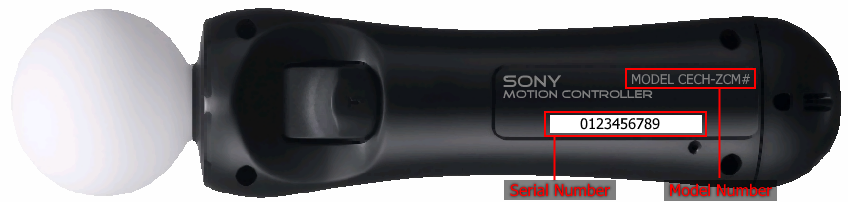
The PlayStation 3 Motion Controller Generation 1 (aka PS3 Move Gen1) is the only controller that has a Magnetometer.
To identify the controller, look at the sticker on the back of the controller and check the model and serial number.
To check if the controller is a PlayStation 3 version, the model should be CECH-ZCM1# (whereas # is a random letter).
Check the beginning of the long serial number to identify the Generation of the controller. Generation 1 Motion Controllers should start with G, 0, 1 or 2.
⚠️ PlayStation 3 Motion controllers can not be charged with USB wall chargers! They require a data connection so they have to be charged on a computer or docking station.
ℹ️ Additional Device Information
- Frequency:
120Hz(60Hz real) - Model:
CECH-ZCM1 - Serial:
G******,0******,1******,2****** - Bluetooth: 2.1
- Battery life: 10 hours
- USB Type: Mini-USB
- Sensors: ✅ Gyroscope; ✅ Accelerometer; ✅ Magnetometer
The PlayStation 3 Motion Controller Generation 2 (aka PS3 Move Gen2) is the same as Generation 1 except it has its Magnetometer disabled.
⚠️ Using this controller may cause yaw to drift over time due to missing Magnetometer.
⚠️ PlayStation 3 Motion controllers can not be charged with USB wall chargers! They require a data connection so they have to be charged on a computer or docking station.
To identify the controller, look at the sticker on the back of the controller and check the model and serial number.
To check if the controller is a PlayStation 3 version, the model should be CECH-ZCM1# (whereas # is a random letter).
Check the beginning of the long serial number to identify the Generation of the controller. Generation 2 Motion controllers should start with 3 or higher.
ℹ️ Additional Device Information
- Frequency:
120Hz(60Hz real) - Model:
CECH-ZCM1 - Serial:
3******and higher. - Bluetooth: 2.1
- Battery life: 10 hours
- USB Type: Mini-USB
- Sensors: ✅ Gyroscope; ✅ Accelerometer; ❌ Magnetometer
The PlayStation 4 Motion Controller (aka PS4 Move) is a new revision compared to the PlayStation 3 Motion Controller. The controller itself is more lightweight compared to its earlier versions and instead of connecting it with Mini-USB, it requires Micro-USB just like most devices nowadays. This also means it can be charged with generic USB wall chargers where as older versions can not.
⚠️ Using this controller may cause yaw to drift over time due to missing Magnetometer.
To identify the controller look at the sticker on the back of the controller and check the model and serial number.
To check if it is a PlayStation 4 version, the model should be CECH-ZCM2# (whereas # is a random letter).
ℹ️ Additional Device Information
- Frequency:
1200Hz(600Hz real) - Model:
CECH-ZCM2 - Bluetooth: 4.0
- Battery life: +10 hours
- USB Type: Micro-USB
- Sensors: ✅ Gyroscope; ✅ Accelerometer; ❌ Magnetometer

⚠️ This device does not have any optical tracking capabilities. Adding a LED bulb is required for positional tracking.
⚠️ This device does not have an IMU (Inertial measurement unit) for rotation. Adding a remote IMU is required to enable rotation.
⚠️ This device is not yet supported by PSMoveServiceEx - Virtual Device Manager.
todo

⚠️ This device does not have any optical tracking capabilities. Adding a LED bulb is required for positional tracking.
⚠️ This device does not have an IMU (Inertial measurement unit) for rotation. Adding a remote IMU is required to enable rotation.
⚠️ This device is not yet supported by PSMoveServiceEx - Virtual Device Manager.
todo

The official PlayStation VR head-mounted display is natively supported since PSMoveServiceEx v0.23.
To install all necessary drivers you need to use PSMoveServiceEx - Virtual Device Manager.
⚠️ As of now, the build-in LEDs are not used for tracking due to limitations. Add a LED bulb onto the device to enable positional tracking.
⚠️ Using this Head-Mounted Display may cause yaw to drift over time due to missing Magnetometer.
ℹ️ Hardware Setup for Desktop and PlayStation


ℹ️ Additional Device Information
- Frequency:
1000Hz - Model:
CUH-ZVR1(Generation 1) /CUH-ZVR2(Generation 2) - Connection: USB 2.0, HDMI
- Sensors: ✅ Gyroscope; ✅ Accelerometer; ❌ Magnetometer
- Display: OLED
- Resolution: 1920x1080 (960x1080 per eye)
- FOV: ~100°
- Additional info: Requires Processor Unit

ℹ️ The moveTrackVR app is recommended to use instead of owoTrackVR. Unless you are using iOS.
⚠️ This device does not have any optical tracking capabilities. Adding a LED bulb is required for positional tracking.
⚠️ This device is not natively supported by PSMoveServiceEx. PSMoveServiceEx - Virtual Device Manager is required to use this device.
⚠️ Installing the moveTrackVR/owoTrackVR app onto the device is required to read IMU sensor data.
By adding bulbs onto android or iOS phones you can create simple and compact optical trackers. Due to missing input methods, this method is exclusively used to create full body or head-mounted display trackers (such as for PhoneVR). Use the moveTrackVR/owoTrackVR app to connect to PSMoveServiceEx - Virtual Device Manager.
todo

⚠️ This device does not have any optical tracking capabilities. Adding a LED bulb is required for positional tracking.
⚠️ This device is not natively supported by PSMoveServiceEx. PSMoveServiceEx - Virtual Device Manager is required to use this device.
todo