An IAM user group is a collection of IAM users. User groups let you specify permissions for multiple users, which can make it easier to manage the permissions for those users.
In this lab, we are going to create an IAM user group and attach permission to it.
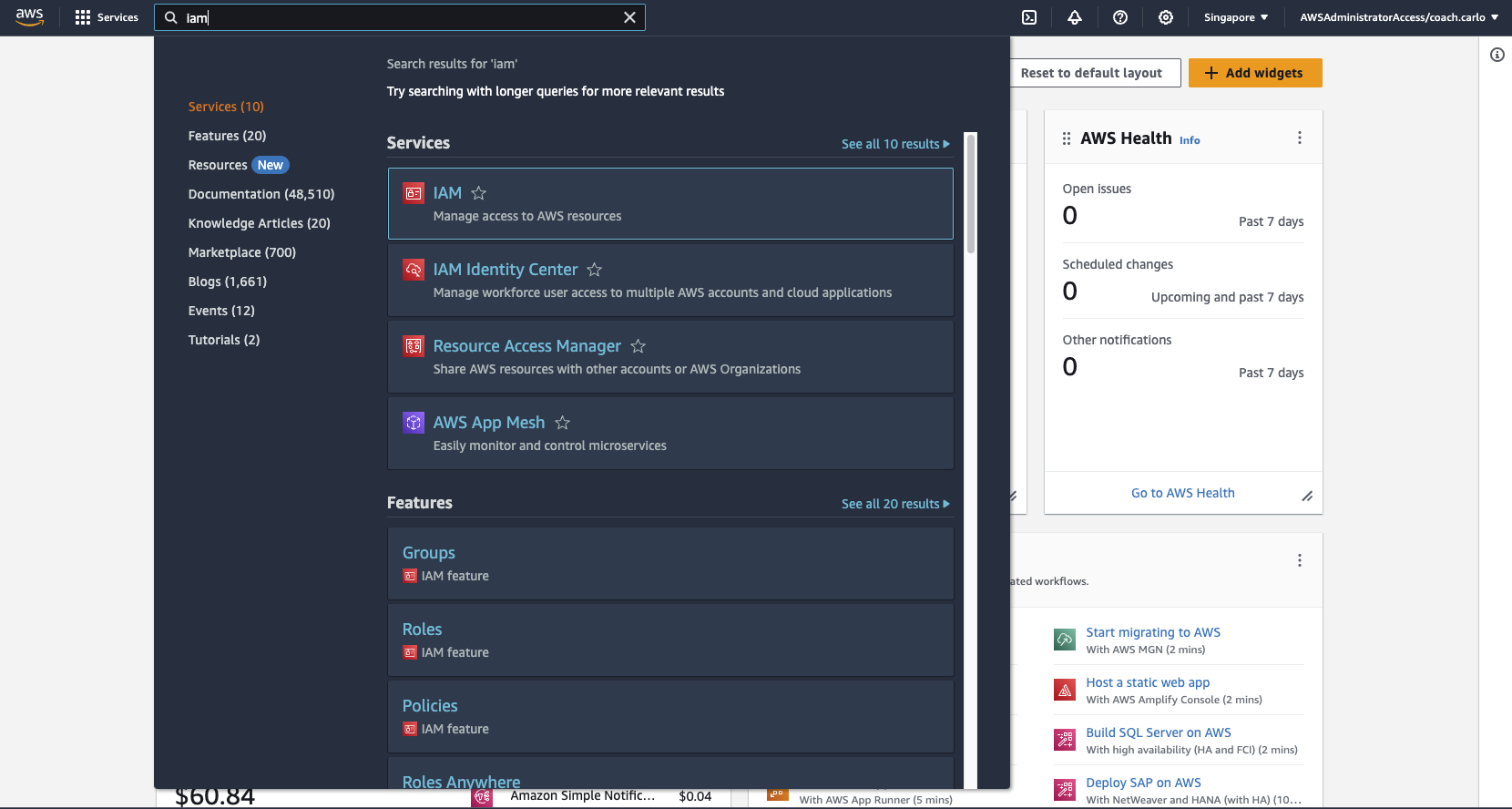
1-a On your AWS Management Console, navigate to the IAM service.
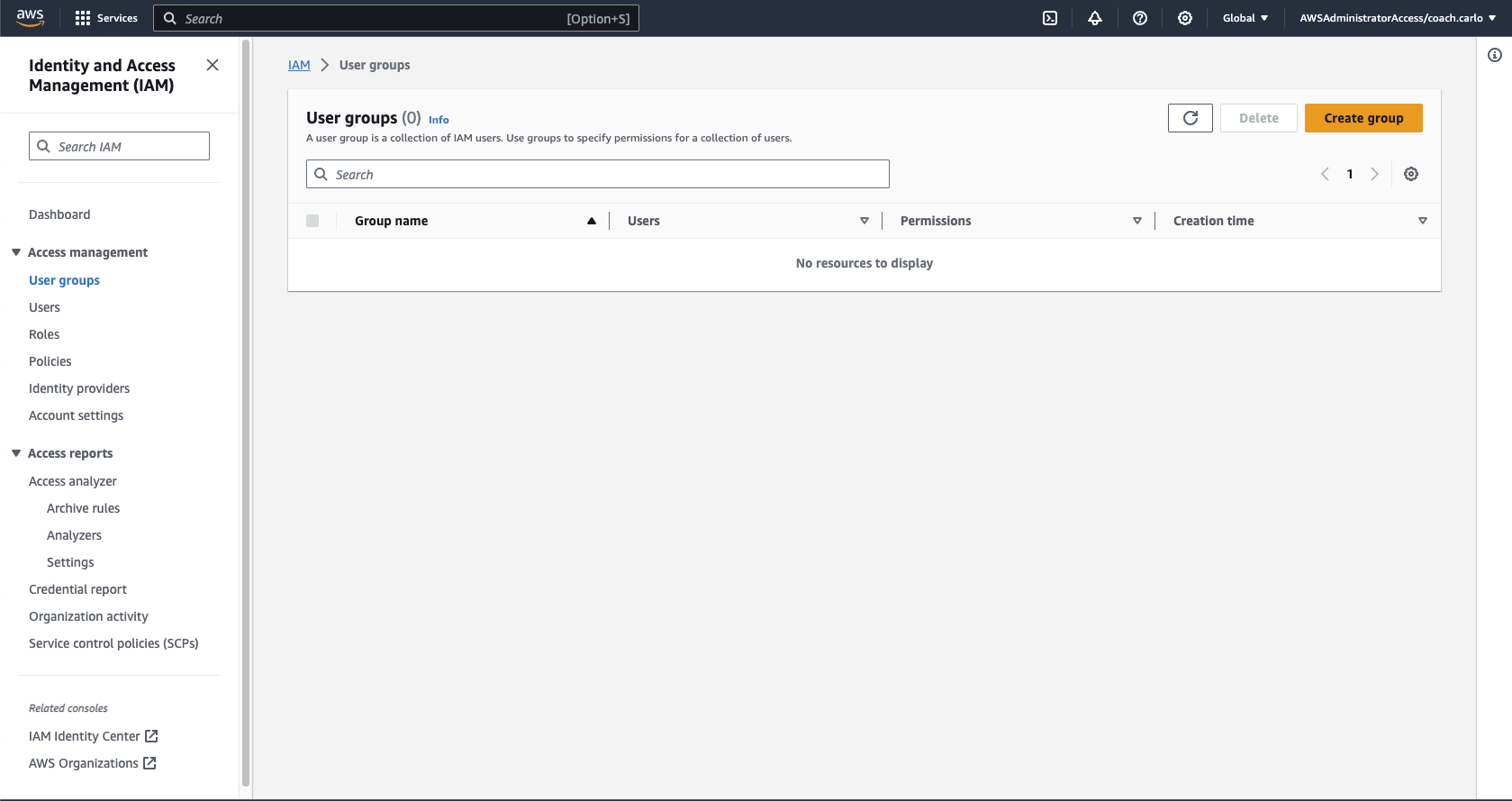
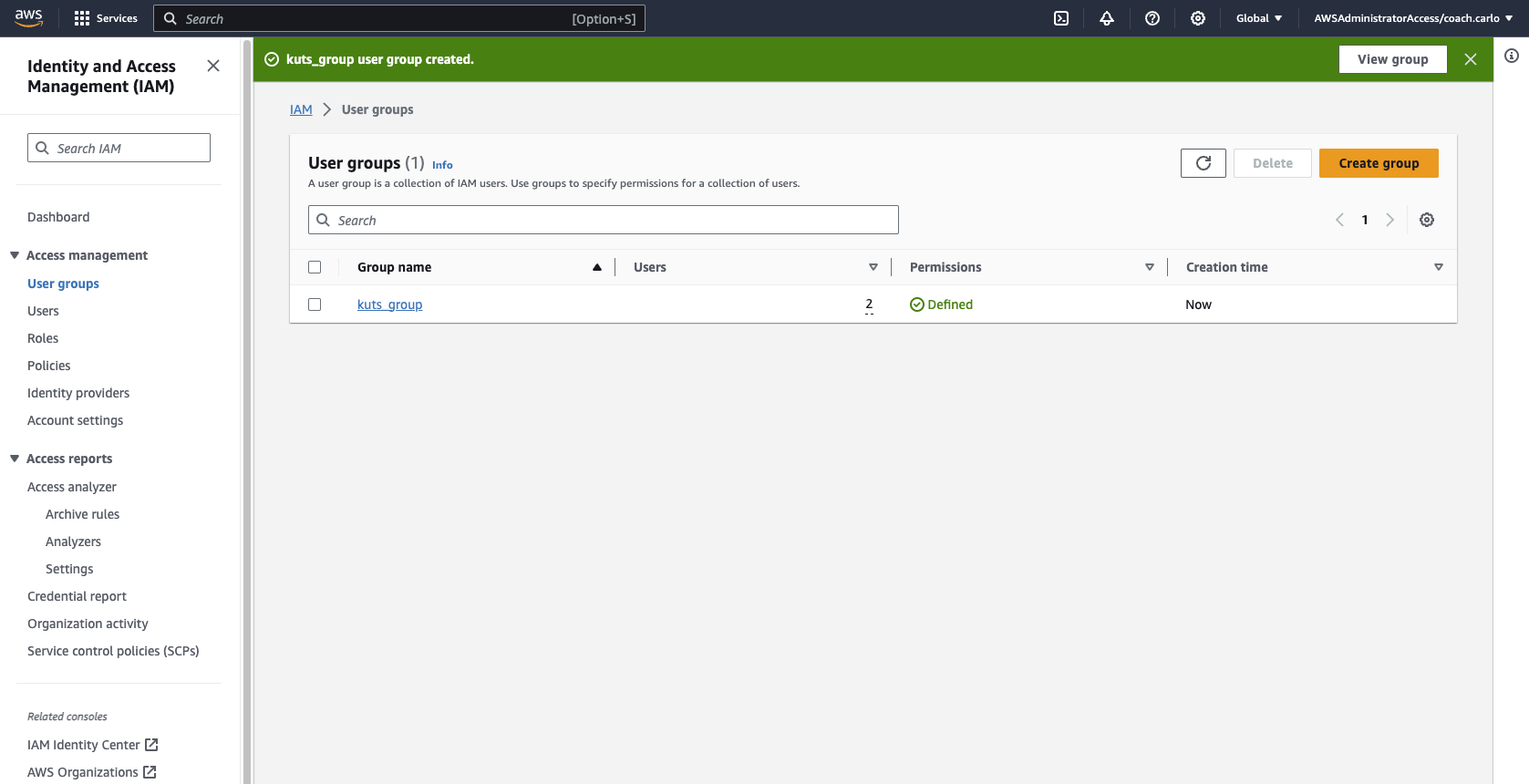
1-b On the left side under Access Management tab, select User Group and click "Create Group"
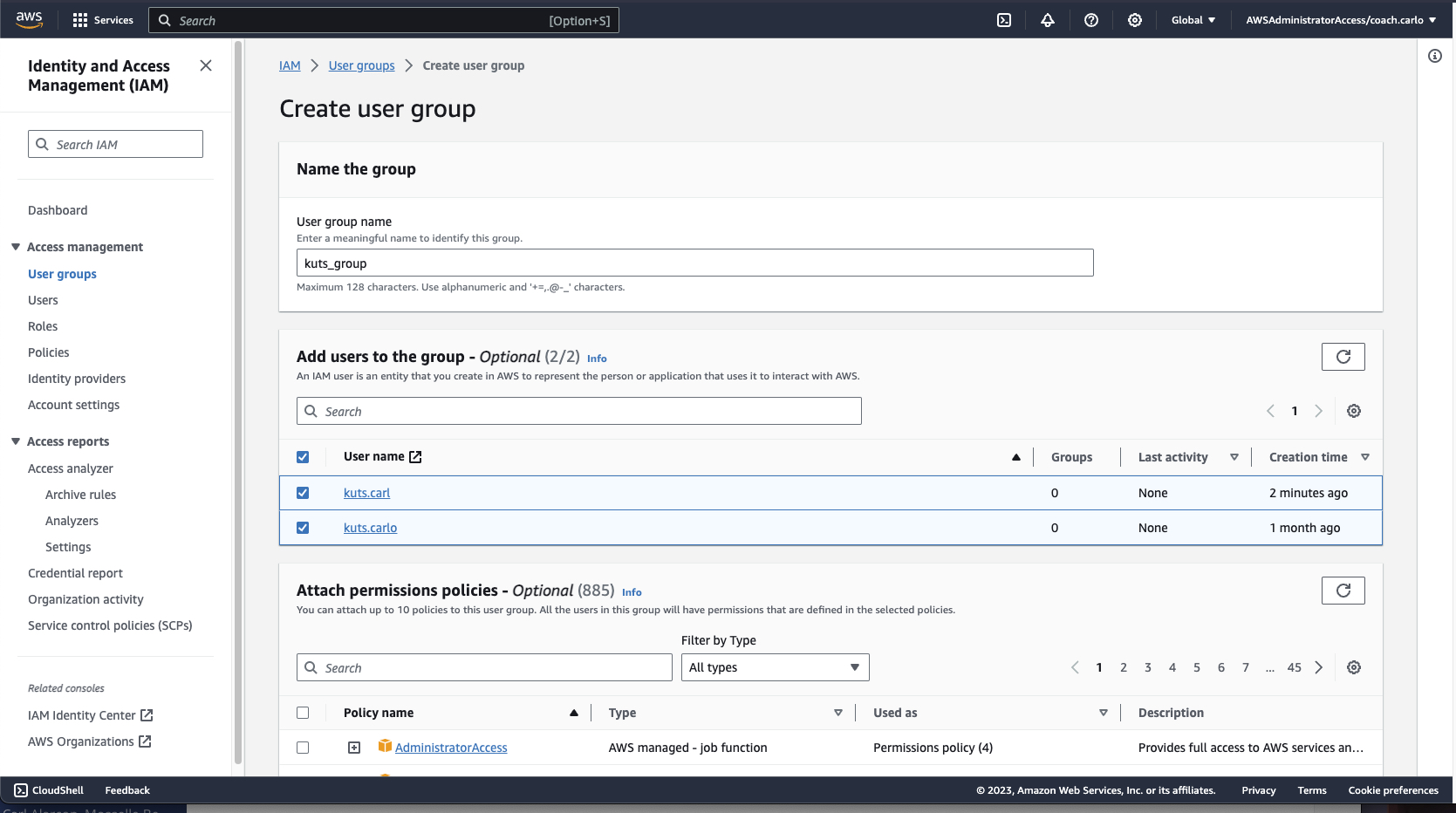
1-c Enter the name of the group and add the users you want to include in the group. Please add kuts.carl and kuts.carlo and the user you created in Lab 1.
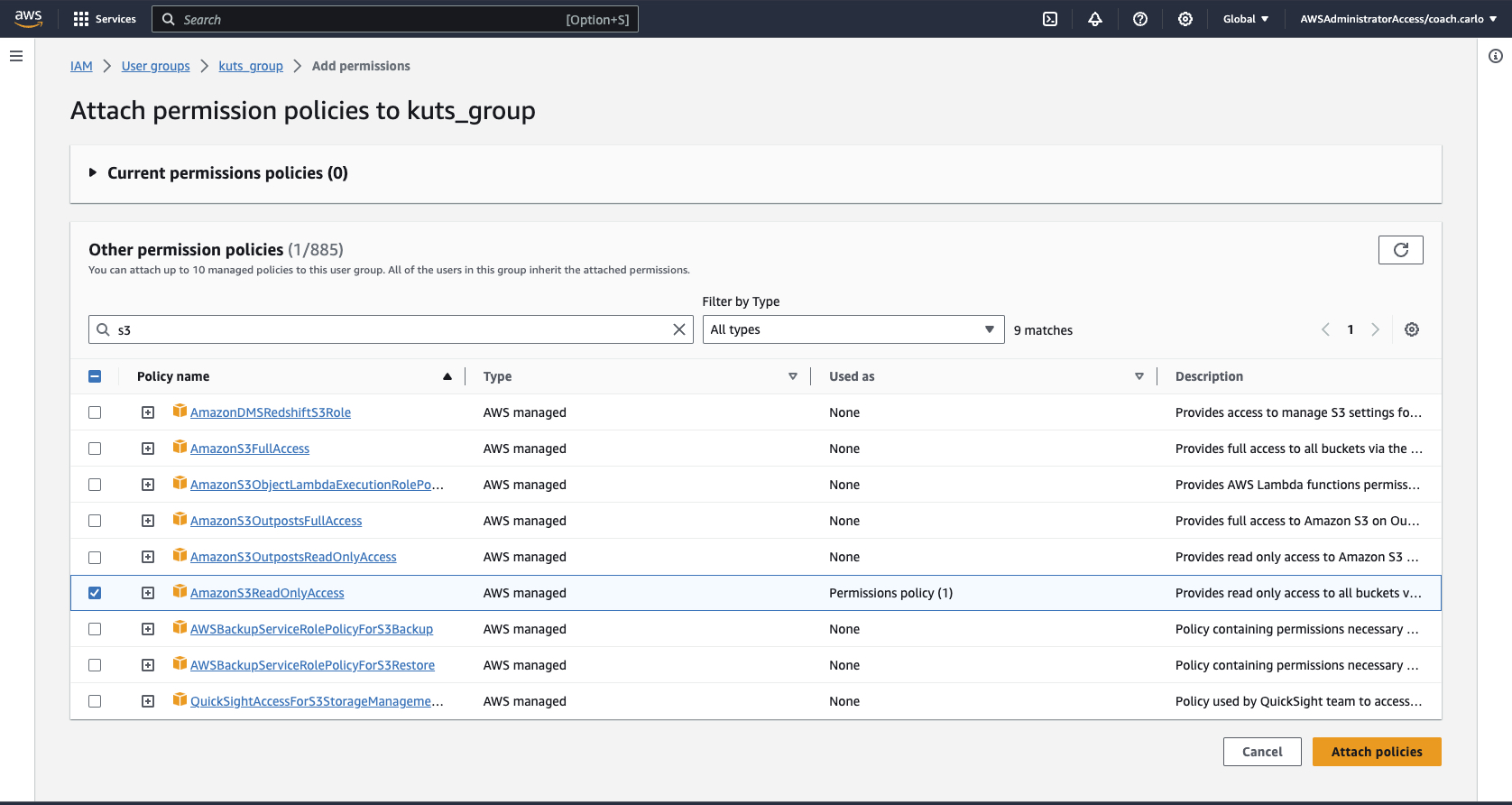
1-d Scroll down and look for AmazonS3ReadOnlyAccess and attach the permission policy to the group. This is the advantage of putting users inside a user group. It makes it easier to attach and remove permission to group of users instead of attaching/removing it one at a time.
1-e Once done, click on Create Group to finish the creation.
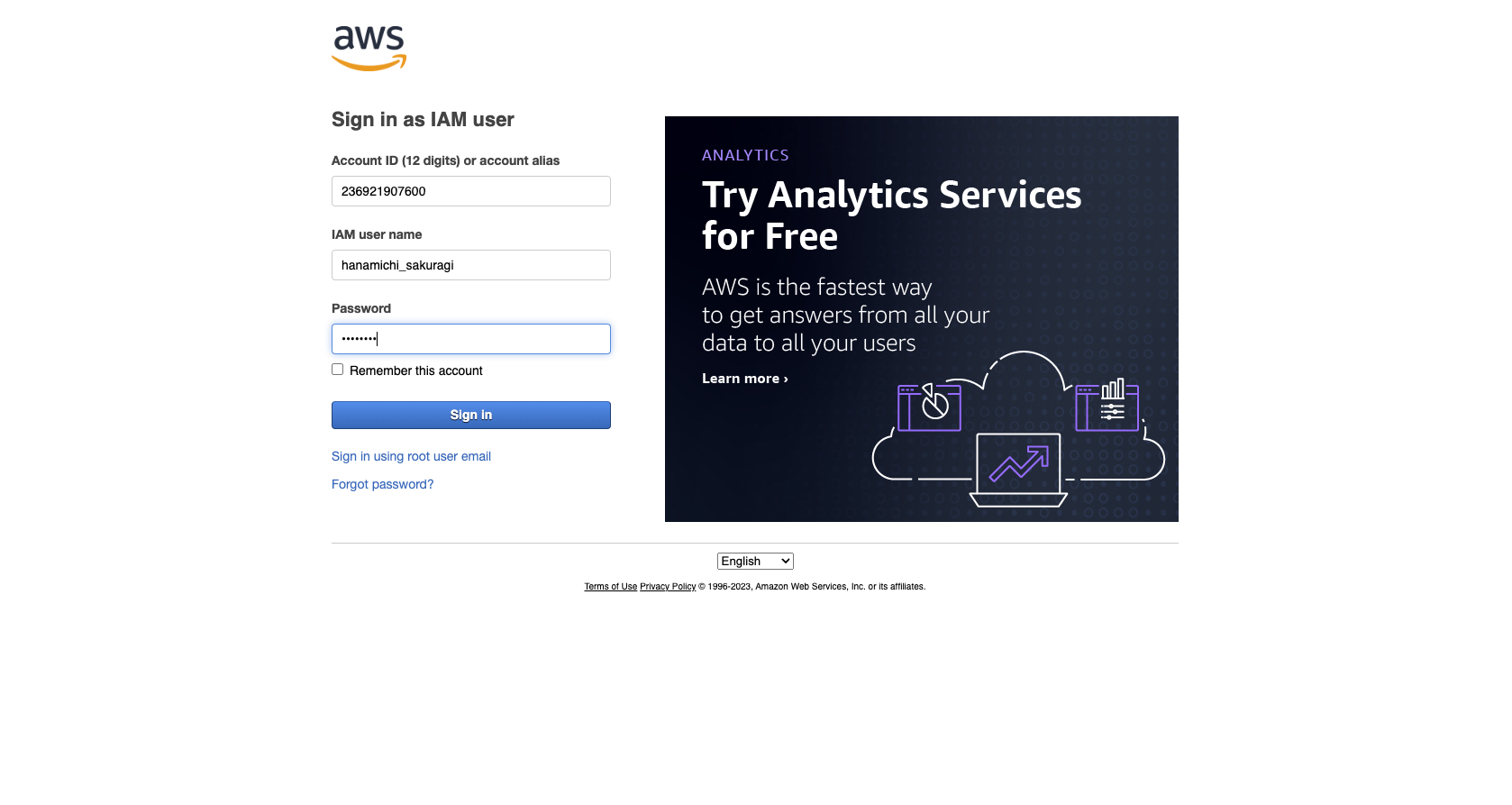
2-a Create a new private/incognito tab on your browser and access the sign-in page of the user you created.
2-b Enter the user's credentials to sign in to the AWS Management Console
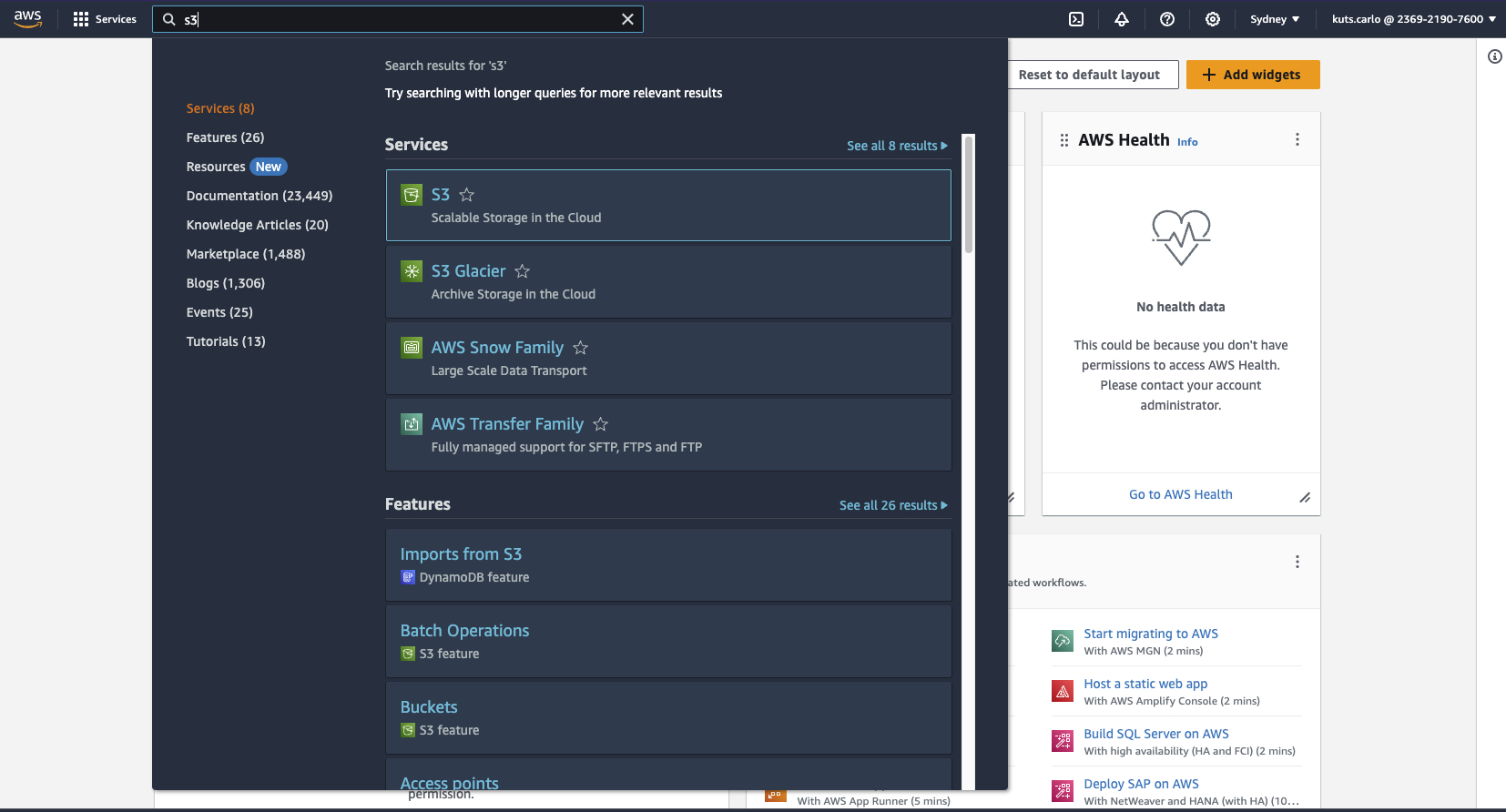
2-c Once you are in the console, navigate to S3.
2-d Delete the same file we tried to delete in Lab 1
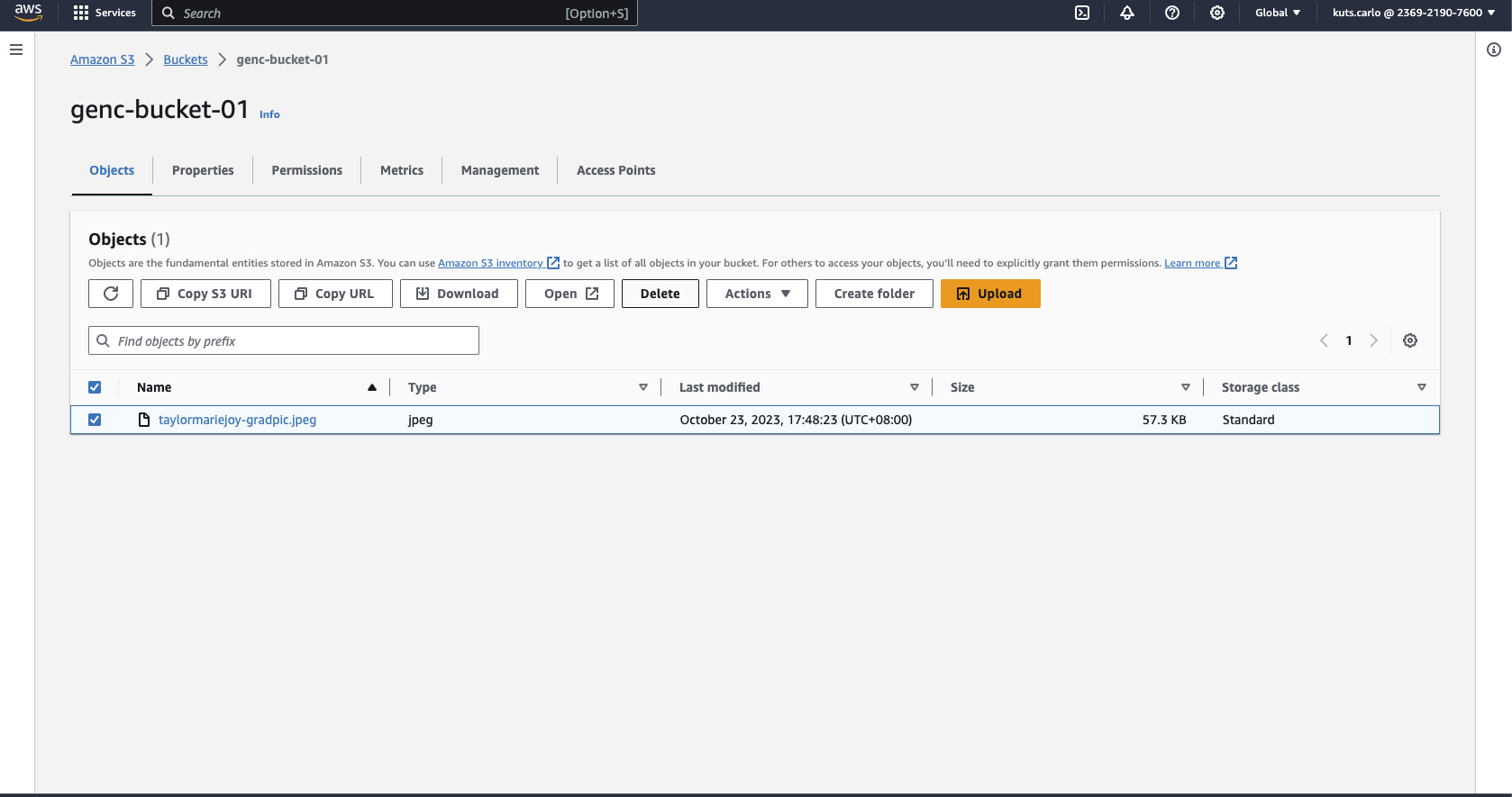
2-e You should get the same result since we also assigned AmazonS3ReadOnlyAccess on the group.
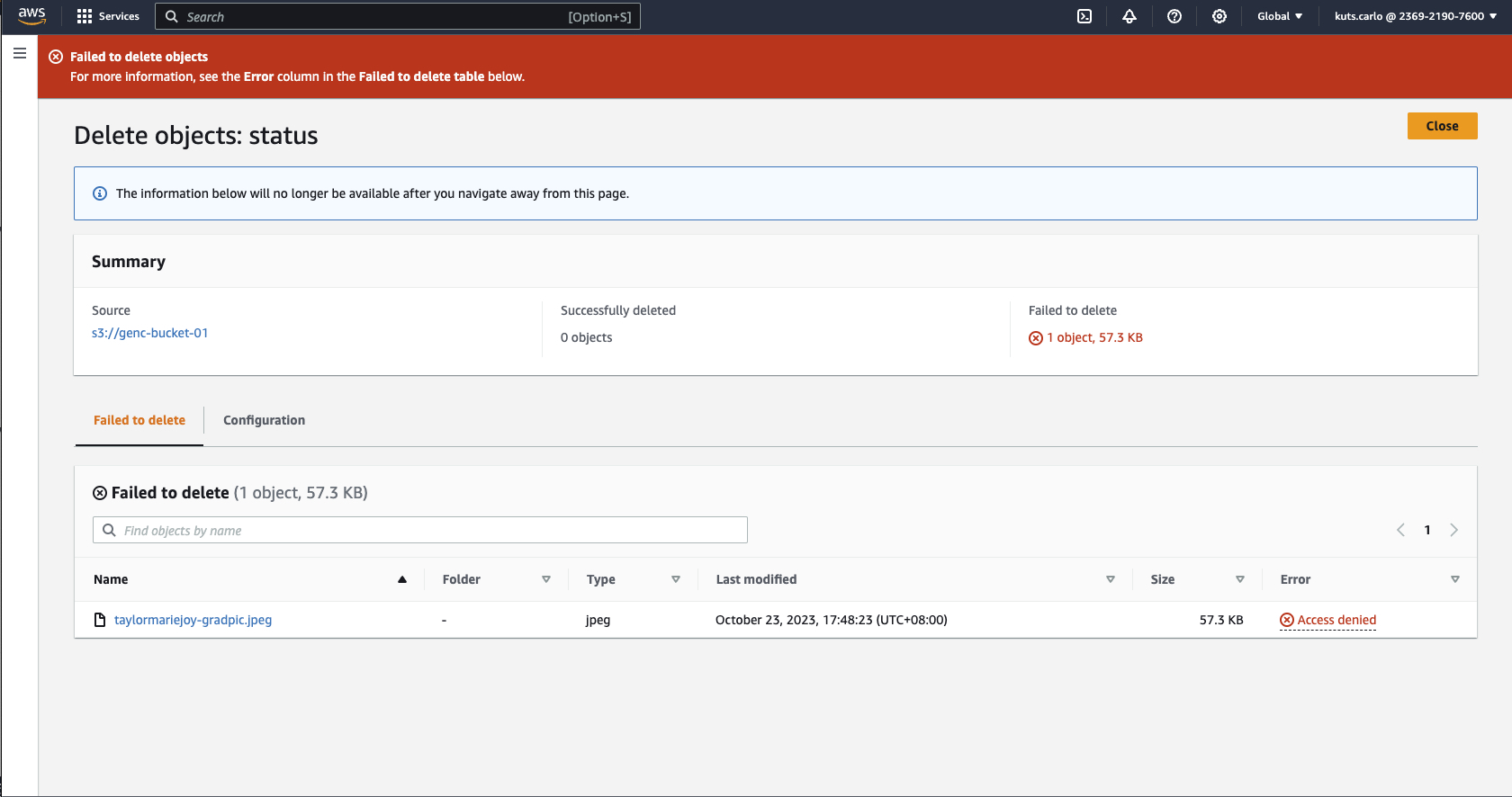
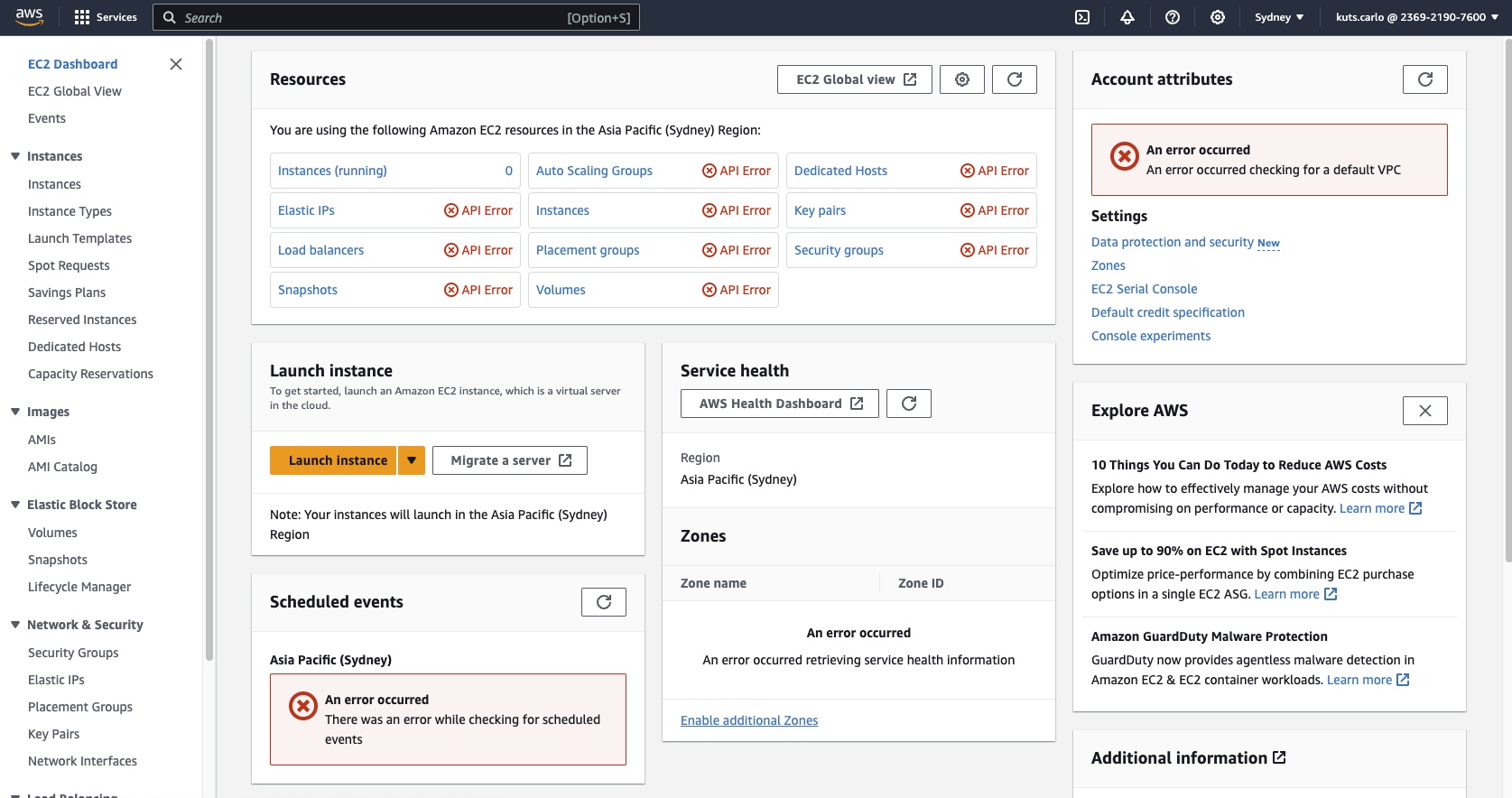
2-f To test if we can only access S3, try to access Amazon EC2.
2-g As we can see, we have no access on this service as well.
3-a To finish the laboratory enter your created user group's name on the JSON Format.
{

   "user_group_name": ""

}