UI_Video
Tag video frames with metadata and synchronize videos with electrophysiologic data.
nigeLab.libs.VidScorer(blockObj.Cameras(1))
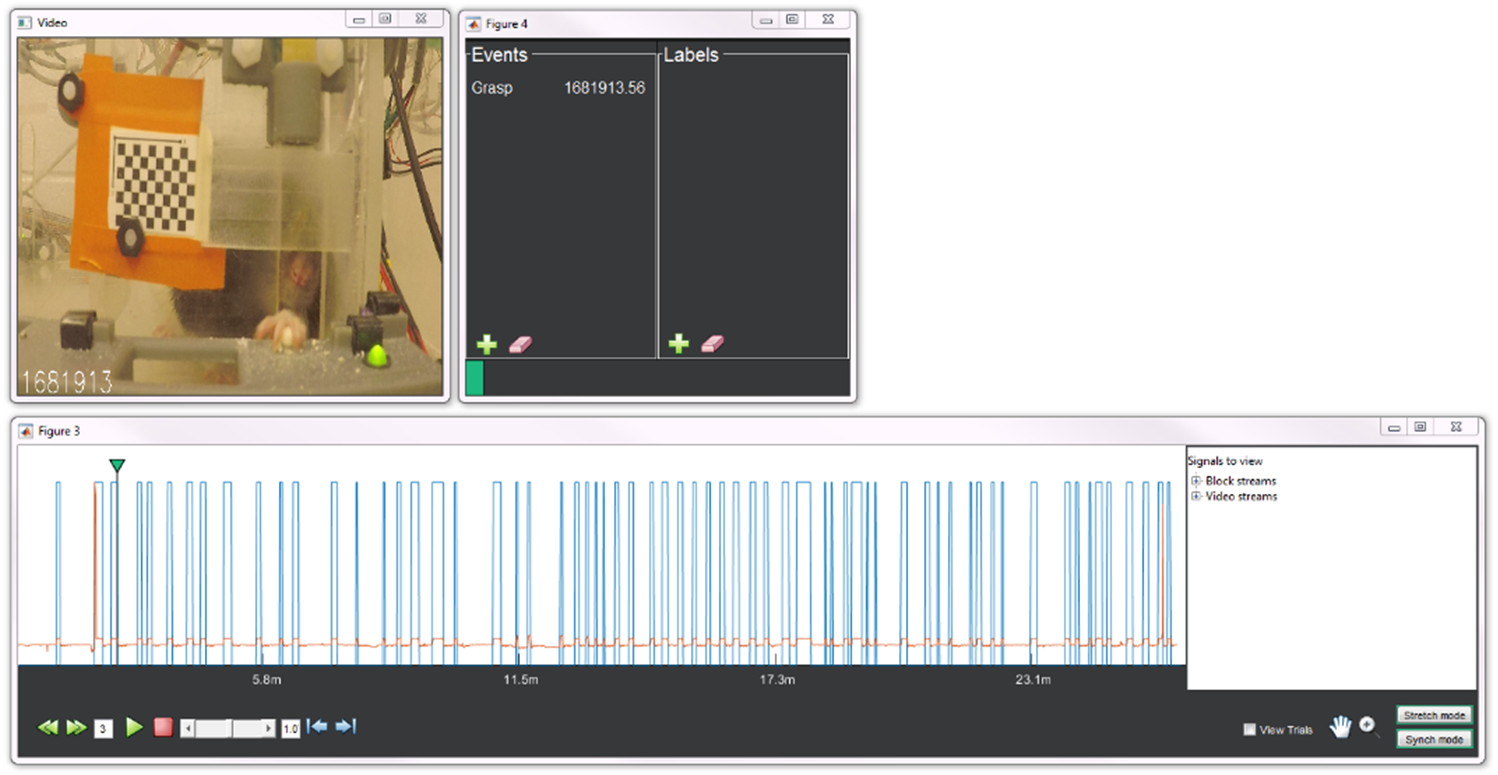
The three windows above should open up: a main panel with associated streams, the block video, and a platform for tagging trials and frames
| Tools | Function |
|---|---|
| Double Green Arrows | Skips between trials |
| Number Field | Jump to trial # |
| Play/Stop Buttons | Control the video |
| Scroll Bar | Adjust playback speed |
| Blue Arrows | Advance/go back a frame |
| Hand | Pan along x-axis |
| Magnifying glass | Zoom in/out on streams |
| Stretch mode | Adjusts for syncing time-scales |
| Sync mode | Allows streams to be aligned |
customize keys by accessing +workflow\defaultVideoScoringHotkey.m
- Check the correct digital input under the "Block streams" expandable menu on the right side of the main panel
- The blue high/low signal should appear in the same window after a moment of loading
- Check the "show trials" option near the bottom of the main panel and the digital signal should also be filled with a green color
- Each green block represents a trial as you have determined it in the set-up
- Right-click on video streams on the right of the main panel and select “add stream from video”
- Two new video frames will open— one to create a ROI box around a signal source which corresponds to the digital input and another to create a larger box as a normalization factor
- Check the saved video stream in the expanding menu in the main panel to visualize as an orange line in main panel
- Highlight streams with ctrl+click in their respective expanding menus
- Select "sync mode" and shift the video stream
- Drag orange line to overlap with the high/low points of the blue digital stream
- Zoom in to increase the accuracy of the match particularly at the beginning of the block
- If the synchronization is lost over the course of the recording despite aligning at the beginning, there is a mismatch in the timing of the camera
- Select the "stretch mode" to alter camera timing to fit the digital stream
- Return to "sync mode" to realign afterwards
- Clicking the plus sign under "Events" in the tagging window will flag and label a frame of interest
- Clicking the plus sign under "Labels" in the tagging window will label the individual trial
- Events and labels will appear only with the trial they are on
- After progress is saved, the tags and their timestamps can be accessed in
blockObj.Events
- As a default, there are
pars.BeginTrialandpars.EndTrialstructures which can be used to indicate the start and stop of a trial based on a digital input. You can change the names of these, the digital signals used to indicate an event, or whether that signal should be high/low/etc. - Make sure the name you are using for the digital input matches the stream name contained in the blockObj--
blockObj.Streams.DigIO(1)
blockObj.doEventDetection
- Set
pars.HasVideo = true;and input the folder containing the videos underpars.VidFilePath -
pars.UniqueKey.varsshould have the metadata from the video name that matches the metadata contained in the recording name -
pars.NamingConventionworks to save the metadata from the video name similar to that done with parsing the initial tank file name set-up
- Check
blockObj.Camerasfor correct assignment which should result in a structure under the Meta property with the number of cameras by the total number videos
path = fullfile('K:\Rat\Video\UnilateralReach\Experimental_Folder\Animal_Folder','R20-99_2020_1_11_0_Left_A_0.mp4');
camObj = nigeLab.libs.nigelCamera(blockObj,{path});
or with multiple video files for the block
path = {'K:\Rat\Video\UnilateralReach\Experimental_Folder\Animal_Folder\R20-99_2020_1_11_0_Left_A_0.mp4', 'K:\Rat\Video\UnilateralReach\Experimental_Folder\Animal_Folder\R20-99_2020_1_11_0_Left_A_1.mp4'};
camObj = nigeLab.libs.nigelCamera(blockObj, path);