



Español 🇪🇸 | 中文 🇨🇳 | Deutsch 🇩🇪 | Français 🇫🇷 | 日本語 🇯🇵 | 한국어 🇰🇷 | Português 🇧🇷 | Русский 🇷🇺 | Tiếng Việt 🇻🇳 | العربية 🇸🇦 | हिन्दी 🇮🇳...
Optimized for Pro keyboards across VSCode · Cursor · Windsurf · Trae-ai · Kiro · Antigravity & Firebase.studio.

| Command | 🍎 macOS | 🟦 Windows | 🐧 Linux |
|---|---|---|---|
| CLI | Alt + E |
Alt + E |
Alt + E |
| GitLab | Alt + R |
Alt + R |
Alt + R |
| SKILLS | ⌘ + 3 |
Ctrl + 3 |
Ctrl + 3 |
| - | - | - | - |
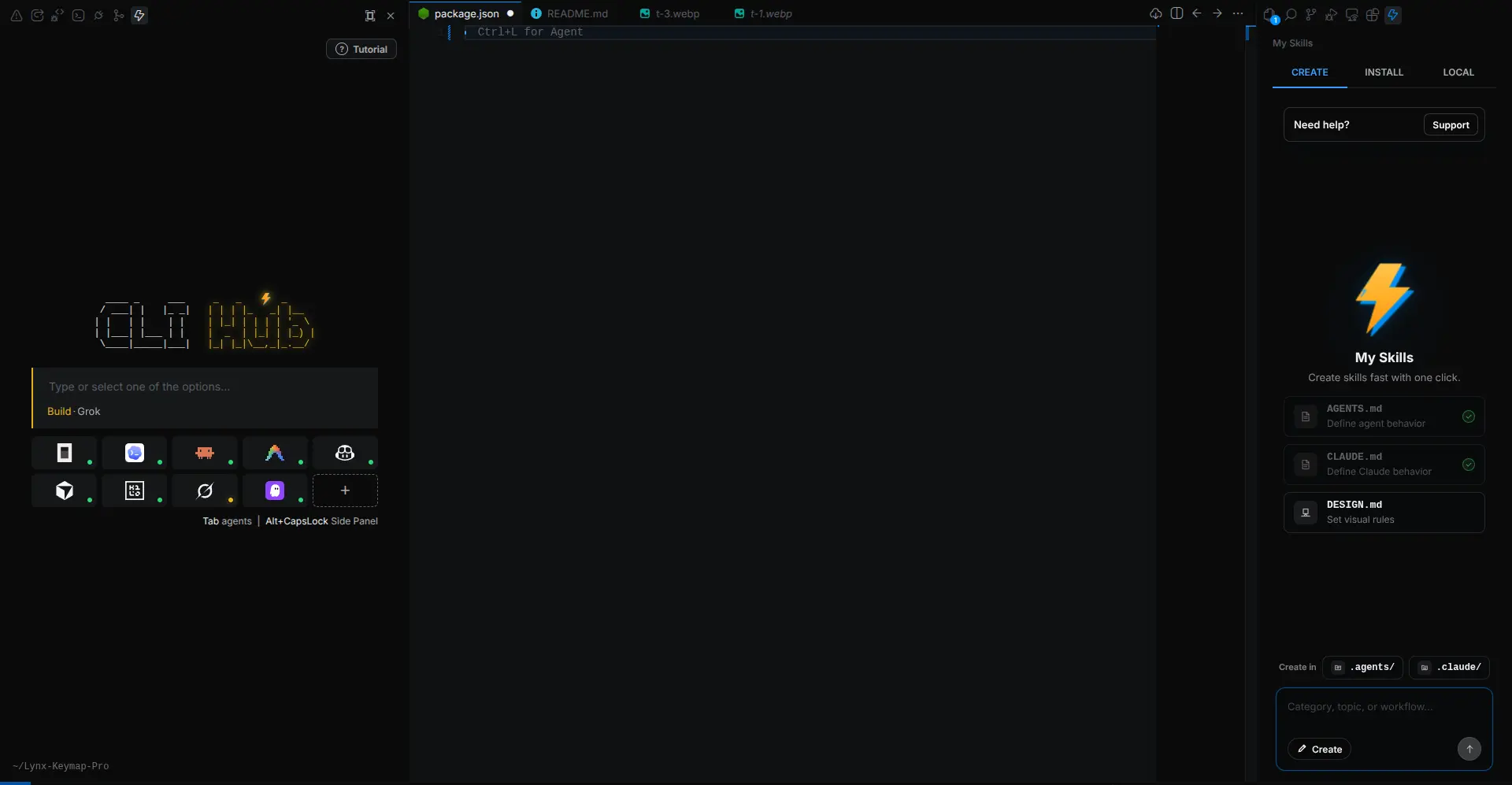
| OpenCode / ClaudeCode | Alt + CapsLock |
Alt + CapsLock |
Alt + CapsLock |
🖼️ (𝗖𝗹𝗶𝗰𝗸) View Screenshot
Press
Alt + 0to swap between the standard layout and the compact layout — designed for keyboards without a function row or arrow cluster. The bindings below are only active while the compact layout is enabled.
| Command | 🍎 macOS | 🟦 Windows | 🐧 Linux |
|---|---|---|---|
| View Git Changes | PageUp |
PageUp |
PageUp |
| Markdown Preview | PageDown |
PageDown |
PageDown |
| - | - | - | - |
| Start Debugging | Insert |
Insert |
Insert |
| Restart Debugging | ⌥ + Insert |
Alt + Insert |
Alt + Insert |
| Stop Debugging | ⌘ + Insert |
Ctrl + Insert |
Ctrl + Insert |
| - | - | - | - |
| Zoom In ( 🛞 right ) | ⇧ + ⌥ + Vol + |
Shift + Alt + Vol + |
Shift + Alt + Vol + |
| Zoom Out ( 🛞 left ) | ⇧ + ⌥ + Vol - |
Shift + Alt + Vol - |
Shift + Alt + Vol - |
| Command | 🍎 macOS | 🟦 Windows / 🐧 Linux | Supported |
|---|---|---|---|
| Open Explorer | ⌘ + 1 |
Ctrl + 1 |
✅ |
| Open Source Control | ⌘ + 2 |
Ctrl + 2 |
✅ |
| SKILLS | ⌘ + 3 |
Ctrl + 3 |
✅ |
| Open Extensions | ⌘ + 4 |
Ctrl + 4 |
✅ |
| Toggle Sidebar | ⌘ + ⇧ + Tab |
Ctrl + Shift + Tab |
✅ |
| Quick Open File | ⇧ + ⌥ + E |
Shift + Alt + E |
✅ |
| Go to Line | ⇧ + ⌥ + W |
Shift + Alt + W |
✅ |
| Toggle Debug Console (REPL) | ⌥ + Q |
Alt + Q |
✅ |
| - | - | - | N/A |
| New File | ⌥ + X |
Alt + X |
✅ |
| New Folder | ⌥ + C |
Alt + C |
✅ |
| Toggle Word Wrap | ⌥ + Z |
Alt + Z |
✅ |
| Expand Line Selection | ⇧ + ⌥ + Q |
Shift + Alt + Q |
✅ |
| Copy Lines Up | ⇧ + ⌥ + ↑ |
Shift + Alt + ↑ |
✅ |
| Copy Lines Down | ⇧ + ⌥ + ↓ |
Shift + Alt + ↓ |
✅ |
| Insert Cursor Above | ⌘ + ↑ |
Ctrl + ↑ |
✅ |
| Insert Cursor Below | ⌘ + ↓ |
Ctrl + ↓ |
✅ |
| Delete Word Left | ⌘ + Backspace |
Ctrl + Backspace |
✅ |
| Close Project | ⌘ + Delete |
Ctrl + Delete |
✅ |
| - | - | - | N/A |
| Format Document | ⌥ + F |
Alt + F |
✅ |
| Format Selection | ⌘ + ⌥ + F |
Ctrl + Alt + F |
✅ |
| Organize Imports | ⇧ + ⌥ + F |
Shift + Alt + F |
✅ |
| Comment Line | ⌘ + / |
Ctrl + / |
✅ |
| Comment Block | ⌥ + / |
Alt + / |
✅ |
| - | - | - | N/A |
| CLI Panel (toggle) | ⌥ + E |
Alt + E |
✅ |
| Terminal Left/Right (toggle) | ⌥ + CapsLock |
Alt + CapsLock |
✅ |
| Restore Default Layout | ⌘ + ⌥ + CapsLock |
Ctrl + Alt + CapsLock |
✅ |
| Quick Open Terminal | ⌥ + W |
Alt + W |
✅ |
| Maximize / Minimize Panel | ⌘ + ` |
Ctrl + ` |
✅ |
| Kill Terminal | ⌘ + ⌥ + ` |
Ctrl + Alt + ` |
✅ |
| Terminal — Clear Line | ⌘ + ⌥ + Backspace |
Ctrl + Alt + Backspace |
✅ |
| Terminal — Complete Word | ⌘ + , |
Ctrl + , |
✅ |
| - | - | - | N/A |
| Smart Close — AI Chat or Terminal | ⌘ + Tab |
Ctrl + Tab |
✅ |
| Create New AI Session | ⌥ + A |
Alt + A |
✅ |
| Show AI Chat History | ⌥ + S |
Alt + S |
✅ |
| AI Select Code | ⌥ + D |
Alt + D |
✅ |
| - | - | - | N/A |
| Cancel Inline Chat | ⌥ + Return |
Alt + Enter |
✅ |
Smart Close (
Ctrl + Tab) is context-aware:
- If the terminal is occupying the side panel → closes the terminal.
- Otherwise → opens/closes the AI Chat.
| Command | 🍎 macOS | 🟦 Windows | 🐧 Linux |
|---|---|---|---|
| Start Debugging | ⌥ + P |
Alt + P |
Alt + P |
| Restart Debugging | ⌥ + O |
Alt + O |
Alt + O |
| Stop Debugging | ⌥ + I |
Alt + I |
Alt + I |
To use these commands, you must first go to Source Control (as they do not work directly) or press the shortcut
Ctrl + 2.
| Command | 🍎 macOS | 🟦 Windows | 🐧 Linux |
|---|---|---|---|
| Stage All | ⌥ + 1 |
Alt + 1 |
Alt + 1 |
| Generate AI Commit Message | ⌥ + 2 |
Alt + 2 |
Alt + 2 |
| Unstage All | ⌥ + 3 |
Alt + 3 |
Alt + 3 |
| Commit | ⌥ + Return |
Alt + Enter |
Alt + Enter |
| Push | ⌘ + ⌥ + Return |
Ctrl + Alt + Enter |
Ctrl + Alt + Enter |
| View Git Changes | ⌥ + L |
Alt + L |
Alt + L |
| Git Reset Hard HEAD | ⌘ + ⇧ + ⌥ + Backspace |
Ctrl + Shift + Alt + Backspace |
Ctrl + Shift + Alt + Backspace |
| Command | 🍎 macOS | 🟦 Windows | 🐧 Linux |
|---|---|---|---|
| Open Settings (UI) | ⌘ + J |
Ctrl + J |
Ctrl + J |
| Open Settings (JSON) | ⌥ + J |
Alt + J |
Alt + J |
| Select Theme | ⇧ + ⌥ + T |
Shift + Alt + T |
Shift + Alt + T |
| Reload Window | ⇧ + ⌥ + R |
Shift + Alt + R |
Shift + Alt + R |
| Show Markdown Preview | ⌥ + M |
Alt + M |
Alt + M |
| Switch Keymap Layout | ⌥ + 0 |
Alt + 0 |
Alt + 0 |
| Zoom In | ⇧ + ⌥ + VolUp |
Shift + Alt + VolUp |
Shift + Alt + VolUp |
| Zoom Out | ⇧ + ⌥ + VolDown |
Shift + Alt + VolDown |
Shift + Alt + VolDown |
| Command | 🍎 macOS | 🟦 Windows | 🐧 Linux |
|---|---|---|---|
| Swap Project Terminal | Alt + Q - W |
Alt + Q - W |
Alt + Q - W |
| Close Terminal | Alt + Q - E |
Alt + Q - E |
Alt + Q - E |
| Smart New Terminal | ⌘ + ⇧ + ` |
Ctrl + Shift + ` |
Ctrl + Shift + ` |
| Kill Terminal | ⌘ + ⌥ + ` |
Ctrl + Alt + ` |
Ctrl + Alt + ` |
Important
Backquote = ( ` ) supports all keyboard layouts 🌎
exports.BACKTICK_EQUIVALENTS = [
  { Backquote: "`" }, // English, US
  { Backquote: "º" }, // Spanish (Spain)
  { Backquote: "'" }, // French, German
  { Backquote: "²" }, // French
  { Backquote: "^" }, // German, Swiss
  { Backquote: "ё" }, // Russian
  { Backquote: "~" }, // Portuguese, Italian
  { Backquote: "半角/全角" }, // Japanese
  { Backquote: "|" }, // Spanish (Latin America)
  { Backquote: "¬" }, // UK, Latin America
  { Backquote: "¨" }, // German, Swedish
  { Backquote: "´" }, // Portuguese (Latin America)
  { Backquote: "₺" }, // Turkish
  { Backquote: "₤" }, // Italian
  { Backquote: "" }, // And MORE...
];
Note
This extension intentionally disables the following default VS Code shortcuts to avoid conflicts:
Ctrl+P/⌘+P— Quick Open (disabled to prevent conflicts with custom shortcuts)- Alternative: Use
Shift+Alt+Efor Quick Open
- Alternative: Use
Ctrl+Enter/⌘+Enter— GitHub Copilot Generate (disabled)- Reason: Conflicts with terminal and git commit workflows
If you need these shortcuts, you can re-enable them in your keybindings.json:
[
  { "key": "ctrl+p", "command": "workbench.action.quickOpen" },
  { "key": "ctrl+enter", "command": "github.copilot.generate" }
]Alt+CapsLockmay not work on some Linux distributions or Windows systems where CapsLock is remapped at the OS level. If this shortcut doesn't work, check your system keyboard settings or use alternative shortcuts.
Linux
Ctrl+PmacOS
⌘PWindows
Ctrl+P

Paste the following command and press Enter:
ext install bastndev.lynx-keymap
- Open Extensions (
Ctrl+Shift+X/⌘+Shift+X) - Search "Lynx Keymap Pro"
- Click Install
 |
|---|
| Gohit X |
| Creator & Maintainer |
- 🐦 X : For questions and discussions.
- 🌱 IG :
new– Project previews & life updates. - 🔴 YouTube : Code, Software and development insights.
| Extension | Name/> | Description |
|---|---|---|
 |
F1 | The ultimate AI control center. Centralize Claude, Copilot, or Cursor in interactive terminals, create custom workflows with 'My Skills', and give the AI instant codebase context with 'My Memory'. |
 |
Lynx Theme Pro | A professional extension with six available themes: Dark, Light, Night, Ghibli, Coffee, and Kiro—with integrated icons. Each theme is optimized to offer a more pleasant visual experience. |
 |
ATM | An all-in-one toolkit 👻 that supercharges your workflow with essential features like Error Lens, Git Blame, Env Protection, and code screenshots across major editors. |
Enjoy 🎉 (Lynx Keymap Pro) is now installed!
Found a bug or have feedback? Open an issue