For iOS iPadOS users (Working Copy)

NOTE: If you are a student, you can sign up github student pack and apply for free Working Copy Pro.
- Pay for the Pro version of the App
Working Copy, it is cheap since you will never bother by iCloud crashing your Logseq anymore. - Open Working Copy > Settings(⚙️) > Hosting Providers > Click
Test> Sign-in to your GitHub account. - Open
Working Copy> click+>Clone repository> Choose your repo and hitClone. - When download is done:
- Tap on the repo, in my case:
Logseq_deb
- Tap on the repo, in my case:

- In the repo, tap on
Repository

- In the
Repository, tap on down carrot

- In the down carrot menu, choose
> Link Repository to, then chooseDirectory.

- Make sure your in
My iPhone/iPad(I would suggest don't choose iCloud to avoid some syncing issue) > create a new sub-folder under the Logseq-icon one (I would suggest don't name the folder with the same name as your repo.) > clickDone
-
Open
Logseqand add new graph to that folder. -
First create two standalone shortcuts. An automation can only run an existing shortcut, so these must already exist before you set up the automations in step 7. Open
Shortcuts> theShortcutstab > tap the+in the upper-right:-
Shortcut 1 — "pull logseq repo":
- Search actions >
Pull Repository- Repo: your Logseq repo - Name the shortcut
pull logseq repo(or anything you'll recognize).
- Search actions >
-
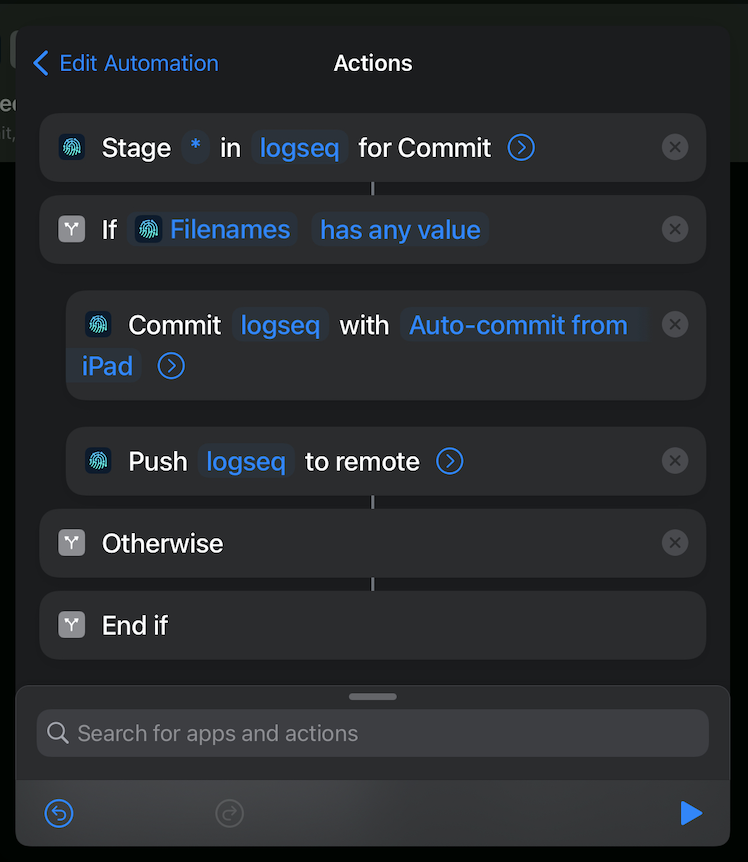
Shortcut 2 — "push logseq repo": create another shortcut and add these actions in order:
-
Stage for Commit- Path:*, Repo: your Logseq repo -
Ifcondition- Input:
Select Magic Variable- chooseFilenamesbelow theStage for Commitaction - Condition:
has any value - Put the next two actions (
Commit RepositoryandPush Repository) inside thisIfcondition, so a commit is only made when changes are detected — this avoids empty commits.
- Input:
-
Commit Repository- Repo: your Logseq repo, Message:Auto-commit from iOS/iPadOS- NOTE: In
Commit Repository, you can toggle offFail when nothing to Commitif you find the failure notification annoying. I prefer to keep it on to prevent empty commit and empty push.
- NOTE: In
-
Push Repository- Repo: your Logseq repo - Name the shortcut
push logseq repo. It should look like:
-
-
-
Now wire them into automations. Open
Shortcuts>Automation>Create Personal Automation:- On App Open:
-
App> chooseLogseq> clickNext - Search actions >
Run Shortcut> choosepull logseq repo - Turn off ask before running (or leave it on up to you)
-
- On App Close:
-
App> chooseLogseq> clickNext - Search actions >
Run Shortcut> choosepush logseq repo - Turn off ask before running (or leave it on up to you)
-
- On App Open:
-
Type something, exit Logseq, and wait few minutes to see if what you typed has also appear in GitHub.
-
If nothing goes wrong, you are a happy Logseq user!