ArchGraph is a web app that gives an overview of a codebase and the dependencies between (sub)modules and their units (usually functions and classes).
The project only consists of a python script prepare.py (and the corresponding tests in test_prepare.py), which processes a JSON and markdown file (containing a description of the codebase in question) to create result.json, and then a static index.html (and the necessary JavaScript and CSS) to read in and visualize result.json.
Glossary:
- "module": the high level grouping: a module is usually a file or folder in the project's root directory; determines the color of the boxes in the final visualization.
- "submodule": the low level grouping: one module can have multiple submodules, usually the files at the end of all directory paths in this module; for projects where 1 file = 1 unit (e.g., 1 class like in Java), a submodule can also be the last folder in this chain that contains these files. Each submodule will be visualized as a box (in the color of its parent module) that contains a list of its units' names.
- "unit": the terminal nodes of the (sub)module tree, usually the functions and classes contained in a submodule. Each unit is associated with a description that also contains references to the other units it depends on.
The prepare.py script gets two file paths as inputs, one to a JSON file (layers_path) that contains the layers of the architecture, and one to a markdown file (units_path) that contains the descriptions of the individual units (functions and classes). Alternatively, a path to a folder can be passed (input_path), which is assumed to contain a layers.json and a units.md file.
The JSON file describes the overall architecture (modules in layers) and looks something like this:
{
    "root_layers": [
        ["main", "api"],
        ["db"],
        ["core"]
    ],
    "submodule_layers": {
        "api": [
            ["api.routes"]
        ],
        "db": [
            ["db.commands"],
            ["db.queries.sample", "db.queries.config"]
        ],
        "core": [
            ["core.optimization", "core.prediction"],
            ["core.common"]
        ]
    }
}
The order of the keys is not important, only the order of the elements in the lists. Every (sub)module (i.e., everything in the lists) must only occur once. This input JSON is passed through to result.json unchanged (under the key "layers"), so index.html can read it directly to determine layer bands and submodule positions.
The elements under "root_layers" signify the main layers. In the above example, we have 3 main layers: top (with the modules "main" and "api"), middle ("db"), and bottom ("core"). These are the main modules of the codebase we want to visualize (usually folders, sometimes files, in the package's root folder), and these modules will determine the colors of the resulting visualization.
Similarly, for each module the JSON additionally describes how its submodules (usually files, e.g., db.queries.config would map to db/queries/config.py in the package) are arranged into layers. If a module under root was already a file (e.g., "main" in the above example) it should be omitted here.
The order of the module and submodule layers describes the desired dependency hierarchy: a unit in a given submodule should only call another unit that is either in the same submodule or in a (sub)module from a lower layer, not from a layer above or from another submodule in the same layer. For example, a function or class defined in "main" should only call other functions or classes defined in "main" or from any of the submodules from "db" or "core", but not from "api". Similarly, a function or class defined in "db.commands" should only call another function or class from "db.commands", "db.queries.sample", "db.queries.config", or from any of the "core" submodules.
The second file passed to the script is a markdown file that describes the individual units (usually functions and classes) contained in the package's submodules. For each unit, the file contains a header (starting with ###) that includes the full submodule and unit name (e.g. ### api.routes.get_samples or ### core.prediction.Model) and then a description of this unit (e.g., inputs and return values, invariants, pseudocode of the implementation). Everything that is between one such heading and the next should be treated as the unit's description and stored as is (only stripping whitespace before and after the description text).
The description of a unit can include references like `@db.queries.get_samples` or `@core.prediction.Model.predict` (full unit path in backticks and starting with @), to indicate that this unit depends on the mentioned unit. Based on these references, the script constructs the dependency graph of the units and submodules.
An example markdown file with unit descriptions could look something like this:
### api.routes.get_samples

Receives a GET request with optional start and end dates and then calls `@db.queries.sample.get_samples` to retrieve the requested data and then returns it.


### db.queries.sample.get_samples

Accesses the database to retrieve samples, optionally filtering the samples' timestamp w.r.t. the given start and end dates.


### db.commands.create_predictions

Calls `@db.queries.get_samples` to retrieve the latest samples (if any), loads a trained model and then calls `@core.prediction.Model.predict` to make predictions for these samples and saves them in the database.


### core.prediction.Model

A prediction model, which is initialized with hyperparameters `a`, `b`, `c` and has methods `fit` and `predict`.
The order of the units in this file does not have to correspond to the submodule layer ordering, but it will determine the order in which the units are listed under each submodule in the visualization.
Let's describe the prepare.py script's functions in a similar manner:
The script's normal __main__ function, which parses the commandline arguments, reads the files from the given paths (transforming the JSON into a dict and reading the markdown file as a string), calls @process_files, and saves the returned result as result.json (in the same folder as the script and index.html, independent from where the script was called).
Gets as inputs unit_descriptions: str (contents of the markdown file) and layers: dict (parsed JSON) and calls the following functions to produce the final result (which is then returned as a dict):
@prepare.parse_unit_descriptions@prepare.flatten_layers@prepare.validate_unit_paths-> throw an error if this returns False@prepare.create_submodules_dict@prepare.assign_submodule_colors@prepare.resolve_dependencies@prepare.check_layer_violations@prepare.assign_submodule_dependencies
After all steps complete, assembles and returns the final result dict directly as {"layers": layers, "submodules": submodules, "units": units}.
Gets as input the raw contents of the markdown file as a string and returns a dictionary units with keys: full unit path (= header in the markdown file without the leading ### ) and as values a dict with:
- submodule (str): the part of the unit path before the last dot
- name (str): the part of the unit path after the last dot
- description (str): all the text after the unit's header until the next header (stripped of leading and trailing whitespace)
- dependencies (dict[str, True]): a dictionary with all of the mentioned dependencies (without the @), without further validation (i.e., NOT yet checking that they match other unit paths in the file), always mapping to True (i.e., declaring the dependency valid by default, as a placeholder until
check_layer_violationsis run)
Additionally, the function returns unit_order, a dict with {submodule: list of the short unit names (not full paths) from this submodule in the order they occurred in the file}.
The function raises an error if any unit path occurs twice in the file.
Gets the parsed JSON (layers dict, with keys root_layers and submodule_layers) and flattens it into a list all_submodules with all submodules in the right order. It does this by iterating over root_layers (the list of lists) and for each module either:
- adding it directly to
all_submodulesif it does not appear as a key insubmodule_layers(i.e., it is already a leaf/file-level module), or - extending
all_submoduleswith the submodules fromsubmodule_layers[module](iterating over that module's list of lists in order).
Throws an error if any submodule in submodule_layers does not start with its containing module name followed by a dot.
Once all_submodules is built, checks that all elements are unique and throws an error if not. Then returns all_submodules.
Gets the units dict (result from parse_unit_descriptions) as well as the all_submodules list (result from flatten_layers) and checks:
- The unit paths (keys in
units) can not be the same as a submodule, otherwise log[ERROR] Unit Is Submodule: {unit_path}: a unit is supposed to be contained in a submodule (like a function or class), not be the submodule itself. - Each unit's submodule must be contained in the
all_submoduleslist, otherwise log:[ERROR] Unknown Submodule: {unit_path} is not part of any submodule in the provided architectural layers.
Returns True if all checks run through without errors, otherwise False.
Gets the all_submodules list as well as the unit_order dict (result from parse_unit_descriptions) and creates and returns a new dict submodules with each submodule as a key and as the corresponding value a dict with:
- module (str): the part until the first dot (or the whole string if it contains no dot, e.g., "main")
- color (str): "#D3D3D3" (light grey as the default color)
- units (list[str]): the list of short unit names from
unit_orderor an empty list (and log a warning in case a submodule has no units) - dependencies (dict[str, bool]): an empty dict for now
Gets the submodules dict (from create_submodules_dict) and the layers dict. Creates a dict with {module: hex color code} for each module by flattening layers["root_layers"] (the list of lists) to get the ordered list of modules. Assigns pretty pastel colors in rainbow order based on that order. Then creates a copy of the submodules dict and updates each submodule's color value based on its module field.
Returns the updated submodules dict.
Gets the units dict and checks that each dependency mentioned for a unit corresponds to a key in the units dict, i.e., is an existing unit. Several edge cases:
- If a unit has itself as a dependency (e.g., because of a recursive call), this entry is removed from the unit's dependency dict.
- If a dependency does not match a unit, but is a subunit of an existing unit (i.e., matches when removing the part after the last dot, e.g.,
core.prediction.Model.predictwould resolve tocore.prediction.Model), a warning is logged ([WARNING] {unit_path} dependency {referenced_unit_path} was matched to {valid_unit_path}) and then the corresponding dependency in the dict is updated accordingly. - If the dependency could still not be matched, log
[ERROR] Referenced Unit Unknown: {unit_path} depends on {referenced_unit_path}, which could not be resolvedand remove the dependency from the dict.
Since we do not want to create a side effect by modifying the original units dict, first create a copy of it before changing any of the dependencies.
After all units were processed, log another summary message with the number of errors (not warnings) that were encountered and then return the copy of the units dict with the updated dependencies.
Gets the (updated) units dict (after resolve_dependencies) as well as the layers dict. Creates a copy of units and goes through all units' dependencies and checks that the dependencies don't violate the hierarchy defined in layers.
If there is a violation, log [WARNING] Architecture Validation: {unit_path} must not depend on {referenced_unit_path} and set the value for this referenced_unit_path in the unit's dependency dict to False. Then returns the updated copy of the units dict.
The dependency check could be done efficiently by first building an allowed_submodule_dependencies dict that maps from each submodule to the set of submodules it is allowed to depend on. This is derived from layers["root_layers"] and layers["submodule_layers"]: a submodule may depend on any submodule from a module in a lower root layer, and within its own module any submodule in a lower submodule layer. Then for each unit dependency, look up the unit's submodule and the dependency's submodule (via the units dict) and check against this set.
Gets the submodules dict and the (updated) units dict (after check_layer_violations). Creates a copy of submodules and updates the dependencies dict of each submodule by aggregating over all of its units' dependencies. The keys are target submodule paths (not unit paths), and the value is True if all dependencies from this submodule to the target submodule are valid, or False if any one of them is a violation. (An arrow between two submodules is red if any dependency between them violates the architecture.) Dependencies within the same submodule are skipped (no self-arrows).
This means all functions except for __main__ are pure functions and should be tested exhaustively, incl. all possible edge cases (in test_prepare.py in the same folder).
The final result.json produced by process_files has this shape:
{
    "layers": {
        "root_layers": [["main", "api"], ["db"], ["core"]],
        "submodule_layers": {
            "api": [["api.routes"]],
            "db": [["db.commands"], ["db.queries.sample", "db.queries.config"]],
            "core": [["core.optimization", "core.prediction"], ["core.common"]]
        }
    },
    "submodules": {
        "api.routes": {
            "module": "api",
            "color": "#FFDFBA",
            "units": ["get_samples", "get_config", "post_config"],
            "dependencies": {
                "db.queries.sample": true,
                "db.queries.config": false
            }
        }
    },
    "units": {
        "api.routes.get_samples": {
            "submodule": "api.routes",
            "name": "get_samples",
            "description": "Receives a GET request...",
            "dependencies": {
                "db.queries.sample.get_samples": true
            }
        }
    }
}After running prepare.py over the files from the codebase that should be visualized, index.html (together with the necessary JavaScript and CSS) should read in the created result.json and show a visualization similar to the below sketch:
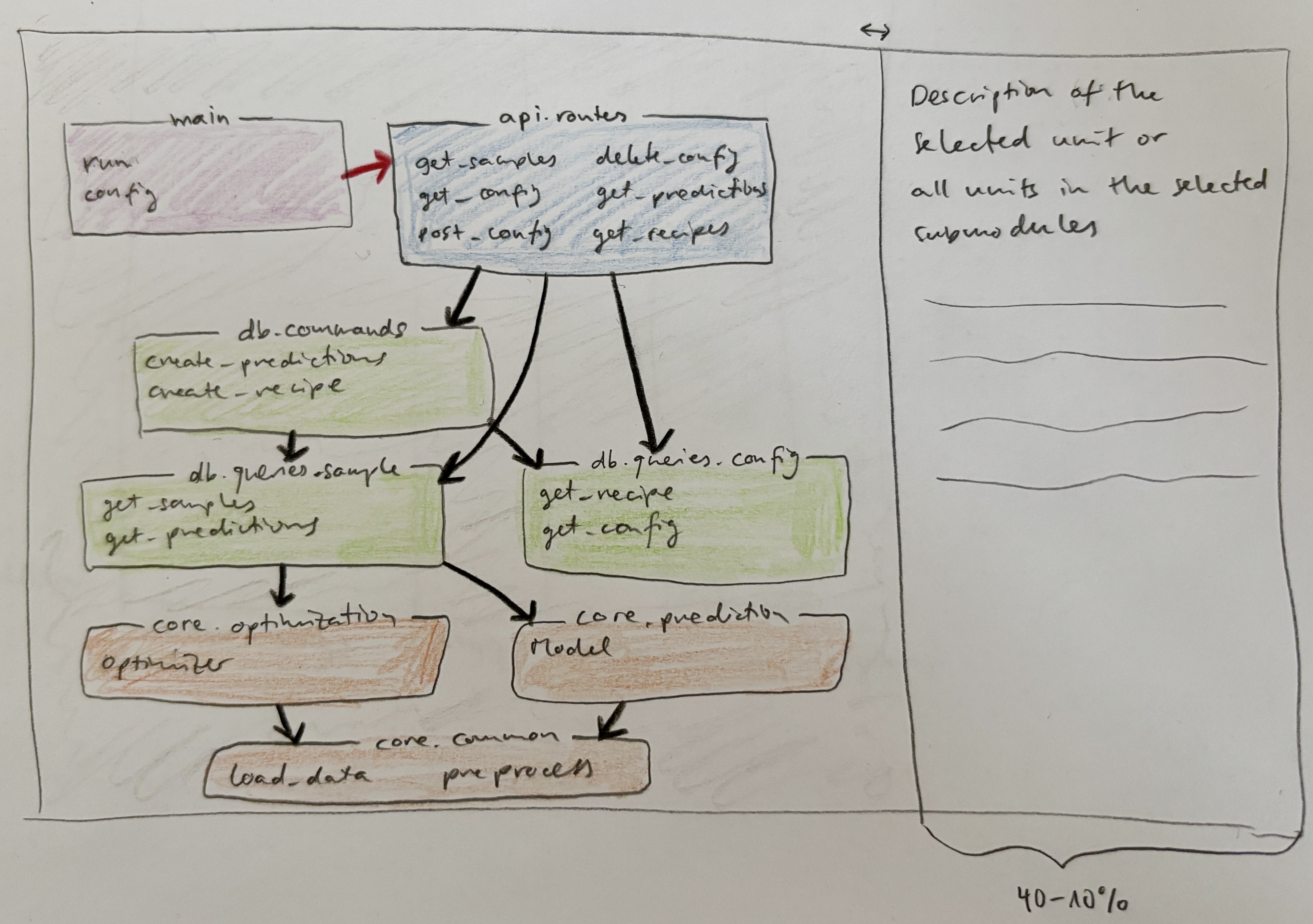
This shows each submodule as a box in the color of the corresponding parent module, arranged in layers (according to the specification in the original layers JSON), and with the submodule path as the title (in the border of the box) and a list (possibly spanning multiple columns in the box) with the submodule's unit names (not full paths).
The boxes must not overlap and ideally there should also be an indication of the top level layers that separate the boxes, e.g., alternating shades of grey in the background.
The boxes are connected with arrows that indicate the dependencies between different submodules (black arrows for allowed dependencies, red arrows for dependencies that violate the desired dependency hierarchy based on the booleans in the submodules' dependencies dicts). If a single unit from a submodule has a dependency on another submodule's unit, this is enough to draw an arrow (and the arrows all have the same weight independent of how many dependencies there are between the submodules' units). The color of the arrow is always uniquely determined based on the first dependency encountered from one submodule to the next since either all dependencies between these submodules are valid or not. An arrow originates from the submodule that depends on another submodule and then points to this submodule that it depends on (caller -> callee). If there are circular dependencies where both submodules depend on each other (where by definition at least one of the arrows would be red, possibly both if they are in the same layer), then care needs to be taken so the arrows don't overlap and both are visible. If a unit from a submodule depends another unit from the same submodule, this does not create an arrow in the graph, i.e., boxes don't point to themselves.
To the right is a text area that can contain markdown formatted (or if this is too difficult plain) text of the descriptions of the selected submodules or units (when you click on one of them as described below). This text area initially occupies 20% of the space on the right but can be adjusted (by dragging the boundary) to occupy between 40-10% of the screen's width (keep the implementation of this simple).
When clicking one of the submodules (i.e., clicking the boxes, not one of the unit's names), the dependencies of this submodule are highlighted, by decreasing the opacity of all boxes and arrows that are not direct dependencies of this submodule and making the unit names of the current submodule and all the unit names that this submodule depends on bold while making all other unit names a lighter grey. Additionally, the descriptions of all units in this submodule are put together (in the order they are listed for this submodule, together with corresponding headers) and displayed in the text area on the right.
When clicking on a unit's name inside a submodule, only the dependencies of this unit are highlighted similarly as when selecting the submodule as a whole, but this time only the unit's name that was clicked in the submodule box is bold as well as those units that it depends on (in the same submodule and other submodules) and also only the arrows relevant for this unit, not the whole submodule, are left at full opacity. The text box is updated to contain only the description of the selected unit.
When the background of the visualization is clicked, any submodule or unit selection is reversed and the visualization again shows the same overview as when the webpage is loaded fresh (i.e., nothing highlighted, text area blank).