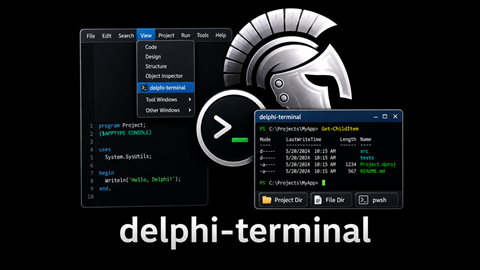




Dockable terminal panel for RAD Studio. Run CMD, PowerShell 7 (pwsh), legacy PowerShell, and WSL sessions directly inside the IDE -- now backed by a real terminal (ConPTY), so interactive console programs and full-screen TUIs (e.g. Claude Code) work, not just line-at-a-time commands.
- Four shell tabs -- CMD, pwsh, PowerShell, and WSL in a single panel
- Real terminal (ConPTY) -- a built-in pseudoconsole backend with its own VT/ANSI screen model and renderer, so interactive programs and TUIs (Claude Code, editors, pagers) run correctly. Falls back to the classic pipe backend automatically on older systems. See Terminal backends.
- ANSI/VT color rendering -- SGR escape sequences (16 / 256 / 24-bit truecolor) with the Windows Terminal Campbell palette
- Command history -- Up/Down arrow keys recall previous commands
- Working directory shortcuts -- Project Dir and File Dir toolbar buttons resolve paths via ToolsAPI in the IDE (folder picker in the demo app.)
- Process exit detection -- shows a restart prompt when the shell
exits:
press Enter to restart - Saved commands -- store frequently used commands and recall them
instantly with a Ctrl+P command palette or the Commands toolbar button
- Add, edit, delete, and reorder commands via the editor dialog
- Each command has a name, shell type (Active / CMD / pwsh / PowerShell), command text, and optional working directory
- Variable expansion:
${ProjectDir},${ProjectFile},${BuildConfig},${Platform},${FileDir},${FilePath},${FileName}-- resolved at execution time from IDE context - Enter previews the command in the input field for editing; Ctrl+Enter runs immediately (or Ctrl+DblClick)
- Command list filtered by the active shell tab
- JSON bundle import/export for sharing command sets across machines
- Per-project commands -- place a
.delphi-terminal.jsonbundle file next to a.dprojto add project-specific commands that only appear when that project is active (format details)
- Keyboard shortcuts
- Ctrl+P -- open the saved-command palette
- Ctrl+Tab / Ctrl+Shift+Tab -- cycle through shell tabs
- Ctrl+1, Ctrl+2, Ctrl+3 -- jump to CMD, pwsh, or PowerShell tab
- Up / Down -- navigate command history
- IDE integration -- dockable form with persistent dock state,
Viewmenu item, and config screen inTools>Options>Third Party>delphi-terminal - Working directory buttons -- Project Dir / File Dir toolbar buttons switch the shell to the active project's or file's folder on demand
- Configurable Font Name + Font Size used in console window
delphi-terminal has two terminal backends, selectable under Tools > Options > Third Party > delphi-terminal:
- Automatic (default) -- uses ConPTY on supported systems, otherwise the legacy pipe backend.
- ConPTY -- forces the pseudoconsole backend (falls back to legacy if it cannot start).
- Legacy pipes -- forces the classic redirected-pipe backend.
ConPTY is a real Windows pseudoconsole. delphi-terminal parses the VT/ANSI stream into a screen model and paints it with a cursor-addressed renderer, so cursor movement, colors, alternate-screen apps, and interactive input all behave like a normal terminal. ConPTY requires Windows 10 version 1903 (build 18362) or later.
The legacy backend redirects stdin/stdout through anonymous pipes. It is a
line-oriented pipe, not a true terminal -- it is fine for running commands
and viewing colored output, but interactive, cursor-addressed programs (REPLs,
editors, less, and TUIs such as Claude Code) will not render or accept input
correctly. Those require ConPTY.
- An interactive program shows garbled output or ignores my keystrokes. You are almost certainly on the legacy backend. Set the backend to Automatic or ConPTY and confirm you are on Windows 10 1903+.
- I forced ConPTY but the tab says
[ConPTY unavailable, using legacy backend]. ConPTY could not start on this system; it fell back to legacy. This is expected on pre-1903 Windows. - Multi-line paste runs each line immediately in pwsh. That matches a normal pwsh console (conhost); pwsh does not enable bracketed paste. Apps that do (e.g. bash under WSL) receive the paste as a single editable block.
A quick acceptance matrix (works in both the plugin and the demo app):
| Scenario | Backend | Expected |
|---|---|---|
claude -p "hi" (argument) |
ConPTY or legacy | prints a one-shot reply |
echo "hi" | claude -p (piped) |
ConPTY or legacy | prints a one-shot reply |
interactive claude (type / Backspace / arrows / paste / Ctrl+C) |
ConPTY | full interactive session; Ctrl+C interrupts |
All core functionality lives in TframeCmdShell, a self-contained TFrame
that embeds a terminal panel with ANSI-capable TRichEdit output, command
input, and shell process management. Both the IDE plugin and the demo app
host this same frame.
Minimal BPL package that registers a dockable form within RAD Studio and hosts the shared frame. Contains mostly just IDE plumbing: menu registration via INTAServices, ToolsAPI path resolution, and dockable form lifecycle.
Standalone VCL application that hosts the shared frame in a tabbed form. Useful for debugging the plugin.
DUnitX test project covering shell process management, ANSI parsing, and command history.
- A relatively recent version of RAD Studio
- You should remove {$LIBSUFFIX AUTO} for older versions.
- Plugin might otherwise be compatible back to XE3 (TStringHelper.contains) but old versions are untested.
Optional
- Windows 10 version 1903 (build 18362) or later for the ConPTY backend; older systems fall back to the legacy pipe backend automatically
- Defaults to
Cascadia Monofont (ships with Windows Terminal) - PowerShell 7+ (
pwsh.exe) for the pwsh tab - WSL for the WSL tab
- Open
projects/ide-plugin/Delphi.Terminal.Plugin.dpkin RAD Studio - Right-click the project in Project Manager > Install
- Access via View > delphi-terminal
NOTE: LIBSUFFIX 'AUTO' was used to add automatic version suffix
to the BPL. To support older versions this was wrapped in a $IFDEF test.
Tweaking a DPK is fragile and this LIBSUFFIX AUTO option was also a little
fragile when first introduced in 10.4. Opening the .DPK and building/installing
the package was verified back to XE6 but there may be lingering side effects,
especially for older versions. Specifically - to keep the single DPK approach,
to install the package into multiple older copies of RAD Studio on the same machine
you will have to manage the BPL suffix yourself.
After installing, use the View menu and select delphi-terminal
Dock the form as desired and optionally save Desktop setting.


This tool is part of the Continuous-Delphi ecosystem, dedicated to the long-term success of Delphi applications.

Built with Delphi