Setup development environment
- Remote or local SQL Server / SQL Server Express
- .NET Framework >= 4
- IIS with ASP.NET
- Mvc >= 3
- Git client
- Check if all pre-requisites are installed.
- Clone the Git repository to your local disk. Use
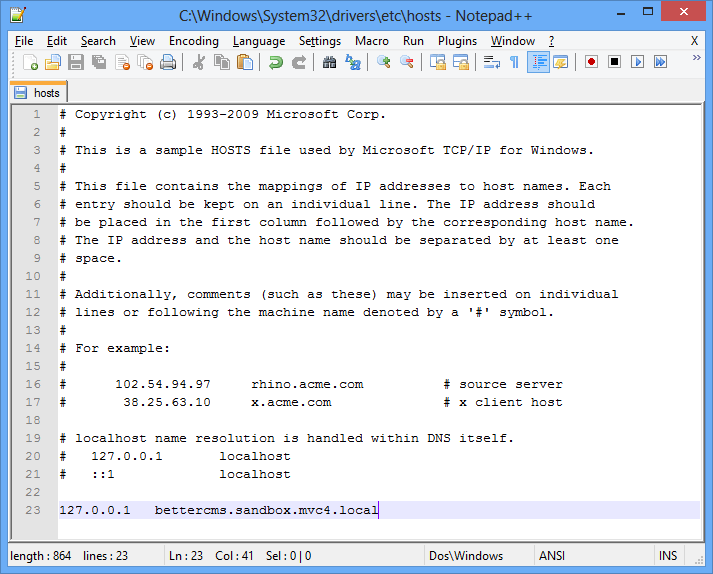
git@github.com:devbridge/BetterCMS.gitURL for cloning. - Add this line to the hosts file (it should be edited in Administrator mode):
127.0.0.1 bettercms.sandbox.mvc4.local
This file can be found in c:\Windows\System32\drivers\etc\hosts and should be edited in Administrator mode.
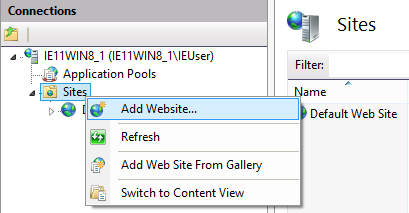
- Open IIS Manager. Right click on sites and choose "Add Website":
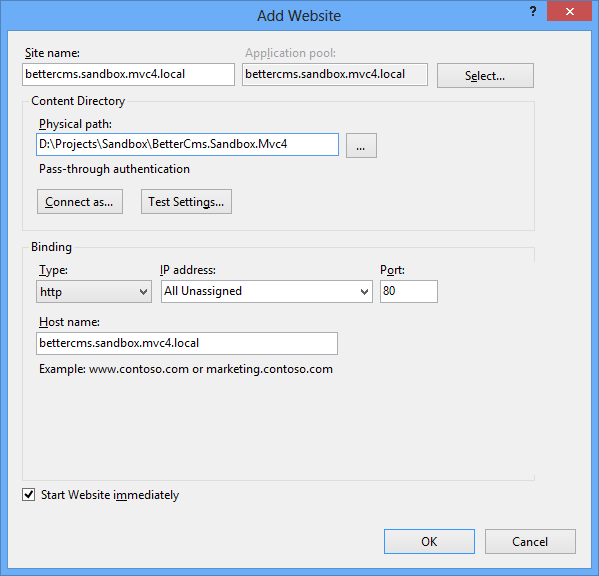
- Enter these values:
Site Name: bettercms.sandbox.mvc4.local
Physical path: browse
\Sandbox\BetterCms.Sandbox.Mvc4folder in the cloned project directory Host Name: bettercms.sandbox.mvc4.local
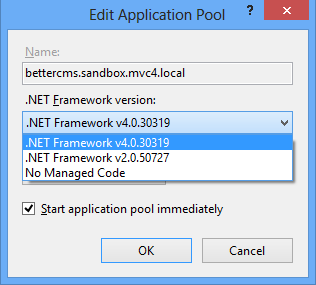
- Go to Application Pools, find pool
bettercms.sandbox.mvc4.localand check if .NET Framework version is v4.0:
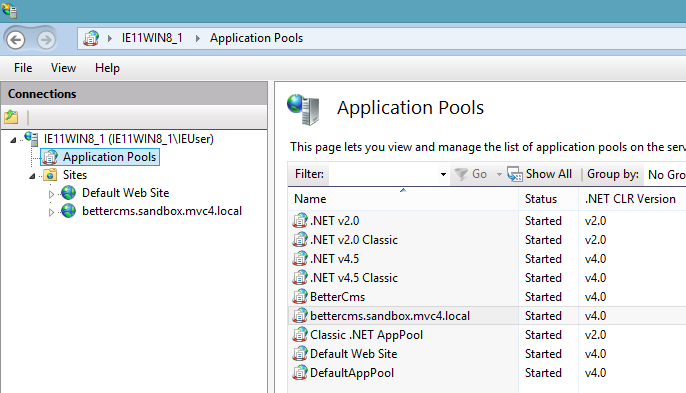
- If version is not v4.0, double click on your pool and choose
.NET Framework v4.{xxxxx}from the .NET frameworks list.
- Open project in Visual Studio or Visual Studio Express.
- Create database in SQL Server or SQL Server Express and ensure Application Pool Identity has read/write access to that database. Read more in troubleshooter, how it can be fixed.
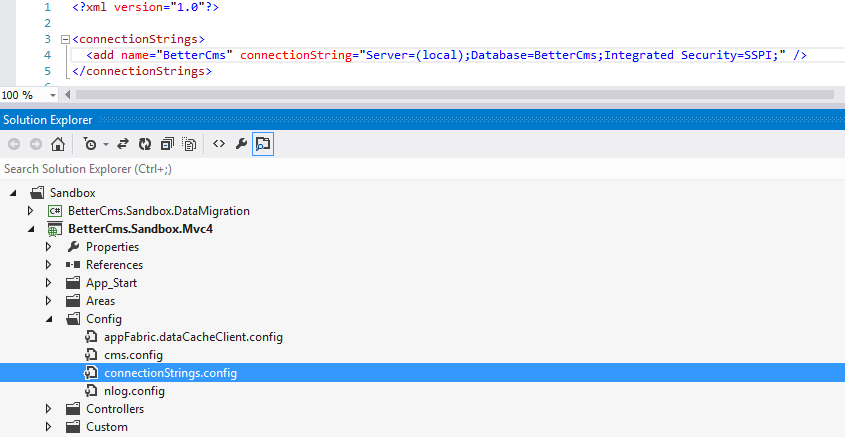
- Open
BetterCms.Sandbox.Mvc4\Config\connectionString.configfor editing and enter your connection string. Read more about connection strings here.
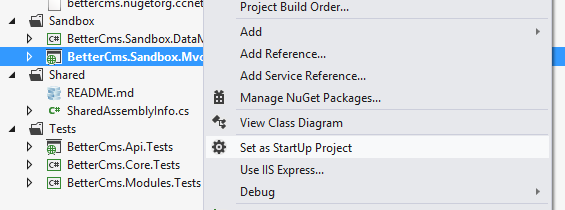
- Ensure, that
BetterCms.Sandbox.Mvc4project is set as startup project (it should be displayed in bold). If it's not, press right mouse key on the project and selectSet as StartUp Project.
- Run solution by pressing F5 or Debug -> Start Debugging. If database and ISS server are configured correctly, website will create it's database structure. It could take some time, please be patient. After some time Better CMS should open it's home page. Better CMS is running and can be edited.
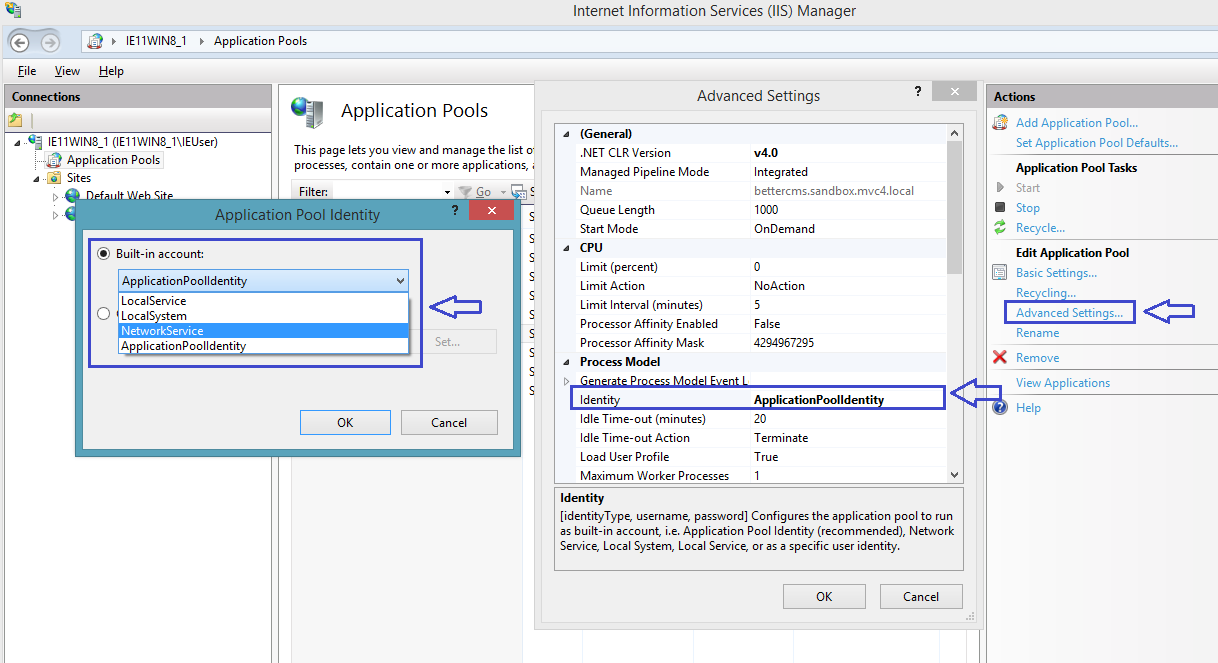
By default, when application pool is created, ApplicationPoolIdentity is chosen as pool's identity. It can be changed to another user, for example, NetworkService.
Open IIS -> Application Pools and select application pool bettercms.sandbox.mvc4.local. From the context menu (or from the menu on the right) choose "Advanced Settings...". Find "Identity" and press browse button next to it. Change Built-in account to "NetworkService".
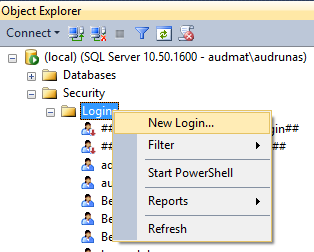
Open SQL Server Management studio. In the object explorer expand Security and Logins. If there is no NT AUTHORITY\NETWORK SERVICE, add it by choosing New login from context menu.
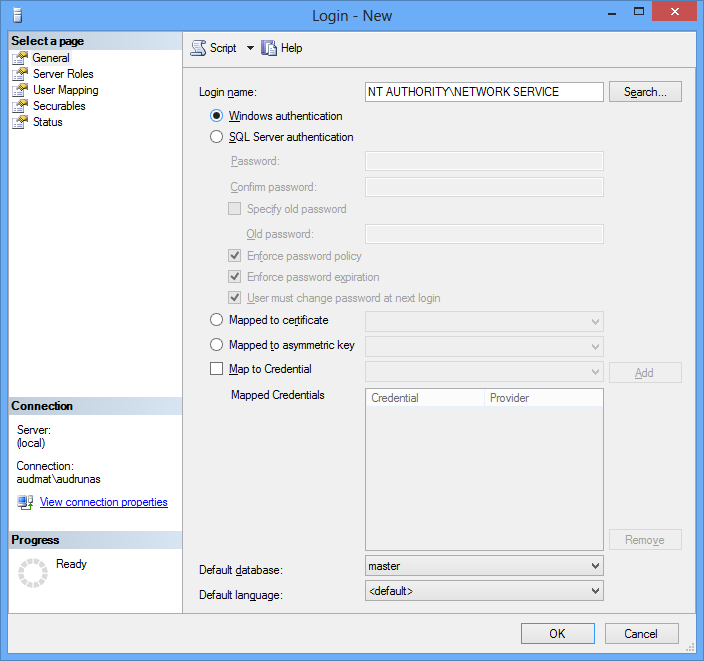
Enter NT AUTHORITY\NETWORK SERVICE as login name, keep Windows authentication mode checked.
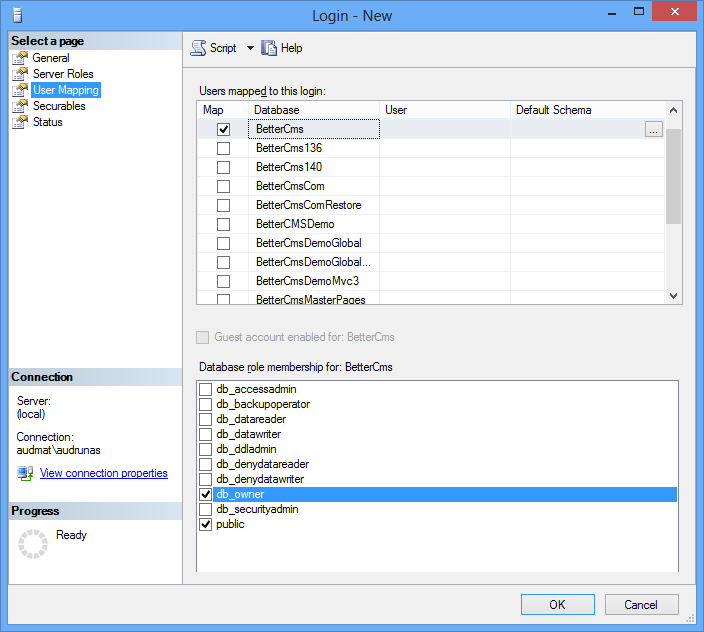
Open User Mapping page, select your database and ensure, that db_owner and public checkboxes are checked.
Press OK and try reloading page. Now NetworkService account has access to database and Better CMS should run correctly.