An operating system(OS) is an essential component of the system software. OS acts as an interface between the user of a computer and the computer hardware. OS is a collection of software that manages computer hardware resources and offers common services to the application programs.
Linux is one of popular version of UNIX operating System. It is open source as its source code is freely available. It is free to use. Linux was designed considering UNIX compatibility. Its functionality list is quite similar to that of UNIX.
Linux operating system architecture primarily has three components:
- Kernel
- Shell
- Utilities
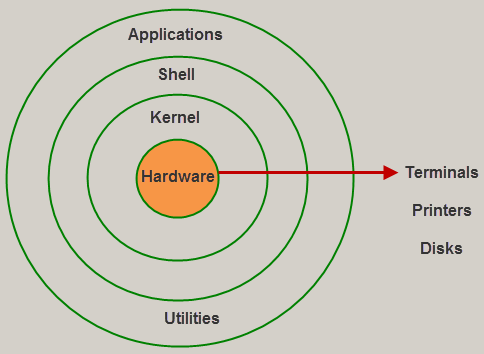
The kernel is a computer program that is the core of a computer’s operating system, with complete control over everything in the system. It manages following resources of the Linux system – * File management * Process management * I/O management * Memory management * Device management etc.
It is often mistaken that Linus Torvalds has developed Linux OS, but actually he is only responsible for development of Linux kernel.
Complete Linux system = Kernel + GNU system utilities and libraries +
                        other management scripts + installation scripts.
A shell is special user program which provide an interface to user to use operating system services. Shell accept human readable commands from user and convert them into something which kernel can understand. It is a command language interpreter that execute commands read from input devices such as keyboards or from files. The shell gets started when the user logs in or start the terminal.
There are several shells are available for Linux systems like –
-
BASH (Bourne Again SHell) It is most widely used shell in Linux systems. It is used as default login shell in Linux systems and in macOS. It can also be installed on Windows OS.
-
CSH (C SHell) The C shell’s syntax and usage are very similar to the C programming language.
-
KSH (Korn SHell) The Korn Shell also was the base for the POSIX Shell standard specifications.
Each shell does the same job but understand different commands and provide different built in functions.
uname command prints system information. syntax of uname command is uname [option]
                $ uname -s   ## prints the kernel name
                Linux

                $ uname -n   ## prints the network node hostname
                ceit

                $ uname -r   ## prints the kernel release
                5.0.0-13-generic

                $ uname -v  ## prints the version of current kernel
                #14-Ubuntu SMP Mon Apr 15 14:59:14 UTC 2019

                $ uname -m ## prints the machine hardware name
                x86_64

                $ uname -p   ## print the processor type or "unknown"
                x86_64

                $ uname -i  ## print the hardware platform or "unknown"
                x86_64

                $ uname -o  ## print the operating system
                GNU/Linux

                $ uname -a
                Linux ceit 5.0.0-13-generic #14-Ubuntu SMP Mon Apr 15 14:59:14 UTC 2019 x86_64
                x86_64 x86_64 GNU/Linux
uname -a prints all the system information in the following order: Kernel name, network node hostname, kernel release, kernel version, machine hardware name, hardware platform, operating system.
If a user wants a quick view of calendar in Linux terminal, cal is the command for him. By default, cal command
shows current month calendar as output. cal command is a calendar command in Linux which is used to see the calendar
of a specific month or a whole year.
               $ cal
                     May 2019
               Su Mo Tu We Th Fr Sa
                         1  2  3  4
                5  6  7  8  9 10 11
               12 13 14 15 16 17 18
               19 20 21 22 23 24 25
               26 27 28 29 30 31


               $ cal 02 2019          # calendar of feb 2019
                  February 2019
               Su Mo Tu We Th Fr Sa
                               1  2
                3  4  5  6  7  8  9
               10 11 12 13 14 15 16
               17 18 19 20 21 22 23
               24 25 26 27 28


               $ cal -3 # shows the calendar of previous current and next month.

                                                          2019
                      April                  May                   June
               Su Mo Tu We Th Fr Sa  Su Mo Tu We Th Fr Sa  Su Mo Tu We Th Fr Sa
                   1  2  3  4  5  6            1  2  3  4                     1
                7  8  9 10 11 12 13   5  6  7  8  9 10 11   2  3  4  5  6  7  8
               14 15 16 17 18 19 20  12 13 14 15 16 17 18   9 10 11 12 13 14 15
               21 22 23 24 25 26 27  19 20 21 22 23 24 25  16 17 18 19 20 21 22
               28 29 30              26 27 28 29 30 31     23 24 25 26 27 28 29
                                                           30
date command is used to display the system date and time. date command is also used to set date and time of
the system. By default the date command displays the date in the time zone on which unix/linux operating system
is configured.You must be the super-user (root) to change the date and time.
- When used without options, the
datecommand displays the current system date and time, including the day of the week, month, time, timezone, and year:
         $ date
Mon 06 May 2019 12:30:25 AM -04- date has many display formatting options.
               %D: Display date as mm/dd/yy.
               %d: Display the day of the month (01 to 31).
               %a: Displays the abbreviated name for weekdays (Sun to Sat).
               %A: Displays full weekdays (Sunday to Saturday).
               %h: Displays abbreviated month name (Jan to Dec).
               %b: Displays abbreviated month name (Jan to Dec).
               %B: Displays full month name(January to December).
               %m: Displays the month of year (01 to 12).
               %y: Displays last two digits of the year(00 to 99).
               %Y: Display four-digit year.
               %T: Display the time in 24 hour format as HH:MM:SS.
               %H: Display the hour.
               %M: Display the minute.
               %S: Display the seconds.
- syntax for display formatting is:
$date +%[format-option]
            $ date "+%D"
            05/06/19

            $ date "+%D %T"
            05/06/19 00:38:09

            $ date "+%Y-%m-%d"
            2019-05-06

            $ date "+%Y/%m/%d"
            2019/05/06

            $ date "+%A %B %d %T %y"
Monday May 06 00:39:01 19who command is used to find out the following information :
- Time of last system boot
- Current run level of the system
- List of logged in users and more.
- The
whocommand displays the following information for each user currently logged in to the system if no option is provided :- Login name of the users
- Terminal line numbers
- Login time of the users in to system
- Remote host name of the user
            $ who
ram :0 2019-05-05 21:11 (:0)- To show the list of users currently logged in use
who -u.
            $ who -u
ram :0 2019-05-05 21:11 ? 1513 (:0)- To show the headings of the column use
who -H.
            $ who -uH
            NAME     LINE         TIME             IDLE          PID COMMENT
ram :0 2019-05-05 21:11 ? 1513 (:0)- To show time of the system when it booted last time use
who -b
            $ who -b
system boot 2019-05-05 21:09- To count number of users logged on to system
who -q
            $ who -q
            ram
            # users=1