import CreateServicePrincipal from '/snippets/dwh/databricks/create_service_principal.mdx'; import PermissionsAndSecurity from '/snippets/dwh/databricks/databricks_permissions_and_security.mdx'; import IpAllowlist from '/snippets/cloud/integrations/ip-allowlist.mdx';
This guide contains the necessary steps to connect a Databricks environment to your Elementary account.
In the Elementary platform, go to Environments in the left menu, and click on the "Create Environment" button. Choose a name for your environment, and then choose Databricks as your data warehouse type.
Provide the following common fields in the form:
- Server Host: The hostname of your Databricks account to connect to.
- Http path: The path to the Databricks cluster or SQL warehouse.
- Catalog (optional): The name of the Databricks Catalog.
- Elementary schema: The name of your Elementary schema. Usually
[your dbt target schema]_elementary.
Then, select your authentication method:
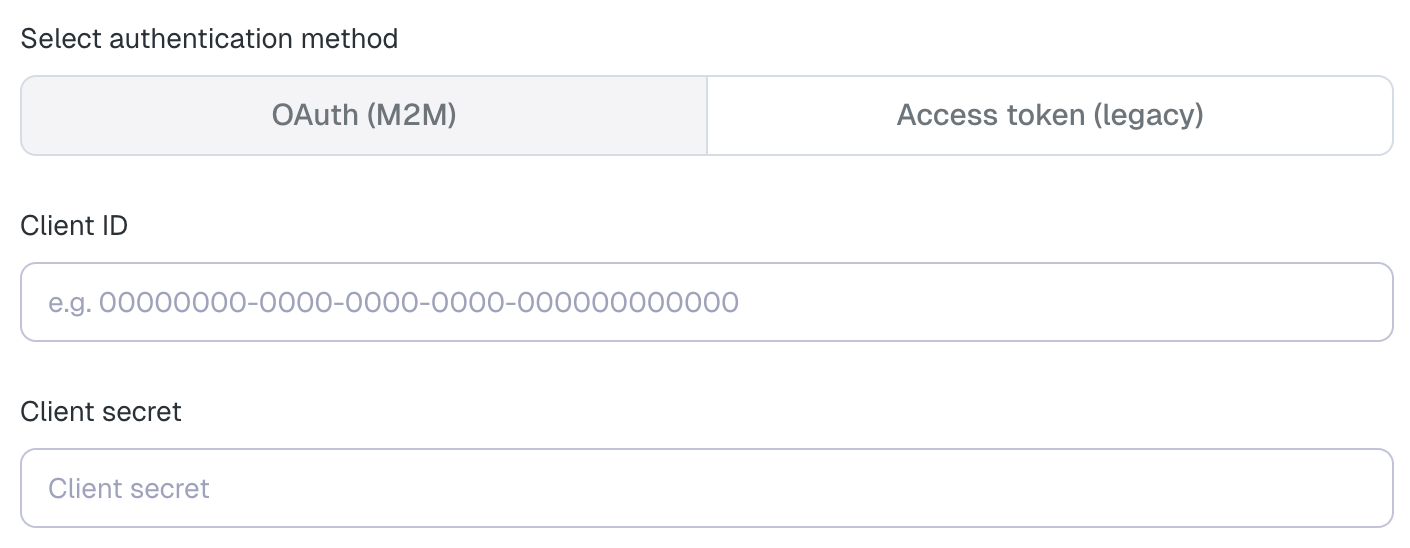
- Client ID: The Application (client) ID of the service principal (the "Application ID" you copied in step 5).
- Client secret: The OAuth secret you generated for the service principal (see step 7).
Elementary requires access to the table history in order to enable automated monitors such as volume and freshness monitors. You can configure this in one of the following ways:
Elementary can fetch the table history by running DESCRIBE HISTORY queries on your Databricks warehouse.
In the Elementary UI, choose None under Storage access method.
This requires SELECT access on the relevant tables, as described in the permissions and security section above.
Elementary can access the storage using temporary credentials issued by Databricks through credential vending. In the Elementary UI, choose Credentials vending under Storage access method.
This requires granting EXTERNAL USE SCHEMA on the relevant schemas.
When using this option, Elementary only reads the Delta transaction log files from storage.
Elementary can access the storage directly using credentials that you configure. In the Elementary UI, choose Direct storage access under Storage access method.
When using this option, Elementary only reads the Delta transaction log files from storage.
For S3-backed Databricks storage, you can configure access in one of the following ways:
AWS Role authentication

This is the recommended approach, as it provides better security and follows AWS best practices. After choosing Direct storage access, select AWS role ARN under Select S3 authentication method.
- Create an IAM role that Elementary can assume.
- Select "Another AWS account" as the trusted entity.
- Enter Elementary's AWS account ID:
743289191656. - Optionally enable an external ID.
- Attach a policy that grants read access to the Delta log files.
Use a policy similar to the following:
{
  "Version": "2012-10-17",
  "Statement": [
    {
      "Sid": "VisualEditor0",
      "Effect": "Allow",
      "Action": [
        "s3:GetObject",
        "s3:ListBucket"
      ],
      "Resource": [
        "arn:aws:s3:::databricks-metastore-bucket",
        "arn:aws:s3:::databricks-metastore-bucket/*_delta_log*"
      ]
    }
  ]
}
Provide the role ARN in the Elementary UI, and the external ID as well if you configured one.
AWS access keys

If needed, you can instead provide direct AWS credentials. After choosing Direct storage access, select Secret access key under Select S3 authentication method.
- Create an IAM user that Elementary will use for storage access.
- Enable programmatic access.
- Attach the same read-only S3 policy shown above.
- Provide the AWS access key ID and secret access key in the Elementary UI.
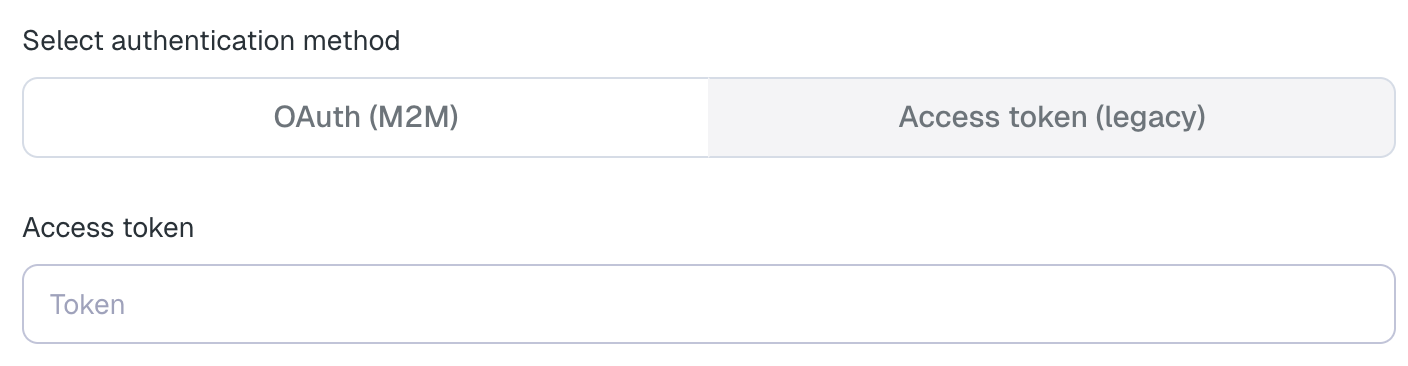
- Access token: A personal access token generated for the Elementary service principal.