| title | Update Plane version |
|---|---|
| sidebarTitle | Update to latest version |
Keeping Plane up to date ensures you’re using the latest features, improvements, and security fixes. Here’s how to upgrade your Plane installation with a single command.
The upgrade process may involve a brief downtime as services are updated and restarted.We recommend creating a backup of your data before any version updates. See Backup data.
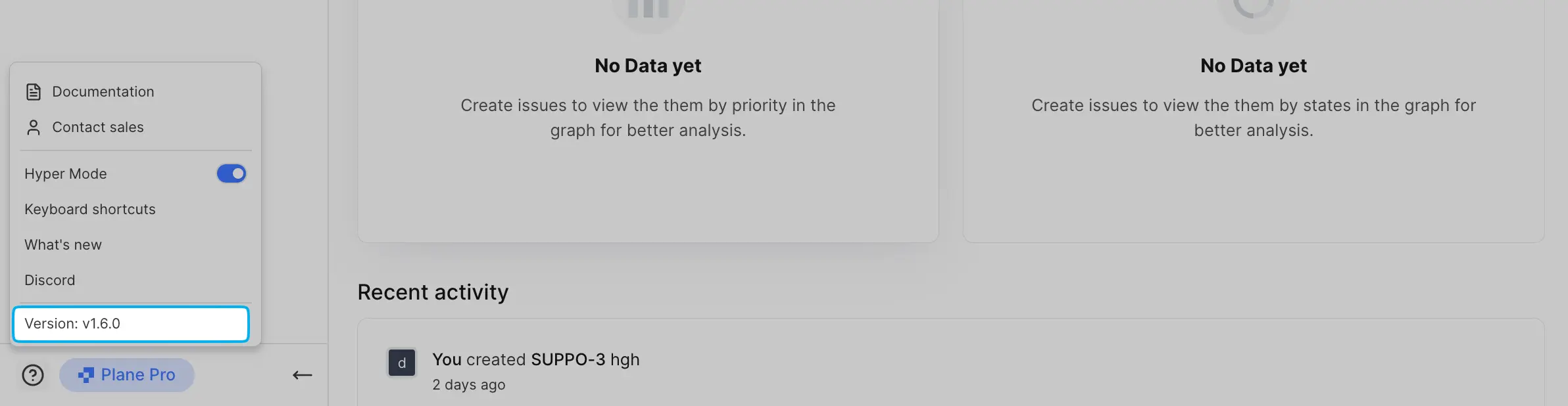
You can quickly check your Plane version by clicking the ? icon on the sidebar.
-
Update your Prime CLI with the command ↓:
sudo prime-cli update-cli
The latest version of the CLI ensures your Plane upgrades happen smoothly.
-
To update Plane to the latest version, run:
sudo prime-cli upgrade
This command checks for the latest version of Plane and applies the upgrade if a new version is available.
Before starting, make a backup of your Plane instance. For detailed steps, see the Backup data section. This is strongly recommended to ensure you have a safe restore point.
-
Download the latest stable release with ↓:
curl -fsSL -o setup.sh https://github.com/makeplane/plane/releases/latest/download/setup.sh
-
Execute the setup script with ↓:
./setup.sh
This will bring up a menu with several options. Select option
5to upgrade:Select a Action you want to perform: 1) Install (x86_64) 2) Start 3) Stop 4) Restart 5) Upgrade 6) View Logs 7) Backup Data 8) Exit Action [2]: 5
Choosing this option stops all services and downloads the latest
docker-compose.yamlandvariables-upgrade.envfiles. Theplane.envfile won’t be overwritten, so your existing environment settings are safe.You’ll see a message indicating the services have been stopped.

-
After the update completes, select
6to exit the prompt. -
After the upgrade, open
variables-upgrade.envand compare it with yourplane.envfile. Copy any new variables fromvariables-upgrade.envto yourplane.envfile and set the correct values. This step is essential to ensure that all configuration changes are in place for the latest version. -
Once your
plane.envfile is updated, start your Plane instance again by selecting option2.
