-
Notifications
You must be signed in to change notification settings - Fork 37
Custom relations #423
New issue
Have a question about this project? Sign up for a free GitHub account to open an issue and contact its maintainers and the community.
By clicking “Sign up for GitHub”, you agree to our terms of service and privacy statement. We’ll occasionally send you account related emails.
Already on GitHub? Sign in to your account
Open
danciaclara
wants to merge
4
commits into
master
Choose a base branch
from
custom-relations
base: master
Could not load branches
Branch not found: {{ refName }}
Loading
Could not load tags
Nothing to show
Loading
Are you sure you want to change the base?
Some commits from the old base branch may be removed from the timeline,
and old review comments may become outdated.
Open
Custom relations #423
Changes from all commits
Commits
Show all changes
4 commits
Select commit
Hold shift + click to select a range
File filter
Filter by extension
Conversations
Failed to load comments.
Loading
Jump to
Jump to file
Failed to load files.
Loading
Diff view
Diff view
Some comments aren't visible on the classic Files Changed page.
There are no files selected for viewing
This file contains hidden or bidirectional Unicode text that may be interpreted or compiled differently than what appears below. To review, open the file in an editor that reveals hidden Unicode characters.
Learn more about bidirectional Unicode characters
This file contains hidden or bidirectional Unicode text that may be interpreted or compiled differently than what appears below. To review, open the file in an editor that reveals hidden Unicode characters.
Learn more about bidirectional Unicode characters
| Original file line number | Diff line number | Diff line change |
|---|---|---|
| @@ -0,0 +1,54 @@ | ||
| --- | ||
| title: Define relation types for work items | ||
| description: Define custom relation types at the workspace level to represent how work items connect across your projects. | ||
| --- | ||
|
|
||
| # Custom relations <Badge type="warning" text="Enterprise Grid" /> | ||
|
|
||
| Relations describe how work items are connected to each other. | ||
|
|
||
| Plane includes three [default relation types](/core-concepts/issues/overview#add-relations) that cover common use cases. You can create additional relation types tailored to how your organization thinks about work. For example, a team might define a "Tests" relation so QA work items link back to the features they validate, or a "Depends On" relation to model logical dependencies that don't map to scheduling constraints. | ||
|
|
||
| Custom relations are workspace-level configurations. Once created, they're available when linking work items across any project in the workspace. | ||
|
|
||
| ## Create a custom relation | ||
|
|
||
| > **Role**: Workspace Admin | ||
|
|
||
| 1. Go to **Workspace Settings > Relations**. | ||
| 2. Click **Add relation**. | ||
| 3. Fill in the three fields: | ||
| - **Title** — the name of the relation type. | ||
| - **Inward name** — how the relation reads from the perspective of the work item you're adding it to (e.g., "blocking," "depended on by," "tested by"). | ||
| - **Outward name** — how the relation reads from the perspective of the work item you're linking to (e.g., "blocked by," "depends on," "tests"). | ||
| 4. Click **Save**. | ||
|
|
||
| 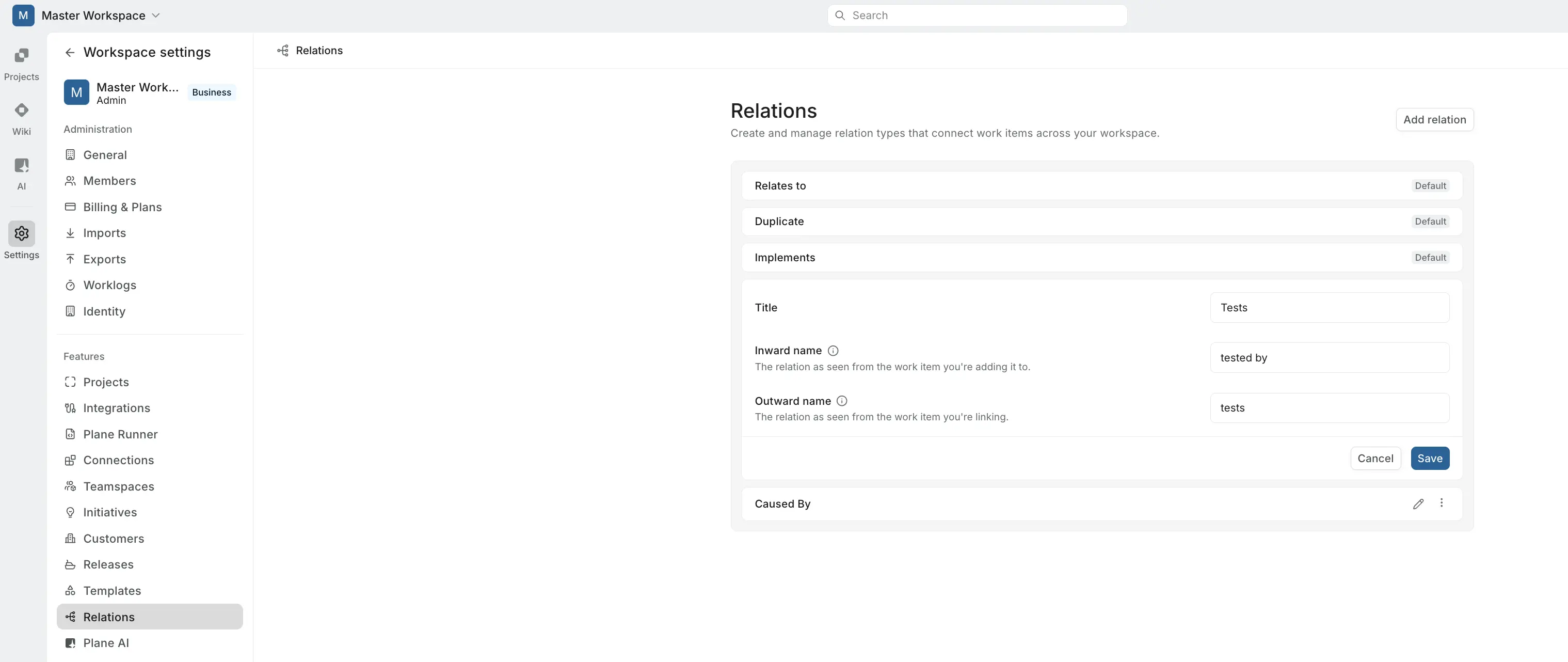 | ||
|
|
||
| The directional naming ensures the relation reads correctly from either side. The inward name appears on the work item you're adding the relation to, and the outward name appears on the work item you're linking. | ||
|
|
||
| ### Examples | ||
|
|
||
| | Title | Inward name | Outward name | | ||
| | --------- | ----------- | ------------ | | ||
| | Tests | tested by | tests | | ||
| | Caused by | caused | caused by | | ||
|
|
||
| ## Edit or delete a custom relation | ||
|
|
||
| > **Role**: Workspace Admin | ||
|
|
||
| From **Workspace Settings > Relations**, click on any custom relation to update its title, inward name, or outward name. You can also delete custom relations you no longer need. | ||
|
|
||
| Changes apply across the workspace and update how the relation appears on any work items that already use it. | ||
|
|
||
| ## Use relations in work items | ||
|
|
||
| Once a custom relation exists, any project member can use it when linking work items. | ||
|
|
||
| 1. Open a work item. | ||
| 2. Click **Add relation**. | ||
| 3. Choose the relation type from the dropdown — both default and custom relations appear here. | ||
| 4. Select the work item to link. | ||
|
|
||
| The relation appears on both work items using the appropriate inward or outward label. Learn more about [adding relations to work items](/core-concepts/issues/overview#add-relations). | ||
This file contains hidden or bidirectional Unicode text that may be interpreted or compiled differently than what appears below. To review, open the file in an editor that reveals hidden Unicode characters.
Learn more about bidirectional Unicode characters
This file contains hidden or bidirectional Unicode text that may be interpreted or compiled differently than what appears below. To review, open the file in an editor that reveals hidden Unicode characters.
Learn more about bidirectional Unicode characters
Oops, something went wrong.
Add this suggestion to a batch that can be applied as a single commit.
This suggestion is invalid because no changes were made to the code.
Suggestions cannot be applied while the pull request is closed.
Suggestions cannot be applied while viewing a subset of changes.
Only one suggestion per line can be applied in a batch.
Add this suggestion to a batch that can be applied as a single commit.
Applying suggestions on deleted lines is not supported.
You must change the existing code in this line in order to create a valid suggestion.
Outdated suggestions cannot be applied.
This suggestion has been applied or marked resolved.
Suggestions cannot be applied from pending reviews.
Suggestions cannot be applied on multi-line comments.
Suggestions cannot be applied while the pull request is queued to merge.
Suggestion cannot be applied right now. Please check back later.
There was a problem hiding this comment.
Choose a reason for hiding this comment
The reason will be displayed to describe this comment to others. Learn more.
Correct the count of default relation types.
The text claims "three [default relation types]" but according to the linked documentation in
docs/core-concepts/issues/overview.md(lines 77-85), there are actually four default relation types:📝 Proposed fix
📝 Committable suggestion
🤖 Prompt for AI Agents