How to generate and use Bitmap Font in melonJS
The first step is to convert your .TTF or .WOFF font into a .PNG (the texture) and a .FNT (the font definition file) for use with melonJS. Several tools are available (see the Tools section below), but we recommend SnowBamboo — a free online converter.
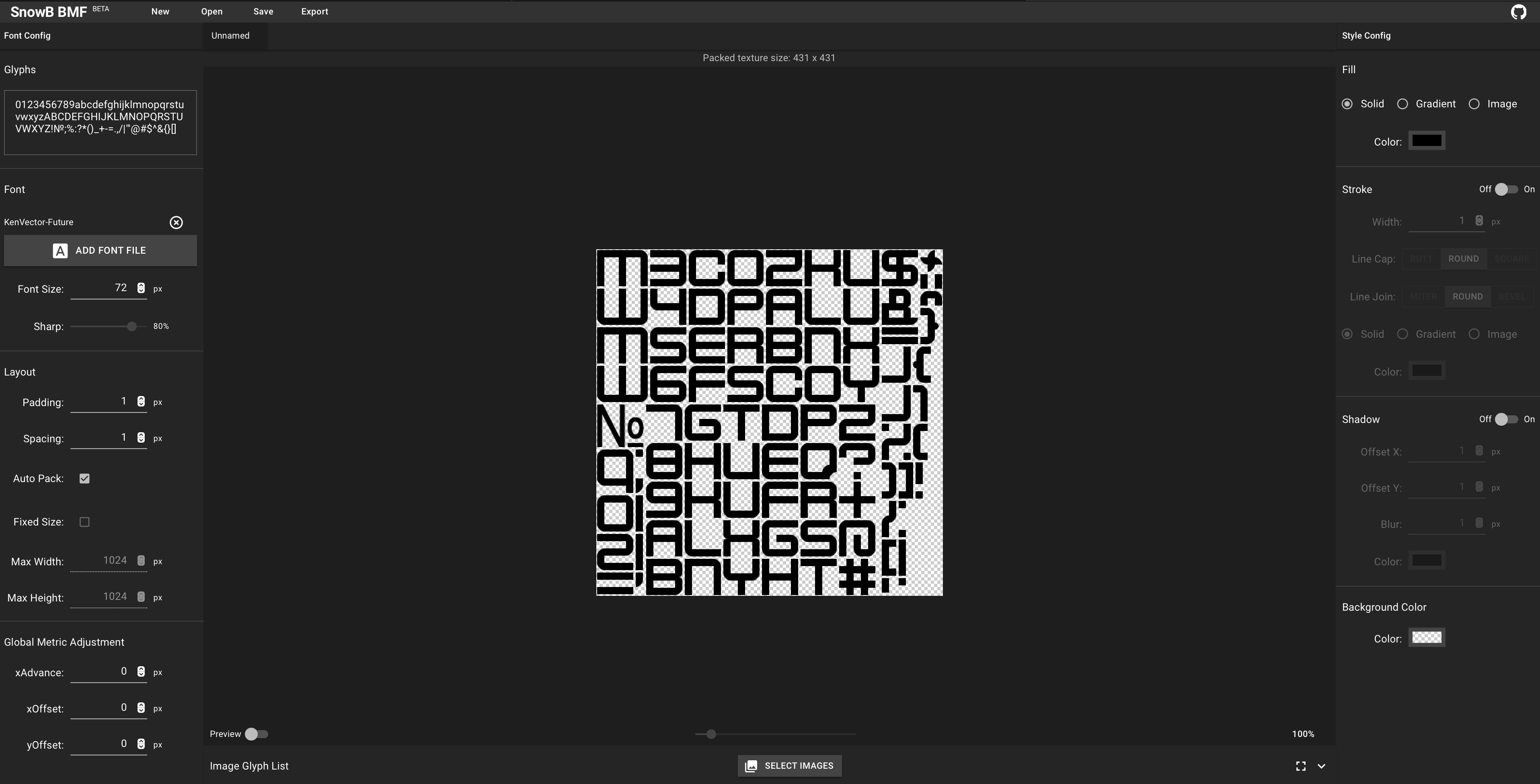
When configuring the converter, ensure:
- Use the original TTF font name
- Export as BMFont TEXT (.FNT) format
- Include the right character set (e.g., "basic" for letters and numbers)
- Use a power-of-two image size
- melonJS only supports 1 page (one .PNG per .FNT file) — increase the image size rather than generating multiple pages
Add the font files to your resources list:
{ name: "PressStart2P", type: "image",  src: "data/fnt/PressStart2P.png" },
{ name: "PressStart2P", type: "binary", src: "data/fnt/PressStart2P.fnt" },
Note: The
.FNTfile type must be set tobinary.
Create a BitmapText instance:
import { BitmapText } from "melonjs";

const myFont = new BitmapText(x, y, {
    font: "PressStart2P",
    text: "Hello!",
});
Add it to the game world:
app.world.addChild(myFont);For more details on alignment, size, and other options, see the BitmapText documentation.
Online
- https://snowb.org/ (web based, free)
macOS
- https://71squared.com/glyphdesigner (ongoing paid license)
- https://www.bmglyph.com/ (pay once)
Windows
Cross-platform
- https://libgdx.badlogicgames.com/nightlies/runnables/runnable-hiero.jar (requires Java, free)
- https://github.com/andryblack/fontbuilder
- https://github.com/vladimirgamalyan/fontbm
- https://www.fontsquirrel.com/ (100% free for commercial use, includes webfont generator)