IFTTT をコマンドラインから管理するツールです。
IFTTT は様々なサービスを連携してくれる大変便利なサービスですが、API が提供されていません。 アプレットを多数作成すると管理やメンテナンスが困難になってきます。 このツールを使えば IFTTT の管理やメンテナンスをコマンドラインによって簡単に行えます。
仕組みは Puppeteer にて Chrome をヘッドレスモードで起動し、バックグラウンドで Web 操作を行います。
Node.js v8.0.0以上の環境が必要です。
$ npm install -g ifttt-cliIFTTT へのログインを行います。 以下のコマンドを実行すると Chrome が起動し IFTTT のログイン画面が表示されるのでログインしてください。
$ ifttt login-e, --emailオプションに続けてメールアドレスとパスワードを指定することでヘッドレスモードでログインできます。
$ ifttt login -e email@example.com password$ ifttt --help
ifttt [options] <command>
Control IFTTT from the command line.
Commands:
ifttt [options] <command> Control IFTTT from the command line.
[default]
ifttt login [-e, --email <mail address> Log in to IFTTT.
<password>] If the option is omitted, please log
in from the launched browser.
ifttt logout Log out of IFTTT.
ifttt connect <service> Connect to the specified service.
ifttt list [-l, --long] Display a list of applets.
Use the `-l, --long` option to
display the details.
ifttt get [id..] Get the applet recipe.
The recipe of all applets is
acquired by specifying `-a, --all`
option.
ifttt create <file> Create the applet.
Specify and execute a JSON file
containing a recipe.
ifttt delete <id..> Remove the applet.
Specify the ID of the applet you
want to delete and execute it.
ifttt update <file> Update the applet.
Specify and execute a JSON file
containing a recipe.
Positionals:
command
[required] [choices: "login", "logout", "connect", "list", "get", "create",
"delete", "update"]
Options:
-b, --browser, --no-headless Control while displaying chrome. [boolean]
-h, --help Show help [boolean]
-v, --version Show version number [boolean]アプレットの一覧を表示します。 アプレット ID 、アプレット名が表示されます。
$ ifttt list
┌───────────┬─────────┐
│ ID        │ Name    │
├───────────┼─────────┤
│ 12345678d │ applet1 │
├───────────┼─────────┤
│ 23456789d │ applet2 │
├───────────┼─────────┤
│ 34567890d │ applet3 │
└───────────┴─────────┘
-l, --longオプションを指定するとトリガーやアクションの情報も表示されます。
$ ifttt list -l
┌───────────┬─────────┬──────────────────┬──────────┬────────┐
│ ID        │ Name    │ Trigger          │ Action   │ Status │
├───────────┼─────────┼──────────────────┼──────────┼────────┤
│ 12345678d │ applet1 │ Google Assistant │ Webhooks │ true   │
├───────────┼─────────┼──────────────────┼──────────┼────────┤
│ 23456789d │ applet2 │ Amazon Alexa     │ Webhooks │ false  │
├───────────┼─────────┼──────────────────┼──────────┼────────┤
│ 34567890d │ applet3 │ Webhooks         │ Clova    │ true   │
└───────────┴─────────┴──────────────────┴──────────┴────────┘
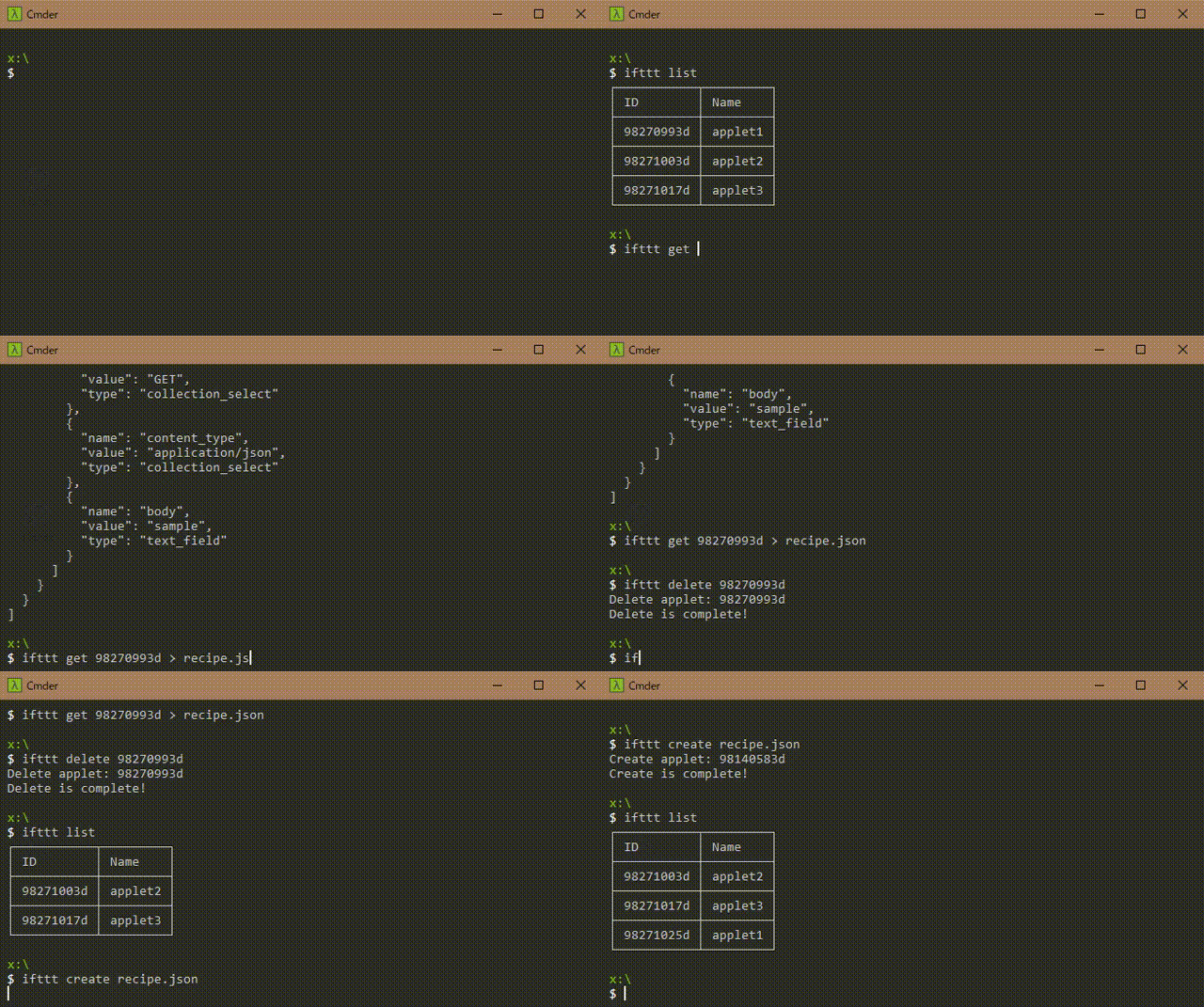
指定のアプレット ID のレシピ情報を取得します。 JSON データが標準出力されるので、保存する場合はリダイレクトしてください。
標準出力されるJSONの例はこちら。
$ ifttt get <applet-id> > recipe.jsonアプレット ID の代わりに-a, --allオプションを指定すると全てのアプレットのレシピ情報を取得します。
$ ifttt get -a > all-recipe.jsonレシピの JSON ファイルを指定することでレシピの内容のアプレットを作成します。
$ ifttt create recipe.json指定のアプレット ID のアプレットを削除します。
$ ifttt delete <applet-id>レシピの JSON ファイルを指定することでレシピの内容のアプレットを更新します。
$ ifttt update recipe.json指定のサービスへの Connect を行います。 サービス側でログインが必要な場合は Chrome が起動されるのでブラウザを操作してログインを行ってください。
$ ifttt connect <service-id>IFTTT からログアウトします。
$ ifttt logout以下の JSON データはトリガーに Google Assistant の Say a simple phrase を、アクションに Webhooks の Make a web request を指定した場合のレシピです。
[
  {
    "id": "12345678d",
    "name": "applet name",
    "notification": false,
    "status": true,
    "trigger": {
      "service": "google_assistant",
      "type": "simple_voice_trigger",
      "fields": [
        {
          "name": "voice_input_1",
          "value": "sample",
          "type": "text_field"
        },
        {
          "name": "voice_input_2",
          "value": "",
          "type": "text_field"
        },
        {
          "name": "voice_input_3",
          "value": "",
          "type": "text_field"
        },
        {
          "name": "tts_response",
          "value": "sample",
          "type": "text_field"
        },
        {
          "name": "supported_languages_for_user",
          "value": "en",
          "type": "collection_select"
        }
      ]
    },
    "action": {
      "service": "maker_webhooks",
      "type": "make_web_request",
      "fields": [
        {
          "name": "url",
          "value": "https://example.com/",
          "type": "text_field"
        },
        {
          "name": "method",
          "value": "GET",
          "type": "collection_select"
        },
        {
          "name": "content_type",
          "value": "application/json",
          "type": "collection_select"
        },
        {
          "name": "body",
          "value": "sample",
          "type": "text_field"
        }
      ]
    }
  }
]- フォークします
- featureブランチを作成します
- 変更をコミットします
- ブランチにプッシュします
- 新しいプルリクエストを作成します