?> Buttons and switches are primarily used to toggle (turn ON or OFF) device relays.
A typical device usually has at least one button (exception being bulbs and some lights) to control the relay(s). Additional buttons and switches can be wired to a free GPIO and configured in Module or Template settings.
Note
Other than relays, Tasmota does not publish the state of components (switches, buttons, sensors, etc.) in real-time. Only messages corresponding to relays are transmitted in real-time. The state of components is transmitted automatically each TelePeriod via the SENSORS message.
A button (also called a push-button) is a momentary or non-latching switch which causes a temporary change in the state of an electrical circuit only while the switch is pressed. An automatic mechanism (i.e. a spring) returns the switch to its default position immediately afterwards, restoring the initial circuit condition.
A switch (more precisely a latching or toggle switch), when activated by the user, remains in that state until activated again.
Learn more about buttons and switches in this video.
Both have a similar function, but Tasmota distinguishes between a "Button" and a "Switch" in other ways.
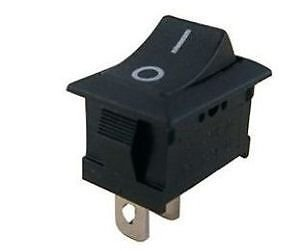
In Tasmota a Switch is any switch or push-button additionally connected to a free GPIO. Some possibilities include:
- mechanical toggle switch - also called a rocker switch
- capacitive touch switch
- reed switch
- PIR - even though it's technically a sensor it is configured as a switch in Tasmota
- mechanical push-button
By default a switch toggles the corresponding relay. Every time the switch gets flipped, the relay changes its state (ON or OFF). Instead of the default toggling of the relay, switches can be configured to send messages to different MQTT topics or send commands to other Tasmota devices. To ignore the default behaviour define a rule which triggers on Switch<x>#State or use Switchtopic.
[!EXAMPLE] A rule to make Switch1 publish its value to cmnd/custom-topic/SWITCH:
Rule1 on switch1#state do publish cmnd/custom-topic/SWITCH %value% endon
Rule1 1
And now, to make everything completely confusing:
A push-button can be configured as a Switch and a toggle switch can be configured as a Button. Configuring a toggle switch as a Button is not recommended!
To change the behavior of a physical input peripheral configured as a Tasmota Switch<x> component, whether a toggle switch or a momentary switch (i.e., a push-button), use the SwitchMode command. If there is more than one Switch<x> component, use SwitchMode<x> where <x> is the number of your switch from the Tasmota GPIO configuration.
SwitchMode, as the name implies, applies ONLY to GPIO configured in Tasmota as a Switch<x> component (9-16 & 82-89). SwitchMode has NO impact on the behavior of GPIO configured as Button<x> components (17-20, 90-93, & 112-129). SwitchMode sets the desired behavior of a Switch<x> component based on whether it's a switch or a push-button (i.e., a momentary switch) that is physically connected to the GPIO.
SwitchMode 0
Default mode
Set switch to toggle mode.
Tasmota sends TOGGLE command each time the state of the circuit changes (closing or opening).
SwitchMode 1
Set switch to follow mode (0 = OFF, 1 = ON)
At the time when the circuit is closed, Tasmota will send ON and opening the circuit sends OFF.
[!TIP] You want to use
SwitchMode 1when connecting a toggle switch (e.g. a classic light switch) to your device. This way the "software switch" will mirror the state of the "hardware switch". If the real switch is in the "ON" position, the state in Tasmota isONas well.
SwitchMode 2
Set switch to inverted follow mode (0 = ON, 1 = OFF)
At the time when the circuit is closed, Tasmota will send OFF and opening the circuit sends ON.
[!TIP] When connecting a momentary switch (i.e., a push-button) you will want to use
SwitchMode 3..7.
SwitchMode 3
Set push-button mode (0 = TOGGLE, 1 = ON (default))
Tasmota will send a TOGGLE command when the button is released (opening the circuit). When pressing the button (closing the circuit) nothing will happen. Default state is ON and when pressed it's OFF. (This trigger is known as falling-edge)
SwitchMode 4
Set inverted push-button mode (0 = OFF (default), 1 = TOGGLE)
Tasmota will send a TOGGLE command when the button is pressed (closing the circuit). When the button is released (opening the circuit) nothing will happen. Default state is OFF and when pressed it's ON. (This trigger is known as rising-edge)
SwitchMode 5
Set push-button with long press mode (0 = TOGGLE, 1 = ON (default), long press = HOLD)
Tasmota will send a TOGGLE command when the button is released (opening the circuit). When pressing the button (closing the circuit) nothing will happen. Default state is ON and when pressed it's OFF. When held for the time set in SetOption32 (default = 4s), Tasmota sends HOLD (use Switch#state=3 in rules).
SwitchMode 6
Set inverted push-button with long press mode (0 = OFF (default), 1 = TOGGLE, long press = HOLD)
Tasmota will send a TOGGLE command when the button pressed (closing the circuit). When the button is released (opening the circuit) nothing will happen. Default state is OFF and when pressed it's ON. When held for the time set in SetOption32 (default = 4s), Tasmota sends HOLD (use Switch#state=3 in rules).
[!TIP] Long press or hold can be used in conjunction with rules to create additional features or to control another Tasmota device.
SwitchMode 7
Set toggle push-button mode
Tasmota will send a TOGGLE command when pressed and another TOGGLE command when released.
[!EXAMPLE] When the button is pressed, toggle the relay to ring the doorbell; when the button is released, ring the doorbell again.
Warning
When using SwitchTopic 1 or 2 (or ButtonTopic 1 or 2) and your MQTT broker becomes unavailable, Tasmota falls back to default SwitchTopic 0 (or ButtonTopic 0), which is not optimal.
To avoid this, we recommend using rules. They simply always work!
If you still need to use SwitchTopic read on!
SwitchTopic 0
Default mode
By default a switch controls the corresponding relay and doesn't send any MQTT messages itself.
No MQTT message will be published on account of the new switch state. The message you see in console is the new state of the relay that is controlled and not the switch state.
SwitchTopic 1
Sets MQTT switch topic to device %topic%
When changing the state of the switch an MQTT message is sent to the device topic with the payload according to SwitchMode set.
[!EXAMPLE] Device topic tasmota with
SwitchMode 3yields the following message:MQT: cmnd/tasmota/POWER = TOGGLENotice the cmnd instead of the stat at the beginning.
This is the same as sending an MQTT commands to this device, the device relay will be set to the defined state.
SwitchTopic <value>
Set switch topic to a custom topic (32 characters max)
This will send an MQTT message to a custom defined topic similarly to option 1.
In the following example, we set the topic to tasmota02 with SwitchTopic tasmota02.
[!EXAMPLE] Device topic tasmota with
SwitchMode 1and custom topic tasmota02 yields the following message:MQT: cmnd/tasmota02/POWER = ONIf you have another device with the topic tasmota02 this action will turn on its relay while not affecting anything on the tasmota device.
SwitchTopic 0 controls the relay directly.
SwitchTopic 1 sends an MQTT message to the device topic. This sets the state of the devices relay accordingly.
SwitchTopic <value> sends an MQTT message command to the custom topic. This does not change the state of the devices relay.
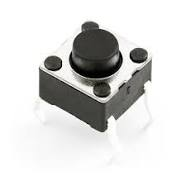
For Tasmota, a Button is typically a momentary push-button (or a capacitive touch button in some light switches). By default a button toggles the corresponding relay. Every time the button gets pressed the relay changes its Power state (ON or OFF). Besides toggling the Power state, a button is also used to activate multi press button functions, to do long press (HOLD) actions, or send messages to different MQTT topics.
A push-to-make button should use a Button<x> component while a push-to-break button should use Button<x>i (i.e., inverted).
[!DANGER] If you have changed ButtonTopic, SetOption1, SetOption11 or SetOption13 some of the listed functionality will be changed or removed.
Toggles the relay. This will blink the LED twice and send an MQTT status message like stat/tasmota/POWER1 ON. If cmnd/tasmota/ButtonRetain on has been used the MQTT message will also contain the MQTT retain flag.
Toggles the second relay (if available on the device). This will blink the LED twice and send an MQTT status message like stat/tasmota/POWER2 on.
Any device with more than one power output can be configured to act on a double press to switch the second relay (or for Blitzwolf SHP5 the USB power). To be sure not to activate accidental three button press it is wise to set SetOption1 1.
Start Wi-Fi smart config allowing for SSID and password configuration using an Android mobile phone with the ESP8266 SmartConfig app. The LED will blink during the config period. A single button press during this period will abort and restart the device. Only in tasmota-classic.bin
Start Wi-Fi manager providing an Access Point with IP address 192.168.4.1 and a web server allowing the configuration of Wi-Fi. The LED will blink during the config period. A single button press during this period will abort and restart the device.
Start Wi-Fi Protected Setup (WPS) allowing for SSID and password configuration using the router's WPS button or web page. The LED will blink during the config period. A single button press during this period will abort and restart the device. Only in tasmota-classic.bin
Restarts the device.
Start OTA update of firmware using OtaUrl. The green LED is lit during the update.
There are two separate functions associated with a button long press based on how long it is held:
- When held continuously for 40 seconds (Configurable with SetOption32, value is 10x the configured hold time) Tasmota will reset to firmware defaults and restart.
- If enabled, button pressed for 4 seconds (Configurable with SetOption32) creates a HOLD action. Check table below on how to enable this function.
[!DANGER] When a button is configured with a Switchmode that keeps it as ON while depressed it activates the reset to firmware defaults function. Change that button to switch or change switchmode to avoid repeated resets to defaults.
ButtonTopic 0
Default option
By default a button controls the corresponding relay and doesn't send any MQTT messages itself.
No MQTT message will be published on account of the new button state. The message you see in console is the new state of the relay that is controlled and not the button state.
ButtonTopic 1
Sets MQTT button topic to device %topic%.
When changing the state of the button an MQTT message is sent to the device topic with the payload according to SwitchMode set.
[!EXAMPLE] Device topic tasmota with
SwitchMode 3yields the following message:MQT: cmnd/tasmota/POWER = ONNotice the cmnd instead of the stat at the beginning.
This is the same as sending an MQTT command to this device, the device relay will be set to the defined state.
ButtonTopic <value>
Set button topic to a custom topic (32 characters max).
This will send an MQTT message to a custom defined topic similarly to option 1.
[!EXAMPLE] For example, we set the topic to tasmota02 with
ButtonTopic tasmota02.
WithSwitchMode 1the device yields the following message:MQT: cmnd/tasmota02/POWER = TOGGLEIf you have another device with the topic tasmota02 this action will toggle its relay while not affecting anything on the tasmota device.
ButtonTopic 0 controls the relay directly.
ButtonTopic 1 sends an MQTT message to the device topic. This sets the state of the devices relay accordingly.
ButtonTopic <value> sends an MQTT message command to the custom topic. This does not change the state of the devices relay.
If a ButtonTopic (and if SetOption1 1) or SwitchTopic 1 is defined (and SwitchMode is set to 5 or 6) and a button is pressed longer than defined Key Hold Time (SetOption32 default 4 seconds) an MQTT message like cmnd/%topic%/POWER HOLD will be sent. HOLD can be changed with StateText4.
Command SetOption11 allows for swapping the functionality of the push button.
These changes result in the following:

You can control a ceiling fan from a Sonoff Touch:
If your standard topic of Sonoff Touch is light and the ceiling fan topic is ceilingfan issue these commands on the Sonoff Touch to activate the double press feature.
ButtonTopic ceilingfan
SetOption11 1
All of the above is easier accomplished using Rules!
For a practical application of everything mentioned in this article read about this excellent LEGO nightstand switch project.