
|
Switch between multiple Git identities (profiles) with one click. Manage multiple GitHub accounts, SSH keys, GPG signing, and automatically apply identity to Git Submodules.













 🇺🇸 🇯🇵 🇨🇳 🇹🇼 🇰🇷 🇩🇪 🇫🇷 🇪🇸 🇧🇷 🇮🇹 🇷🇺 🇵🇱 🇹🇷 🇨🇿 🇭🇺 🇧🇬 🇺🇦 🌍 🌺 🐻 🐉 ✨ 🖖 🐱 🏴☠️ 🎭 🇺🇸 🇯🇵 🇨🇳 🇹🇼 🇰🇷 🇩🇪 🇫🇷 🇪🇸 🇧🇷 🇮🇹 🇷🇺 🇵🇱 🇹🇷 🇨🇿 🇭🇺 🇧🇬 🇺🇦 🌍 🌺 🐻 🐉 ✨ 🖖 🐱 🏴☠️ 🎭
|
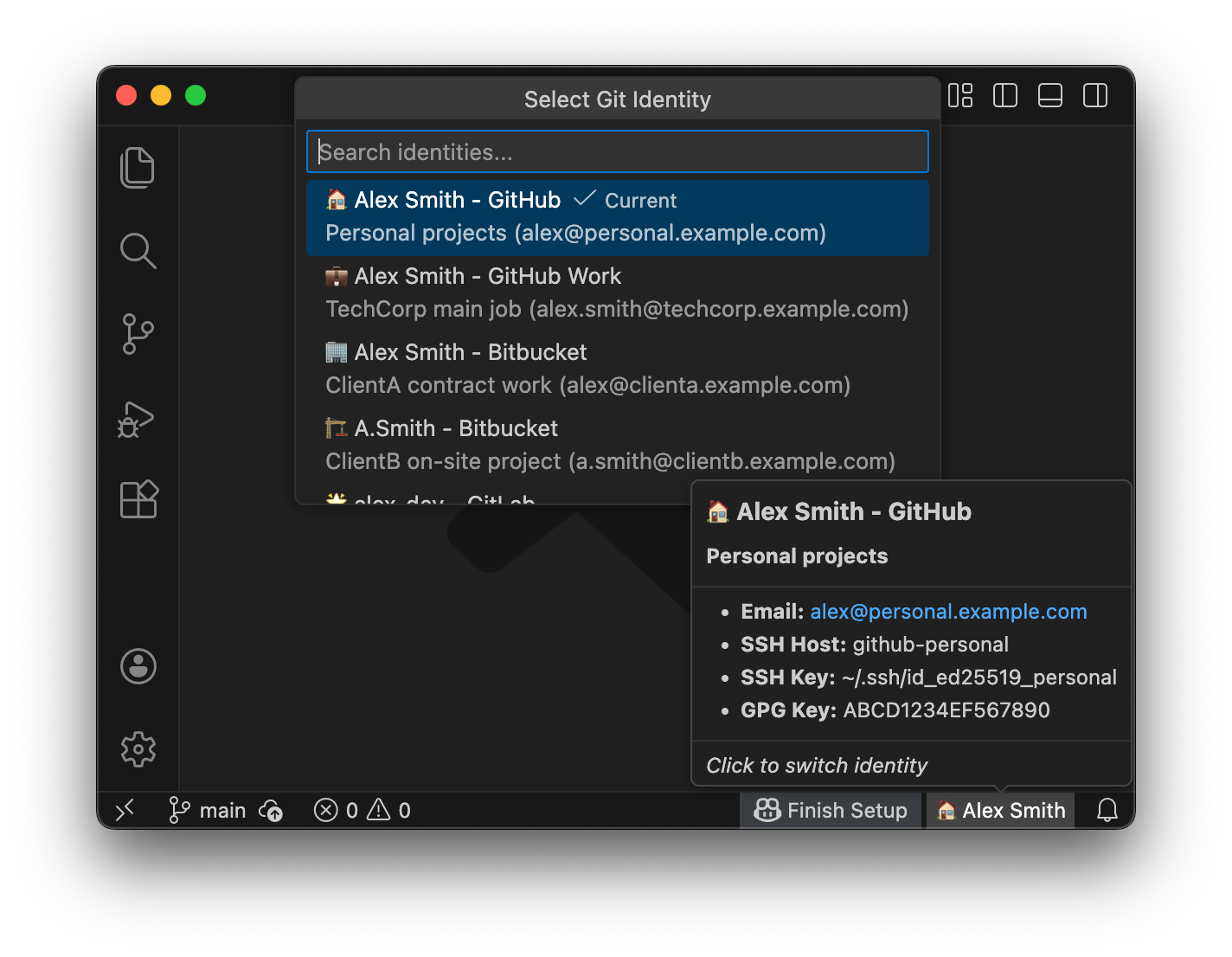
While many Git identity switchers exist, Git ID Switcher solves the complex problems that others overlook:
- Submodule Nightmare: When working with repositories that have submodules (e.g., Hugo themes, vendored libraries), you normally need to manually set
git config user.namefor each submodule. This extension elegantly solves this by recursively applying your identity to all active submodules. - SSH & GPG Handling: It doesn't just change your name; it swaps SSH keys in ssh-agent and configures GPG signing, preventing commits with the wrong signature.
- Identity (Profile) Management UI: Add, edit, delete, and reorder identities without editing settings.json
- One-Click Identity Switch: Instantly change Git user.name and user.email
- Status Bar Integration: Always see your current identity (profile) at a glance
- Sync Check: Real-time detection of mismatches between profile and git config, with status bar warning
- Submodule Support: Automatically propagate identity to Git submodules
- SSH Key Management: Automatically switch SSH keys in ssh-agent
- GPG Signing Support: Configure GPG key for commit signing (optional)
- Rich Tooltips: Detailed identity info including description and SSH host
- Cross-Platform: Works on macOS, Linux, and Windows
- Multilingual: Supports 17 languages
I value the existence of minorities. I don't want to discard them just because they are small in number. Even if translations aren't perfect, I hope you can feel our intent to understand and show respect for minority languages.
This extension supports all 17 languages that VS Code supports. Additionally, for README documentation, we're challenging ourselves to translate into minority languages and even joke languages.
This isn't just "global support" — it's "respect for linguistic diversity." And I'd be happy if this becomes infrastructure where commits that make the world better come from developers living everywhere, transcending language barriers.
A typical setup for switching between personal and company-issued accounts (Enterprise Managed User).
First, create SSH keys for each account (skip if you already have them):
# Personal
ssh-keygen -t ed25519 -C "alex@personal.example.com" -f ~/.ssh/id_ed25519_personal

# Work
ssh-keygen -t ed25519 -C "alex.smith@techcorp.example.com" -f ~/.ssh/id_ed25519_work
Register the public key (.pub file) of each SSH key to the respective GitHub account.
Note: Register
id_ed25519_personal.pub(public key) to GitHub.id_ed25519_personal(without extension) is the private key — never share it with anyone or upload it anywhere.
Edit ~/.ssh/config:
# Personal GitHub account (default)
Host github.com
    HostName github.com
    User git
    IdentityFile ~/.ssh/id_ed25519_personal
    IdentitiesOnly yes

# Work GitHub account
Host github-work
    HostName github.com
    User git
    IdentityFile ~/.ssh/id_ed25519_work
IdentitiesOnly yesSample identities are provided right after installation. Follow the guide below to edit them for your own use.
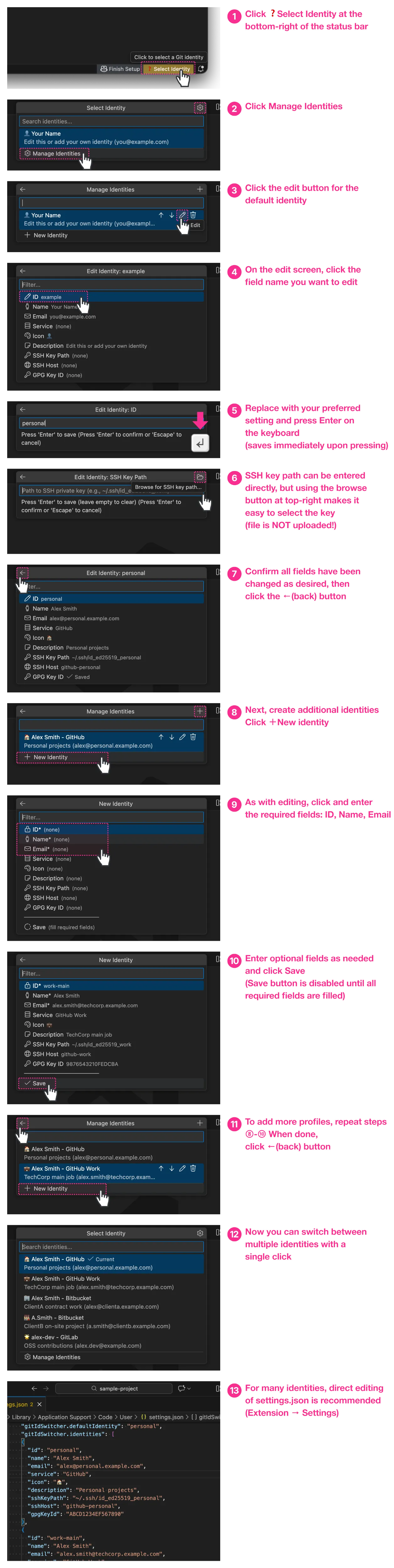
Key files are not sent: When setting SSH key paths, only the file path (location) is recorded. The contents of the key file are never uploaded or sent externally.
If using GPG signing: You can also set
gpgKeyIdin the identity edit screen. See "Troubleshooting" for how to find your GPG key ID.
Hint: You can also configure directly from settings.json. Open extension settings (
Cmd+,/Ctrl+,) → search "Git ID Switcher" → click "Edit in settings.json". See "Full Example" for JSON configuration examples.
Here's a complete example combining everything:
# Personal account (default)
Host github-personal
    HostName github.com
    User git
    IdentityFile ~/.ssh/id_ed25519_personal
    IdentitiesOnly yes

# Work account (company-issued Enterprise Managed User)
Host github-work
    HostName github.com
    User git
    IdentityFile ~/.ssh/id_ed25519_work
    IdentitiesOnly yes

# Client A contract work (Bitbucket)
Host bitbucket-clienta
    HostName bitbucket.org
    User git
    IdentityFile ~/.ssh/id_ed25519_clienta
    IdentitiesOnly yes

# Client B on-site project (Bitbucket)
Host bitbucket-clientb
    HostName bitbucket.org
    User git
    IdentityFile ~/.ssh/id_ed25519_clientb
    IdentitiesOnly yes

# OSS contributions (GitLab)
Host gitlab-oss
    HostName gitlab.com
    User git
    IdentityFile ~/.ssh/id_ed25519_oss
IdentitiesOnly yes{
"gitIdSwitcher.identities": [
{
"id": "personal",
"name": "Alex Smith",
"email": "alex@personal.example.com",
"service": "GitHub",
"icon": "🏠",
"description": "Personal projects",
"sshKeyPath": "~/.ssh/id_ed25519_personal",
"sshHost": "github-personal",
"gpgKeyId": "ABCD1234EF567890"
},
{
"id": "work-main",
"name": "Alex Smith",
"email": "alex.smith@techcorp.example.com",
"service": "GitHub Work",
"icon": "💼",
"description": "TechCorp main job",
"sshKeyPath": "~/.ssh/id_ed25519_work",
"sshHost": "github-work",
"gpgKeyId": "9876543210FEDCBA"
},
{
"id": "client-a",
"name": "Alex Smith",
"email": "alex@clienta.example.com",
"service": "Bitbucket",
"icon": "🏢",
"description": "ClientA contract work",
"sshKeyPath": "~/.ssh/id_ed25519_clienta",
"sshHost": "bitbucket-clienta"
},
{
"id": "client-b",
"name": "A.Smith",
"email": "a.smith@clientb.example.com",
"service": "Bitbucket",
"icon": "🏭",
"description": "ClientB on-site project",
"sshKeyPath": "~/.ssh/id_ed25519_clientb",
"sshHost": "bitbucket-clientb"
},
{
"id": "oss",
"name": "alex-dev",
"email": "alex.dev@example.com",
"service": "GitLab",
"icon": "🌟",
"description": "OSS contributions",
"sshKeyPath": "~/.ssh/id_ed25519_oss",
"sshHost": "gitlab-oss"
}
],
"gitIdSwitcher.defaultIdentity": "personal",
"gitIdSwitcher.autoSwitchSshKey": true,
"gitIdSwitcher.applyToSubmodules": true
}Note: The 4th profile (client-b) uses an abbreviated name, and the 5th (oss) uses a dev handle. You can set different display names for each profile, even for the same person.
Click the status bar → select "Manage Identities" at the bottom of the list to open the management screen. You can add, edit, delete, and reorder identities (profiles) directly from the UI.
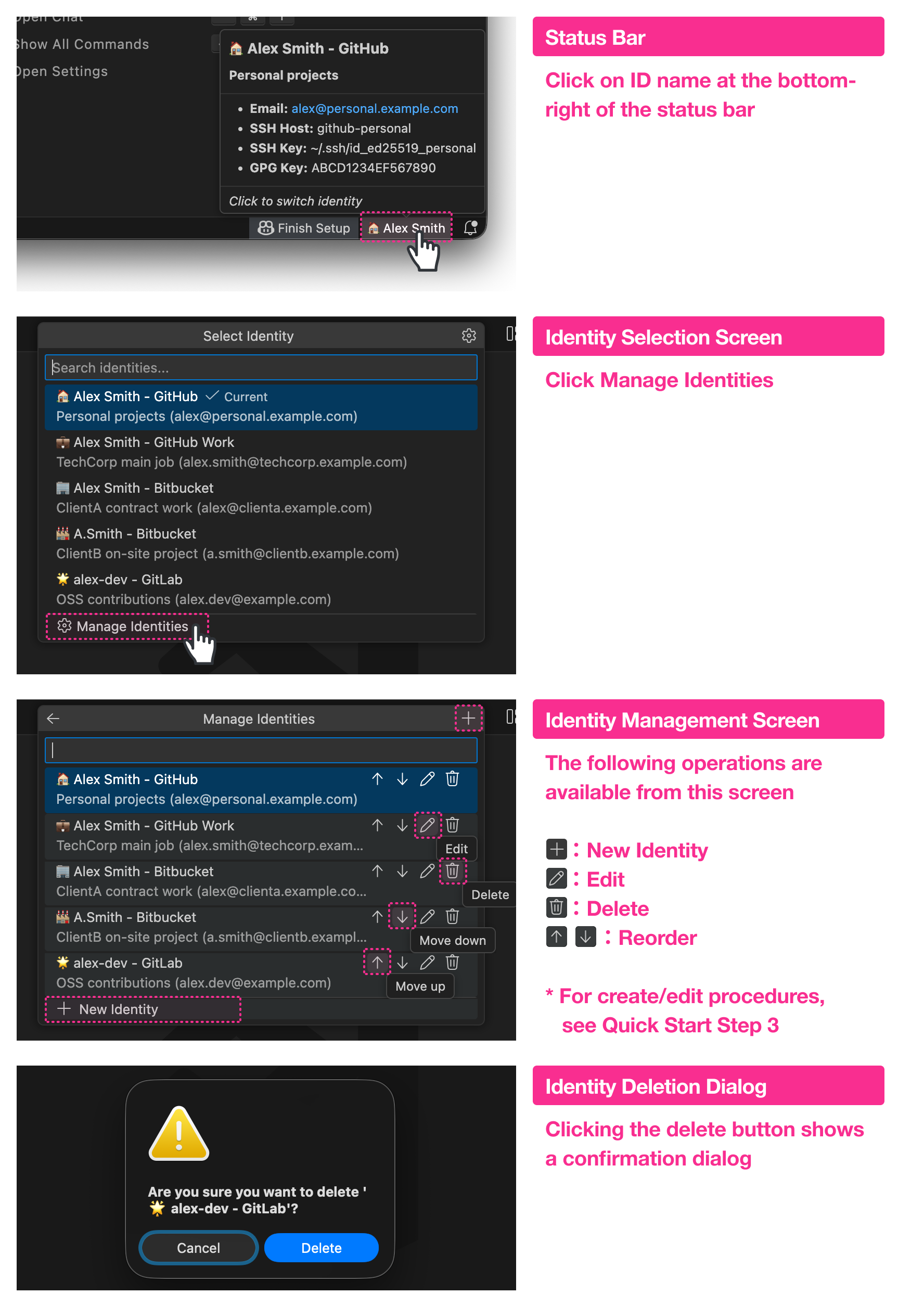
You can also delete an identity from the command palette using Git ID Switcher: Delete Identity.
| Command | Description |
|---|---|
Git ID Switcher: Select Identity |
Open the identity picker |
Git ID Switcher: Delete Identity |
Delete an identity |
Git ID Switcher: Show Current Identity |
Display current identity info |
Git ID Switcher: Show Documentation |
Show documentation |
| Property | Required | Description |
|---|---|---|
id |
✅ | Unique identifier (e.g., "personal", "work") |
name |
✅ | Git user.name — shown in commits |
email |
✅ | Git user.email — shown in commits |
icon |
Emoji shown in status bar (e.g., "🏠"). Single emoji only |
|
service |
Service name (e.g., "GitHub", "GitLab"). Used for UI display |
|
description |
Short description shown in picker and tooltip | |
sshKeyPath |
Path to SSH private key (e.g., "~/.ssh/id_ed25519_work") |
|
sshHost |
SSH config Host alias (e.g., "github-work") |
|
gpgKeyId |
GPG key ID for commit signing |
- Status bar: Text exceeding ~25 characters will be truncated with
... icon: Only a single emoji (grapheme cluster) is allowed. Multiple emojis or long strings are not supported
| Setting | Default | Description |
|---|---|---|
gitIdSwitcher.identities |
See sample | List of identity configurations |
gitIdSwitcher.defaultIdentity |
See sample | ID of the default identity to use |
gitIdSwitcher.autoSwitchSshKey |
true |
Auto-switch SSH key when changing identities |
gitIdSwitcher.showNotifications |
true |
Show notification on identity switch |
gitIdSwitcher.applyToSubmodules |
true |
Propagate identity to Git submodules |
gitIdSwitcher.submoduleDepth |
1 |
Max depth for nested submodule configuration (1-5) |
gitIdSwitcher.includeIconInGitConfig |
false |
Include icon emoji in Git config user.name |
gitIdSwitcher.syncCheck.enabled |
true |
Check whether selected profile matches actual git config |
gitIdSwitcher.syncCheck.onFocusReturn |
true |
Run sync check when editor window regains focus |
gitIdSwitcher.logging.fileEnabled |
false |
Save audit logs to file (records identity switches, SSH key operations, etc.) |
gitIdSwitcher.logging.filePath |
"" |
Log file path (e.g., ~/.git-id-switcher/security.log). Empty string uses default path |
gitIdSwitcher.logging.maxFileSize |
10485760 |
Max file size before rotation (bytes, 1MB-100MB) |
gitIdSwitcher.logging.maxFiles |
5 |
Max number of rotated log files to keep (1-20) |
gitIdSwitcher.logging.redactAllSensitive |
false |
When enabled, masks all values in logs (maximum privacy mode) |
gitIdSwitcher.logging.level |
"INFO" |
Log verbosity (DEBUG, INFO, WARN, ERROR, SECURITY). Records selected level and above |
gitIdSwitcher.commandTimeouts |
{} |
Custom timeout per command (ms, 1sec-5min). E.g., {"git": 15000, "ssh-add": 10000} |
Controls behavior when the icon field is set:
| Value | Behavior |
|---|---|
false (default) |
icon is shown in editor UI only. Only name is written to Git config |
true |
icon + name is written to Git config. Emoji appears in commit history |
Example: icon: "👤", name: "Alex Smith"
| includeIconInGitConfig | Git config user.name |
Commit signature |
|---|---|---|
false |
Alex Smith |
Alex Smith <email> |
true |
👤 Alex Smith |
👤 Alex Smith <email> |
Git configuration has three layers, where lower layers are overridden by higher ones:
System (/etc/gitconfig)
    ↓ overridden by
Global (~/.gitconfig)
    ↓ overridden by
Local (.git/config)  ← highest priority
Git ID Switcher writes to --local (repository-local).
This means:
- Identities are saved to each repository's
.git/config - Different identities can be maintained per repository
- Global settings (
~/.gitconfig) are not modified
When you switch identities, the extension does the following (in order):
- Git Config (always): Sets
git config --local user.nameanduser.email - SSH Key (if
sshKeyPathset): Removes other keys from ssh-agent and adds the selected key - GPG Key (if
gpgKeyIdset): Setsgit config --local user.signingkeyand enables signing - Submodules (if enabled): Propagates settings to all submodules (default: depth 1)
- Sync Check: Verifies that the applied profile matches the actual git config
Compares the selected profile against the actual git config --local values (user.name, user.email, user.signingkey) and shows a status bar warning when a mismatch is detected.
When checks run:
- Immediately after profile apply
- On workspace folder change
- On configuration change
- On editor window focus return (debounced 500ms)
When a mismatch is detected:
- The status bar shows a
⚠️ icon with a warning background color - The tooltip displays a table showing the mismatched fields (field, expected value, actual value)
- Clicking the status bar presents resolution options:
- Re-apply profile — Re-apply the current profile to git config
- Select different profile — Open the identity picker
- Dismiss — Suppress the warning until the next check
To disable:
Set gitIdSwitcher.syncCheck.enabled to false to disable all sync checks.
To disable only the focus-return check, set gitIdSwitcher.syncCheck.onFocusReturn to false.
Local settings are per-repository, so they don't automatically apply to submodules. That's why this extension provides submodule propagation (see "Advanced: Submodule Support" for details).
Git ID Switcher manages SSH keys through ssh-agent:
| Operation | Command |
|---|---|
| Add key | ssh-add <keyPath> |
| Remove key | ssh-add -d <keyPath> |
| List keys | ssh-add -l |
Important: This extension does NOT modify ~/.ssh/config. SSH config setup must be done manually (see Step 2 in "Quick Start").
If you already have SSH configuration, Git ID Switcher works alongside it:
| Your Setup | Git ID Switcher Behavior |
|---|---|
~/.ssh/config with IdentityFile |
Both can be used; use IdentitiesOnly yes to prevent conflicts |
GIT_SSH_COMMAND environment variable |
Uses your custom SSH command; ssh-agent still works |
git config core.sshCommand |
Same as above |
| direnv with SSH-related env vars | Works alongside; ssh-agent operates independently |
Recommended: Always use IdentitiesOnly yes in your SSH config. This prevents SSH from trying multiple keys.
Without this setting, SSH may try keys in this order:
- Keys loaded in ssh-agent (managed by Git ID Switcher)
- Keys specified in
~/.ssh/config - Default keys (
~/.ssh/id_rsa,~/.ssh/id_ed25519, etc.)
This can cause authentication failures or unintended key usage.
With IdentitiesOnly yes, SSH uses only the specified key. This ensures the key configured in Git ID Switcher is used reliably.
# Recommended configuration
Host github-work
    HostName github.com
    User git
    IdentityFile ~/.ssh/id_ed25519_work
    IdentitiesOnly yes  # ← This line is important
With this configuration, connections to the github-work host will only use ~/.ssh/id_ed25519_work, and no other keys will be tried.
For complex repositories using Git Submodules, identity (profile) management is often troublesome. When you commit in a submodule, Git uses that submodule's local config, which may default to your global config (wrong email!) if not explicitly set.
Git ID Switcher automatically detects submodules and applies the selected identity (profile).
{
  "gitIdSwitcher.applyToSubmodules": true,
  "gitIdSwitcher.submoduleDepth": 1
}applyToSubmodules: Enable/disable this featuresubmoduleDepth: How deep to apply?1: Direct submodules only (most common)2+: Nested submodules (submodules within submodules)
This ensures your identity is always correct, whether you commit in the main repo or a vendored library.
-
Ensure
ssh-agentis running:eval "$(ssh-agent -s)"
-
Check the key path is correct:
ls -la ~/.ssh/id_ed25519_*
-
On macOS, add to Keychain once:
ssh-add --apple-use-keychain ~/.ssh/id_ed25519_work
For new clones:
When cloning work repositories, use the host alias configured in SSH config:
# Work (using github-work alias)
git clone git@github-work:company/repo.git

# Personal (using default github.com)
git clone git@github.com:yourname/repo.git
For existing repositories:
-
Check if the remote URL uses the correct host alias:
git remote -v # Should show git@github-work:... for work repos -
Update if needed:
git remote set-url origin git@github-work:company/repo.git
-
Find your GPG key ID:
gpg --list-secret-keys --keyid-format SHORT
-
Test signing:
echo "test" | gpg --clearsign
-
Make sure the email in your identity matches the GPG key's email
- Make sure you're in a Git repository
- Check
settings.jsonfor syntax errors - Reload VS Code window (
Cmd+Shift+P→ "Reload Window")
The following characters in the name field will cause an error:
` $ ( ) { } | & < >
Use the service field if you want to include service information.
After updating the extension, new settings may not appear in the settings UI.
Solution: Restart your machine completely.
VS Code-based editors cache the settings schema in memory, and "Reload Window" or reinstalling the extension may not be enough to refresh it.
If sample settings don't appear even after a fresh install, Settings Sync may be the cause.
If you previously saved empty settings, they may have synced to the cloud and are overwriting the default values on new installations.
Solution:
- Find the setting in the settings UI
- Click the gear icon → "Reset Setting"
- Sync with Settings Sync (this removes the old settings from the cloud)
"Who am I?" — The only question this extension answers
Built on Karesansui Architecture: a simple core (100 lines), surrounded by deliberate quality (90% coverage, logging, timeouts) and intentional constraints (no GitHub API, no token management).

Contributions welcome! See CONTRIBUTING.md.
MIT License — see LICENSE.
Created by Null;Variant