"This Project has been archived by the owner, who is no longer providing support. The project remains available to authorized users on a "read only" basis."
The purpose of this Android project is to demonstrate that it is possible to integrate an In-App Purchase solution in the native layer together with the web content of a Trusted Web Activity.
This is made by possible by using App Linking to redirect from the web content to the native layer.
- Huawei IAP
- Project Base - Huawei IAP Demo
- Huawei App Linking
- Trusted Web Activities (Android Browser Helper)
This portion is for those that want to setup the demo with their own web host. Please use 'app-release-signed.apk' if you just want to test the demo as is.
A Huawei Developer Account is needed to access and configure Huawei IAP and App Linking (optional). You will need to create an account if you don't already have one. Please refer to this guide.
-
Create an app in AppGallery Connect and configure the app information. For details, please refer to Configuring App Information in AppGallery Connect.
-
Create and configure your products in AppGallery Connect. For details, please refer to Configuring Your Products.
-
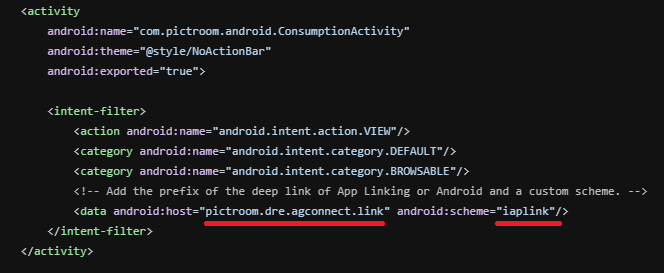
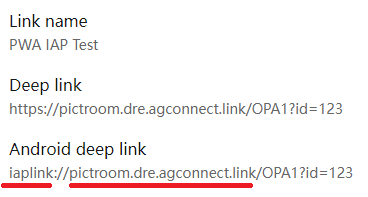
(Optional) Create a link for App Linking in AppGallery Connect or continue using the link already set in the demo. You will need to configure your AndroidManifest.xml, so that intent filter values for host and scheme match with those on your link. Your link will not redirect to the IAP process unless this is set properly.
- Download the agconnect-services.json file of your app from AppGallery Connect, and add the file to the app-level directory of the demo.
- Add the signing certificate and add configurations to the app-level build.gradle file.
- Change the package name of the Android project to your desired app package name.
- Replace PUBLIC_KEY in the CipherUtil class with the public key of your app. For details about how to obtain the public key, please refer to Querying IAP Information.
- Replace the products in this demo with your products.
You can create your own App Linking URL or continue using the current demo link - https://pictroom.dre.agconnect.link/OPA1?id=123 and add it to your own webhost. This link should still work as long as the intent filter in the AndroidManifest.xml remains the same.
If setting up a web host is too difficult, you can alternatively create a localhost with a link pointing to the App Linking URL.
-
mkdir host && cd host -
npm install http-server -
touch index.html -
Add the following code in
index.html<a href="https://pictroom.dre.agconnect.link/OPA1?id=123"> <button>Purchase</button> </a> -
Run the localhost
./node_modules/http-server/bin/http-server -
Change the values of
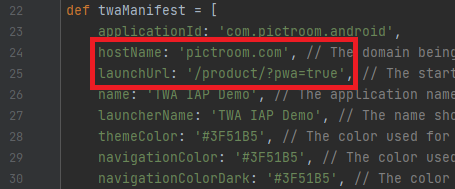
twaManifest.hostNameto your http-server localhost IP & port (for examplehttp://127.0.0.1:8080) andtwaManifest.launchUrlto '/' insideapp/build.gradle(line 24, 25) before building your project.
Please follow this article by Sven Budak to set up TWA.
You basically need to create a directory and file .well-known/assetlinks.json in your web host root with the following information:
[{
  "relation": ["delegate_permission/common.handle_all_urls"],
  "target": {
    "namespace": "android_app",
    "package_name": "com.example.app",
    "sha256_cert_fingerprints": [
      "hash_of_app_certificate"
    ]
  }
}]
Please refer to the tutorial to get the sha256_cert_fingerprints value. Once you have set up your host and built a release APK, the URL bar inside your TWA APK will disappear.
- MainActivity opens loads demo website via TWA.
- Purchase button on demo website is a Huawei App Link which redirects to ConsumptionActivity from browser.
- ConsumptionActivity automatically loads Huawei IAP.
- IAP result redirects back to demo website via TWA for IAP success or fail.
demo_video.mp4
This Android sample code is licensed under the Apache License, version 2.0
The code in this project has been modified from Huawei IAP Demo and Android Browser Helper. Their contributions are greatly appreciated.
If you have a questions - Stack Overflow is the best place for any programming inquiries. Be sure to include the tag huawei-mobile-services.