-
Obtain a PathSense SDK Client ID and API Key by contacting PathSense.
The legacy “GET STARTED” portal is no longer active. SDK credentials are issued privately.
-
Make sure you are using the latest version of Xcode (16.0 or newer) and targeting iOS 14.0 or higher.
-
Add the PSLocation.xcframework (or PSLocation.framework) to your Xcode project.
This framework must also be added to Embedded Binaries / Frameworks, Libraries and Embedded Content and set to Embed & Sign.
-
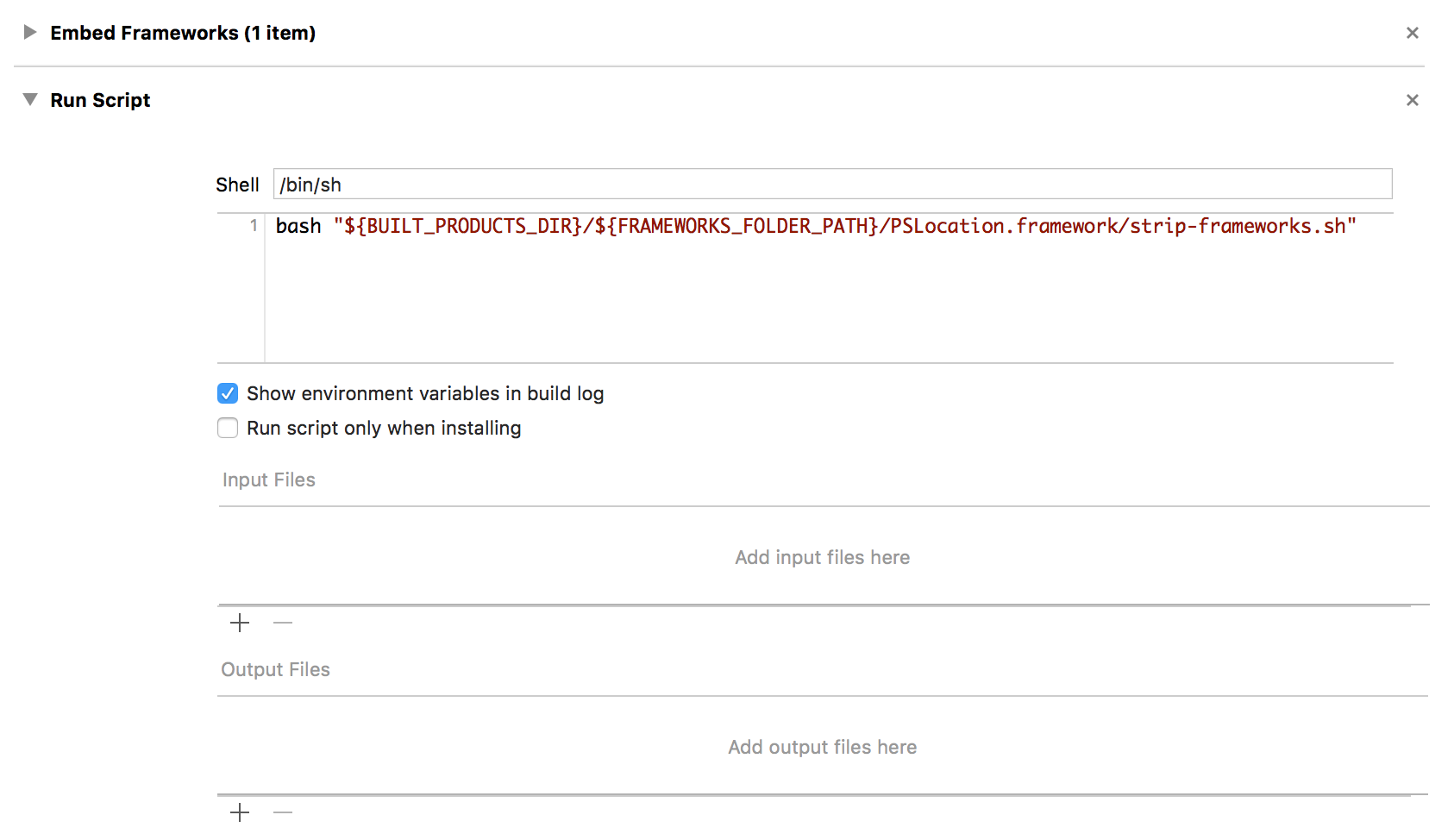
Under the Build Phases tab in your target, click ➕ and select New Run Script Phase.
Configure it as shown below, ensuring this phase appears below Embed Frameworks.
-
In your AppDelegate, add the following code to
application:didFinishLaunchingWithOptions::- (BOOL)application:(UIApplication *)application didFinishLaunchingWithOptions:(NSDictionary *)launchOptions { [PSLocation setApiKey:@"YOUR_API_KEY" andClientID:@"YOUR_CLIENT_ID"]; return YES; }
-
Import the PSLocation framework headers in your AppDelegate.h file:
#import <PSLocation/PSLocation.h>

-
In viewDidLoad: we set up the PSLocationManager:
_locationManager = [PSLocationManager new];
[_locationManager setDelegate:self];
[_locationManager setMaximumLatency:20];
[_locationManager setPausesLocationUpdatesAutomatically:NO];
-
We respond to psLocationManager:desiredAccuracyForActivity:withConfidence: — a method unique to the PSLocationManagerDelegate.
From here we check the detected activity and adjustdesiredAccuracyaccordingly:- (CLLocationAccuracy)psLocationManager:(PSLocationManager *)manager desiredAccuracyForActivity:(PSActivityType)activityType withConfidence:(PSActivityConfidence)confidence { CLLocationAccuracy result = [manager desiredAccuracy]; if (activityType == PSActivityTypeInVehicle || activityType == PSActivityTypeInVehicleStationary) { if (result != kPSLocationAccuracyPathSenseNavigation) { result = kPSLocationAccuracyPathSenseNavigation; } } else { if (result != kCLLocationAccuracyBest) { result = kCLLocationAccuracyBest; } } return result; } -
Note the use of the accuracy type kPSLocationAccuracyPathSenseNavigation, introduced by
PSLocationManager.
This enables TruePath mode, providing enhanced map-matching accuracy while driving.The accuracy automatically switches to TruePath mode only when the SDK detects automotive activity.
SDK Version: 1.5.1 Xcode: 16 iOS Target: 14 or later
© PathSense Inc. — Updated for SDK 1.5.1 / Xcode 16 / iOS 18