| title | Interact with charts |
|---|---|
| description | Learn how to pan, zoom, select, and customize Netdata's preconfigured charts to help you troubleshooting with real-time, per-second metrics data. |
| type | how-to |
| custom_edit_url | https://github.com/netdata/netdata/edit/master/docs/dashboard/interact-charts.mdx |
While charts that update every second with new metrics are helpful for understanding the immediate state of a node, deep troubleshooting and root cause analysis begins by manipulating the default charts. To help you troubleshoot, Netdata synchronizes every chart every time you interact with one of them.
Here's what synchronization looks like:
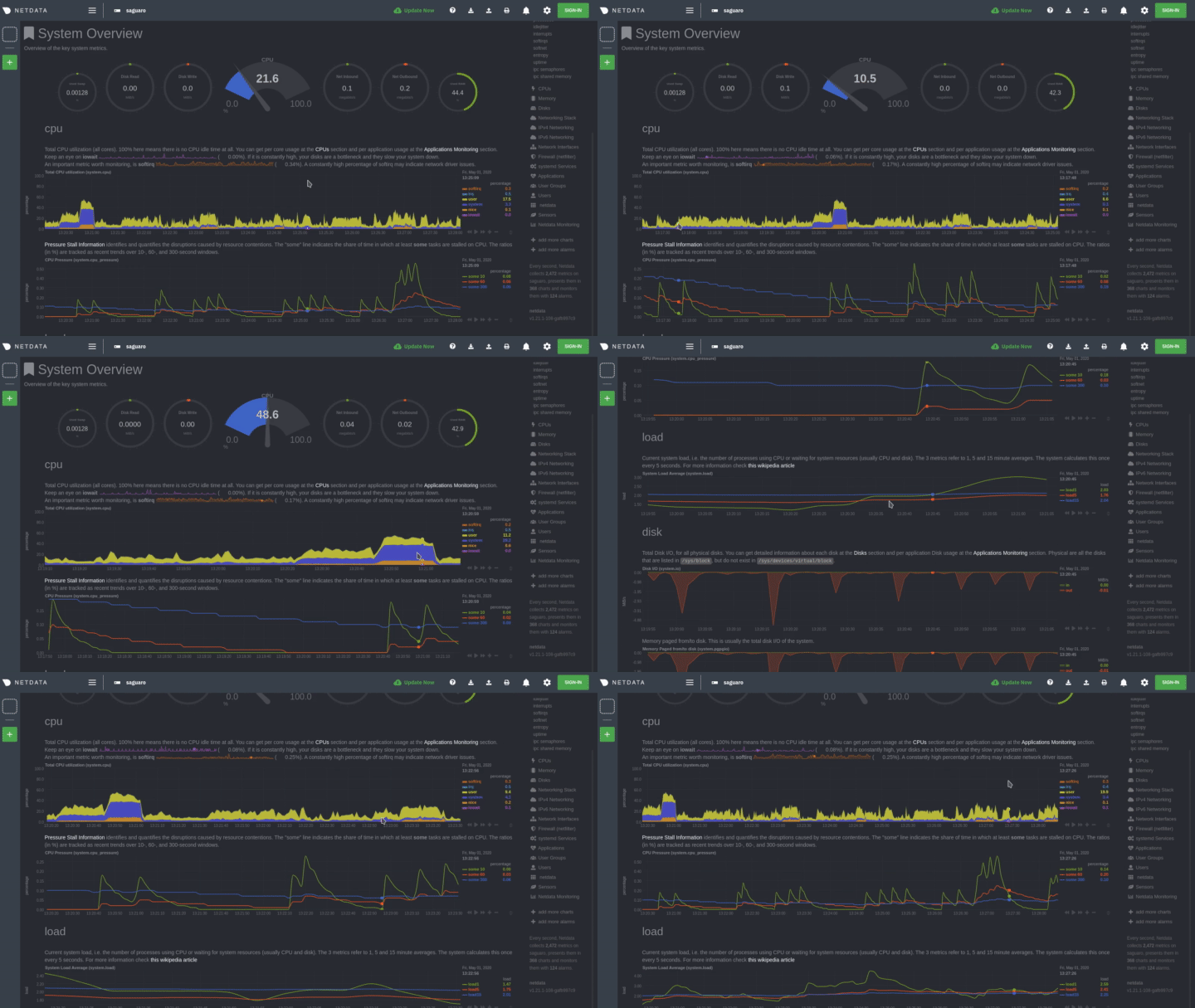
Once you understand all the interactions available to you, you'll be able to quickly move around the dashboard, search for anomalies, and find root causes using per-second metrics.
| Interaction | Keyboard/mouse | Touchpad/touchscreen |
|---|---|---|
| Pause a chart | hover |
n/a |
| Stop a chart | click |
tap |
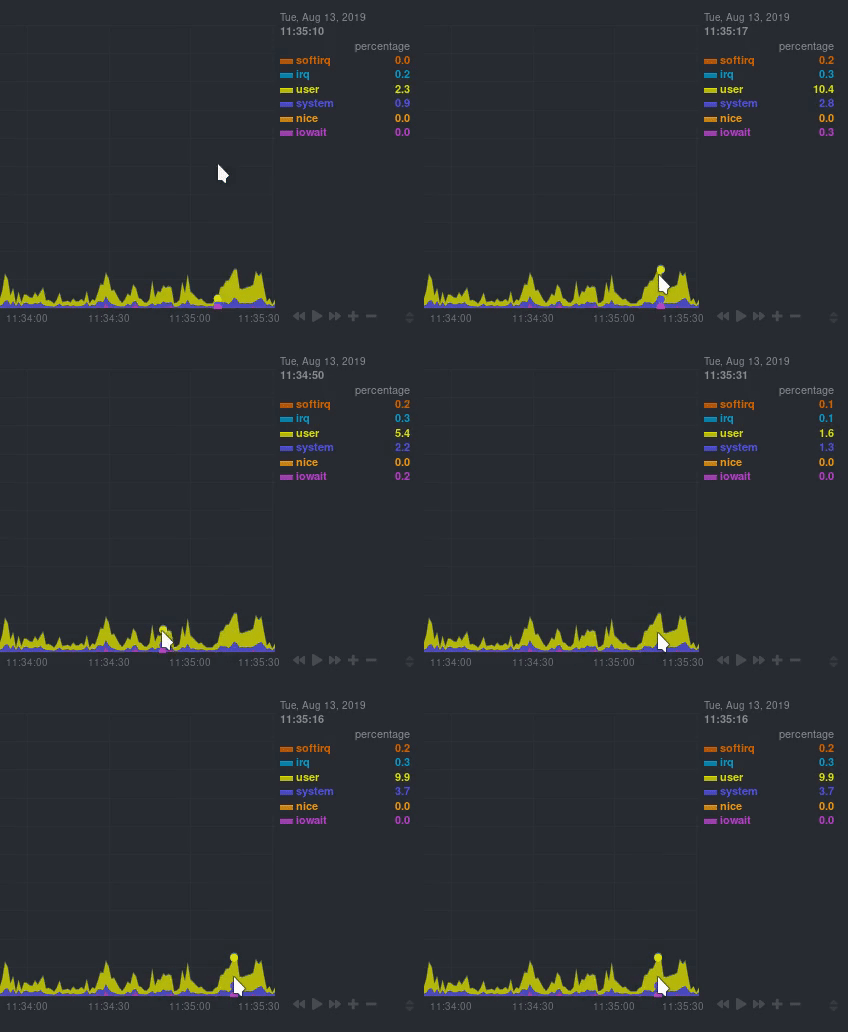
By hovering over any chart, you temporarily pause it so that you can hover over a specific timeframe and see the exact values presented as dimensions. Click on the chart to lock it to this timeframe, which is useful if you want to jump to a different chart to look for possible correlations.
| Interaction | Keyboard/mouse | Touchpad/touchscreen |
|---|---|---|
| Pan | click + drag |
swipe |
Drag your mouse/finger to the right to pan backward through time, or drag to the left to pan forward in time. Think of it like pushing the current timeframe off the screen to see what came before or after.
| Interaction | Keyboard/mouse | Touchpad/touchscreen |
|---|---|---|
| Zoom in or out | Shift + mouse scrollwheel |
two-finger pinch Shift + two-finger scroll |
| Zoom to a specific timeframe | Shift + mouse selection |
n/a |
Zooming in helps you see metrics with maximum granularity, which is useful when you're trying to diagnose the root cause of an anomaly or outage. Zooming out lets you see metrics within the larger context, such as the last hour, day, or week, which is useful in understanding what "normal" looks like, or to identify long-term trends, like a slow creep in memory usage.
| Interaction | Keyboard/mouse | Touchpad/touchscreen |
|---|---|---|
| Select a specific timeframe | Alt + mouse selection or ⌘ + mouse selection (macOS) |
n/a |
Selecting timeframes is useful when you see an interesting spike or change in a chart and want to investigate further.
Select a timeframe, then move to different charts/sections of the dashboard. Each chart shows the same selection to help you immediately identify the timeframe and look for correlations.
| Interaction | Keyboard/mouse | Touchpad/touchscreen |
|---|---|---|
| Reset a chart | double-click |
n/a |
Double-check on a chart to restore it to the default auto-updating state, with a timeframe based on your browser viewport.
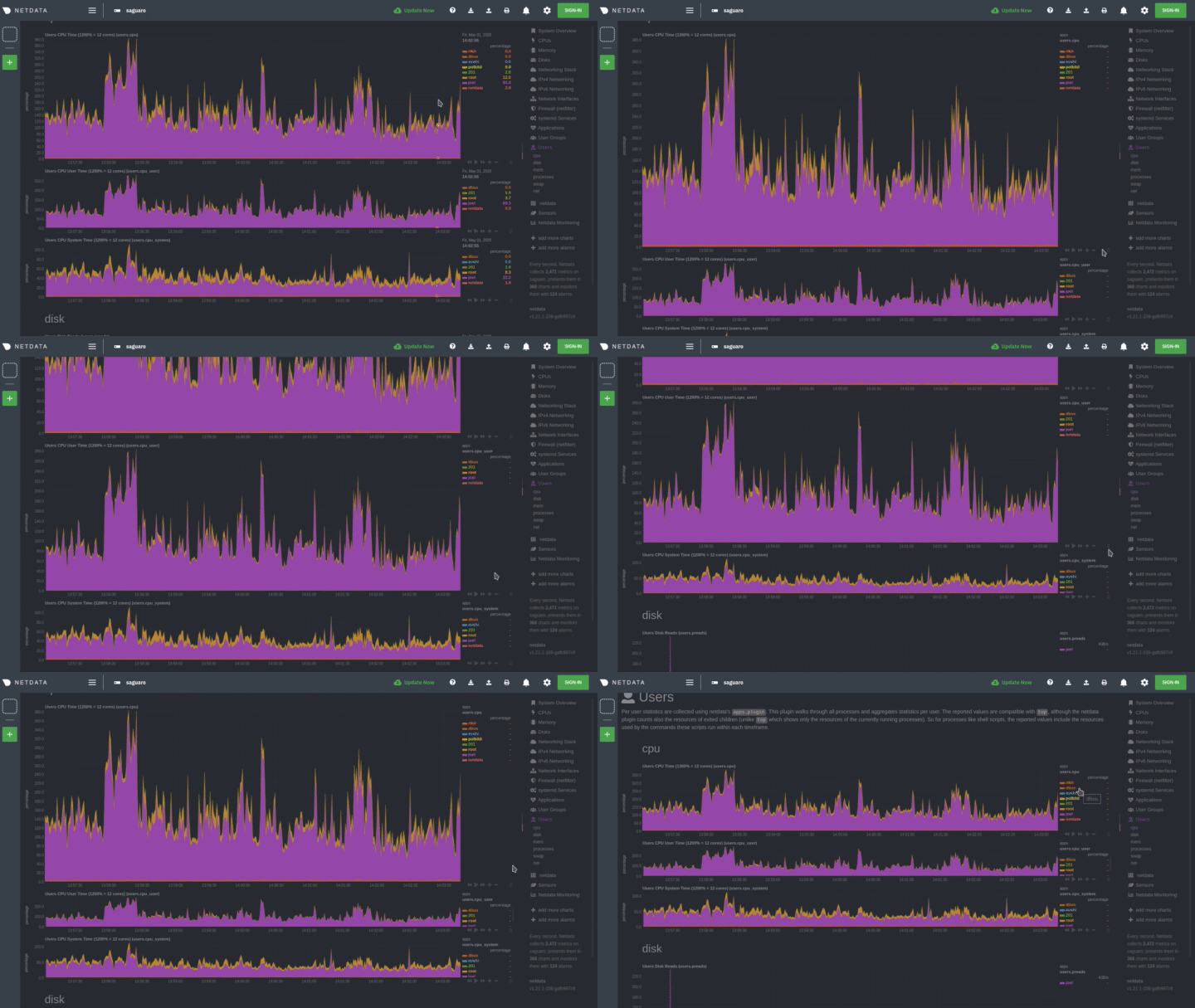
Click-and-drag the icon on the bottom-right corner of any chart. To restore the chart to its original height, double-click the same icon.
| Interaction | Keyboard/mouse | Touchpad/touchscreen |
|---|---|---|
| Show one dimension and hide others | click |
tap |
| Toggle (show/hide) one dimension | Shift + click |
n/a |
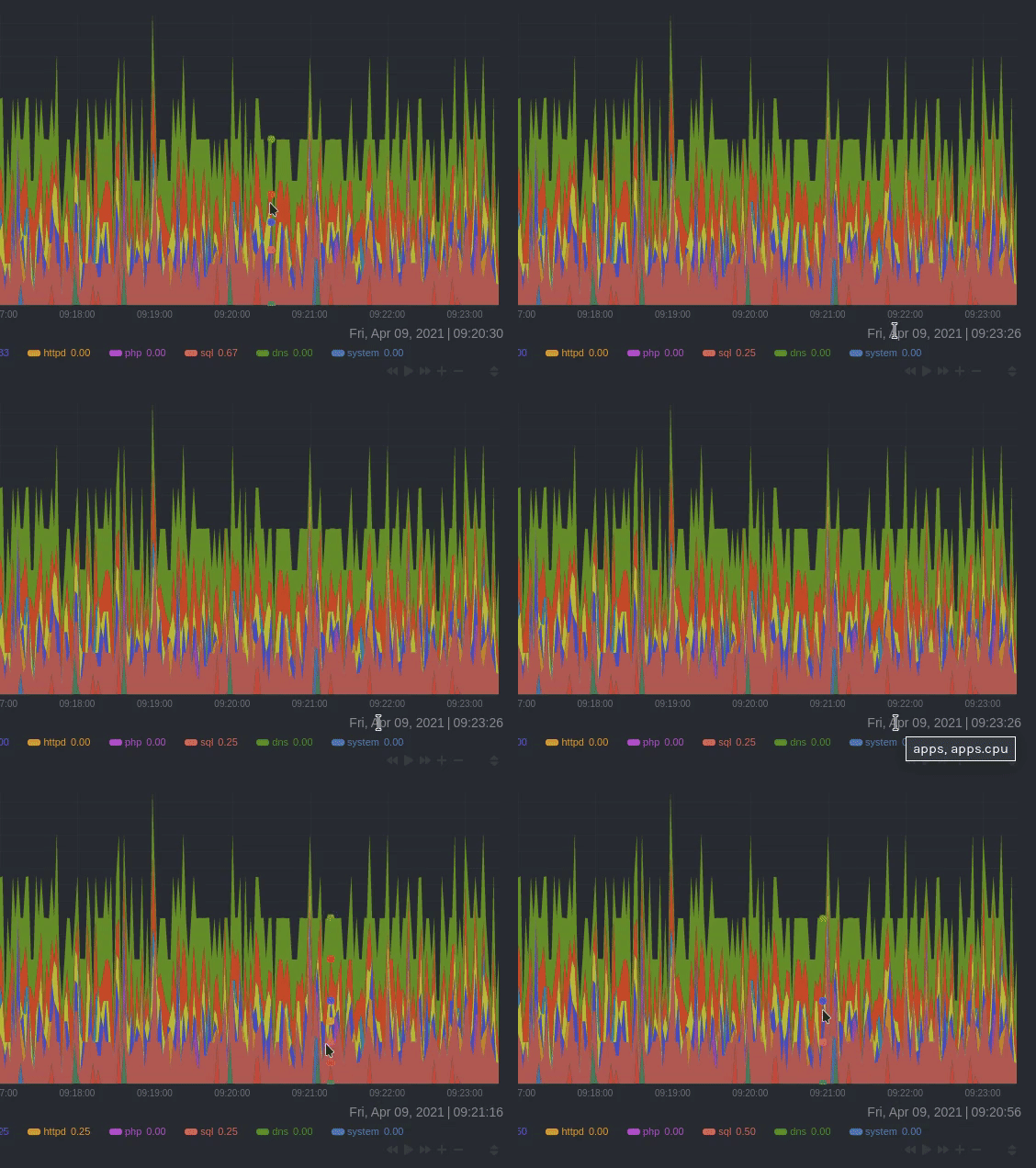
Hiding dimensions simplifies the chart and can help you better discover exactly which aspect of your system might be behaving strangely.
Hover your mouse over the date that appears just beneath the chart itself. A tooltip will tell you the context for that
chart. Below, the context is apps.cpu.
Hover your mouse over the timestamp just to the right of the date. resolution is the number of seconds between each
"tick" in the chart. collection every is how often Netdata collects and stores that metric.
If the resolution value is higher than collection every, such as resolution 5 secs, collected every 1 sec, this
means that each tick is calculating represents the average values across a 5-second period. You can zoom in to increase
the resolution to resolution 1 sec to see the exact values.
Many of the above interactions can also be triggered using the icons on the bottom-right corner of every chart. They
are, respectively, Pan Left, Reset, Pan Right, Zoom In, and Zoom Out.
We recommend you read up on the differences between chart dimensions, contexts, and families to complete your understanding of how Netdata organizes its dashboards. Another valuable way to interact with charts is to use the timeframe selector, which helps you visualize specific moments of historical metrics.
If you feel comfortable with the dashboard and interacting with charts, we recommend moving on to learning about configuration. While Netdata doesn't require a complicated setup process or a query language to create charts, there are a lot of ways to tweak the experience to match your needs.