Easily get a copy and launch your app on AirCode by clicking the button below.

Build a Slack ChatGPT App with JavaScript, including full source code, free hosting, and step-by-step tutorial.
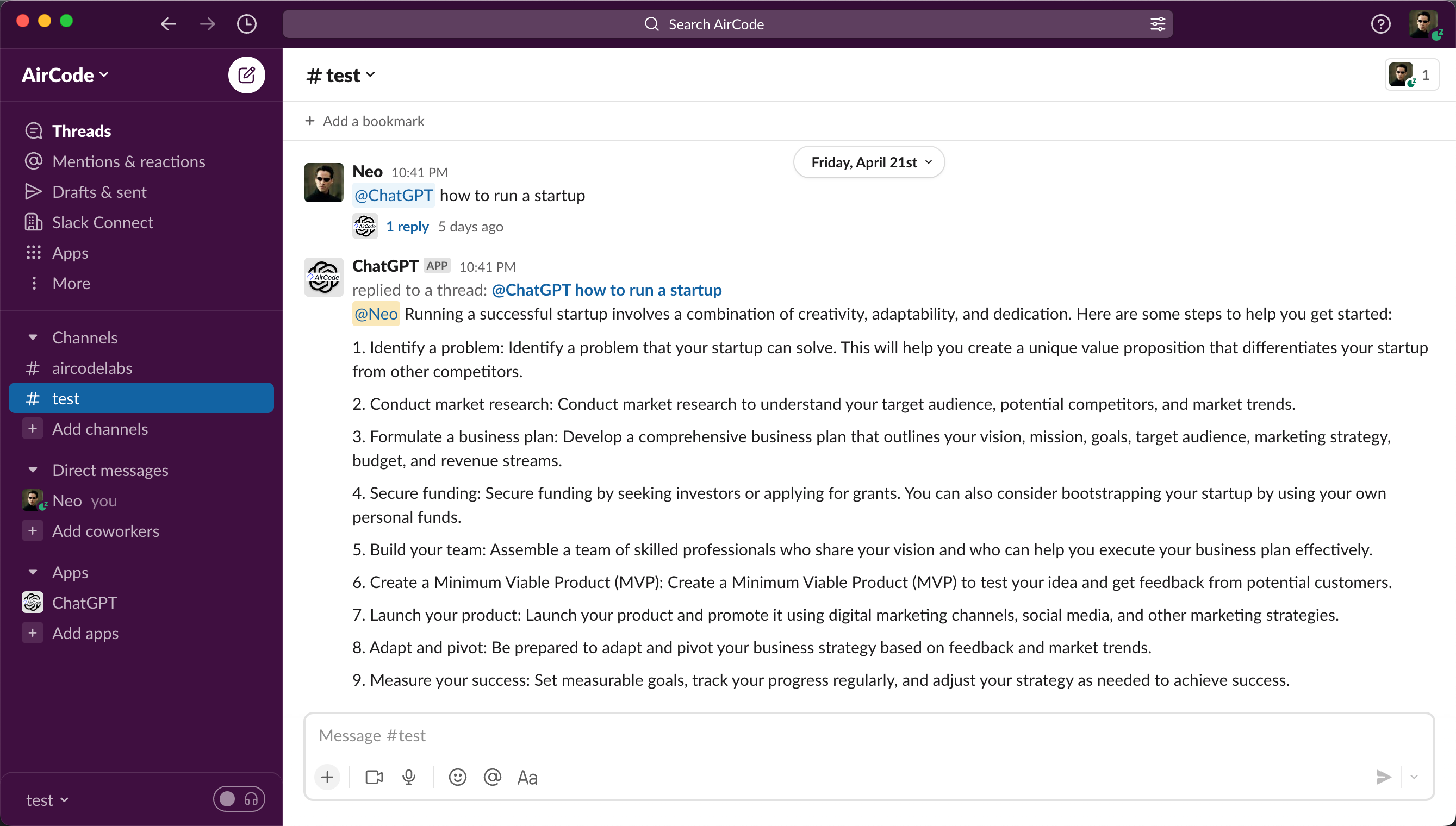
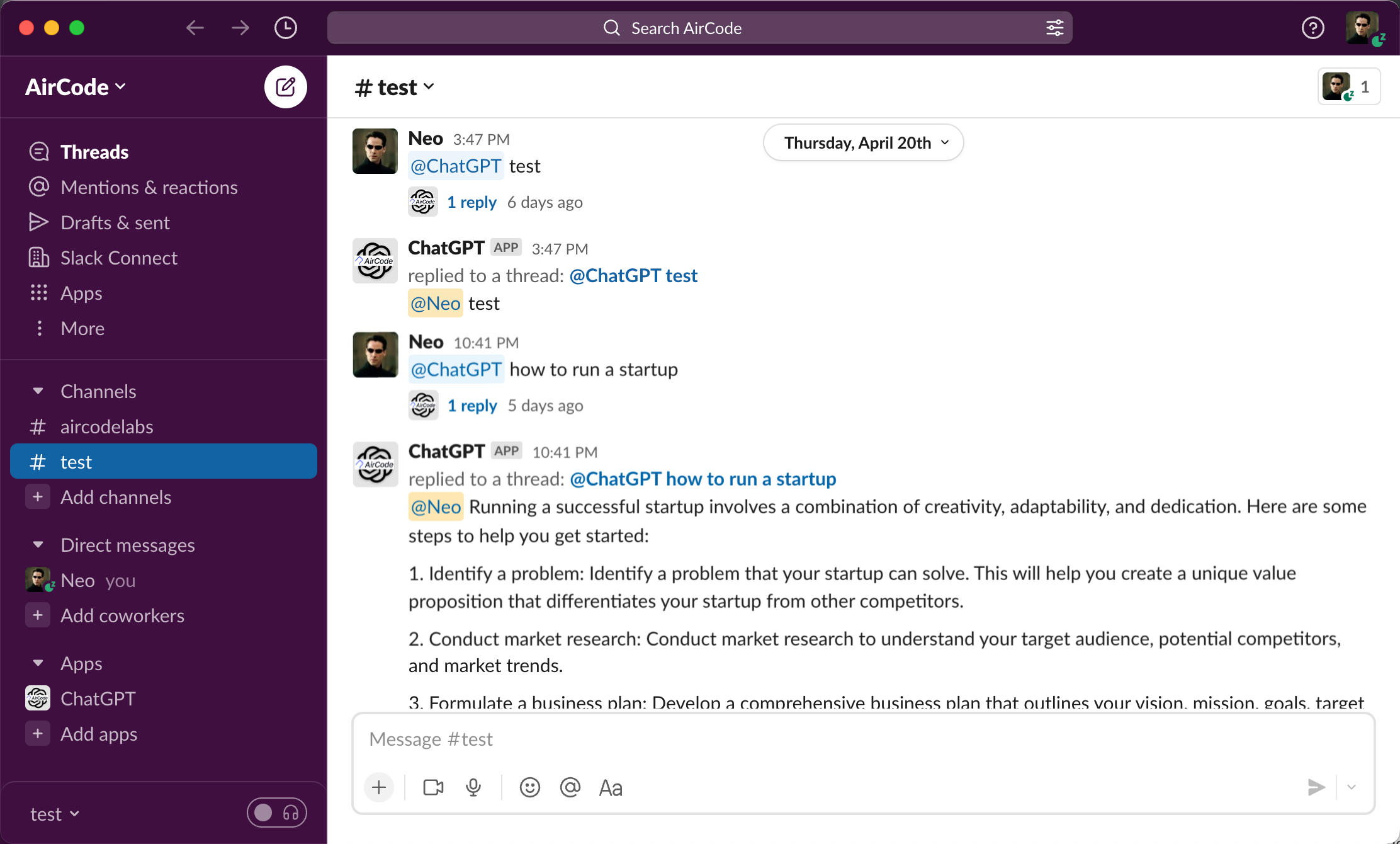
This article helps you quickly implement a Slack chatbot and integrate ChatGPT capabilities into it. You can ask it questions directly or mention it in a group chat to get ChatGPT's answers. (The following are screenshots of the effect)
- Create a Slack bot and configure the events and permissions required for the bot
- Use AirCode to implement the chat capabilities of the bot
- Integrate the bot with ChatGPT capabilities
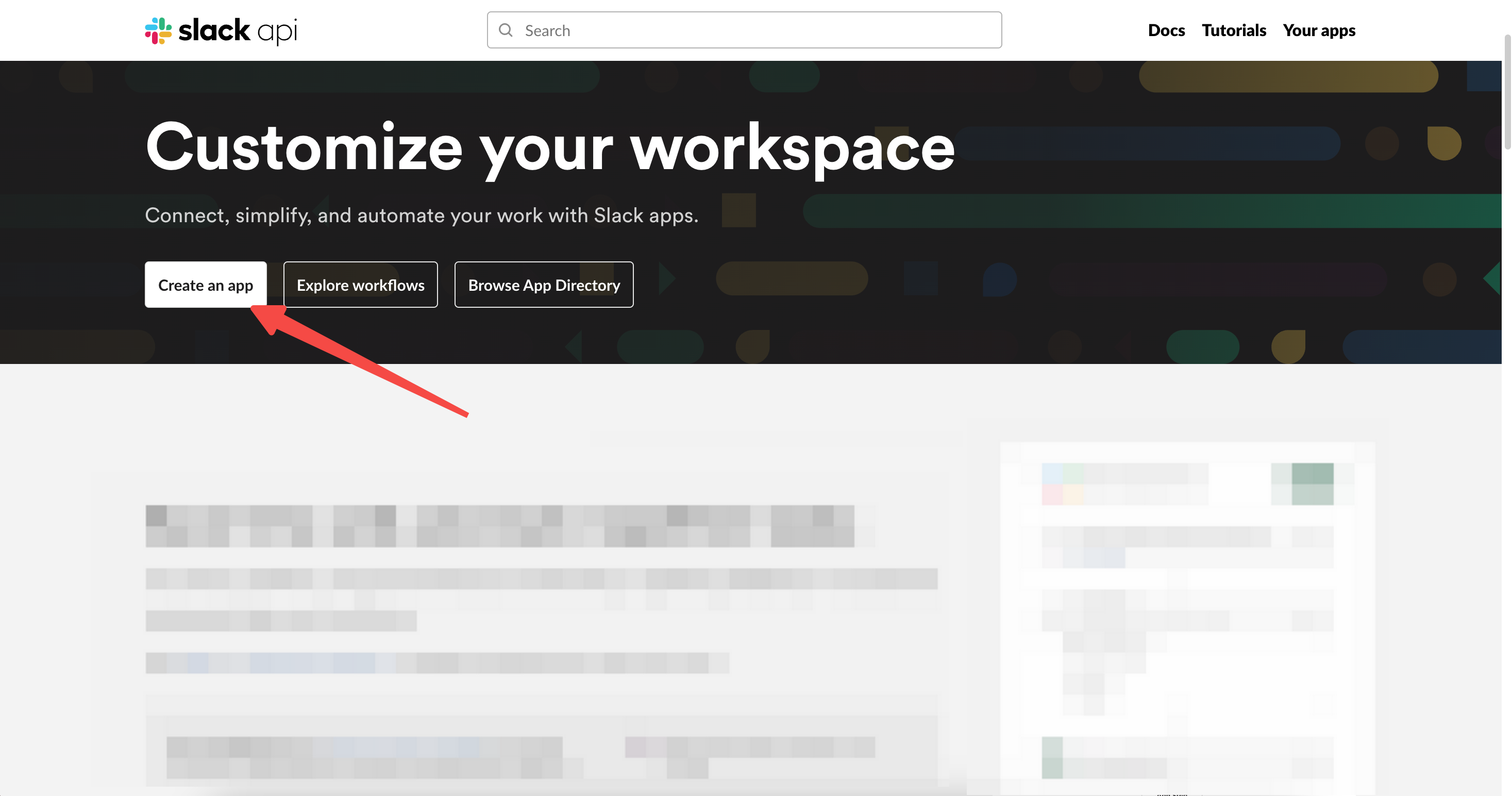
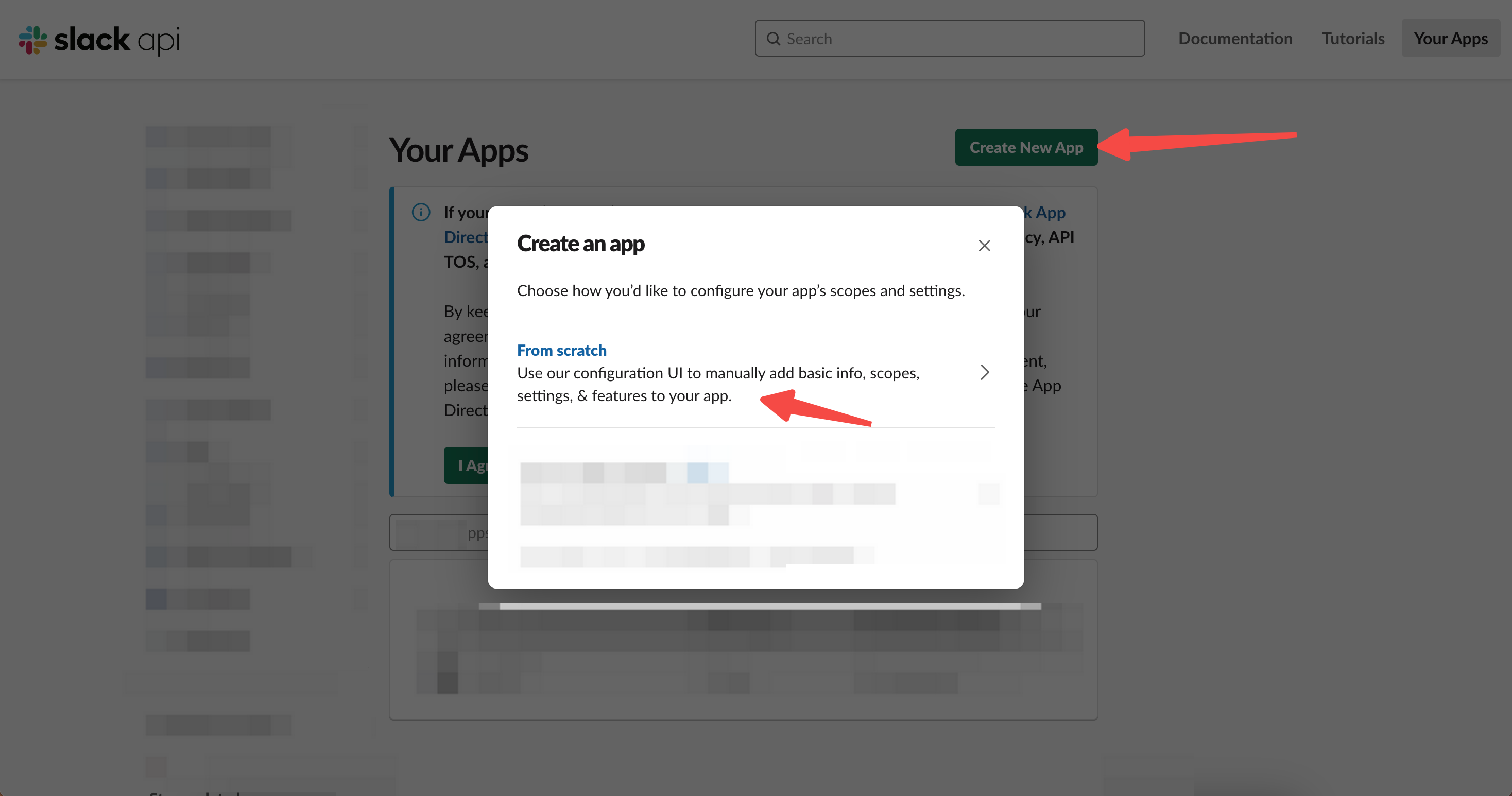
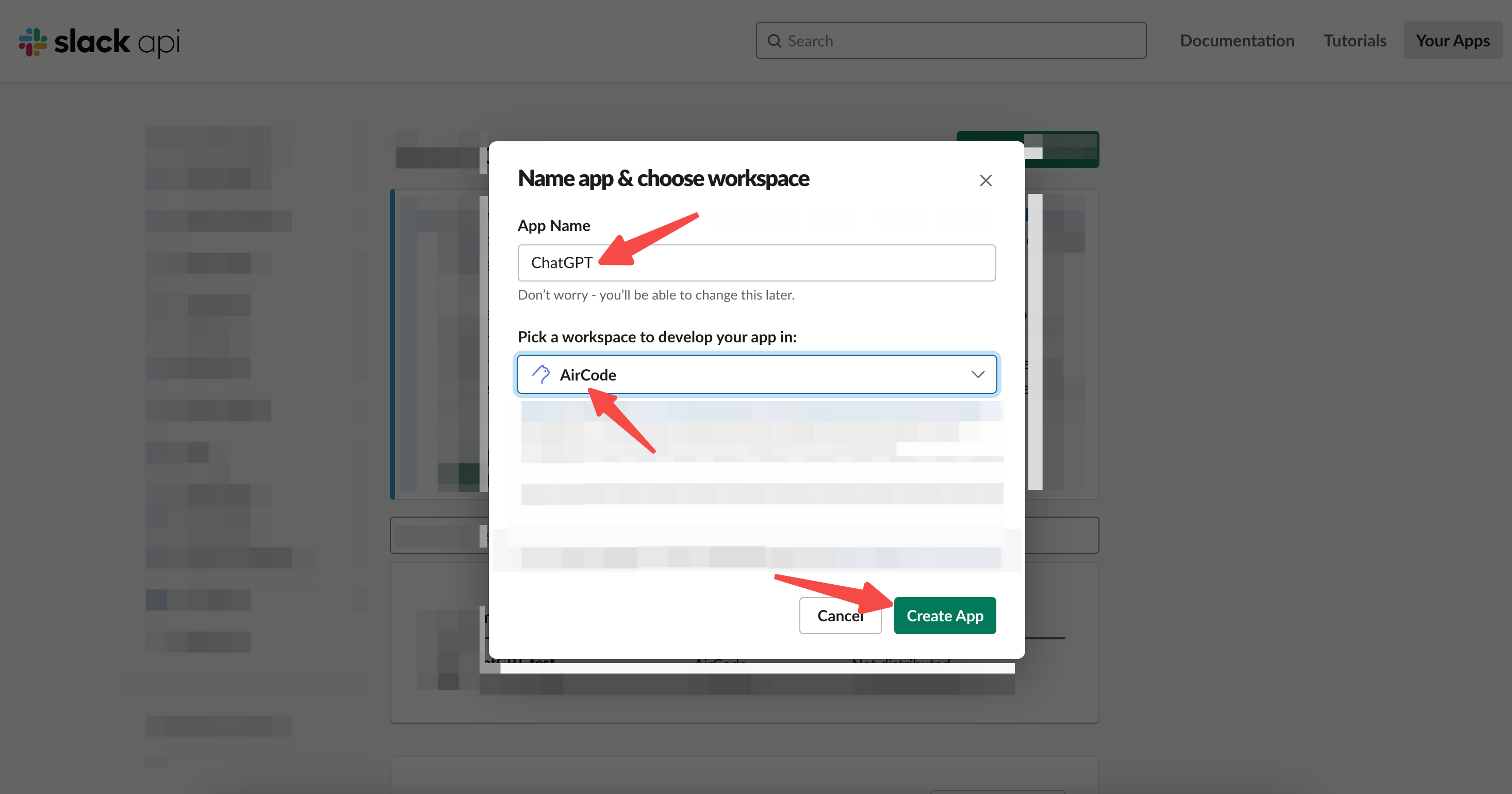
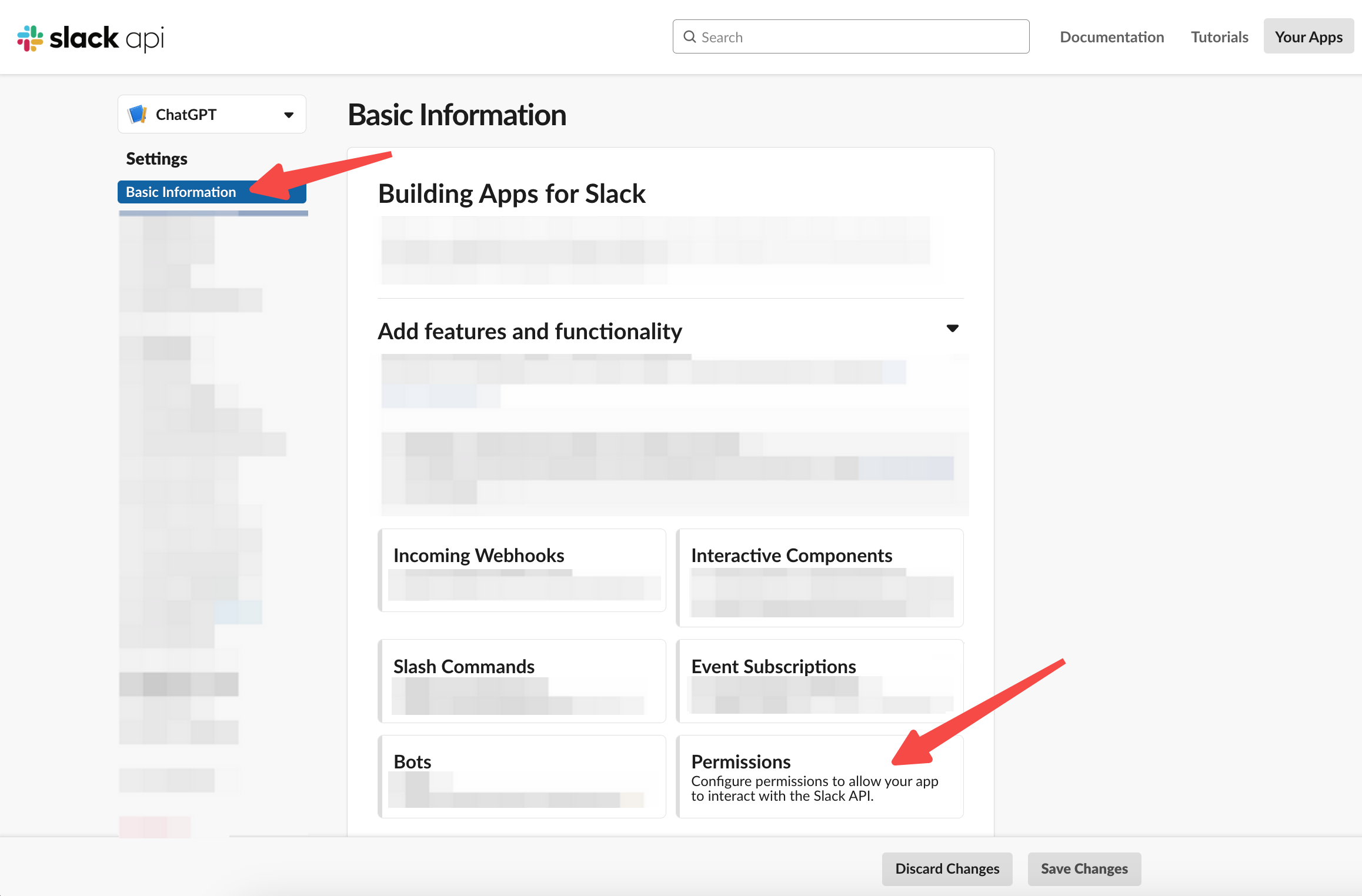
- Go to the Slack API platform and create a Slack App.
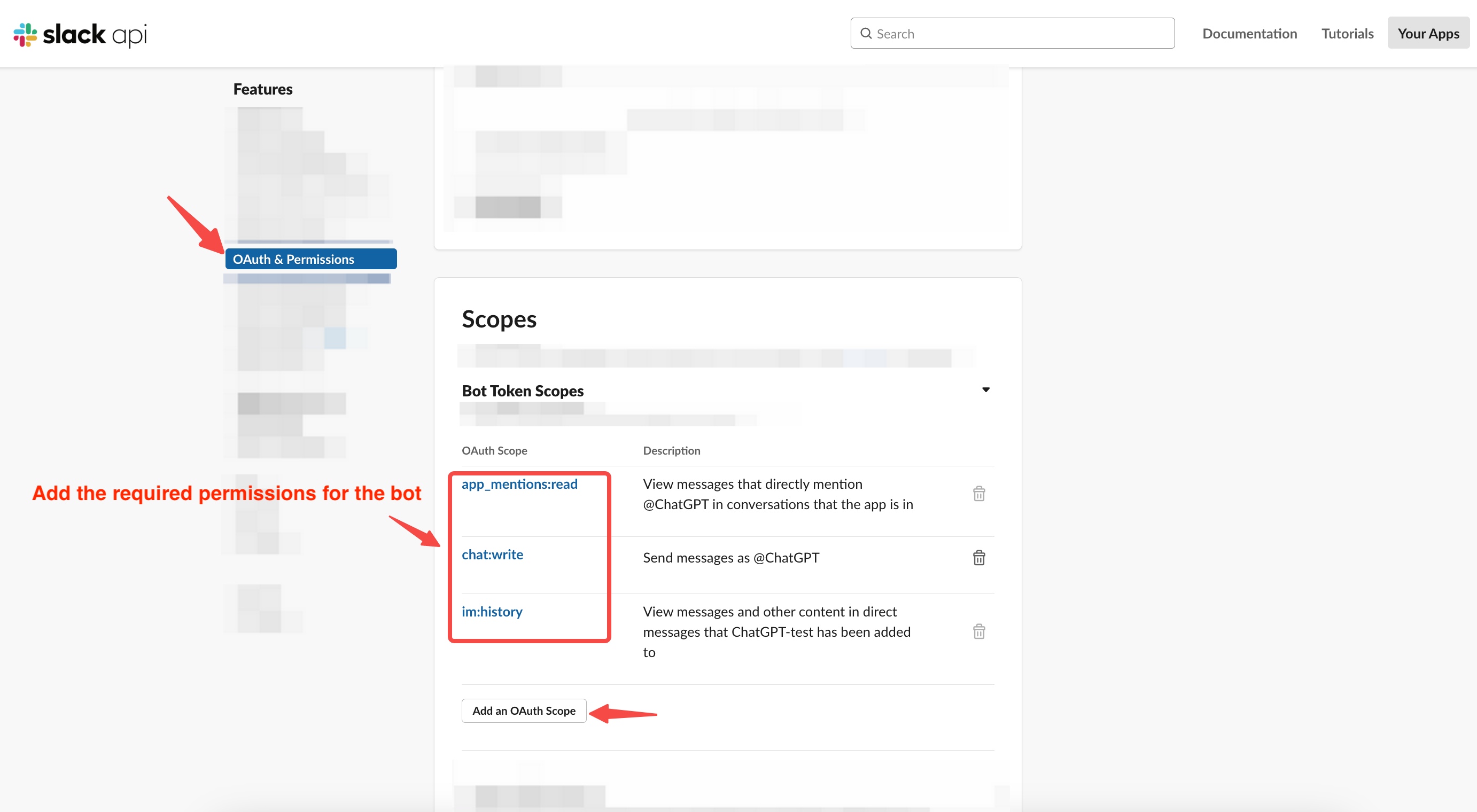
- Configure the permissions of the Slack App and set the corresponding permission scopes (Scopes)
- app_mentions:read
- chat:write
- im:history
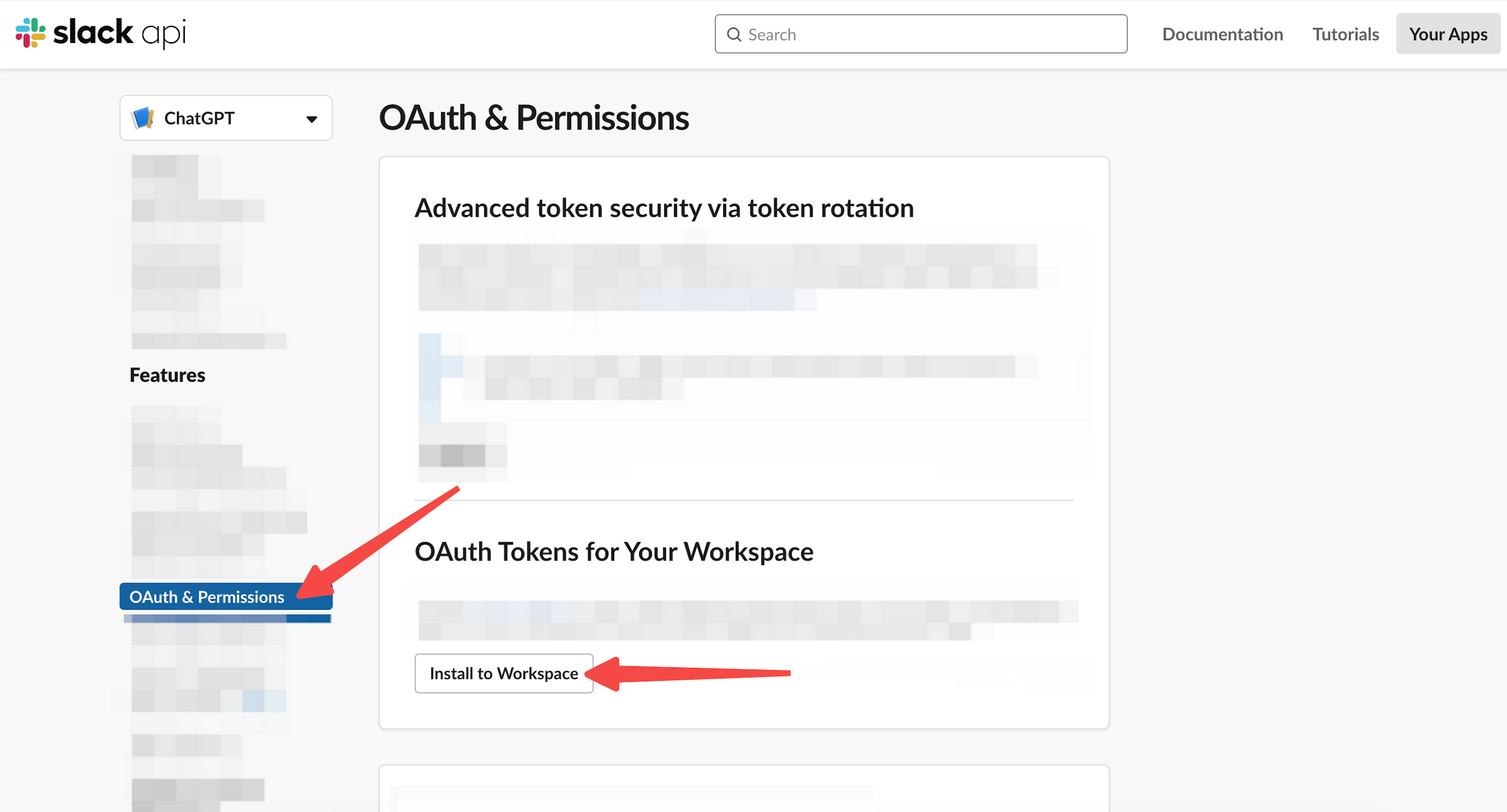
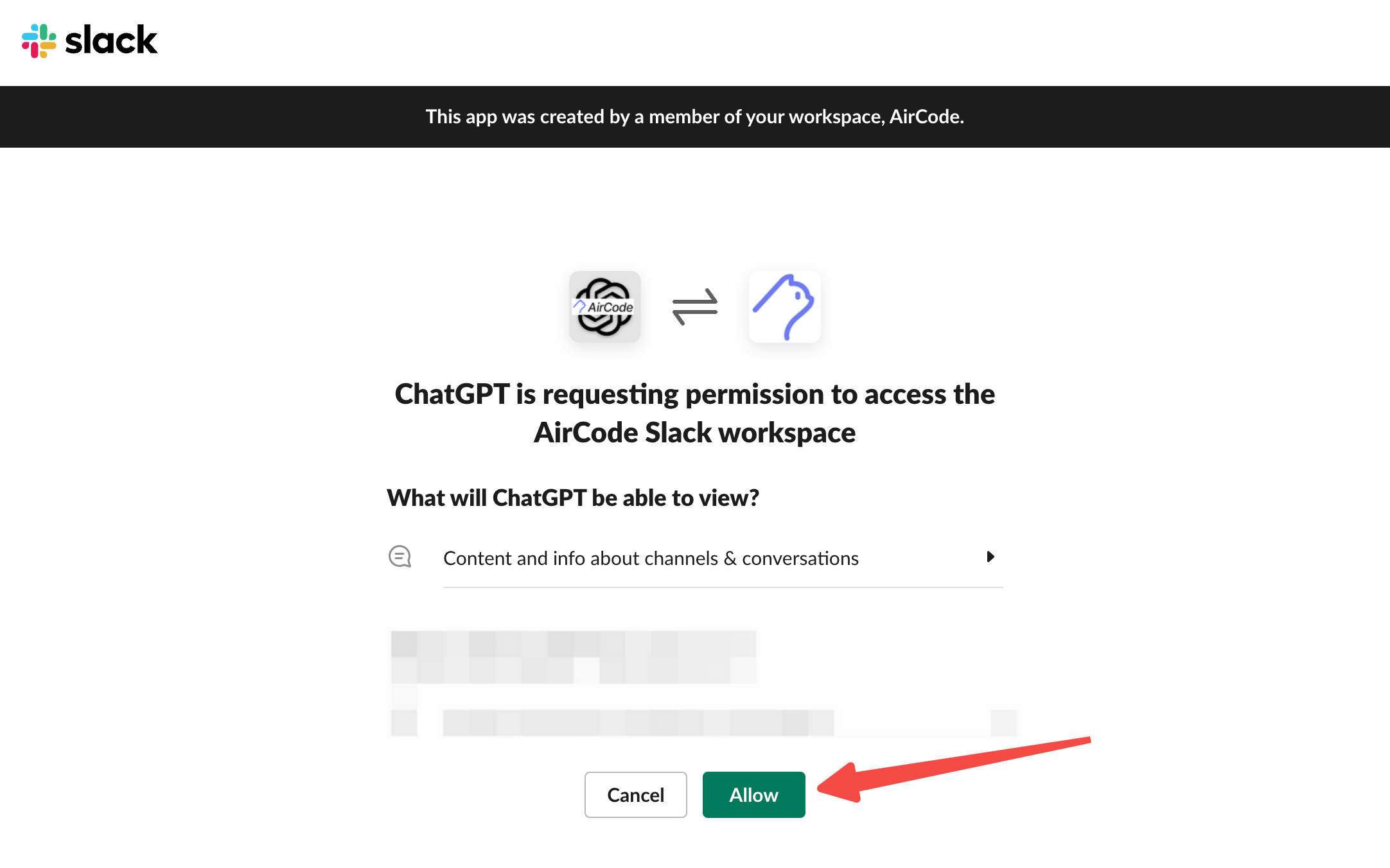
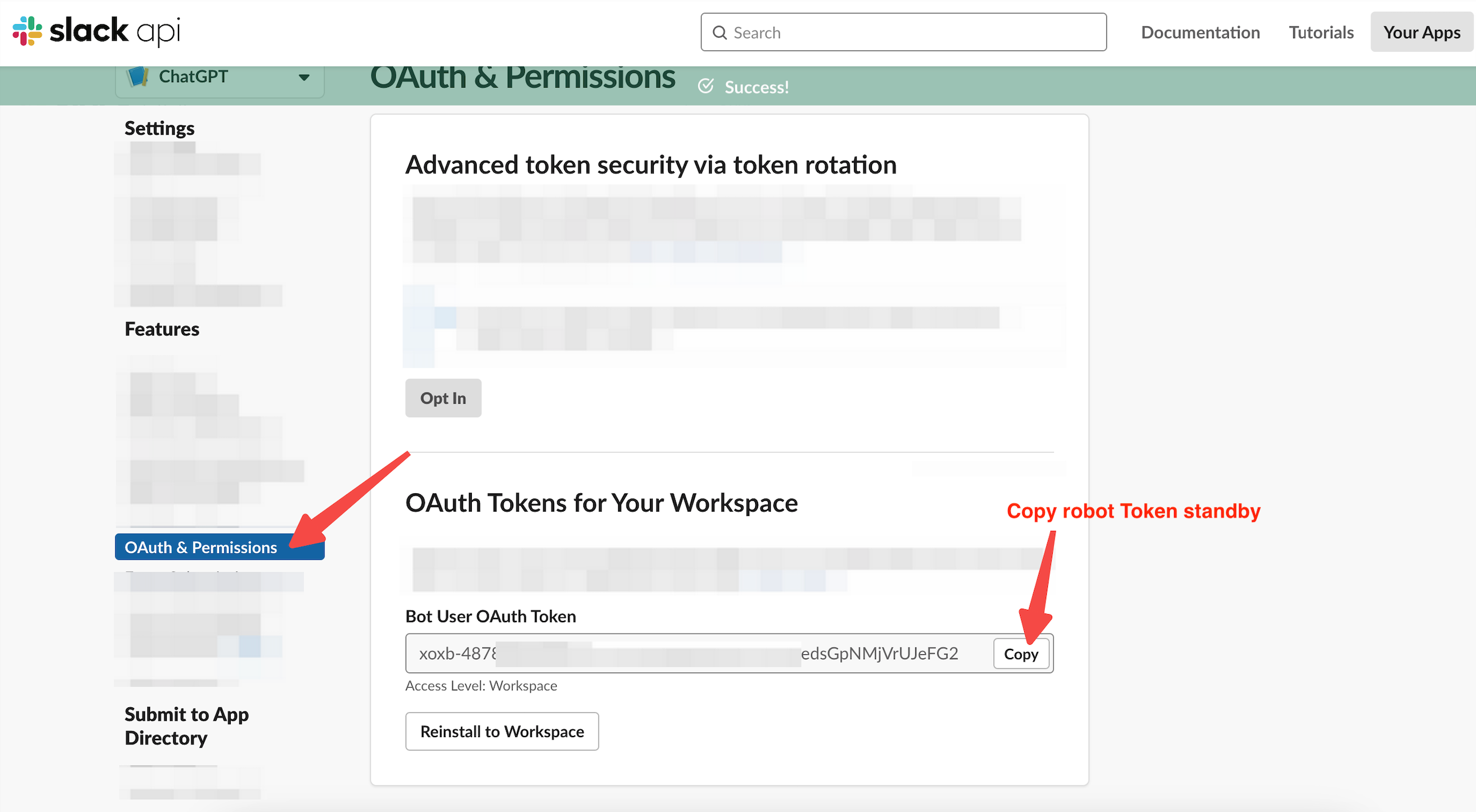
- Install the Slack App and obtain the Token for the bot
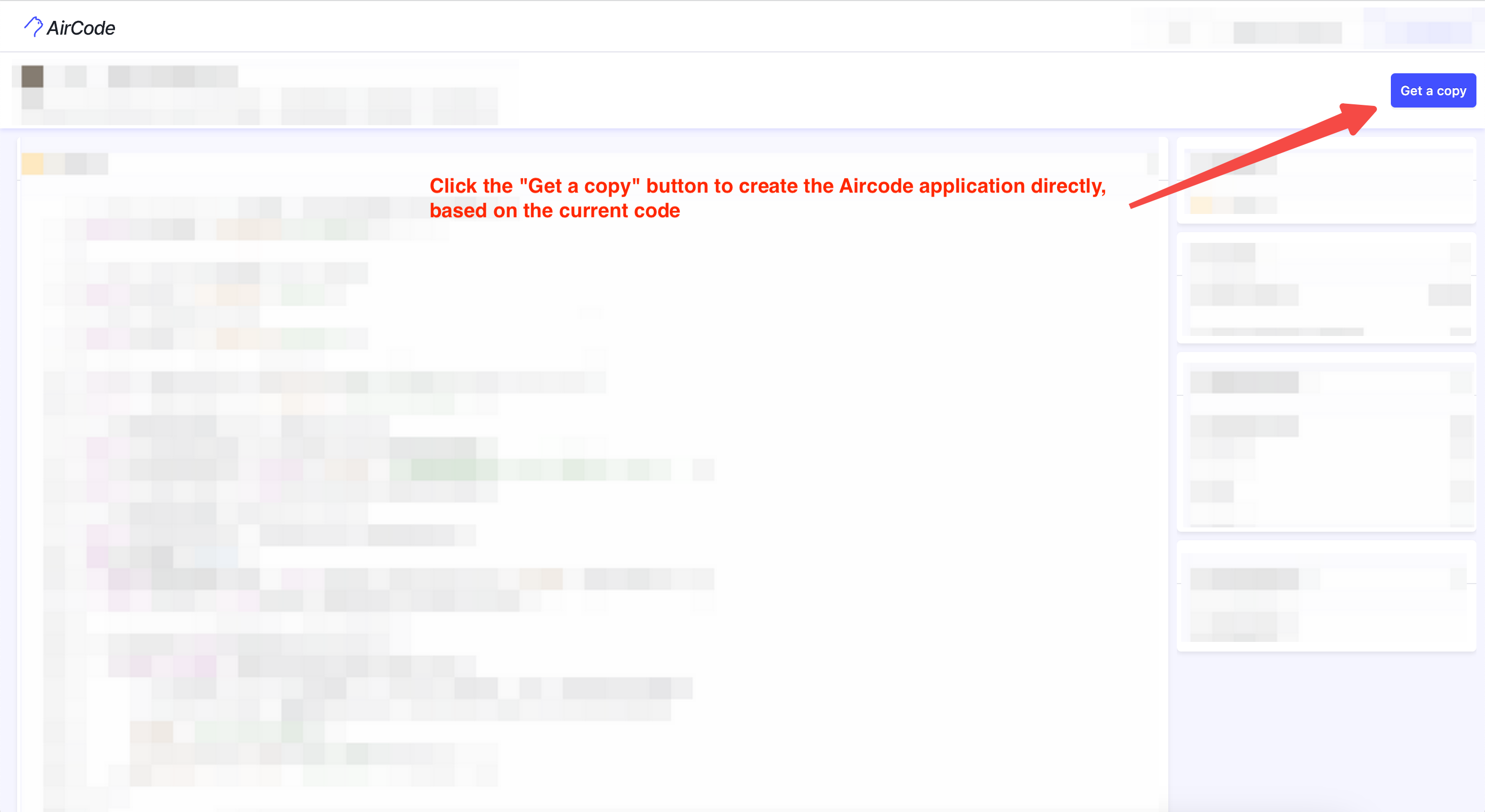
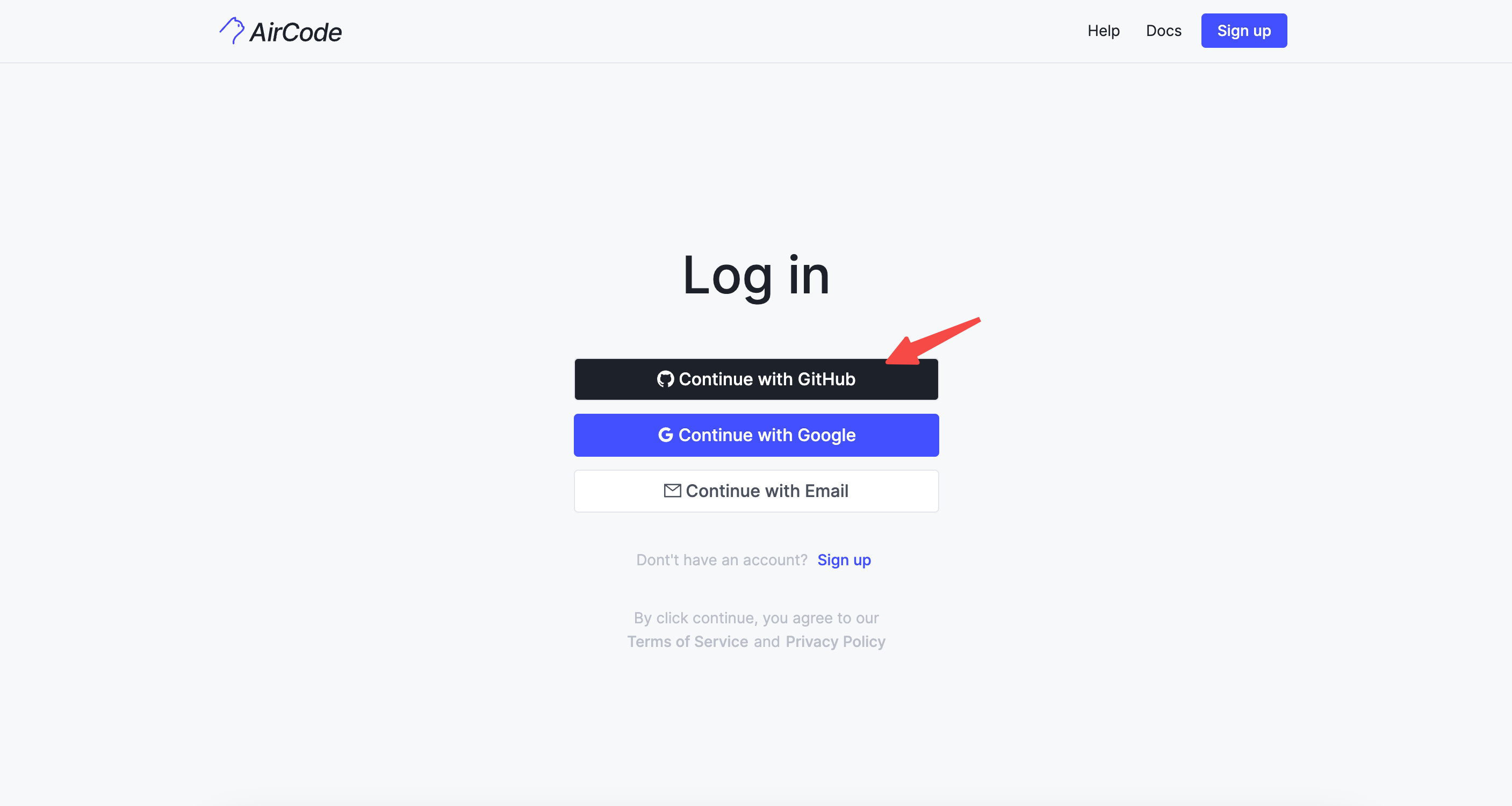
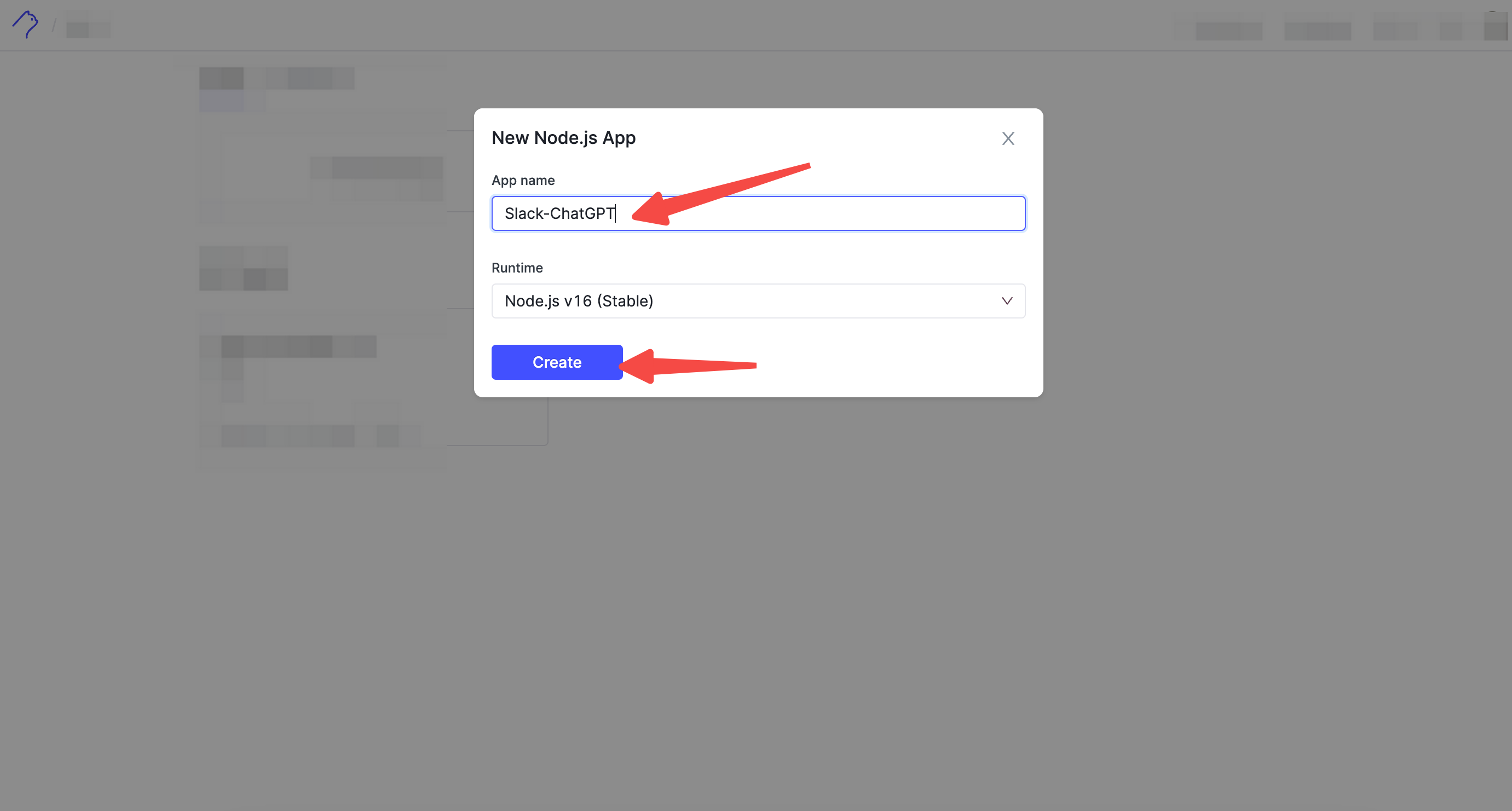
- Quickly generate your own AirCode Node.js application using the "Deploy to AirCode" button. Note: Do not directly copy the code. If you paste the code directly, you need to manually install NPM dependencies. If you haven't logged in to AirCode, you need to log in first.
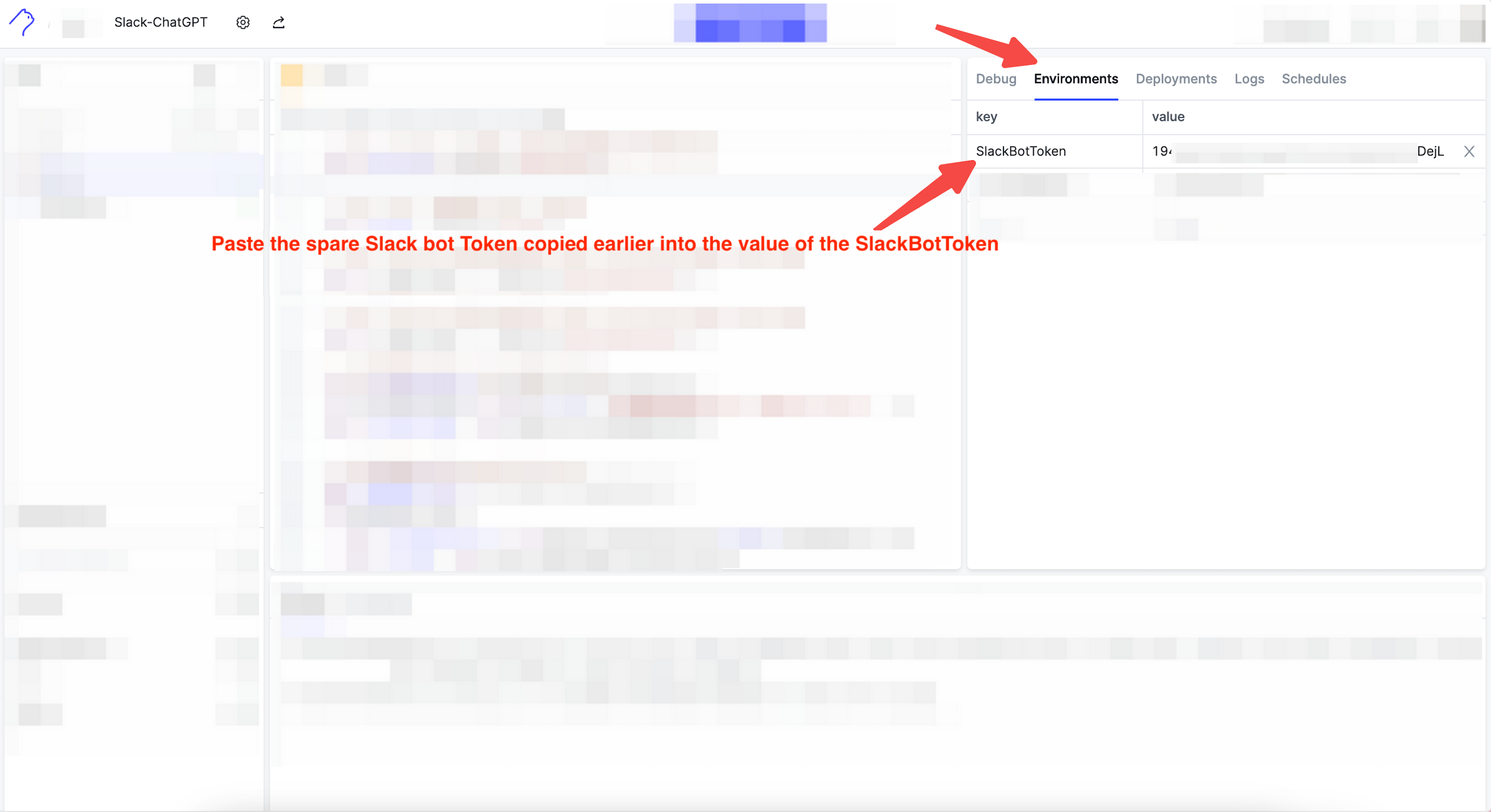
- Paste the bot token obtained earlier from the Slack API platform into the environment variables (Environments) of the newly created AirCode application. Fill in the Bot User OAuth Token value in SlackBotToken.
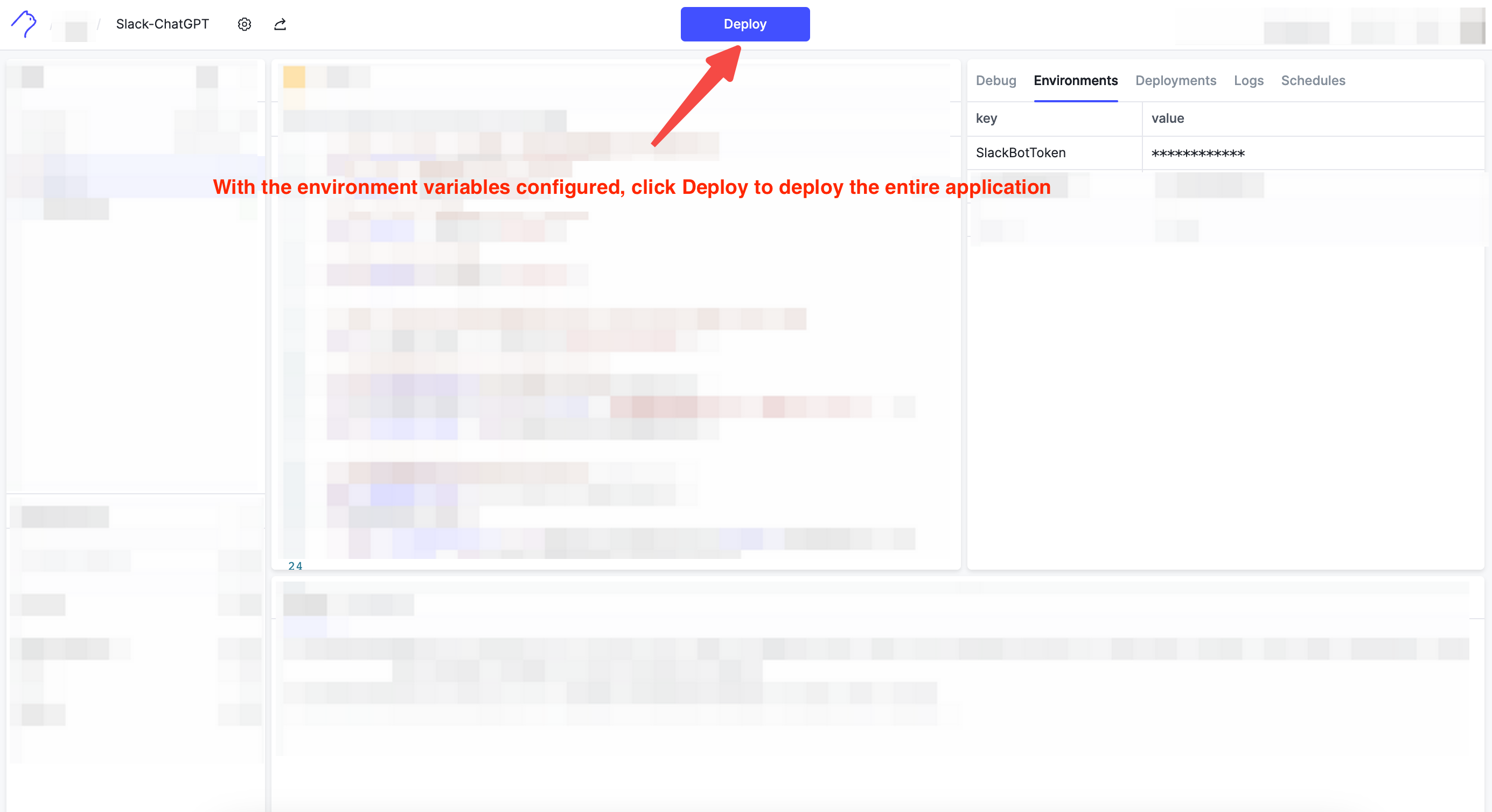
- After setting the environment variables (Environments), click the "Deploy" button at the top of the page to deploy the entire application and make all configurations effective.
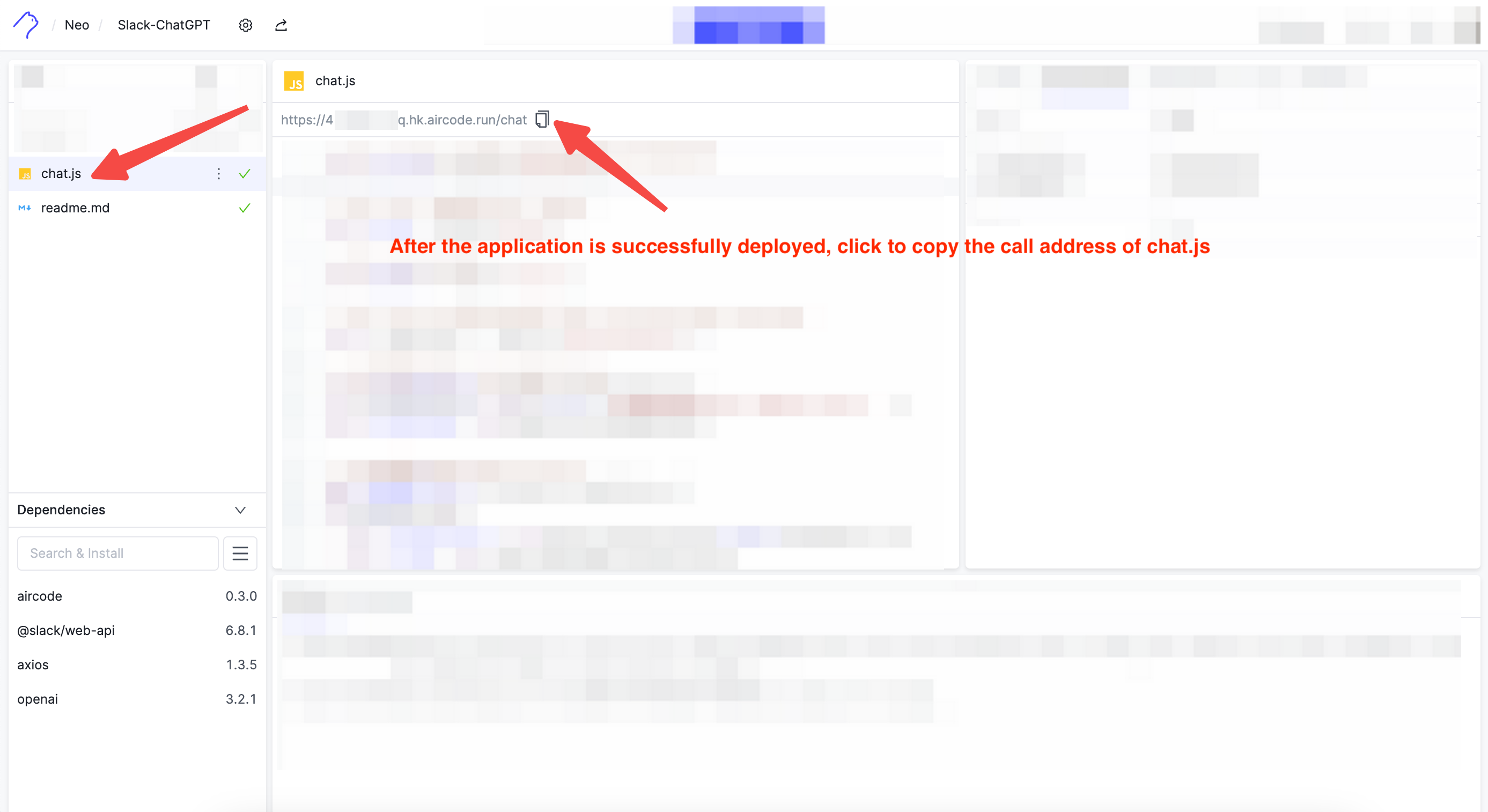
- After the AirCode application is deployed successfully, select the chat.js file to call, and you can see the calling URL of the current service. Copy it and paste it into the Request URL of the corresponding App event in the Slack API platform.
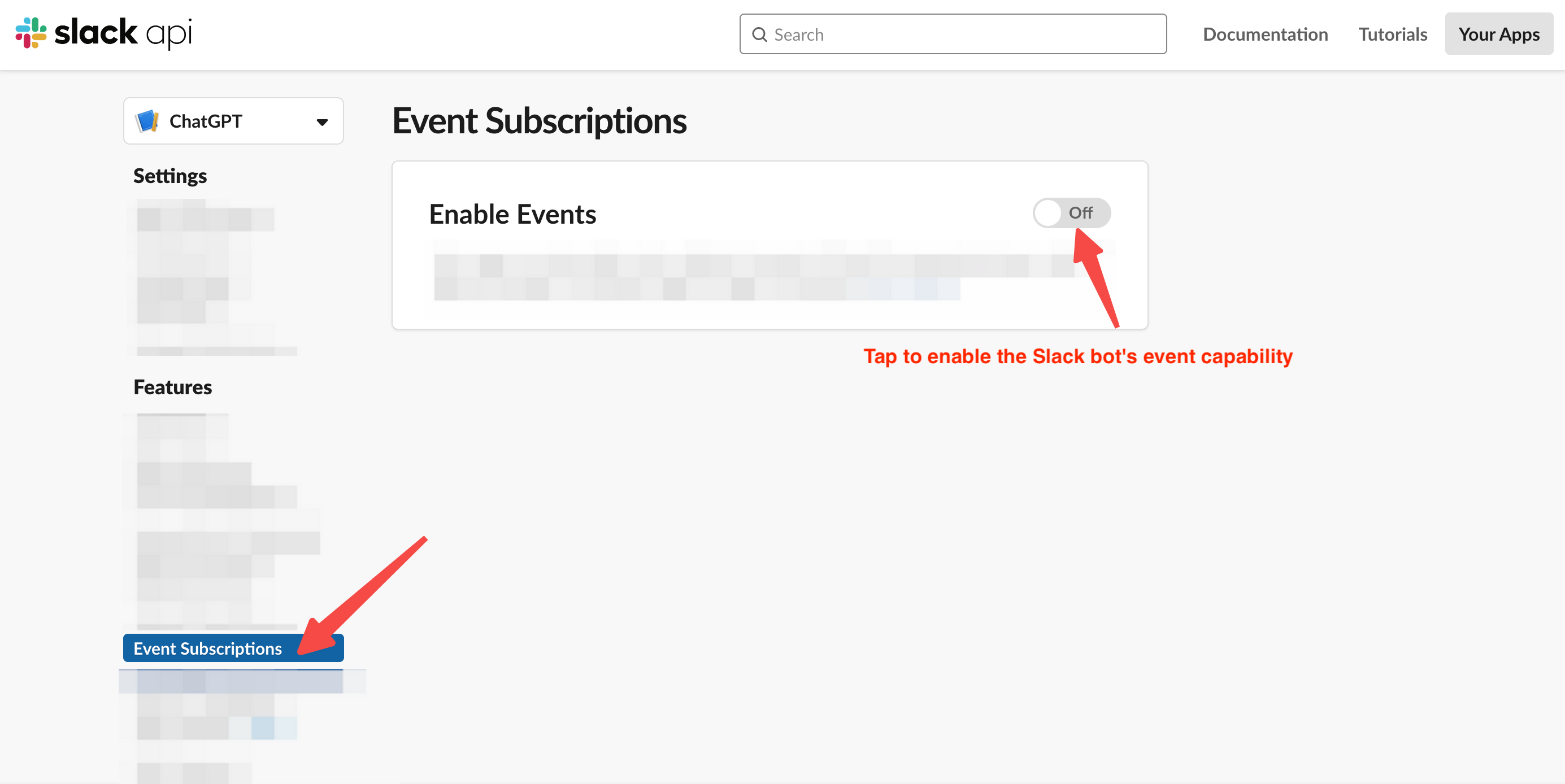
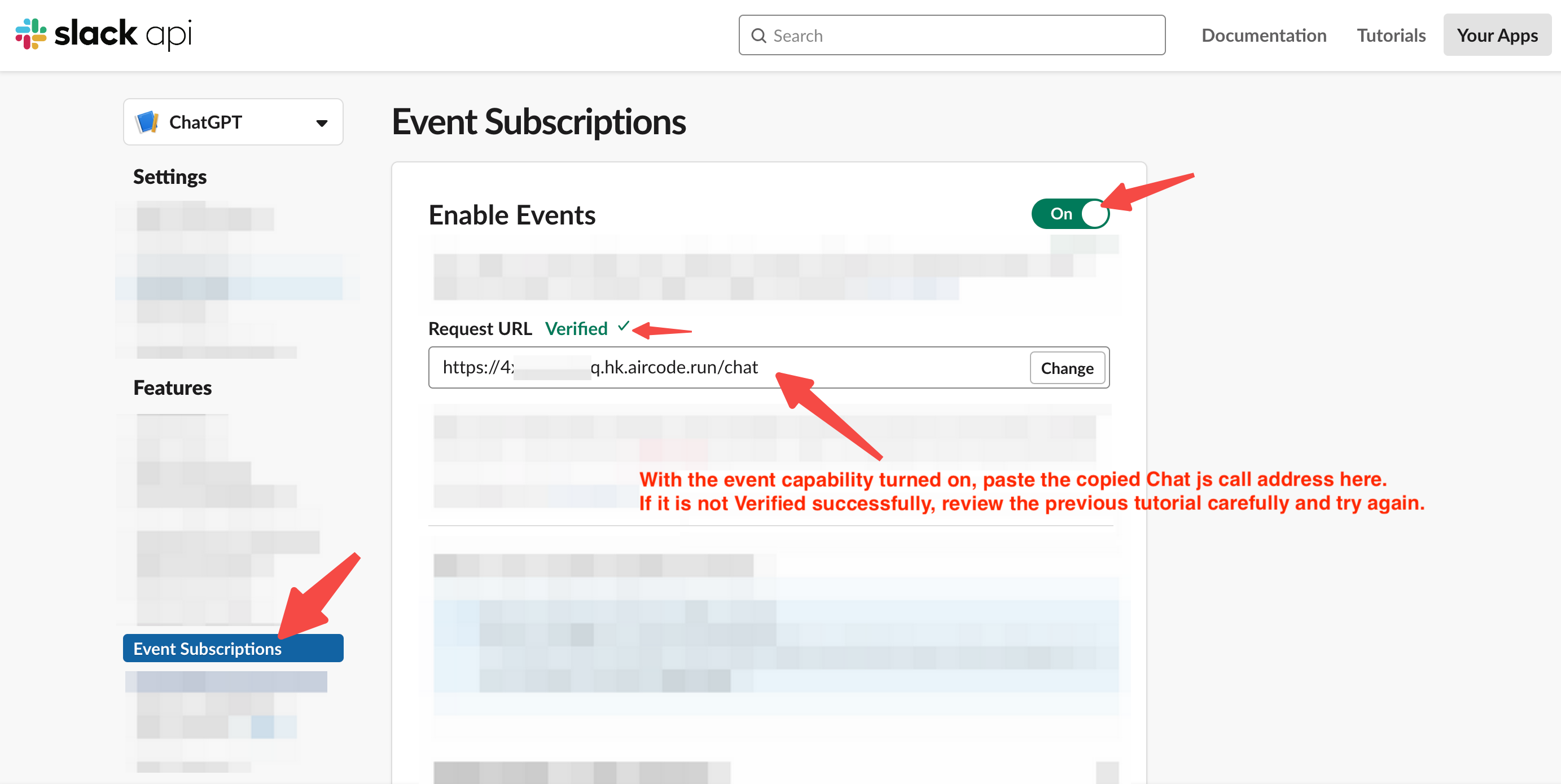
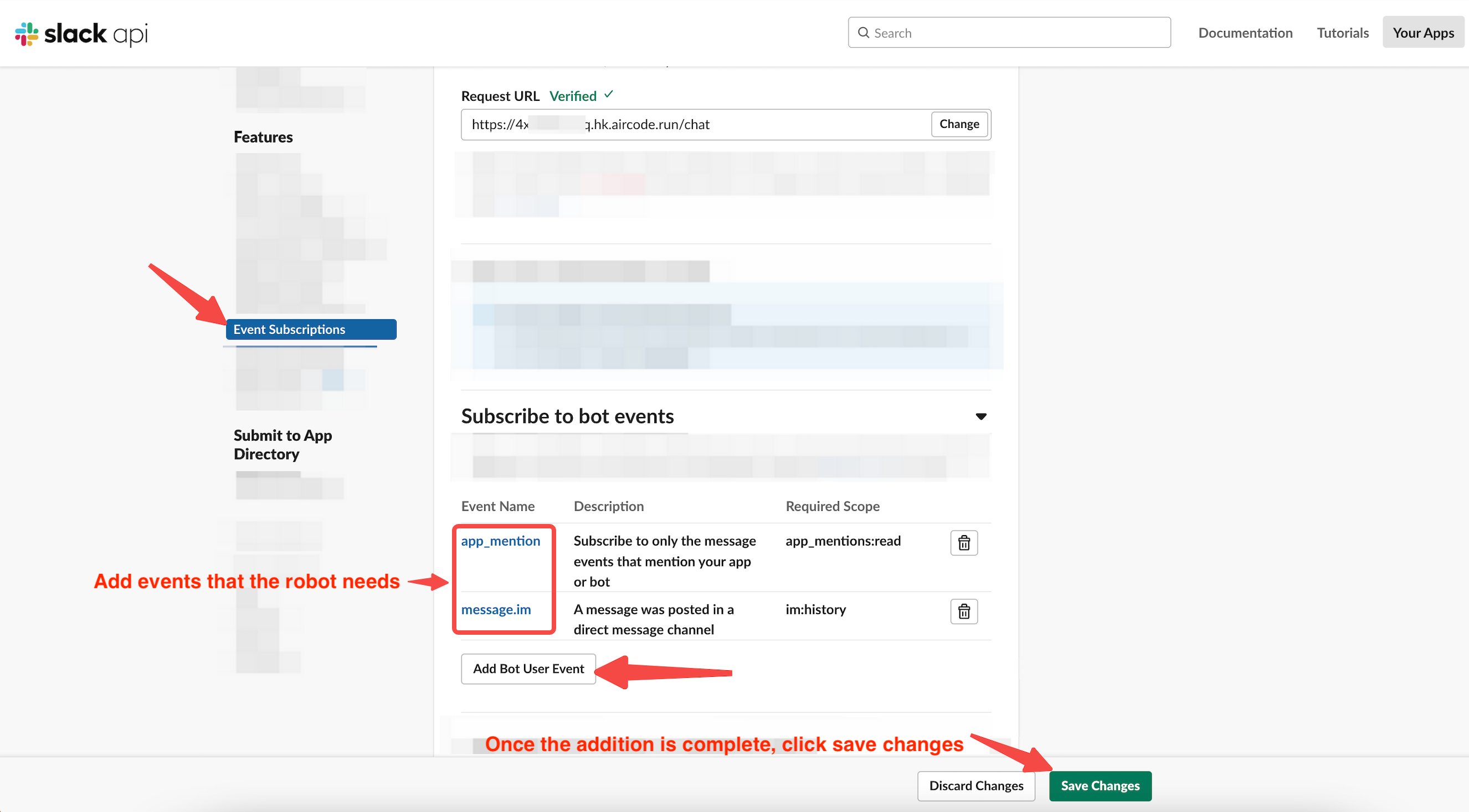
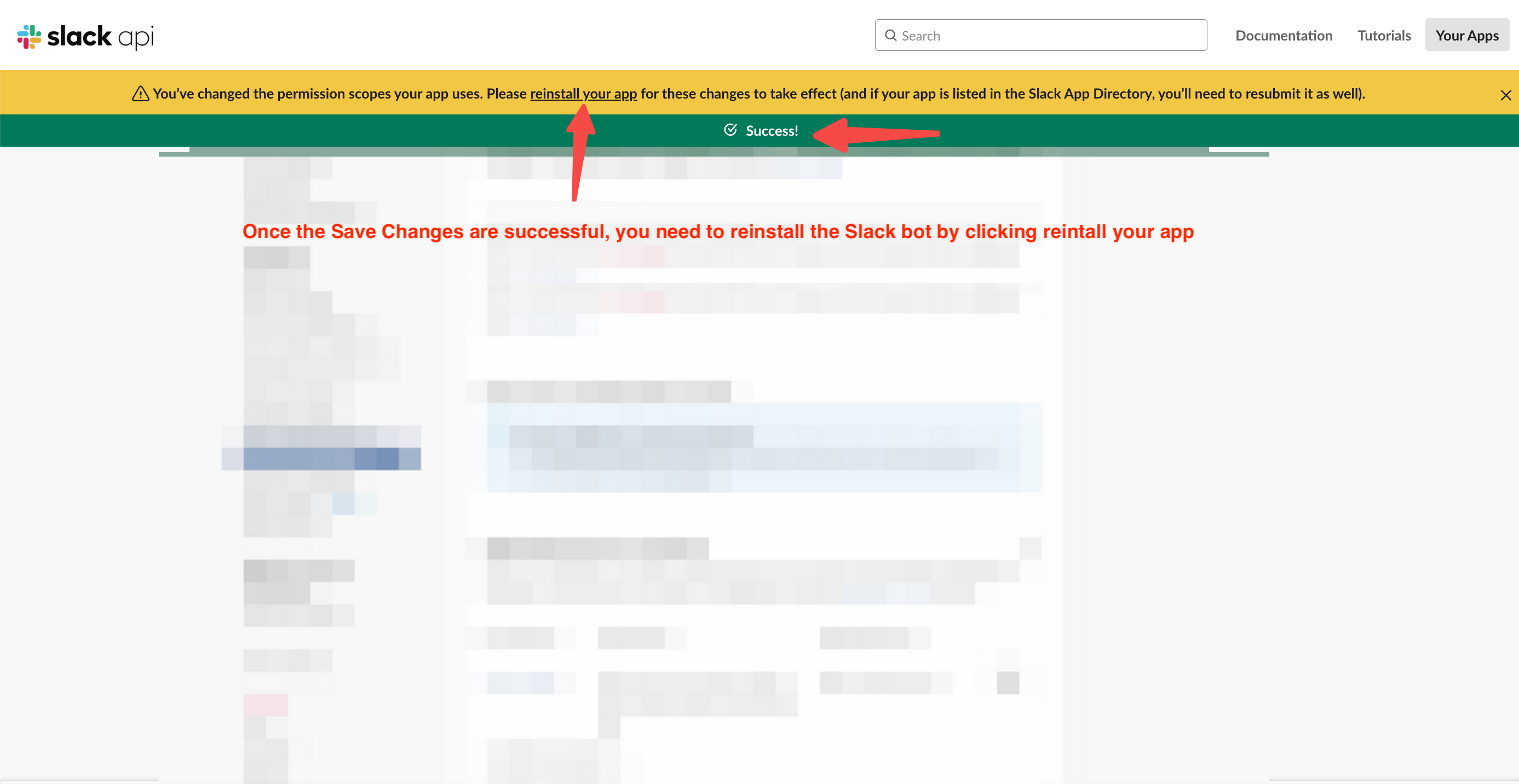
- Add events to the Slack bot
- app_mention
- message.im
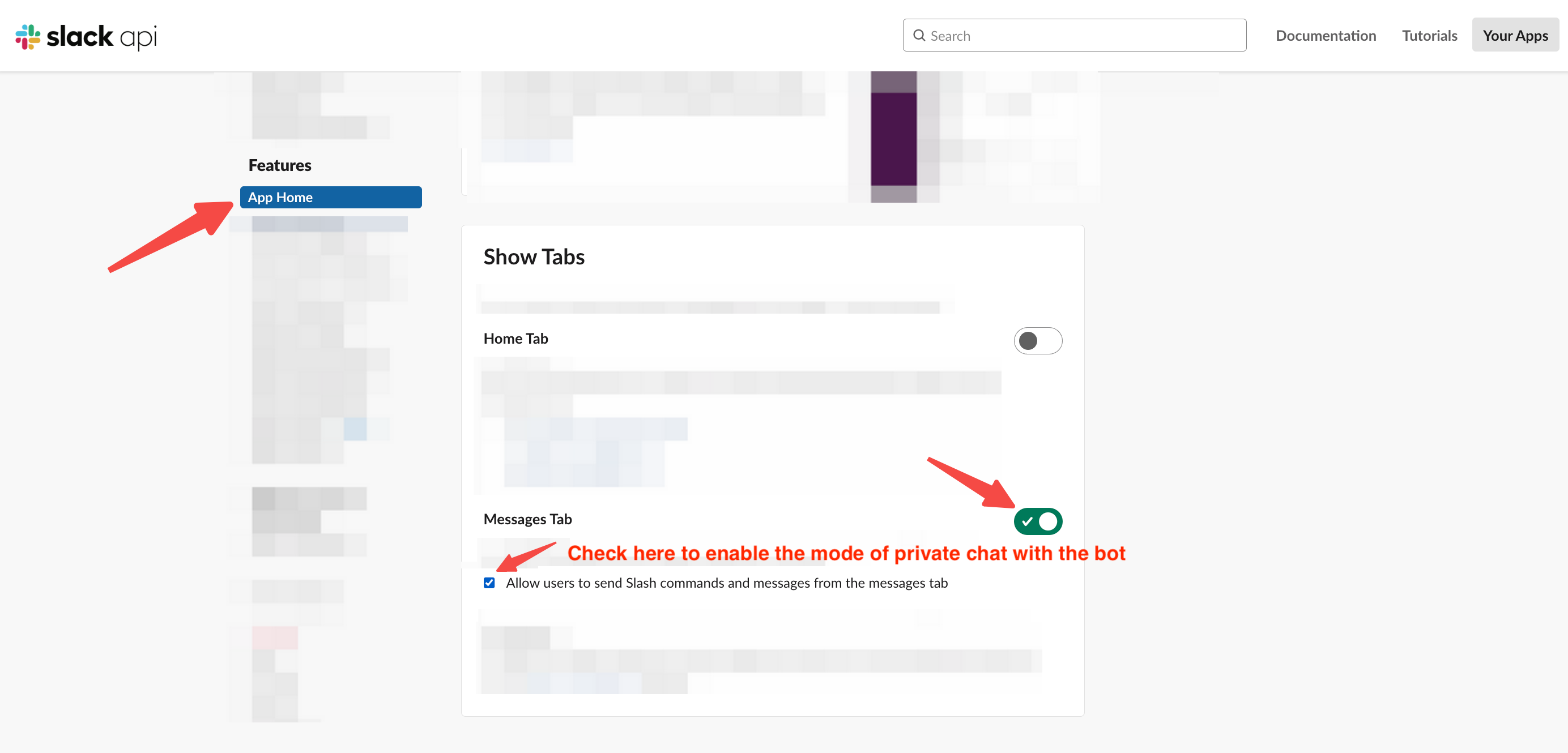
- Configure support for sending messages directly to the Slack bot
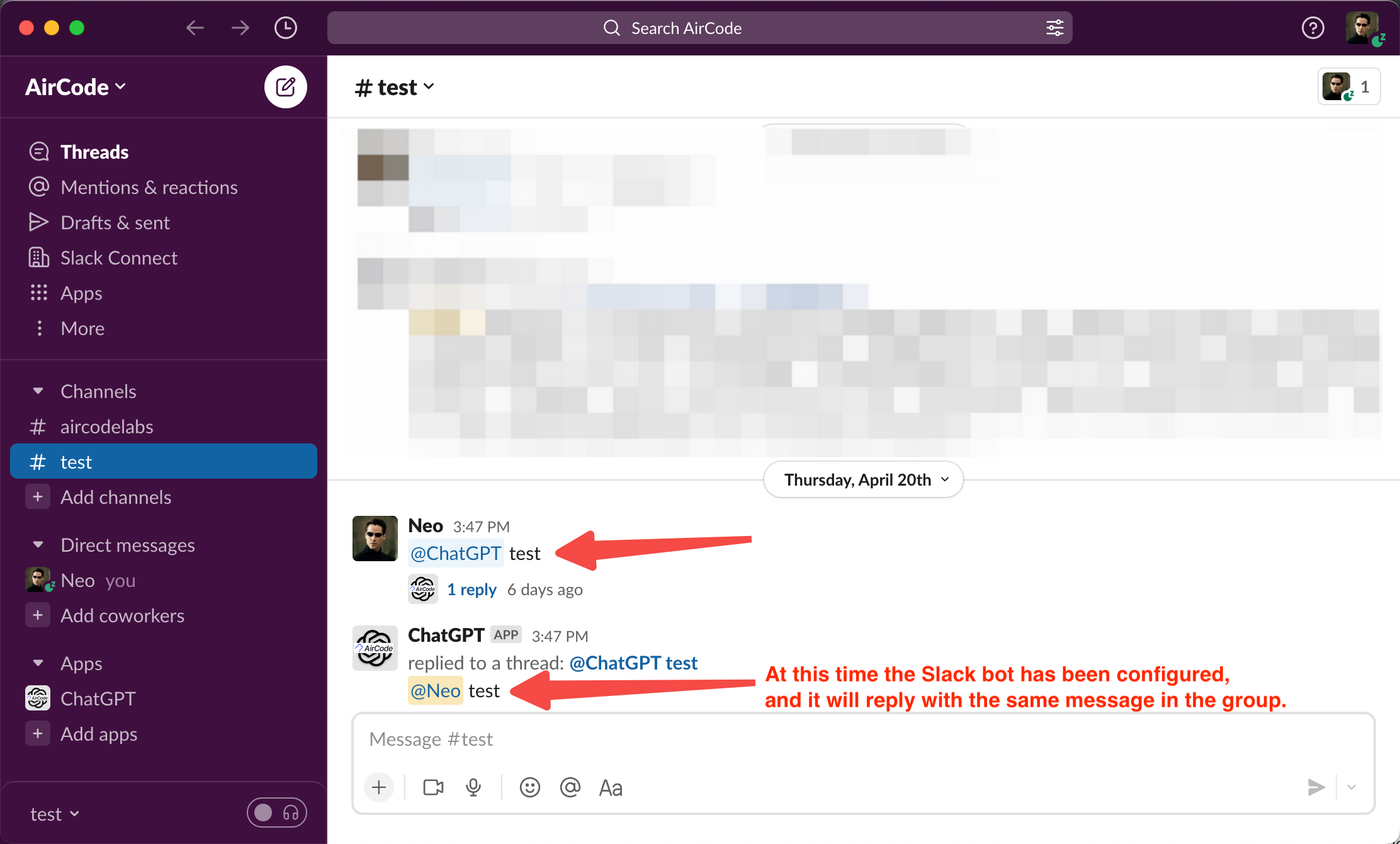
- You can chat privately with the bot in the chat window, or add the bot to a group and chat by mentioning the bot. At this time, the bot can chat. Since the ChatGPT capability has not been configured yet, the bot will directly return your message, which means the bot has been configured successfully.
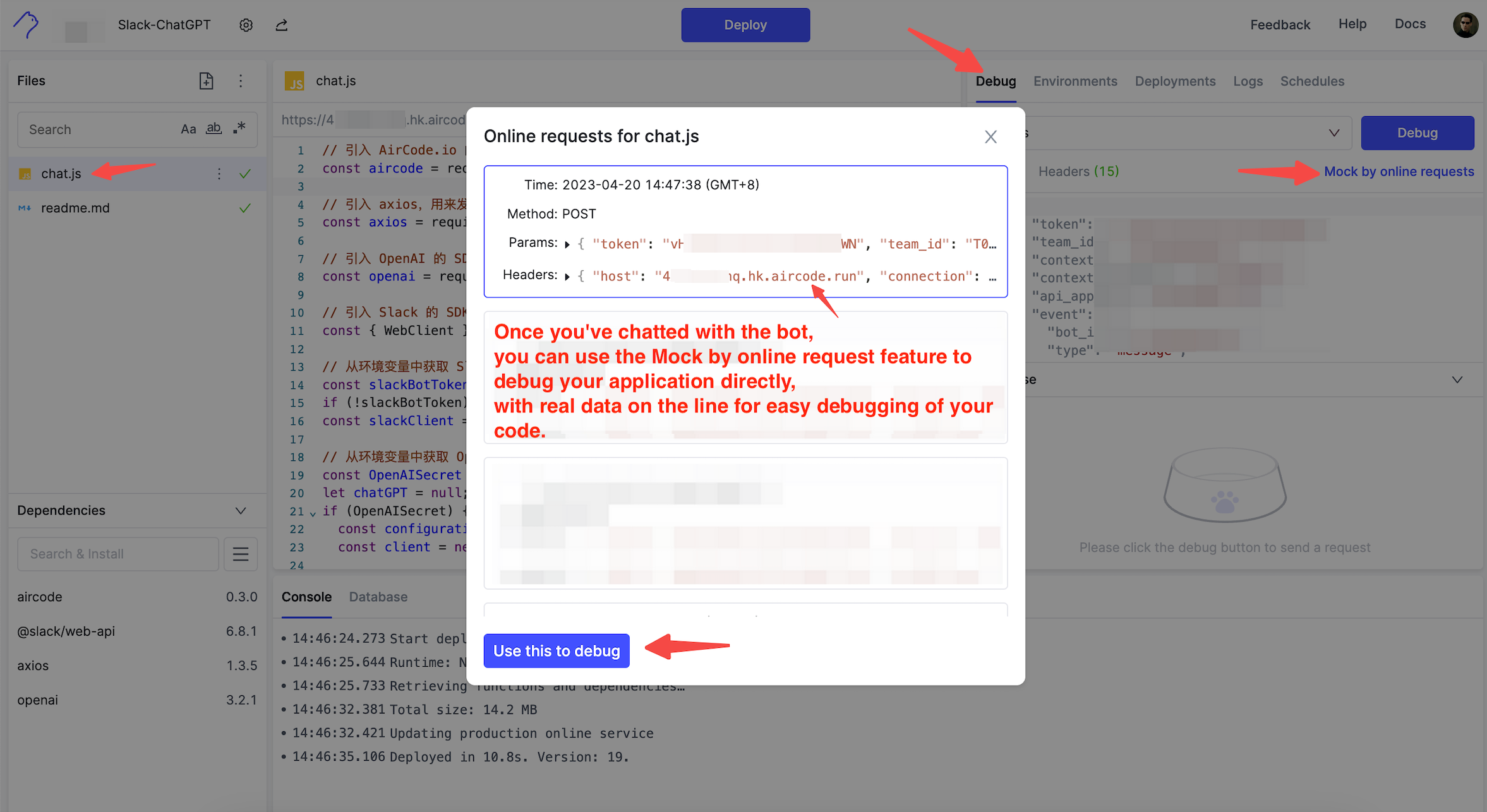
- You can view the complete request data in AirCode and use the "Mock by online requests" feature to debug the code directly with online data.
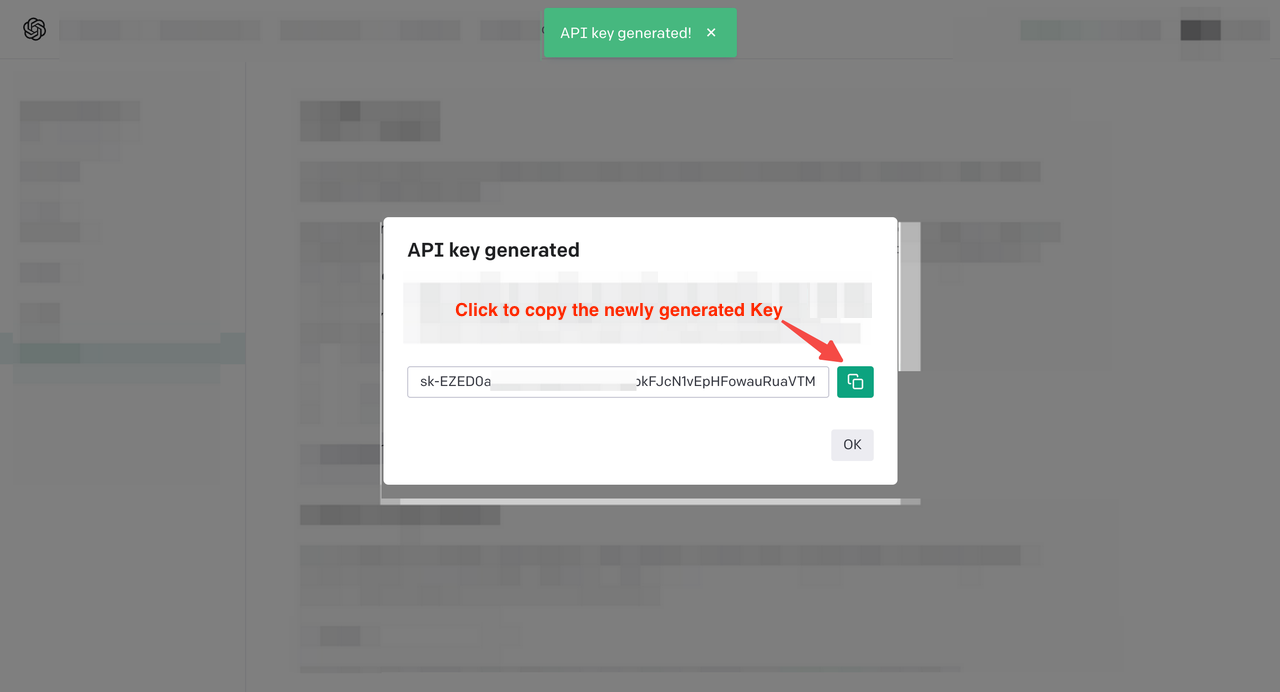
- Go to OpenAI's console, click "Create new secret key" to generate and copy this newly generated key, and paste it into the environment variables (Environments) of the newly created AirCode application. Paste it into the value of OpenAISecret. If you don't have an OpenAI account, you can search the web for ways to get one and prepare in advance.
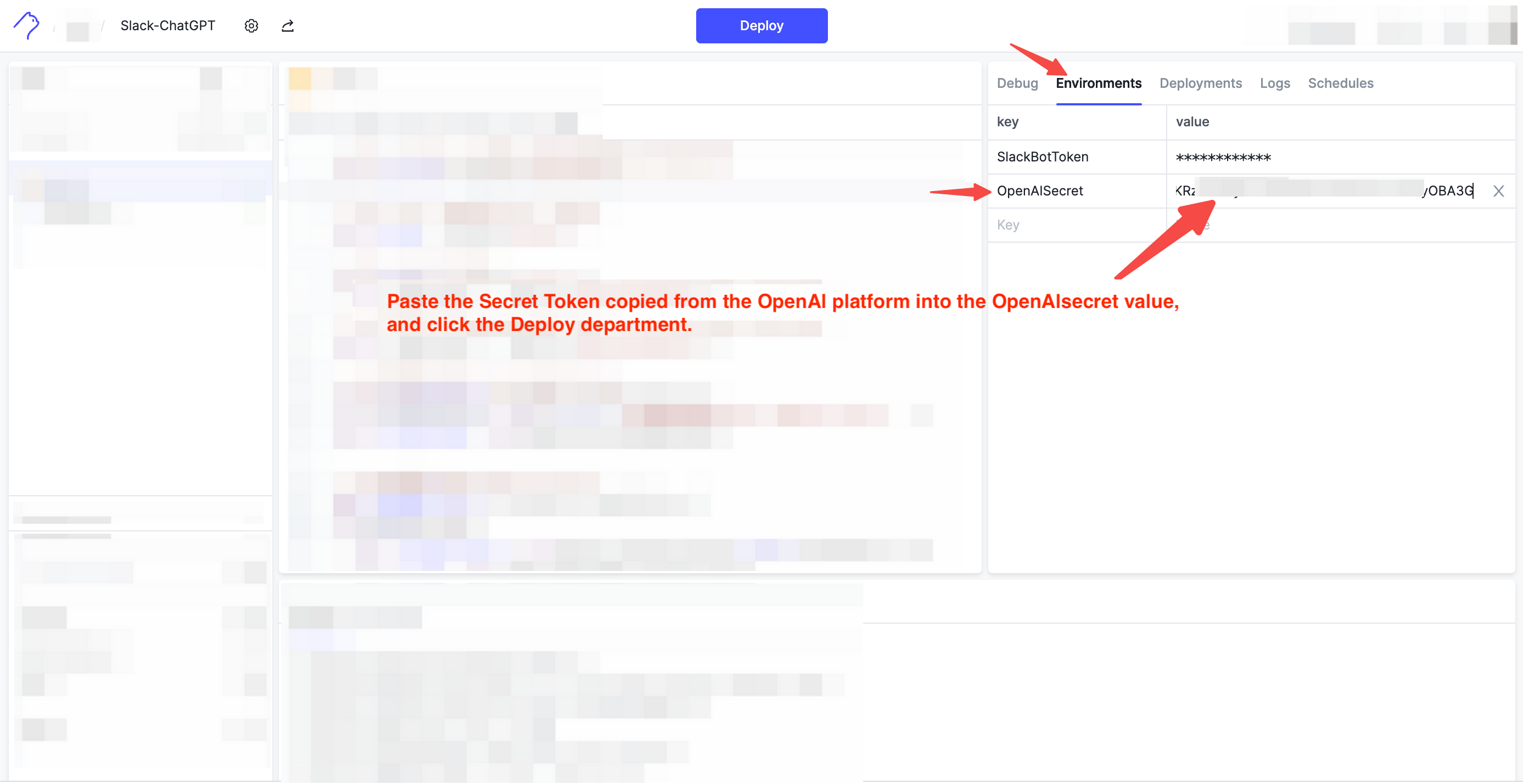
- After clicking Deploy again to deploy the service and testing, ChatGPT's reply will be supported. Currently, ChatGPT's service is relatively slow, especially when the model version is higher and the question is more complex, the longer it takes for ChatGPT's service to return.
- Discord, GitHub, and other user exchange groups, click https://docs.aircode.io/help/
- Step-by-step tutorials for integrating ChatGPT with iOS Siri, Slack, all source code, free hosting, click https://docs.aircode.io/chatgpt/