Tutorial 2
Here, we'll learn how to configure and run a case from simplified interface (= self-service interface or post-only interface).
We are going to re-use the Tutorial 1 sample.
Let's say that we would like to start a case from 'Tutorial 2' process for a category named '79000 - General' when creating a 'Request' ticket via self-service interface.
-
Open 'Tutorial 1' process
-
When in PM Designer, Save as current process

-
Input new title 'Tutorial 2'
-
Create a new dynaform, name it 'Sum-up form', and open it
-
Add a web control 'H1 title', and set label 'Request sum-up'
-
Add a 'T textarea' web control, and create variable 'UserRequestSumUp' (this name MUST be respected), set display mode to view.

-
Add a submit button with the special id 'btnGLPISendRequest' (this id MUST be respected), and set label 'Send Request'.

-
Edit dynaform 'Task 1 form', and export it, then delete submit button.
-
Add a new task to the process:

-
Create a custom trigger, name it 'SetUserRequestSumUp' (for example)
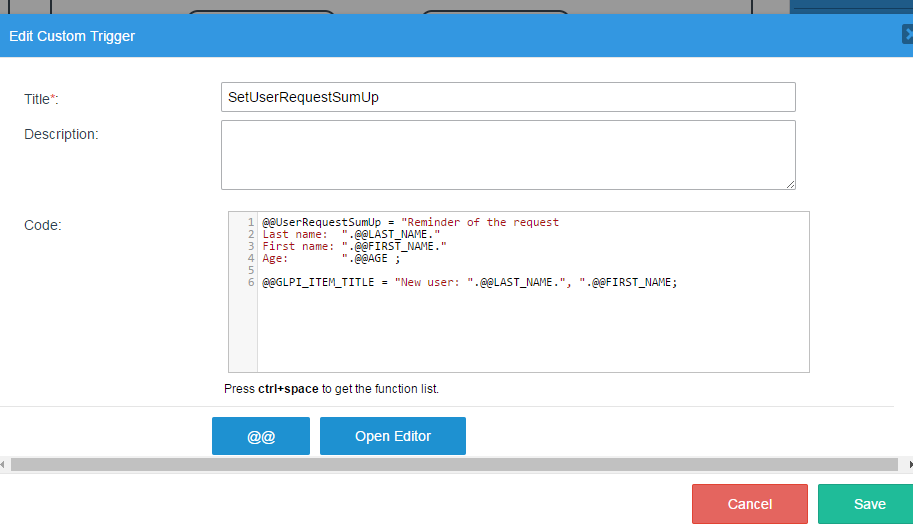
Trigger code is:@@UserRequestSumUp = "Reminder of the request
Last name: ".@@LAST_NAME."
First name: ".@@FIRST_NAME."
Age: ".@@AGE ;@@GLPI_ITEM_TITLE = "New user: ".@@LAST_NAME.", ".@@FIRST_NAME;
-
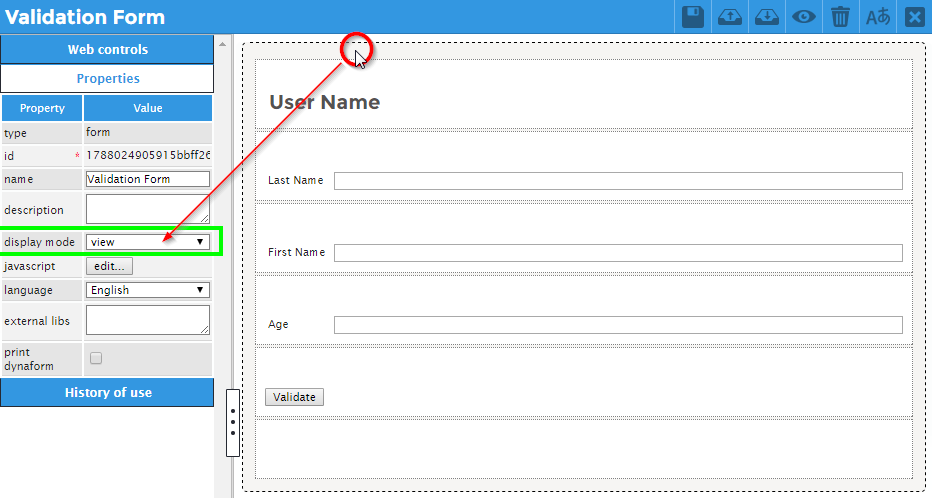
Create a new dynaform, name it 'Validation form', import previously exported 'Task 1 form' form definition
-
Select properties of the form itself, and set disply mode to view
-
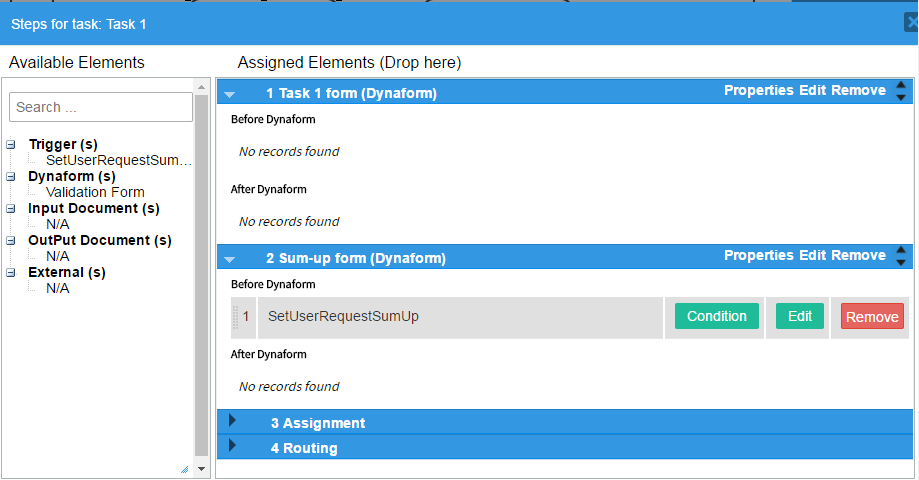
Open 'Task 1' task steps definition, drag drop from left side to right the 'Sum-up form' dynaform and order it like on the screencopy. Also drag drop the trigger on the 'Before Dynaform' event of the 'Sum-up form' dynaform.
-
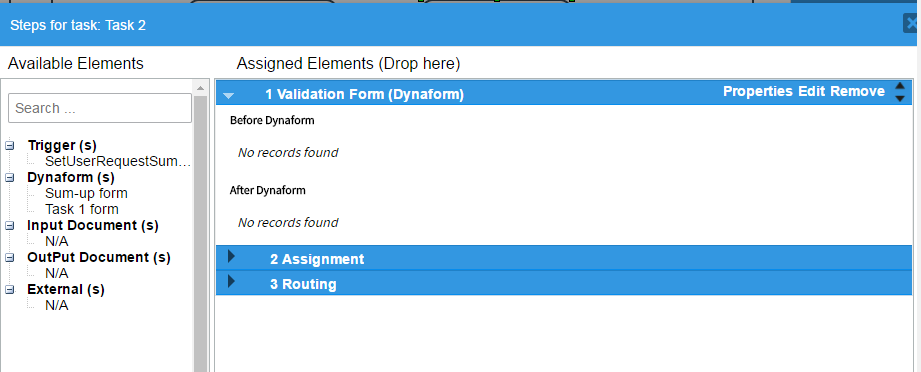
Open 'Task 2' task steps definition, and drag drop 'Validation form' dynaform from left to right.
-
Edit 'Assignment Rules' for 'Task 2', and add in 'Assigned users list' group 'Tutorial Group 1'
-
Save process
- Go to 'Setup > Dropdowns' menu and click on 'Ticket categories'
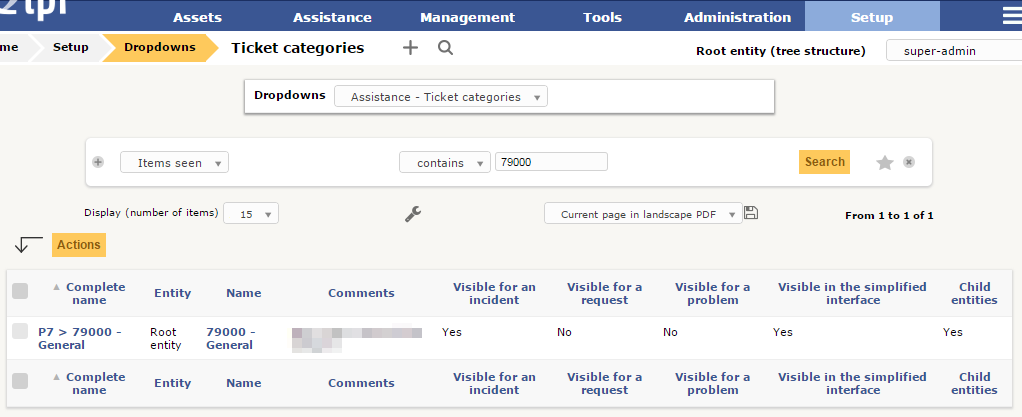
- Edit the category you would like to use for the Tutorial 1 process
Set 'Visible in the simplified interface' to 'Yes', and 'Visible for request' to 'Yes', and save
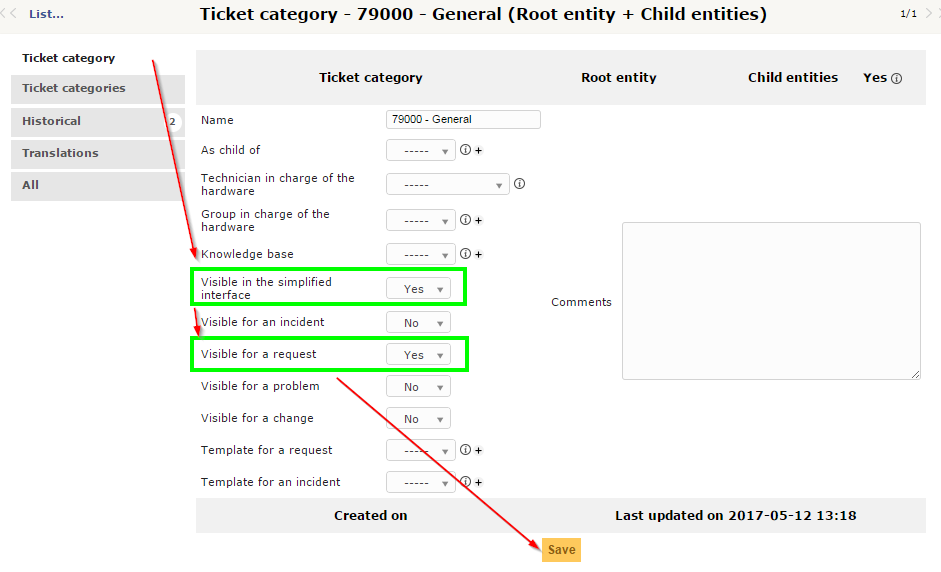
- Edit the process in GLPI
Set 'Ticket type' to 'Request', and 'ITIL Category' to '79000 - General'
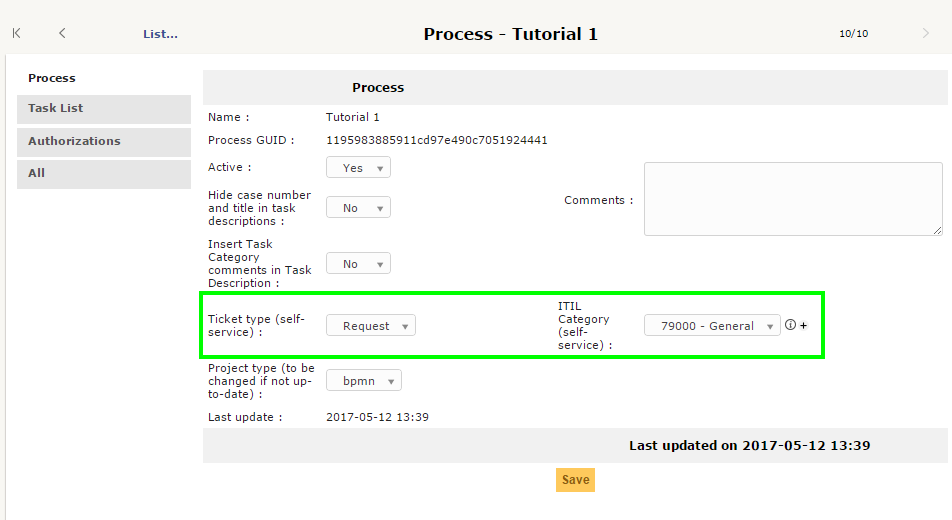
- Edit 'Authorizations' so that users with a profile authorized on simplified interface will be able to start a case
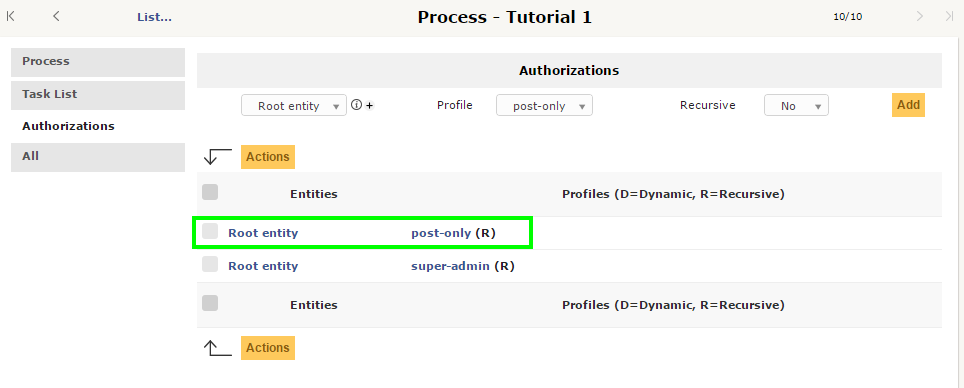
- Start a GPI session using this post-only (or self-service) profile
- Create a ticket
- Select ticket type 'Request'
- Select ticket category '79000 - General'
